Pages

April 14, 2014

Tweaking Internet Explorer 9

Reposted this today for use with IE11, From the Howtogeek.com

The Best Tips and Tweaks for Getting the Most Out of Internet Explorer 9


If you use Internet Explorer 9, we have many tips and tricks for you to improve your web surfing experience, from customizing the interface to using the many features, and to make your time online more secure with IE9’s many security and privacy enhancements.


Surf or Search Using the One Box (Address Bar)

In IE versions prior to 9, the address bar and search bar were separate. They are now combined into the One Box in IE9, allowing you to navigate to websites or start a search from a single place. According to Microsoft, if you enter a single word that represents a valid URL, such as “microsoft” or “howtogeek,” the word will be evaluated as a URL and you can click on the URL or press Shift + Enter to load that site.


The One Box also provides inline autocomplete functionality, so you only have to type a few letters to quickly get to your favorite sites. IE9 autocompletes what you are typing with popular websites, as well as with items from your Favorites and History lists.
You can also use the One Box as a search box, entering a search term, such as “Sacramento weather,” and press Enter, rather than specifically navigating to a weather site. When using the One Box as a search box, you can also switch search providers on the fly. Additional search providers are available on the drop-down list that displays as you search. Click Add to access the IE add-ons site from which you can add additional search providers, such as Google. See our article about adding Google as a search provider to IE9 for more information. The add-ons site looks different now, but the procedure is pretty much the same to add Google as a search provide in IE9.


To change your default search provider, remove a search provider, switch the order of the buttons in the search box, or manage other add-ons, show the menu bar using the Alt key (if it’s not already visible) and select Manage Add-ons from the Tools menu. On the Manage Add-ons dialog box, under Add-on Types, select Search Providers. To add more search providers from the Add-ons site, click the Find more search providers link at the bottom of the dialog box.


You can also use the One Box to easily access your web history by clicking the down arrow.


Manage Add-ons

You can also use the Manage Add-ons dialog box mentioned earlier to manage other add-ons besides search providers, such as toolbars and extensions. IE9 may display notifications about different add-ons you’ve installed. In some cases, add-ons can adversely affect the performance of IE, and these notifications may help you decide what to do about certain add-ons.
However, you don’t need to wait for notifications about your add-ons. You can manage your add-ons using the Manage Add-ons dialog box accessed using the Tools menu.
Under Add-on Types on the Manage Add-ons dialog box, there are different add-on categories. Select an add-on to see information such as its name, publisher, version, and type in the details section of the window. Depending on the type of add-on it is, you can disable or enable it (displayed in the Status column), or remove it entirely. Before you disable or remove an add-on, remember that some webpages, or even Internet Explorer itself, might not display correctly if certain add-ons are disabled.
To see the choices you have for managing a specific add-on, such as enabling or disabling it, right-click on the add-on. You can also find more add-ons of the selected type or learn more about each type of add-on using the links in the lower, left corner of the window.
NOTE: We’ve previously written about a useful add-on that adds spell-checking to IE, which is available on the IE Gallery site and also on its own site. Also see our articles about enhancing IE9 with add-ons and disabling add-ons to speed up browsing in IE9.


Pin the Favorites Center to the Left Side of the IE Window

Your Favorites can be accessed from the Favorites bar at the top of the IE window. If you don’t see this bar, you can display it by pressing Alt to access the menu bar and then selecting Toolbars | Favorites bar from the View menu.


There is also a “Favorites Center” that provides quick access to your Favorites, Feeds and History. You can access this center by clicking the star icon in the upper, right corner of the IE window. This temporarily displays the Favorites Center on the right side of the window. As soon as you select a Favorite, the Favorites Center is hidden again. If you want the Favorites Center to be accessible all the time, you can pin it to the left side of the window. To do this, click the green arrow pointing left.


The IE window is now divided into two panes, with the Favorites Center pane on the left. You can access any of your Favorites, Feeds, or History, and add sites to your Favorites list and the pane will stay available. To close the Favorites Center, click the X in the upper, right corner of the pane. The next time you open the Favorites Center it will temporarily display on the right again. You must click the green left arrow again to pin it on the left.
NOTE: You can adjust the width of the pinned Favorites Center by moving your mouse pointer over the right border until it turns into a double arrow pointer. Then click and hold on the right border, and drag the border to the left or right to adjust it’s width. Release the mouse button when you’ve reached the desired width.


Pin Websites to the Taskbar, Desktop, and Start Menu

Besides pinning the Favorites Center, you can also pin websites to the Taskbar, Desktop, and Start menu so you can quickly access your favorites sites without opening IE first.
To pin a website to the Taskbar, simply visit the website you want to pin to the Taskbar and drag the favicon from the One Box to the Taskbar.


You’ll see a transparent box containing the favicon display and a message saying Pin to Taskbar. Release your mouse button, and the site will now be available on your Taskbar.


You can pin any website to the Start menu as well by dragging the site’s favicon to the Start orb. The website is added to the top of the Start menu just like pinned applications. To create a shortcut on the Desktop, drag the favicon to the desktop.
When you open a website from a shortcut pinned to the Taskbar, Start menu, or Desktop, a special IE window opens. The normal Home button is replaced with a special home button that takes you to the website you pinned. Once you close this special window, and open an IE window using a normal IE shortcut, the normal Home button is available again.


Search Your Favorites

If you have a lot of Favorites in IE, there are a couple of ways you can easily search through your Favorites to find specific sites. You can search through your Favorites from within IE using an add-on or you can create a shortcut to quickly search your IE Favorites folder in Windows Explorer.
NOTE: The article about searching through your IE Favorites within IE using an add-on was written a while ago, but the add-on still exists and works in IE9. We tested it and it’s displayed in use in the image below.


Change the Default Location for Saving IE Favorites

By default, in Windows 7, Favorites for Internet Explorer are saved in the C:\Users\[username]\Favorites folder. However, you may want to save them to a different location so they are easier to backup or even on a drive where Windows is not installed.


Tear-off tabs

If you have two web pages on two different tabs in the same IE window in Windows 7 and you need to view them side-by-side, you can easily do this by “tearing off” the tabs to new IE windows and using the Aero Snap feature. To do this, see our article about using Aero Snap with IE9 in Windows 7. You should have two separate IE windows next to each other, similar to the image below.


Display Tabs in IE on a Separate Row from the One Box

By default, IE puts the tab bar on the same row as the One Box. This may save you some screen real estate for your web pages, but if you open a lot of tabs, it doesn’t leave room for them. It also limits the size of the One Box. However, you can choose to display your tabs on a separate row by right-clicking on the tab bar and selecting Show tabs on a separate row from the popup menu.


Quickly open a New Tab

Normally, to open a new tab, you must click in the small empty tab at the end of the tab bar. However, if you have space to the right of your open tabs, you can double-click that space to open a new tab.


Quickly Access Your Favorite Sites Using the New Tab Page

In addition to the Favorites bar, the Favorites Center, and pinning your favorite sites to the Taskbar, Start menu, or Desktop, you can also access your Favorites on the New Tab page. The sites you visit are tracked by the New Tab page (unless you are in an InPrivate browsing session), allowing it to suggest other sites you might like.
The New Tab page also allows you to reopen the last 10 closed tabs, reopen your last set of open tab if IE crashed, and start an InPrivate browsing session. You can also hide or show the sites on the New Tab page. Just like you can pin sites from the One Box to the Taskbar, Start menu, or Desktop, you can also pin sites from the New Tab page.


Show More Sites on the New Tab Page

By default, there are two rows of sites on the New Tab page. However, you can display up to five rows. To display more rows, open the Registry Editor by entering “regedit” (without the quotes) in the Search box on the Start menu. Navigate to the following key:
HKEY_CURRENT_USER\Software\Microsoft\Internet Explorer\TabbedBrowsing\NewTabPage
Right-click on the NewTabPage key and select New | DWORD (32-bit) Value from the popup menu to create a new value in the right pane. Name that new value NumRows and set the value to a number from 2 to 5.
NOTE: This can also be done easily using a free tool called IE9 Tweaker Plus, which we discuss later in this article.


Download Files in IE9 to Custom Locations

By default, the files you download using IE9 get saved in your Downloads directory, which is typically found at C:\Users\<username>\Downloads in Windows 7 and Vista. However, if you download a lot of files, you might want to put them in custom locations by clicking the arrow to the right of Save on the popup dialog box, then choosing Save As in the drop-down list that displays.


Display the Hidden Menu Bar Temporarily or Permanently

The menu bar in IE9 is now hidden by default, but it’s still there. You can quickly access the menu bar by pressing the Alt key. However, once you select an item from a menu, the menu bar becomes hidden again. There is a way to always show the menu bar and other toolbars by changing the registry.


Quickly Jump Back to Previous Pages

If you’ve experienced trying to go back from a website that doesn’t let you page back, then this tip will be useful. You can jump back to a specific page by clicking and holding the back arrow or right-clicking the back arrow, and then selecting a page from the drop-down list.


Set a Custom Homepage URL in IE9

Here’s a simple, but useful, tip. To set a custom URL as your homepage in IE9, open Internet Explorer and navigate to the desired web page. Click the Tools button in the upper, right corner of the IE window and select Internet Options.
To use the current web page as your homepage, click Use current. To use a blank page, click Use blank. If you want to return to the default homepage, which is the MSN site, click Use default. Click OK to accept your change.


Disable IE9 Thumbnail Previews on the Taskbar in Windows 7

When you have multiple tabs open in IE9, they display as multiple thumbnails on the Taskbar, if you have the Aero thumbnail feature enabled. This can take up a lot of room on your desktop. However, you can turn these off with a simple tweak to a setting in IE.
NOTE: The article refers to IE8, but the setting is still available in IE9.


Change Your Browser’s User Agent

Websites identify browsers by their user agents. You can make your browser appear as a different browser or as a browser running on a different type of device, such as a smartphone or tablet by modifying your browser’s user agent.


Fix IE Using a Free Utility

If you are experiencing problems with IE, there’s a free utility that re-registers around 89 .dll and .ocx files that are required for IE to run smoothly.
The utility does not need to be installed. Simply download and extract the .zip file and run the .exe file. The utility has been tested on IE9 (as well as IE7 and IE8) in Windows 7 and Vista.
NOTE: Before running the utility, be sure all your IE windows are closed.


Clear your Browsing History in IE9

If you share a computer and you’ve done some browsing in IE without going into “InPrivate” mode, you can easily clear your web history. You can also use the same dialog box to delete other items such as temporary internet files, cookies (discussed below), and download history.
NOTE: The article also mentions how to delete your web history in Firefox and Chrome.


Clear All Cookies or Only Cookies for a Specific Site in Internet Explorer 9

In addition to clearing all cookies using the dialog box pictured above, you can also choose to clear cookies for a specific website and keep your other cookies. You may want to do this if you want to preserve log in information for other sites, but you visited a site that you don’t want tracking you.
To delete cookies for a specific site, visit that website in IE and press F12 to open the developer console at the bottom of the window. Select Clear cookies for domain from the Cache menu.


How to Remove IE9’s Expired Cookies From Windows 7 and Vista

As you browse the web, more and more cookies are stored on your PC. Each cookie has a lifetime of its own that can range from several seconds to several years. However, Internet Explorer does not delete expired cookies from your PC.
This can cause hundreds or even thousands of unused, useless files to collect on your PC over time. As we discussed earlier, you can manually delete cookies from your hard drive. However, if you want to keep useful cookies around so you can automatically log into websites you use often or preserve your personalized settings, you can choose to automatically delete expired cookies or optimize them.
What does it mean to optimize cookies? One cookie file may contain more than one cookie, each of which may expire at a different time. If only some cookies in one cookie file are expired, then these cookies are deleted and the ones that are not expired remain. The cookie file is then considered optimized.
There is a free tool, called Expired Cookies Cleaner, helps you clean out expired cookies from your cookie files, speed up your PC, and even free some hard disk space (especially on FAT and FAT32 file systems).


Report Malicious Websites in IE9

If you come across what seems like a malicious website that may be a phishing website or may contain links to malicious software, you can report the website to Microsoft using the SmartScreen Filter in IE9. See our article about how to report a malicious website using the SmartScreen Filter for more information.


Avoid Being Tracked on the Internet

When visiting websites, you share information with them. However, you may not realize it, but you are sharing information with more websites than just the one you see in the address bar. There may be advertisements on someone’s sites that track your online activities using third-party cookies. You can avoid being tracked by these websites using the Tracking Protection List in IE9.
NOTE: IE monitors your browsing behavior and populates Your Personalized List with common scripts. However, you have to visit the website before its content provider can be “blacklisted.” Microsoft also provides a way for third parties to create predefined lists that you can download. Some of these lists are available on the IE9 Test Drive website.


Help Prevent Drive-By Viruses in IE9

ActiveX control are notorious for having security problems. However, in IE9, you can use ActiveX filtering to prevent being hijacked by a virus while you’re browsing.


Easily Open IE9’s InPrivate Browsing Mode

IE9’s InPrivate browsing mode allows you to surf the web without leaving traces behind. When you open an InPrivate Browsing window, IE stores some information, such as cookies and temporary internet files, so the web pages you view will work correctly. However, when you close the window to end your InPrivate browsing session, these files are deleted.
Normally, to open an InPrivate browsing window, you must open IE and select Safety | InPrivate Browsing from the gear menu. However, there are a couple of simpler ways to open an InPrivate browsing window. You can use the jump list on the IE icon on the Taskbar, or create a shortcut for the desktop to directly open an InPrivate browsing window.


Disable Geo-location in IE9

IE9 contains a geolocation feature that uses your IP address to determine your location. This allows websites to provide content that is tailored to your geographic location. If you don’t want websites to know your location while you’re surfing, you can disable this feature. To do so, open IE9 and click the gear icon in the upper, right corner of the browser window. Select Internet Options from the drop-down menu and click the Privacy tab on the dialog box. In the Location section, select the Never allow websites to request your physical location check box so there is a check mark in the box. Also, click Clear Sites to clear preferences you’ve already set, such as always allowing or always denying location information for certain sites.


Optimize IE9 for Maximum Privacy

In this article, we’ve discussed privacy features of IE9 that help protect you while surfing the internet, such as tracking protection lists, the SmartScreen filter, and cookies. For more information about these features and for information about search suggestions, see our article about optimizing IE9 for maximum privacy.


Customize the Command Bar in IE9

The toolbars in IE9 are not as customizable as in other browsers like Firefox. However, you can select which buttons you want to add and in what order they’re displayed on the Command bar. To show the Command bar, right-click on an empty space on the toolbar or on the tab bar and select Command bar from the popup menu. You can also activate the menu bar (press the Alt key) and select Toolbars | Command bar from the View menu.
Click the Tools button on the Command bar and select Toolbars | Customize from the drop-down menu.
NOTE: The Customize option is only available on the Toolbars submenu when selected from the Tools button on the Command bar. The Toolbars submenu on the View menu on the menu bar does not have this option.


On the Customize Toolbar dialog box, you can select items in the Available toolbar buttons list on the left and click Add to add them to the Command bar and select items in the Current toolbar buttons on the right and click Remove to remove them from the Command bar. Use the Move Up and Move Down buttons on the items in the Current toolbar buttons list to rearrange the buttons on the Command bar.
NOTE: To go back to the default Command bar, click Reset.
Click Close when you are finished making your changes.


Move the Stop and Refresh Buttons in the Address Bar

By default, the Stop and Refresh buttons are on the right side of the Address bar (One Box) in IE9.


However, if you’re more comfortable with them on the left, you can easily move them. To do so, right-click on the buttons on the right side of the Address bar and select Show Stop and Refresh before Address bar.


The Stop and Refresh buttons are now located to the left of the Address bar, or One Box.


Easily Customize Internet Explorer 9 Using IE9 Tweaker Plus

So far, we’ve shown you different ways of manually tweaking and customizing IE9. There is also a free tool, called IE Tweaker Plus, that allows you to easily tweak many settings in IE, setup shortcuts to easily open an InPrivate browsing session in IE9, and even allows you to create a custom homepage you can use in other browsers, as well.


Useful Keyboard Shortcuts for IE9

In addition to the Alt key for accessing the menu bar, IE9 has several other keyboard shortcuts to make working with IE quicker and more efficient. Here is a list of some of the more useful shortcuts:
  • Alt + Home – Go to your homepage
  • Ctrl + L – Highlight the One Box (or Address Bar)
  • Ctrl + D – Add the current web page to your Favorites
  • Ctrl + B – Display a dialog box for organizing your Favorites
  • Alt + C – Display the Favorites Center on the right with your Favorites, Feeds, and History. You can also use Ctrl + I (letter ‘I’)
  • Ctrl + J – Open the Download Manager
  • F11 – Toggle between Full Screen Mode and regular viewing mode
  • Alt + Right Arrow – Go to the next page on the same tab
  • Alt + Left Arrow (or Backspace) – Go to the previous page on the same tab
  • Ctrl + K – Duplicate the current tab
  • Ctrl + O (letter ‘O’) – Open a new website or page
  • Ctrl + N – Open a new window
  • Ctrl + Shift + Delete – Delete browsing history
  • Ctrl + H – Open the History tab on the Favorites Center
  • Ctrl + Shift + T – Reopen the last tab you closed
  • Ctrl + W – Close the current window (if you only have one tab open)
There are many more keyboard shortcuts for IE9 listed on Microsoft’s site.
We hope all these tips and tricks make surfing with IE9 a more enjoyable and productive experience.

Source: http://www.howtogeek.com/116553/the-best-tips-and-tweaks-for-getting-the-most-out-of-internet-explorer-9/

April 9, 2014

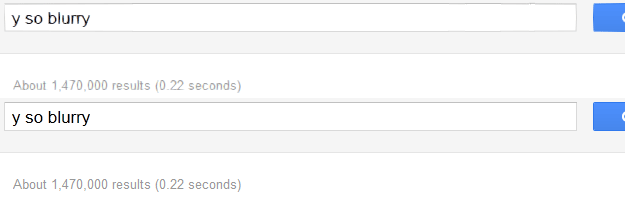
Blurry Text In Firefox or Internet Explorer?

By | November 3, 2011 | 6 Comments

Blurry Text In Firefox or Internet Explorer?
Due to a Hardware Acceleration related issue, some users might see blurred text in Firefox or IE web browsers. Turns out, there are a few ways to fix that.
1. Download Windows Updates (KB2545698) for Windows 7, Vista or Server 2008
- Follow the setup instructions

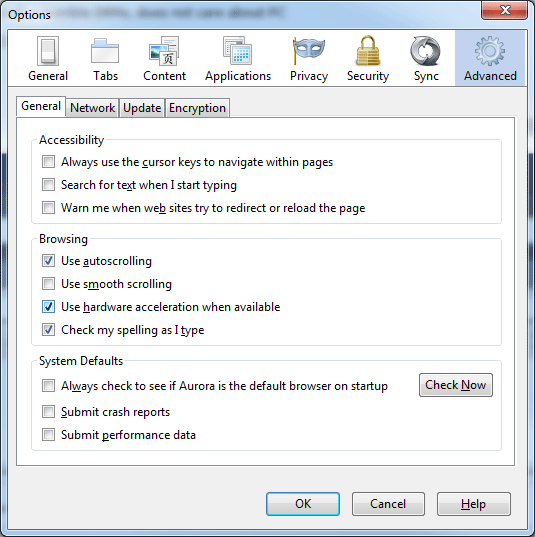
2. Disable Hardware Acceleration in Firefox


Blurry Text In Firefox or Internet Explorer?


- Firefox Menu > Options > Advanced
- Uncheck the “Use hardware acceleration when available” box
- Done
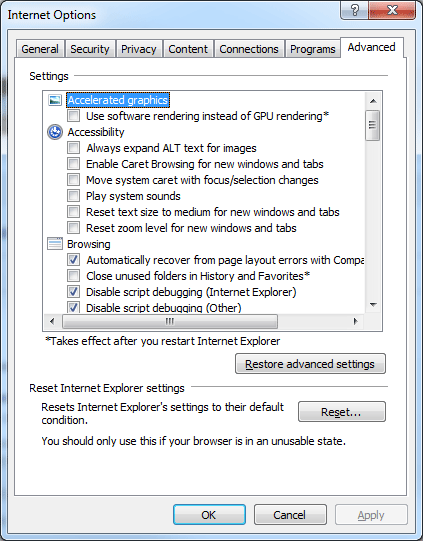
3. Disable Hardware Acceleration in Internet Explorer


Blurry Text In Firefox or Internet Explorer?


- Click on the gear icon > Internet Options > Advanced
- Check the “Use software rendering instead of GPU rendering” box
- Done
Enjoy the crystal clear web.

PDF Search Engine

Pdf Search Engine

a search engine for printed materials


Find books and all sorts of files with the Pdf Search Engine, an easy way to look for printed materials distributed on the Web.

PDF Search : http://pdf01.com/ 


Free PDF Books: http://pdfsb.net/


===============================================================
If you are trying to find PDF (Adobe Acrobat) files on the Web, there's a number of ways that you can accomplish this.
In addition to the above, there's a lot of fun stuff that you can actually DO with .pdf files, here's a few good sites that will show you what I mean:
Source: http://websearch.about.com/od/dailywebsearchtips/qt/dnt0413.htm

April 7, 2014

How To Make Skype Calls Via Your Browser


Learn how to make a Skype call from Outlook.com in just a few simple steps. Because some moments are just right for Skype. Set up a couple of simple things and you could soon be bringing all your friends into Outlook with one click.
If you are always in your browser, and hate opening up apps you’ve probably realised that Skype is one of those things you generally forget to open. Well, that just changed. You can get Skype in your browser. Here’s how.

Install The New Skype Plugin

Microsoft recently released the Skype Web Plugin for browsers, meaning that it will let you trigger Skype calls from within your browser (Chrome, Firefox, IE, or Safari on Windows or Mac), ready for easy video conference calls. Install this, and you’re halfway there. If you don’t install this, or you later look at Outlook.com on a new computer, it will prompt you to install the plugin.


Skype Plugin   How To Make Skype Calls Via Your Browser


The Skype Web Plugin is a much lighter version of Skype, meaning that it is less resource-hungry when in use. Also, by enabling this plugin you will naturally see when your friends are online without having to have a program running in the background. You can instantly connect to them from your inbox itself. This is a big plus!


Skype Connecting   How To Make Skype Calls Via Your Browser


By the way, if you’re a Chromebook user getting excited about this method, I can say for a fact it doesn’t work and may not ever, as the plugin needs to be installed on your computer somehow. If Microsoft were to release a regular extension for Chrome, it would work. But I’m sure they have their reasons for avoiding doing this.


Skype Plugin Activated   How To Make Skype Calls Via Your Browser

Outlook.com

Next, you need to log in to Outlook.com using your Microsoft account, or by creating a new account. You click on the messaging icon (the face) in the top-right corner and choose which services you want to use for messaging. If you have not already linked your Skype and MSN messenger accounts, it will ask you to do so, and all you need to do is supply your Skype log-in credentials and follow the prompts.


Outlook.com    How To Make Skype Calls Via Your Browser


Once you have linked your Skype and Microsoft accounts (using any device), you should have access to Skype via Outlook.com and from within your OneDrive (formerly known as SkyDrive). You’ll see the Skype icon in the bottom-right corner of the browser within the messaging pane. If you are not in a supported country, the Skype logo won’t show up here. However, the rollout is ongoing and should reach you soon.


Add messaging service   How To Make Skype Calls Via Your Browser


You can browse your online friends by clicking in the “Start a Conversation” box, narrowing down your search by typing a few letters in if need be. When a Skype user is online, you will see the call icon and can start a call. If you use Outlook.com for your email, a quick click on a contact’s name will let you know if you can chat to them via Skype or another IM service like Facebook immediately. If you have a webcam and microphone, you can make Skype HD video calls to your friends on Skype. If you just have a microphone and speakers, you can make VOIP calls via Skype.


Start Conversation   How To Make Skype Calls Via Your Browser
Skype Contact   How To Make Skype Calls Via Your Browser


Here’s some extra information to learn more about Outlook contacts and messaging, and how to connect Skype to Outlook.com. It also seems that you can’t yet add new Skype contacts via the Outlook.com site, so you would have to open the full Skype program on one of your devices to add new friends.
Messaging Apps   How To Make Skype Calls Via Your Browser


Recording Calls In Browser

Using the Skype app in the browser makes it more difficult to record Skype calls, unlike the simple methods available for the Skype for desktop clients and many alternatives to Skype which are easy to record. Is recording your calls that important to you though? If so, check out Apowersoft for browser recording and some other recording alternatives.

How About Hangouts?

Doubtless, Microsoft came up with this solution as a competitor to Gmail’s Hangouts from within Gmail. From a regular user’s perspective, the two are indeed much the same. While you’re busy checking your email it’s quite easy to see if a contact is online and start a call or video chat in seconds. However Hangouts do allow you to add more people to your video calls for free (a limit of ten), which Skype doesn’t allow without a premium fee. It also may not work within the limited plugin. I can’t check this as I’m not a premium Skype subscriber, but I wouldn’t expect this plugin to do more than the basics in this regard — there is certainly no obvious button to add new people to the call.
The main difference for the most part is that the Outlook/Skype tool is only available to those who are willing and able to install the plugin. For Gmail users, Hangouts just works no matter what. Until Outlook and Skype can do that, Gmail and Hangouts have the upper hand.
What do you think of this method of using Skype? Will it get you to start using Outlook.com? Or are you, like me, merely disappointed that it won’t work on a Chromebook?


Source: http://www.makeuseof.com/tag/make-skype-calls-via-browser/

April 2, 2014

IE easily beats Chrome, Firefox, Safari in malware detection

Microsoft's combination of application reputation technology and URL filtering gave Internet Explorer a malware block rate that blew pass Google Chrome, Mozilla Firefox and Apple Safari.

The latest tests from NSS Labs showed IE with a 99.9 percent block rate for what the security tester calls socially engineered malware (SEM). Chrome had a rate of 70.7 percent while Firefox and Safari hovered around 4 percent.


In general, SEM includes all malware that a computer user is tricked into downloading on the Web through a malicious link in an email, instant message or other vehicle. Malware delivered as an email attachment is excluded.

Microsoft and Google use a combination of application reputation technology and URL filtering in detecting malware. The difference is Microsoft relies more on URL filtering, while Google does the opposite.

"They both use the same approaches, but the recipes are different," Randy Abrams, research director at NSS Labs, said.

The low rates of Firefox and Safari are due to the browsers only using Google's URL filtering through its Safe Browsing service available to application developers, Abrams said. Neither browser uses an application reputation system, which scans all downloads for attributes that indicate malware.

Chrome's latest block rate was substantially lower than the previous NSS Labs test, when the browser's score was 83.17 percent. Abrams did not know the reason for the significant drop, but suggested two possibilities.

Google might have lowered the aggressiveness of its application reputation system, if it was preventing too many legitimate applications from being downloaded. Another possibility is hackers have profiled how the system works and have figured out a way to game the system.

Google did not respond to a request for comment.

NSS Labs also tested three leading browsers from China. The Liebao Browser, developed by anti-virus vendor Kingsoft, came in second behind IE with a block rate of 85.1 percent.

Liebao does not use application reputation technology. Instead, Kingsoft depends on its cloud-based malware detection system to scan all downloads.

Liebao surpassing Chrome is unexpected because most browser makers have turned toward application reputation, also called content-agnostic malware protection (CAMP), because it is believed to be the most effective.

Kingsoft's approach uses URL filtering with cloud-based file scanning, which Abrams found "very interesting."

"I thought application reputation was going to be the predominant technology for protection, and it really is a surprise to see this cloud-based file scanning perform so well," he said.

As of last month, IE held nearly 58 percent of the browser market, with Firefox and Chrome each with slightly more than 17 percent, according to Net Applications.

Source:

March 29, 2014

3 Steps You Can Take To Reduce The Firefox 4 Memory Leak


I have found Google Chrome to be a memory hog on a variety of computers using Windows and Linux. So am back to Firefox for now. Firefox uses less CPU and memory than all the current browsers. Below is an article to make Firefox even faster by using even less memory. Enjoy.

Since the introduction of Chrome and the advancement of Internet Explorer to version 9, Firefox has been losing ground rapidly. Innovation is lacking and problems are amassing. One major issue is that Firefox 4 swallows up more RAM than any other version before it. Its memory usage has become almost abusive and working with a browser that turns your computer into a snail is no fun.
If you are looking for ways to tame the beast, I may have some clues! In this article I will show you 3 steps to reduce and limit the chunk Firefox bites off your RAM. I will start with the obvious, but in the last step, we will dive deep into the heart of your browser.

Prologue

I have been using Firefox for many years and have carried over my profile from each version and computer to the next. Over the years, I have accumulated hundreds of bookmarks, dozens of extensions (most disabled), and several plugins. So by version 4, Firefox has grown to a respectable size. You could call it a monster.
To show you that the tips I’m sharing do have an effect, I have documented how memory usage improved on my machine as I went from one step to the next. Unfortunately, I found that Firefox leaks memory, thus I recorded the value after a few minutes, even though in all cases it continued to increase. This is not 100% exact, but it still gives you a good idea of how well each step works.


Counting: 29 open tabs, 31 extensions
State of affairs: 700,740K


FirefoxMemoryUsage01   3 Steps You Can Take To Reduce The Firefox 4 Memory Leak

1. Close Or Hibernate Tabs

In case you didn’t know this already, the outrageous amount of memory Firefox uses, correlates with the even more outrageous amount of open tabs you cannot get yourself to close. Unfortunately, the easiest way to save a lot of RAM, is to close a lot of tabs.
If you cannot close all of them for the love of it, how about managing your tabs with the help of one of the following extensions:
  • BarTab
    Loads a tab only when it is visited and lets you unload tabs from memory either manually or automatically.
  • Memory Fox
    Fixes Firefox memory leaks and releases RAM.
  • Load Tabs Progressively
    Limits the number of concurrent loading tabs. Similar to BarTab.
  • TabGroups Manager
    Allows you to organize tabs in groups and hibernate groups, removing them from memory.
Personally, I work with TabGroups Manager. The extension helps me to keep the amount of open tabs at bay, and this is how I could remove 13 tabs from memory all at once.
For more about tabs, see this article: The 5 Best Firefox 4 Addons For Tabbed Browsing.


FirefoxMemoryUsage03   3 Steps You Can Take To Reduce The Firefox 4 Memory Leak


Counting: 16 open tabs, 31 extensions
Memory usage: 496,860K

2. Remove Add-Ons

Running add-ons, i.e. extensions, themes, or plugins, eat up quite a bit of RAM. So go through your collection and remove those that you never use. Before entirely removing them, you can disable them and see whether that significantly improves the memory leak. Go to > Firefox > Add-ons and switch between > Extensions > Appearance and > Plugins. Be sure to update them via the > Tools for all add-ons button.

FirefoxMemoryUsage02   3 Steps You Can Take To Reduce The Firefox 4 Memory Leak

Counting: 16 open tabs, 21 extensions
Memory usage: 443,916K

3. About:Config Hacks

There are several very potent hacks that control how much memory Firefox can or will use. None of them had a huge effect in my demonstration, but your results may vary.

Limit Firefox’ RAM usage

Type > about:config into the URL bar, promise to be careful, and scroll to > browser.cache.disk.capacity. The default value depends on how much RAM you have installed. Double-click it to change the value. Do not limit the RAM usage too aggressively, especially not below the amount of RAM Firefox is using as you apply this hack, so be sure to check first! In my case around 400,000K was a realistic value.


FirefoxMemoryUsage04   3 Steps You Can Take To Reduce The Firefox 4 Memory Leak

Allow Windows to Claim Back RAM when Firefox is Minimized

With this hack enabled, Windows will be able to claim back RAM more aggressively. In > about:config right-click anywhere and select > New > Boolean and enter > config.trim_on_minimize as the preference name. Double-click the new entry to set its value to > true. Restart Firefox to enable the changes.

FirefoxMemoryUsage05   3 Steps You Can Take To Reduce The Firefox 4 Memory Leak

Limit Memory Storage for Open Tabs

The last about:config preference we are going to look at is > browser.sessionhistory.max_total_viewers. The default value is -1, which will automatically determine the maximum amount of pages stored in memory, based on the total amount of RAM. In other word, the bigger your RAM and the more tabs you have open, the bigger the chunk that Firefox will take. You can set this value to zero to not store any pages in memory or to 1 for 32MB, 2 for 64MB, 3 for 128MB etc.
More information about this preference can be found in the mozillaZine. I went with 3 for 128MB.
Status: No change in tabs or add-ons, all hacks applied.
Memory usage: ~400,000K (maximized) and ~350,000 (minimized)

Epilogue

All steps brought some improvement, but the end result was still not very satisfying. Besides, the real problem with Firefox 4 is the memory leak, which in my case was mainly caused by open tabs. Firefox’ memory usage would climb on and on with no way to stop it, other than to close all tabs. When I closed all tabs except for one, Firefox used about 230,000K. With a virgin profile, memory usage went down to around 48,000K; finally a realistic value, but sadly with almost every little bit of customization removed.
Status: virgin Firefox profile, 1 tab open
Memory usage: ~48,000K

The conclusion is that Firefox has a problem, but if you love your open tabs and add-ons, you will have to put up with it. If you prefer a lean and fast browser however, simply ditch everything, create a new profile, and be very restrictive with what you add.
Finally, you may also want to try the tips from this article: 5 Things To Do When Firefox Runs Slow But Other Browsers Run Fast.
So what are you going to do? Hold on to your stuff or browse lightly?

Source: http://www.makeuseof.com/tag/3-steps-reduce-firefox-4-memory-leak/

March 28, 2014

Firefox is still the least secure web browser, falls to four zero-day exploits at Pwn2Own

By on March 17, 2014 at 9:09 am
At Pwn2Own 2014, an annual computer hackfest in Vancouver, Mozilla’s Firefox has proven yet again that it’s the least secure major web browser. While all four major web browsers — Chrome, Internet Explorer, Firefox, and Safari — were successfully exploited, for a grand total of $850,000 in prize money awarded to successful security researchers, Firefox was by far the least secure browser, racking up no less than four zero-day vulnerabilities. These vulnerabilities, if they were in the wild, would allow a hacker to do just about anything with your computer if you visited a specially crafted website.


Firefox has never had a great record at Pwn2Own. While the format of the contest has generally changed every year since its inauguration in 2007 (different platforms, different rules, different attack vectors), Firefox has been involved in some way or another since 2009. While Chrome went unhacked in 2009, 2010, and 2011, the only year that Firefox wasn’t hacked was 2011. Since 2012, however, as security researchers have grown ever more wiley, every major browser has fallen to at least one zero-day vulnerability. That four separate vulnerabilities were found in Firefox at Pwn2Own 2014, however, is impressive. (Read: The death of Firefox.)


Firefox’s weaker security is generally attributed to its lack of a sandbox — a shell or firewall around a piece of software that keeps it segregated from the rest of the operating system. In theory, the sandbox should prevent the browser from running other programs, reading the contents of your RAM, or opening other files. Chrome, Safari, and Internet Explorer (newer versions) all have a sandbox, while Firefox does not. In short, if someone finds a big enough vulnerability in Firefox, there’s nothing preventing them from gaining complete access to your computer. It is slightly disconcerting that security researchers found four such vulnerabilities in just three days at Pwn2Own. (Read: How to surf safely: From LastPass to tin foil hats, and everything in between.)


Multiple Firefox processes


The key to improving Firefox security: Multiple processes
Somewhat fortunately for us, since Pwn2Own 2013, all of the vulnerabilities are reported to the web browser makers so that they can be fixed in a timely fashion. Still, it is a good reminder that Firefox might not be the best choice of browser if security is one of your primary concerns when surfing the web. As for why Firefox doesn’t have a sandbox, it’s most likely because it was conceived in an era when security on the web was still a nascent and naive topic. Chrome, which was developed a few years later, was intentionally designed from the outset to be very fast and secure. Likewise, Microsoft went through a complete overhaul between IE8 an IE9, adding a sandbox and other modern features so that it could actually stand next to its peers without being snickered at. Mozilla would like to add sandboxing to Firefox, it’s very hard to add sandboxing to a program that wasn’t originally designed for it. (For technical people: It’s closely linked to the Electrolysis project, which will eventually give Firefox per-tab processes.)


A grand total of $850,00 in prize money was given out to security researchers at Pwn2Own 2014. Much like 2012 and 2013, French security firm Vupen had a very strong showing, taking home $400,000 for a total of 11 zero-day vulnerabilities, covering Chrome, Firefox, IE, and Adobe Flash and Reader. George Hotz (yes, Geohot of PlayStation and iOS hacking fame) took home $50,000 for a Firefox exploit. The prize money is awarded by the Zero-Day Initiative (owned by TippingPoint, which was acquired by HP), which actually buys the vulnerabilities from the hackers, so that they can improve the security of TippingPoint/HP products.

Link: http://www.extremetech.com/computing/178587-firefox-is-still-the-least-secure-web-browser-falls-to-four-zero-day-exploits-at-pwn2own

March 27, 2014

Article: Here’s Why Firefox is Still Years Behind Google Chrome

Reposted...today
Firefox has a problem. It has fallen behind, with development stalled on the most crucial, most difficult problems. Many of the most significant improvements in Firefox over the past few years have simply been copying changes made in Chrome.
We wish Firefox was better, but the reality is that it’s still not as good as Chrome. With so many former Firefox developers now working on Chrome at Google, perhaps it makes sense that the innovation has been happening in Chrome, not Firefox.


No Multi-Process Architecture

CPUs are gaining more and more cores, becoming capable of doing more work in parallel. Single-core CPUs have become unheard of, and even the lowest-power computers have dual-core CPUs at the least. The future is an ever-increasing amount of CPU cores, and computer programs will have to become capable of doing more work in parallel to take advantage of all this processing power.
Chrome deals with this by having a multi-process architecture. Every website you have open runs in its own process. Background processes, like extensions and apps doing work in the background, run in their own process. Browser plug-ins also run in their own process. Crucially, Chrome’s user interface runs in its own process, as well.
if you have a modern multi-core CPU, Chrome will use it intelligently and perform well, dividing work up between CPUs. It can do many things at once and Chrome’s interface should never stutter and hiccup as pages load in the background.
Firefox is another matter. Firefox uses a single-process architecture, although plugins now run in a separate process. If you open five browser tabs, the main Firefox process has to load and render them as well as handle the Firefox user interface, so the browser will be nowhere near as responsive as Chrome. If one of the pages crashes, it will bring the whole browser down with it.
This is still extremely noticeable — on a powerful Intel Core i7 CPU, Chrome performs perfectly yet Firefox’s interface stutters and slows down as multiple pages load, at least in my experience. It just isn’t as smooth, and it’s because of Firefox’s dated architecture.


Mozilla was working on a solution for this. It was called Electrolysis, development began in 2009, and it was a project to make Firefox into a proper multi-process browser. Electrolysis was “put on hold for the foreseeable future” in 2011, with Mozilla stating that “Electrolysis is a huge undertaking” and that they would be pursuing “a number of smaller initiatives” to improve browser responsiveness in the short term.
Mozilla recently restarted the Electrolysis project in May 2013, so if we’re lucky we’ll see a multi-process Firefox at some point. Even Internet Explorer has multi-process features as of Internet Explorer 8, so Firefox is way behind — and just now starting the hard work of catching up after stopping the project in 2011.


Years Behind Chrome: 4.7 and counting


Firefox Doesn’t Use a Security Sandbox

Chrome and Internet Explorer use a modern Windows feature called “low integrity mode” or “protected mode” to run browser processes with as few user permissions as possible. If a browser vulnerability was discovered and exploited in Chrome or IE, the exploiter would also have to use some sort of additional vulnerability to escape the security sandbox and gain access to the rest of the system.
This feature has been around since Windows Vista, which was released over six years ago. However, Mozilla is still working on the “low rights Firefox” feature and there’s no time-frame for when sandboxing features will roll out to users.  Sandboxing isn’t a cure-all, but it’s an important security feature found in other modern browsers.
Comments on Firefox’s bug tracker indicate that developers will be looking at sandboxing the Windows 8 Modern Firefox app, Firefox OS, and experimental Servo browser on OS X. There’s no indication that anyone is working on sandboxing the Windows desktop version of Firefox at the moment. That’s clearly the most popular, most vulnerable version of Firefox that needs the most protecting.


Years Behind Chrome: 4.7 and counting


Firefox Wants a Desktop Web App Store

Mozilla is adamant that web apps and web technologies will replace the need for desktop software and native mobile apps, offering a cross-platform future where HTML5 apps run on every platform.
To this end, Mozilla wants to create its own web app store, known as the Firefox Marketplace. This feature is available in Firefox for Android and will be part of Firefox OS. Firefox OS is itself a mobile operating system that’s launching years after it should have — later than even Microsoft’s Windows Phone and BlackBerry’s BlackBerry 10, two mobile operating systems that have a long uphill fight ahead of them because they were launched so late.
However, you can only use the Firefox Marketplace on Firefox for Android at the moment. Mozilla has been talking about releasing a Firefox Marketplace for the desktop for years, but they’ve decided to focus only on mobile for now. The desktop Firefox Marketplace will be released in the future. In the meantime, Chrome has had the Chrome Web Store for years. New Chrome packaged apps will soon extend the functionality of Chrome web apps, making more of a splash.
Mozilla wants to be pushing web apps and open web technologies on the desktop, but they’re not doing it — Google is.

Years Behind Chrome: 2.5 and counting


Examples of Firefox Lagging Behind Chrome

Firefox has caught up in many ways over the years, but many of its changes have simply been copying the way Google Chrome works:
  • Multi-Window Private Browsing: Firefox recently gained the ability to open a private-browsing window alongside a normal browsing window, a much-wished-for feature that has been in Chrome since the beginning.
  • Frequent Updates: After Chrome launched, Firefox moved to a more frequent release schedule, like Chrome’s.
  • Extensions That Can Handle Browser Upgrades: Firefox then had to work on updating its extension API, allowing extensions to install without restarting and to function seamlessly without breaking after browser-version upgrades — just like how they worked on Chrome.
  • PDF Viewer: Firefox recently gained an integrated PDF viewer, long after such a feature launched in Chrome.
  • User Interface Design: All browsers have followed Chrome’s lead in switching to a more minimal browser interface, including Firefox. Recent UI mockups suggest even more Chrome-like interface may be in Firefox’s future.
  • Out-of-Process Plugins: While Firefox doesn’t have proper multi-process features like Chrome, it did add a feature that allows plug-ins like Flash to run in their own process so they don’t crash the rest of the browser.
  • JavaScript Performance: Like all other browsers, Firefox was pushed to dramatically improve its JavaScript performance after Chrome showed up with its huge lead in JavaScript performance over everyone.
Taken as a whole, it’s clear to see that Chrome has been leading the pack in browser innovation for years.


We Wish Firefox Was Better

We’re not just trying to attack Firefox here. It was once the best browser, and Mozilla deserves credit for eating into Internet Explorer 6′s market share, showing Microsoft that they could lose their place and forcing them to restart their halted Internet Explorer development. They also deserve credit for making the web more standardized, eliminating websites that say they’re “Designed for Internet Explorer.” This has allowed other browsers to step in — the most popular ones being Chrome and Safari. Firefox laid the groundwork, and Mozilla has been a tireless fighter for open standards.
It’s good for the web to have Mozilla as a browser vendor that isn’t tied to a single large corporation, as Microsoft, Google, and Apple own the other top browsers. The fact that we have an open-source browser created by a non-profit organization only looking to make the web a better is great for the web.
That’s why it’s a shame Mozilla has allowed Firefox to fall so far behind. Halting development on Electrolysis and still having not implemented sandboxing security features are signs that Mozilla hasn’t been prepared to knuckle-down and do the really hard low-level work to improve Firefox’s performance and security. Many of the other changes they’ve made have imitated changes made in Chrome much earlier.
Firefox is still the best browser in some ways. For example, if you need the most powerful browser extension framework, Firefox has it. But we wish Firefox was more competitive in other ways. In 2013, a browser should be a multi-process application with proper security sandboxing. But Firefox isn’t — in fact, it has fallen behind Internet Explorer when it comes to these two important features.

There was once a powerful browser known as the Mozilla suite. It was too big and bloated for its own good, so a group of developers decided to create a new, minimal browser from its core technologies. They called it Phoenix, and it evolved into the Firefox we know today. If Mozilla can’t turn Firefox into a modern browser because of all the legacy code getting in the way, perhaps we need a Phoenix 2.0.

Image Credit: Régis Leroy on Flickr

Source: http://www.howtogeek.com/165264/heres-why-firefox-is-still-years-behind-google-chrome/?utm_source=newsletter&utm_medium=email&utm_campaign=130613

Chrome 34, Firefox 29, Internet Explorer 11: Memory Use 2014


memory use


I bench marked the memory use of popular web browsers such as Google Chrome, Mozilla Firefox, Microsoft Internet Explorer and Opera back in 2012, and a lot happened since then.
Back then, the Opera browser came first followed by Mozilla Firefox, then Internet Explorer and finally Google Chrome.

All browsers made big progress since then. Firefox jumped by 13 versions, Chrome by 12, Internet Explorer by 2, and Opera switched to Chromium.
Back then, I only looked at the memory use when ten websites were loaded in each browser. This time, I will look at three different scenarios with 5, 15 and 40 open tabs in each browser respectively.
This should cover more real-world scenarios.
Benchmark parameters
  • Test system: Windows 8.1 Professional 64-bit, 8 Gigabytes of RAM.
  • Browsers: Mozilla Firefox 29 Nightly, Google Chrome Dev 34, Internet Explorer 11
  • All browsers without browser extensions, and plug-ins disabled.
  • The 5 websites: ghacks.net, google.com, bing.com, leo.org, lifehacker.com
  • The 15 websites: softpedia.com, microsoft.com, reddit.com, news.ycombinator.com, youtube.com, amazon.com, petmoz.com, donationcoder.com, wordpress.com, ebay.com, and the top 5 websites.
  • The top 40 websites: yandex.ru, paypal.com, apple.com, imdb.com, bbc.co.uk, stackoverflow.com, imgur.com, alibaba.com, netflix.com, cnn.com  godaddy.com, dailymotion.com, dailymail.co.uk, weather.com, wikipedia.com, deviantart.com, huffingtonpost.com, avg.com, mediafire.com, yelp.com, wikihow.com, foxnews.com, theguardian.com, forbes.com, sourceforge.com, plus the top 15 and top 5 websites.

Results

web browser memory use comparison
I made the decision to start with 5 pages, measure the memory use, open another 10, measure again, then the remaining 25 for the last measure.
After that, I decided to close the 25 pages to go down to 15 again, measure that, then close another 10 pages so that I would end up with the top 5, and measure again.
All measurements are taken from Chrome's about:memory page. Note that this, at least in theory, will make Chrome use extra memory as it needs to be displayed by the browser (about 24,000 k it seems)
Update: We have added Chrome 31 Stable and Firefox 26 Stable to the benchmark results:
Five open tabs
  • Google Chrome 34: 258,589 k
  • Firefox 26: 246,288 k
  • Firefox 29: 225,552 k
  • Google Chrome 31: 224,946k
  • Internet Explorer 11: 221989 k
Fifteen open tabs
  • Internet Explorer 11: 550869 k
  • Google Chrome 31: 485,282 k
  • Google Chrome 34: 448,015 k
  • Firefox 26: 332,212 k
  • Firefox 29: 327,060 k
Forty open tabs
  • Internet Explorer 11: 1547254 k
  • Google Chrome 31: 1,255,641 k
  • Google Chrome 34: 1,167,298 k
  • Firefox 29: 779,100 k
  • Firefox 26: 704,128 k
Down to 15 tabs
  • Internet Explorer 11: 595,373 k
  • Google Chrome 31: 526,544 k
  • Google Chrome 34: 514,872 k
  • Firefox 26: 510,116 k
  • Firefox 29: 442654 k
Down to 5 tabs
  • Internet Explorer 11: 377683 k
  • Firefox 26: 371,156 k
  • Firefox 29: 358404 k
  • Google Chrome 31: 263,991
  • Google Chrome 34: 275722 k

Key findings

Microsoft's Internet Explorer 11 performed worst in four of the five benchmarks. It performed best initially with only 5 tabs open in each browser, but landed last in all four consecutive benchmarks.

Google Chrome too made first place only once after nearly all tabs were closed again in all browsers. It seems to release memory faster or more efficiently than Internet Explorer or Firefox.

Firefox takes the crown as a heavy duty browser. It performed best with 15, 40 and down to 15 open tabs and never went above the 1 Gigabyte mark, while the two other browsers did.

In fact, Microsoft's Internet Explorer 11 used about twice as much memory as Firefox with 40 tabs open.


It is interesting to note that Microsoft's web browser recovered memory some time after it went down to only 5 open tabs. A few minutes later, its use dropped down to about 260,000 k of memory usage, while Firefox's usage dropped only by about 40,000 k to 318,816.

Closing Words

Depending on how you use your Internet browser, you may fare well in regards to memory use with each of them. If you have lots of tabs open at all times, then you will benefit from using Firefox the most, as the browser is the most memory efficient when it comes to opening a lot of tabs.

If you open and close tabs regularly, you may want to consider using Google Chrome or even Internet Explorer instead, as they appear to recover memory more quickly than Firefox.

Memory use should not play a big role if you are using a computer with plenty of RAM installed. If you have 4 or more Gigabytes of RAM, then it should not usually be a problem if the browser jumps to 1 or even 1.5 Gigabytes of RAM usage.
If you have less than that though, you may benefit from using a memory efficient browser such as Firefox, instead of Chrome or Internet Explorer.

Source: http://www.ghacks.net/2014/01/02/chrome-34-firefox-29-internet-explorer-11-memory-use-2014/

March 18, 2014

Firefox 28 released


Firefox 28: Find out what is new


The Firefox 28.0 update introduces several new technologies to the browser. Mozilla has added VP9 video decoding support, support for Opus in WebM, improved volume controls for HTML5 media, and its GamePad api to the browser.

Mozilla is about to release upgrades for all Firefox channels. The stable version of Firefox will be upgraded from Firefox 27.0.1 to Firefox 28 in the coming 24 hour period, while Beta, Aurora and Nightly releases will see a version bump as well to 29.0, 30.0 and 31.0 respectively. Firefox ESR users last but not least will be upgraded to version 24.4.0 in that time period.

The updates are already available on third-party download sites and the official Mozilla FTP server. While it is possible to download the update early, there is always the chance that last minute changes force Mozilla to push out another build as the final update.
To check which version of Firefox you are running, tap on the Alt-key, and select Help > About Firefox from the menu, or load about:support right away.
Downloads will be made available on the official Mozilla website later today. If you have configured automatic updates, you will receive the update automatically the next time you run the Firefox web browser.
Please note that Mozilla distributes so-called net installers or stubs by default. Read this guide to find out how you can download Firefox offline installers.

Firefox 28 Changes

firefox 28.0


Mozilla planned to release Firefox for Metro, a specialized version of the web browser for Microsoft's Windows 8 operating system with Firefox 28 but decided to pull it in the last minute. The organization made the decision to stop the development at this point in time to concentrate on improvements and products
that are higher up on the priority list right now.
On to the improvements in this version:

The GamePad API has been finalized and is now enabled by default

The GamePad API was launched in Firefox 24, but was locked behind a preference for the time being. While you could enable it by setting dom.gamepad.enabled to true on the Firefox about:config page, that is no longer necessary once Firefox Stable gets updated to version 28 as it is enabled by default then.
The API is also implemented in Chrome, also the browser supports a slightly different set of features.
Web developers can use the api to create games and applications that make use of gamepads, so that gamepads can be used to control actions on the screen. A basic example is a game that supports gamepads next to keyboard, mouse or touch input.
A very basic test is available here.


Volume control for HTML5 audio and video
firefox-volume-slider


This introduces an always visible horizontal volume slider on all HTML5 audio and video files that you play in the Firefox web browser.
A vertical slider was used previously, and there were cases where it was not displayed properly to the user.
Check out bug 649490 for additional information about the implementation and reasoning.
Support for VP9 video decoder and Opus in WebM added
Firefox can now play VP9 encoded videos in WebM format. If you open this test page in Firefox 27.0.1 or earlier, you get an error message that the VP9 video cannot be played, while the VP8 video plays fine.
Opening the same page in Firefox 28 or newer plays both videos fine.
Mozilla is currently working on implementing part of MSE to pass the HTML5 video test on YouTube's HTML5 test page.
WebVTT support added
The Web Video Text Tracks Format can be used to display text tracks using the <track> element, for instance in the form of video subtitles or captions.
Information about Mozilla's implementation are listed here on this page.
Developer changes
Mozilla is working on the platform constantly, which means that new technologies get added or old ones removed. Developers should check the additional information and sources listing at the end of the article for links to pages that detail all changes for developers.
This listing contains just the highlights:
  1. Dark theme and split console mode added to Web Console in Developer Tools.
  2. Inspector now features a color picker in rules view.
  3. You can now prettify minified JavaScript files in the Debugger. Here you can now also inspect the value of a variable while debugging.
  4. CSS: Support for multi-line flexbox, background-blend-mode property and none value for font-variant-ligatures.
  5. WebVIT has been switched on by default.
  6. Various interface, api and DOM changes such as implementation of the File constructor, improving privacy by stopping navigator.plugins from being enumerable, or activation of the GamePad API by default.
  7. Opus in WebM is now supported.
  8. The VP9 video decoder is now supported.
  9. Support of SPDY/2 has been removed.

 Source: http://www.ghacks.net/2014/03/18/firefox-28-find-new/

Firefox 28 released: Windows 8 Metro version removed at the last moment because it only had 1,000 users

Firefox 28 for Windows

Share This article

Firefox 28 for Windows, Mac, Linux, and Android has been released. For Android, version 28 adds a lot of cool features  – such as predictive lookup from the address (Awesome) bar, the addition of quick share buttons, and support for OpenSearch. On the desktop side of the equation, though, Firefox 28 adds support for the VP9 video codec… and that’s about it. Why I hear you ask? Well, Firefox 28 was meant to include the long-awaited Windows 8 Metro version of the browser — but at the last minute, citing almost zero demand for Windows 8′s Metro interface, Mozilla’s vice president for Firefox decided to terminate the project and pull the code out of version 28.


Speaking on Mozilla’s official Firefox Beta blog, vice president Jonathan Nightingale paints a stark picture of Microsoft’s touch-oriented Metro interface. Back in 2012, when the Firefox for Metro team was formed, Nightingale — like Microsoft — really did think that the Metro interface would be “the next battleground for the Web. Windows is a massive ecosystem and Microsoft pushes its new platforms hard.” In Nightingale’s defense, I think we all thought that the Metro interface would at least experience some measure of success. I don’t think anyone predicted that Windows 8′s touch interface would tank as hard as it has done.


Firefox for Windows 8, Metro version


Firefox for Windows 8, Metro version. This is what it would’ve looked like, if it hadn’t been pulled. [Image credit: Ghacks]
Anyway, after a lot of hard work, Firefox for Windows 8 Touch was eventually released to the alpha and beta testing public. To help with the testing process, Mozilla tracks the usage of its alpha and beta browsers — and, in the case of Metro, the usage statistics were very bad indeed:
“In the months since, as the team built and tested and refined the product, we’ve been watching Metro’s adoption. From what we can see, it’s pretty flat. On any given day we have, for instance, millions of people testing pre-release versions of Firefox desktop, but we’ve never seen more than 1000 active daily users in the Metro environment.”
As a result, Mozilla was faced with a hard decision: Ship the Metro version of Firefox, knowing that it hadn’t been appropriately beta tested and was probably still full of bugs… or just pull it completely. There was another option — to continue developing and testing it for future release — but, given how few people are interested in the Metro version, Mozilla decided to focus its efforts on other areas. “If we release a product, we maintain it through end of life. When I talk about the need to pick our battles, this feels like a bad one to pick: significant investment and low impact.”


Chrome OS on Windows 8, ExtremeTech version


The Metro version of Chrome looks more like Chrome OS than anything else
Nightingale admits that Firefox now runs the risk of being caught with its pants down if Metro suddenly becomes very popular (Chrome has had a stable Metro version since January) — but honestly, I think at this point we can all agree that any gains made by Metro will come as a result of painstakingly small victories won by Microsoft over a scale of months and years, not days and weeks.


Download Firefox 28 for Windows / Mac / Linux / Android (will be updated later today)– or see the full release notes

Source: http://www.extremetech.com/computing/178659-firefox-28-released-windows-8-metro-version-removed-at-the-last-moment-because-it-only-had-1000-users


What’s New

  • NEW
    VP9 video decoding implemented
  • NEW
    Mac OS X: Notification Center support for web notifications
  • NEW
    Volume control for HTML5 audio/video
  • NEW
    Support for Opus in WebM
  • CHANGED
    Now that spdy/3 is implemented support for spdy/2 has been removed and servers without spdy/3 will negotiate to http/1 without any penalty
  • DEVELOPER
    Support for MathML 2.0 'mathvariant' attribute
  • DEVELOPER
    Background thread hang reporting
  • DEVELOPER
    Support for multi-line flexbox in layout
  • FIXED
    Various security fixes

Known Issues

  • Unresolved
    Echo cancellation on apprtc.appspot.com fails (see 974537)
    Unresolved on v28 Resolved in v29
  • Unresolved
    Text Rendering Issues on Windows 7 with Platform Update KB2670838 (MSIE 10 Prerequisite) or on Windows 8.1 has a workaround (see 812695)


What’s New

  • NEW
    VP9 video decoding implemented
  • NEW
    Mac OS X: Notification Center support for web notifications
  • NEW
    Volume control for HTML5 audio/video
  • NEW
    Support for Opus in WebM
  • CHANGED
    Now that spdy/3 is implemented support for spdy/2 has been removed and servers without spdy/3 will negotiate to http/1 without any penalty
  • DEVELOPER
    Support for MathML 2.0 'mathvariant' attribute
  • DEVELOPER
    Background thread hang reporting
  • DEVELOPER
    Support for multi-line flexbox in layout
  • FIXED
    Various security fixes

Known Issues

  • Unresolved
    Echo cancellation on apprtc.appspot.com fails (see 974537)
    Unresolved on v28 Resolved in v29
  • Unresolved
    Text Rendering Issues on Windows 7 with Platform Update KB2670838 (MSIE 10 Prerequisite) or on Windows 8.1 has a workaround (see 812695)

March 14, 2014

Best Windows 8.1 Browser: Chrome vs. Firefox vs. Internet Explorer