Pages

September 17, 2013

Firefox 24 arrives today

Firefox 24 arrives with option to mass close tabs ‘to the right’, WebRTC support and NFC sharing on Android

Mozilla today officially launched Firefox 24 for Windows, Mac, Linux, and Android. Improvements include a new option to mass close tabs “to the right,” as well as WebRTC support and NFC sharing on Android.
The new desktop version was available on the organization’s FTP servers last night, but that was just the initial release of the installers. Firefox 24 has now officially been released over on Firefox.com and all existing users should be able to upgrade to it automatically. As always, the Android version is trickling out slowly on Google Play.


Desktop

Compared to Firefox 23, this isn’t a big release for the desktop. Mac users will notice a new scrollbar style on OS X 10.7 and users of the browsers social features will appreciate the ability to tear-off chat windows by just dragging.
The biggest feature addition is probably the option to close all tabs to the right of the current tab. You can read more about it here and access the new option in the right-click tab menu:


Here’s the official changelog for Firefox 24:
  • NEW: Support for new scrollbar style in Mac OS X 10.7 and newer.
  • NEW: Implemented Close tabs to the right.
  • NEW: Social: Ability to tear-off chat windows to view separately by simply dragging them out.
  • CHANGED: Accessibility related improvements on using pinned tabs (see 577727).
  • CHANGED: Removed support for Revocation Lists feature (see 867465).
  • CHANGED: Performance improvements on New Tab Page loads (see 791670).
  • DEVELOPER: Major SVG rendering improvements around Image tiling and scaling (see 600207).
  • DEVELOPER: Improved and unified Browser console for enhanced debugging experience, replacing existing Error console.
  • DEVELOPER: Removed support for sherlock files that are loaded from application or profile directory.
  • FIXED: Replace fixed-ratio audio resampler in webrtc.org capture code with Speex resampler and eliminate pseudo-44000Hz rate (see 886886).
  • FIXED:
    24.0: Security fixes can be found here.
If you’re a Web developer, you should probably check out Firefox 24 for developers.


Android

Mozilla may not have added much to the desktop side of things, but it did add a slew of new features on Android. First and foremost, WebRTC is now enabled by default.
Firefox 24 for Android now supports mozGetUserMedia (added in Firefox 20 desktop), mozRTCPeerConnection (Firefox 22), and DataChannels (Firefox 22). This means developers can capture camera or microphone streams directly from Firefox Android using only JavaScript. Users meanwhile can make browser-to-browser calls (audio and/or video) and share data (no server in the middle) to enable peer-to-peer apps (including text chat, gaming, image sharing during calls, and so on).
Next up, Firefox for Android now includes a new feature that makes it easy to “quickshare” your favorite websites, articles, or videos with family and friends. If you share often via Twitter, Facebook, SMS, or email, Firefox for Android will automatically add your most frequent sharing service to the menu button.
More importantly, Firefox for Android supports bump sharing on NFC-enabled devices. This means you can share open tabs with your friends that have Firefox by just tapping your Android devices together.


Last but not least, the built-in Reader has received some improvements: it lets you change fonts, long tap the Reader icon in the URL bar to add an article to your Reading List, and save all content offline. You can also switch to “dark mode” (dark text on a light background) or “light mode” (light text on a dark background) as seen below:


Here’s the full Firefox 24 for Android changelog:
  • NEW: Enabled support for WebRTC.
  • NEW: Ability to share open tabs between NFC-enabled phones.
  • NEW: Easy access to your favourite share application from main menu. Read more in the blog post.
  • NEW: Added support for Braille, Popup announcements, Door hangers retain focus and a lot more for TalkBack users.
  • NEW: Better night reading experience with Night mode functionality in Reader.
  • NEW: Added Swedish, British and Catalan to Android multi-locale builds.
  • DEVELOPER: Removed support for sherlock files that are loaded from application or profile directory.
  • CHANGED: Baidu is now the default search engine for the Chinese locale.
  • FIXED: Can’t write accented characters on HTC devices (see 906506).
  • FIXED: 24.0: Security fixes can be found here.
If you’re having difficulty keeping track of all these updates, don’t worry. Firefox 25 will be out in October.
Top Image Credit: Leon Neal/AFP/Getty Images

Source: http://thenextweb.com/apps/2013/09/17/firefox-24-arrives-with-option-to-mass-close-tabs-to-the-right-webrtc-support-and-nfc-sharing-on-android/?utm_source=feedburner&utm_medium=feed&utm_campaign=Feed:+TheNextWeb+%28The+Next+Web+All+Stories%29

September 3, 2013

Forbes: 150 Million People Have Decided That Standard Web Browsers Aren't Safe Enough


When FORBES last spoke to AnchorFree in August 2012, CEO David Gorodyansky put forth a modest goal for his 7 year-old company: “We want to be the way the whole world browses the Web,” he boasted. In the last year, the company’s trajectory has matched its lofty ambitions. A year ago 70 million people used AnchorFree’s HotSpot Shield, a sort of browser overlay (a virtual private network, or VPN, for the tech-inclined) that protects web surfers from malware, viruses and hackers. Since then, after NSA scandals, high-profile hacker attacks and the rise of Anonymous, 80 million more have signed up. Two hundred and fifty thousand new accounts get created each day.


“It’s really going mainstream,” Gorodyansky assures me. Why yes…yes it is. The 60-person company, which made an undisclosed profit on $25 million in sales last year, raised $53 million from Goldman Sachs in May 2012. In the last 12 months it’s secured 50 billion webpages. The mobile version of HotSpot Shield, which launched on iPhone at the end of 2011 and on Android last summer, have protected the privacy of 2.3 billion messages on services like Facebook, Snapchat, WhatsApp and Skype.


The product works by encrypting each webpage accessed by users, hiding IP addresses and compressing data sent across networks. It essentially transforms every HTTP page into a bank-worthy HTTPS page. The free version of the product is supported by banner ads that display at the top of secured pages. A premium, ad-free version costs $30 per year or $5 per month.


Though the company is only about two years into its mobile offering, Gorodyansky intends to focus on mobile security going forward. Mobile traffic accounted for just 2% of HotSpot’s overall traffic one year ago. Today it accounts for 25%. Gorodyansky expects that trend to continue as mobile devices proliferate and become more powerful. Because smartphones and tablets are more likely to access unsecure, public wifi networks–the preferred haunts of hackers–they’re also more likely to benefit from the protection offered by HotSpot.
The data compression that HotSpot employs has another benefit for mobile users: it saves money on data plans. The company has saved 30 million megabytes of data for its users in the last year.


In the meantime, HotSpot Shield also acts as a sort of international Internet wormhole. Users in the UK, for example, can access Pandora through the VPN, even though that product is restricted to U.S. residents. This is particularly helpful for web-addicted travelers and expats. It also means that the 1.5 billion people who surf the web from regions with censorship can gain access to blocked sites like Facebook and Twitter. During the Arab Spring in January 2011, the company found that nearly 1 million Egyptians had signed up for the service overnight.
Because of the scale of the company’s traffic, Gorodyansky admits that AnchorFree often receives government subpoenas for user information. “We don’t keep any of the data,” he shrugs, “so we have nothing to provide.”


10 Incredibly Simple Things You Can Do To Protect Your Privacy


Password Protect Your Devices

Choosing not to password protect your devices is the digital equivalent of leaving your home or car unlocked. If you're lucky, no one will take advantage of the access. Or maybe the contents will be ravaged and your favorite speakers and/or secrets stolen.


Put A Google Alert On Your Name

This is an incredibly easy way to stay on top of what's being said about you online. It takes less than a minute to do. Go here: http://www.google.com/alerts and enter your name, and variations of your name, with quotation marks around it. Boom. You're done.


Sign Out Of Your Online Accounts When You're Finished Using Them

Not only will this slightly reduce the amount of tracking of you as you surf the Web, this prevents someone who later sits down at your computer from loading one of these up and getting snoopy. If you're using someone else's or a public computer, this is especially important. Yes, people actually forget to do this, with terrible outcomes.


Don'??t Give Out Your Email, Phone Number, Or Zip Code When Asked

Obviously, if a sketchy dude in a bar asks for your phone number, you say no. But when the asker is a uniform-wearing employee at Best Buy, many a consumer hands over their digits when asked. Stores often use this info to help profile you and your purchase. You can say no. If you feel badly about it, just pretend the employee is the sketchy dude in the bar.


Encrypt Your Computer

Encrypting your computer means that someone has to have your password (or encryption key) in order to peek at its contents should they get access to your hard drive. On a Mac, you just go to your settings, choose "Security and Privacy," go to "FileVault," choose the "Turn on FileVault" option. Boom goes the encryption dynamite. PC folk need to use Bitlocker.


Turn On 2-step Authentication In Gmail

This simple little step turns your phone into a security fob - in order for your Gmail account to be accessed from a new device, a person (hopefully you) needs a code that's sent to your phone. This means that even if someone gets your password somehow, they won't be able to use it to sign into your account from a strange computer. Google says that millions of people use this tool, and that "thousands more enroll each day." Be one of those people.


Pay Cash For Embarrassing Items

Don't want a purchase to be easily tracked back to you? You've seen the movies! Use cash. One data mining CEO says this is how he pays for hamburgers and junk food these days.


Change Your Facebook Settings To "Friends Only"

Visit your Facebook privacy settings. Make sure this "default privacy" setting isn't set to public, and if it's set to "Custom," make sure you know and are comfortable with any "Networks" you're sharing with.

Clear Your Browser History And Cookies On A Regular Basis

When’s the last time you did that? If you just shrugged, consider changing your browser settings so that this is automatically cleared every session. Go to the “privacy” setting in your Browser’s “Options.” Tell it to “never remember your history.” This will reduce the amount you’re tracked online. Consider a browser add-on like TACO to further reduce tracking of your online behavior.


Use An IP Masker

To hide your online footprint, you can download Tor or use an easy browser-based option like HideMyAss.com.


Source: http://www.forbes.com/sites/jjcolao/2013/08/27/web-security-goes-mainstream-goldman-backed-company-boasts-150-million-users/

Follow me @JJColao and on Facebook.

August 29, 2013

How to Send Large Files Over Email


Many email servers refuse to accept email attachments over 10MB in size. While attachment sizes haven’t kept up with the times, there are other easy ways to send someone large files over email.
If you’re using Gmail or Outlook.com, your email service will automatically give you a helping hand and suggest alternatives. If you’re using a desktop email client or another service, you may need to know about these tricks yourself.


What’s the Maximum Size of an Email Attachment?

In theory, there’s no limit to the amount of data you can attach to an email. Email standards don’t specify any sort of size limit. In practice, most email servers enforce their own size limits.
In general, when attaching files to an email, you can be reasonably sure that up to 10MB of attachments are okay. Some email servers may have smaller limits, but 10MB is generally the standard.
Gmail allows you to attach up to 25MB to a single email, but this is only guaranteed to work if you’re emailing other Gmail users. As soon as the email leaves Gmail’s servers, it could be rejected by another email server. Many servers are configured to not accept more than 10MB of attachments.
RELATED ARTICLE
HTG Explains: How Does Email Work?
You send and receive it everyday, it’s instantaneous, and it doesn’t cost a thing. It’s email, one of the most... [Read Article]
It’s not even as simple as looking at the maximum attachment size of the service you use and the service you’re emailing — emails often travel over several mail transfer agents when they’re sent, so you may have your attachment rejected by a server along the way if you attach too much data.
You should also bear in mind that email attachments are generally MIME encoded, which increases their size by about 33%. So 10MB of files on your disk will become about 13MB of data when attached to an email.


Use a Cloud Storage Service

By far the simplest option would be storing the file — or files — you want to share in a cloud storage service like Dropbox, Google Drive, or SkyDrive. You could then share the file with someone and inform them that the file is shared over email. They could click a link and download the file directly to their computer.
if you use Gmail or Outlook.com, you’ll find that Google and Microsoft have integrated Google Drive and SkyDrive into their respective email services. Just click the Google Drive or SkyDrive button when sending an email and you’ll be able to share a file via email. Gmail and Outlook will walk you through choosing a file that already exists in your cloud storage drive or uploading a new file.


If you use something like Dropbox, you can share the file from the cloud storage service’s website. For example, right-click a file on Dropbox’s website and select Share link if you use Dropbox.


This is the option many email providers are pushing us towards — if you try to attach a large file in Gmail or Outlook.com, you’ll be prompted to upload it to Google Drive or SkyDrive first.


Create and Send Multi-Part Archives

RELATED ARTICLE
How to Upload Really Large Files to SkyDrive, Dropbox, or Email
Do you need to upload a very large file to store online or email to a friend? Unfortunately, whether you're emailing a file or using online storage sites like SkyDrive, there's a limit on the size of files you can use. Here's how to get around the limits. [Read Article]
If you’re looking for a more traditional, do-it-yourself method, you can opt split the file up into smaller parts. For example, if you had a 50MB file you wanted to email, you could use a file compression program like 7-Zip to create an archive containing that file, splitting the archive into five 10MB pieces.


You could then attach all the 10MB portions to separate emails. The recipient would have to download each attachment and use a file extraction program to extract the larger, complete file from the separate archives.
This traditional method still works as well as it always did. However, it can be fairly cumbersome. Many people would be confused by the separate attachments and wouldn’t enjoy jumping through hoops to reassemble them. If you’re not sure whether your recipient will know how to do this, it’s probably better to choose an easier method.


Use a Large-File Sending Service

RELATED ARTICLE
The Best Free Programs and Online Services for Sending and Sharing Large Files
Last week, we published a list of websites for sharing photos with friends and family. Of course, you can also... [Read Article]
In response to the difficulty of sending large file attachments over email, a large number of large-file-sending services have sprung up online. These services allow you to upload a file and give you a link. You can then paste that link into an email and the recipient can click the link and download the file.
These services have to make money somehow, and they may do it by displaying ads, limiting the maximum file size available to free users, or demanding a subscription fee. We’ve covered the many online services for sending and sharing large files before.
Such options work fine, but you may prefer using a cloud storage service instead. When you use one of these services, you’re entrusting it with your files — that works okay if your files aren’t particularly sensitive, but you’ll probably want to shy away from uploading sensitive data to a free service you haven’t heard of before. Of course, you could encrypt the files before uploading them — but that would add additional hassle for the recipient, too.


Many email services also block potentially dangerous file types, like .EXE files, because they could contain malware. If you used the services above instead, you’d be able to send links to such files without them being blocked.

Source: http://www.howtogeek.com/171328/how-to-send-large-files-over-email/

August 24, 2013

Bing Introduces 'Bing Product Search'

Bing Says Goodbye To Bing Shopping, Hello Product Search With Rich Captions & Product Ads

bing-logo-200Today, Bing announced that Bing Shopping is being replaced by Product Search, which simply integrates product results within Bing search results rather than in a separate destination. Unlike Google, Bing also continues to offer both paid and free ways for merchants to have product listings.

Shopping Results Integrated

Here’s an example of how the new integrated experience will look, where shopping results appear above and to the side of the regular listings:


Product Ads: Paying To Be Included

Product Ads, which are in closed beta through the holidays, will be incorporated into Bing’s new so called “product search experience.” They will appear on both Bing and Yahoo and stand out from regular ads by having images and pricing information. In the example above, you can see some of these in the sidebar. Here’s another close-up example, where they can be seen in the sidebar, to the right:


Rich Captions: Being Included For Free

With this announcement, Bing is also unveiling a new feature for merchants to augment their regular search listings, turning them into product listings through a featured called Rich Captions.
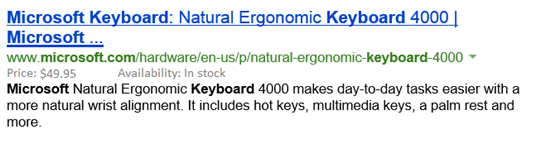
With Rich Captions, merchants will be able to include product price and availability information for display in the search results on Bing, as shown in the example below.

bing shopping rich captions
What happens is that Bing will look at the results it returns for a particular query. If it sees that a particular page also matches the same page as provided in a product feed, it will then transform the web search result to add price and availability information.

Based on that, you’ll clearly want to be using search-friendly URLs for Bing to make a match with the users’ search query.

Rich Captions will roll out in the next month. You’ll then see a “Rich Captions” check box in your store settings page with your Bing Merchant Center. To participate in Rich Captions, you’ll have to opt-in by checking that box.  If you don’t already have a Bing Merchant Center store set up, you can do so from Bing Ads and submit your product feed.

Bing says it may take a few weeks for them to review feeds and onboard merchants.

Source: http://searchengineland.com/bing-says-goodbye-to-bing-shopping-hello-product-search-with-rich-captions-product-ads-170524/comment-page-1

Microsoft offers ad-free Bing for the classroom to battle Google


Reuters
The Microsoft logo is seen at their offices in Bucharest
.
View gallery
The Microsoft logo is seen at their offices in Bucharest March 20, 2013. REUTERS/Bogdan Cristel
By Gerry Shih

SAN FRANCISCO (Reuters) - The long-running rivalry between Microsoft Corp and Google Inc is turning into a schoolyard brawl.

Microsoft on Wednesday opened a new front against the world's No 1 search provider by piloting an ad-free offering for educational users of Bing, its search engine that for years has trailed Google.
Under the free program called "Bing for Schools," students in participating school districts will no longer see ads or adult content when they do Internet searches.
Microsoft, which has signed up the Los Angeles Unified School District and Atlanta Public Schools among other school districts, has pitched Bing as an alternative at a time of rising public concern over how Internet companies are tracking their users' every move to target the ads they display.
As part of the program, Microsoft will also offer free Surface tablets and course materials for teaching youngsters about Internet use.

Stefan Weitz, Microsoft's director of search, said the program would help expose young users to Microsoft products.

"We hope that we demonstrate the quality of Bing to teachers and students and also their parents, and once they see how good it is, we hope to see increased usage outside of schools too," Weitz said.

Bing, with 18 percent of the search market share, has long trailed Google, at 67 percent, according to data from ComScore, despite an aggressive effort to close the gap.


ATTACK CAMPAIGN
Microsoft's move is the latest sign that technology companies are targeting the education market as a way to reach children who will become the next generation of consumers.
The new Bing campaign, framed in the context of privacy concerns, is part of a broad, anti-Google marketing campaign directed by a team of political consultants including Mark Penn, long-time adviser to Bill and Hillary Clinton.

In recent months Microsoft has ramped up allegations posted to its "Scroogled" website, including claims that Google violates its users' trust by scanning emails to target ads. Microsoft has also backed promotion of a "Do Not Track" protocol that would discourage online ad targeting.
"People just don't think it's appropriate to show ads to children in a learning environment," Weitz said.
A Google spokesman declined to immediately comment.
While Microsoft relies heavily on software sales, more than 95 percent of Google's revenue come from ads, and a significant portion of that comes from its dominant search engine.


JOSTLING IN CLASSROOMS
Google and Microsoft have also been vying to get schools to adopt their productivity software. Google has been offering a discount for its Google Apps suite, which it hopes can replace programs such as Microsoft Word on school computers.
Tech companies, led by Apple Inc, have also competed fiercely to get hardware into the classroom, even while academic studies are divided over the effectiveness of gadgets in improving student performance.

Following Apple, Google in December announced a program to give its Chromebook computers to schools for $99 each. Six months later, Microsoft began offering its Surface RT tablet to educational institutions for $199, a discount of more than 50 percent.

As part of the Bing campaign, school districts whose students use the Microsoft search engine win points, which they can redeem for Surface tablets.

Aleigha Henderson-Rosser, the director of instructional technology at Atlanta Public Schools, said she had no qualms about receiving aid from tech companies. Atlanta schools will not be paid money to participate in the Bing program, she said.

Henderson-Rosser said she will try to rally parents to use Bing to help win Surface tablets for schools that cannot afford the technology.

"I'm seeing it as a community effort to fill in the gaps," she said. "What school is going to turn down tablets for our students?"
(editing by Jane Baird)

Source: http://news.yahoo.com/microsoft-offers-ad-free-bing-classroom-battle-google-102402977.html

August 11, 2013

The Pirate Bay Offers Web Browser to Avoid Censorship

On its Web site, the Pirate Bay highlighted a link to its new Web browser, PirateBrowser. 
 
Screenshot via the Pirate Bay On its Web site, the Pirate Bay highlighted a link to its new Web browser, PirateBrowser.
 
 
The Pirate Bay, one of the largest and most famous piracy sites on the Web for illegally downloading copyrighted material, has been in a constant game of cat and mouse with legal authorities from around the globe for the past decade. Government agencies have often tried to shut the site down, or thwart people from reaching it — because people use it to download movies, music, digital books and other intellectual property — only to see the site retaliate with new doorways for people to access its wares.


On Saturday people involved with the Pirate Bay did this again, announcing that the group is releasing a free Web browser, called PirateBrowser, that will allow people in countries where the Pirate Bay is currently blocked to still reach its hundreds of thousands of illegal torrent files.
The Pirate Bay told its users about the new browser in a blog post titled, “PirateBrowser — No more censorship!”


“Do you know any people who can’t access [the Pirate Bay] or other torrents-sites because they are blocked?” wrote an administrator of the Pirate Bay who goes by the online name Winston. “Recommend PirateBrowser to them. It’s a simple one-click browser that circumvents censorship and blockades and makes the site instantly available and accessible.”


According to the PirateBrowser Web site, the Pirate Bay is currently censored in Iran, North Korea, United Kingdom, the Netherlands, Belgium, Finland, Denmark, Italy and Ireland. People who use this new Web browser will be able to get around current restrictions.


The browser, which is being released in conjunction with the group’s 10-year anniversary, joins a version of Firefox, the open source Web browser, and a Tor client, the anonymous Web client. Unlike Tor, however, PirateBrowser does not provide anonymity to its users.
The Pirate Bay gives people access to BitTorrent files, which are larger files that are cut up into many little pieces, to make it easier to share across the Web. As soon as a user has downloaded a piece of a BitTorrent file, they immediately start uploading that piece to other users. BitTorrent Web sites, like the Pirate Bay, can point people to large movie and TV show files without having to host them on a server.


In an interview with the Web site TorrentFreak, which covers copyright and torrents, the Pirate Bay said the new browser is just the first step in its effort to fight web censorship. The group is “also working on a special BitTorrent-powered browser, which lets users store and distribute the Pirate Bay and other Web sites on their own.”


In recent years authorities in a number of countries have won injunctions against the Pirate Bay and blocked people from reaching the site. Last year, in retaliation, the Pirate Bay wrapped up the code that runs its entire Web site and released a downloadable file for anyone to copy and install their own torrent distribution site on a server.


The Pirate Bay has also explored other options for subverting government regulations. In 2012 a Pirate Bay collaborator who goes by the online name Mr. Spock announced that the group one day hopes to build drones that would float in the air and allow people to download illegal movies and music through wireless radio transmitters.

August 8, 2013

Firefox 23 Released with improvements

Download Firefox 23 Final

By | August 8, 2013 | 1 Comment

Download Firefox 23 Final With new logo and more.
Now here’s something for all the Firefox users out there, a new final release of Firefox from Mozilla.
As reported earlier, Firefox 23 is the first stable build that includes a new logo, which was designed to look crisp and clean even on a smaller screen devices. That’s not the only change though, people that care about security will be happy to know that the non-secure content (HTTP) on a secure web site (HTTPS) will now be blocked by default, which should stop eavesdropping.

In addition to that, Firefox 23 features a share button (see screenshot below) and includes some of the “user friendly” improvements like the removal of “Enable JavaScript” option, which was hinted for quite some time. Those are not the only changes though, here are Firefox 23 release notes:


Download Firefox 23 Final
Firefox 23 Changelog
NEW
- Mixed content blocking enabled to protects users from man-in-the-middle attacks and eavesdroppers on HTTPS pages (learn more)
- Options panel created for Web Developer Toolbox
CHANGED
- “Enable JavaScript” preference checkbox has been removed and user-set values will be reset to the default
- Updated Firefox Logo
- Improved about:memory’s functional UI
- Simplified interface for notifications of plugin installation
- Enabled DXVA2 on Windows Vista+ to accelerate H.264 video decoding
- Users can now switch to a new search provider across the entire browser
- CSP policies using the standard syntax and semantics will now be enforced
- input type=’file’ rendering improvements
- Replace fixed-ratio audio resampler in webrtc.org capture code with Speex resampler and eliminate pseudo-44000Hz rate
- “Load images automatically” and Always show the tab bar” checkboxes removed from preferences and reset to defaults
DEVELOPER
- HTML5 input type=”range” form control implemented
- Write more accessible pages on touch interfaces with new ARIA role for key buttons
- Social share functionality
- Added unprefixed requestAnimationFrame
- Implemented a global browser console
-Dropped blink effect from text-decoration: blink; and completely removed blink element
- New feature in toolbox: Network Monitor
FIXED
- Various security fixes
Download

Firefox 23 Final

Source: http://www.favbrowser.com/download-firefox-23-final/

August 4, 2013

Chromecast, Simply and Cheaply, Flings Web Video to TVs

Ever hear the old saying, “Information wants to be free?” Well, here’s a corollary for you: “TV wants to be à la carte.”

Take the story of the iTunes store. The instant somebody offered the chance to buy songs individually, the world changed forever. Hello, music à la carte. Goodbye, Tower Records.
Now it’s cable TV’s turn.

We are engaged in a great civil movement, testing whether that business, or any business so conceived and so dedicated, can long endure. The number of people who cut the cord, or cancel the satellite, in favor of getting all their TV from the Internet is still small — maybe 1 percent of us a year. But the online alternatives to cable TV are growing. And once it becomes simple and easy to get Internet video from our laptops and phones to the actual television, well, the term “TV drama” will have a whole new meaning.

Actually, that has just happened. Google’s new Chromecast gizmo is the smallest, cheapest, simplest way yet to add Internet to your TV. It looks like a portly flash drive or maybe a fat keychain — and it costs $35. That’s not a typo.

So what does it do? If you have a Wi-Fi wireless network in your home, the Chromecast can perform two useful stunts. 
Stunt 1: It lets you watch videos from YouTube, Netflix and Google Play (Google’s movie and TV store for Android gadgets) on your big screen. You use your phone or tablet (Apple or Android) as a remote control.

Stunt 2: The Chromecast displays Web sites on your TV — by broadcasting from Google’s Chrome browser on your Mac or PC. More on this in a moment.

Google’s promotional videos depict a fantasy of effortlessness: a hand slides the Chromecast into an HDMI jack on the back of a big-screen TV, clicking like a key into a lock. And then suddenly everything good on the Internet seems to be watchable on that TV, to the ecstasy of many young, attractive, multiethnic couch potatoes.

The videos leave out the fact that the Chromecast requires power. You can plug it into a power outlet or a USB jack on the TV itself, but either way, the result isn’t as clutter-free as the ads make it seem. Still — $35, remember?

Then you download a setup program, introduce it to your Wi-Fi network, name your Chromecast and so on. The whole setup process takes about five minutes; a child could do it. (Adults may need slightly longer.)

To perform Stunt 1, you open the YouTube, Netflix or Google Play app on your phone or tablet. Find a video to play. A special icon appears at the edge of the touch screen, resembling a rectangle with Wi-Fi signal waves in the corner. To begin watching that video on the TV, tap that icon and choose your Chromecast’s name.

Your phone is not actually transmitting anything. The Chromecast gets the video from the Internet directly; you use your phone or tablet only to find the movie and control its playback. You can even adjust the volume using the physical volume keys on the side.

The good news: this arrangement means you can do other things on your phone or tablet during playback, like working in another app or even turning the thing off.

The bad news is that the phone/tablet is the only remote control you’ve got. So if you want to pause, rewind or mute the video, you first have to find your phone/tablet, wake it up, enter the password if required, and finally reopen the app that’s doing the playing. It’s not especially graceful. 
On Android gadgets, at least the Pause button appears right on the lock screen. You don’t have to unlock the device and reopen the app.

Otherwise, all of this is effortless and excellent. Even if you can already get Netflix and YouTube on your TV because they’re built into the TV, Xbox, TiVo or Blu-ray player, you may prefer the Chromecast; it’s just much easier to search for videos, thanks to the on-screen keyboard and voice dictation. You can also cue up several videos to play in sequence. That’s especially handy for YouTube videos, which are not exactly, you know, epic in length.

On the other hand, Netflix and YouTube aren’t much. Rival boxes, like Apple TV and Roku, can bring many other paid and free Internet services to your TV, like iTunes video, Amazon Prime video, HBO Go, Hulu Plus, Vudu, Vimeo, Spotify, Flickr, ESPN, Major League Baseball TV and others.
Fortunately, Google says that more services are on the way. For example, Pandora radio is up next. Hulu Plus, Vimeo, Redbox Instant, AOL and eight other companies have all suggested that they’re coming soon.

Besides, you might not have to lose sleep over the wait, thanks to Stunt 2: the ability to broadcast Web pages to your TV from your Mac or PC.

Just fire up the Chrome browser, open the site you want, and click that little Chromecast icon on the toolbar. The Web page now appears on the TV, complete with whatever videos you’d like to play.
Now you can sit there on the couch, laptop before you, and call up any darned Internet service you want. Hulu your head off. MLB my guest. HBO Go crazy.

Hard though those Internet services have tried to keep their videos confined to computer screens, the Chromecast flings them onto the TV. An exception: Chromecast doesn’t like the QuickTime format. It sends only the video, not the audio. Therefore, you can’t play videos from, for example, Apple’s movie-trailer site.

Stunt 2, alas, isn’t as refined or successful as Stunt 1. No wonder Google labels this feature “Beta.”
This time, you really are sending audio and video from your computer through the air. So it doesn’t work well unless you have a newish, high-horsepower computer and a fast, uncluttered Wi-Fi network. And even then, there’s a one-second lag between laptop and TV playback.
The video doesn’t always seem as crisp as it does during Stunt 1, either, and some people experience occasional stutters or audio glitches.

Now, plenty of people are saying that Chromecast is Google’s answer to Apple TV, Roku 3 and Plair, which are compact plastic boxes that also bring hi-def Internet video to the TV — but cost $100.
Truth is, the comparison isn’t quite apt. Those gadgets are a good deal more ambitious. They have their own remote controls and on-screen menus, so you can use them even if you don’t own a phone or computer. They use many more Internet services, too. The Apple TV can also display photos and videos from your iPhone or iPad.

Apple TV can also project anything from your Mac screen, not just Web pages — a fact beloved by PowerPointers and teachers everywhere.
But although most people miss it, so can the Chromecast.

In your Chrome browser, clicking the Chromecast icon produces a menu; within it, a tiny down-pointing triangle offers the command “Cast entire screen (experimental).” Sure enough: it broadcasts your entire Mac or PC screen to the TV, making it handy for board rooms, classrooms and hotel rooms. It may be experimental, and it doesn’t transmit audio, but it otherwise works beautifully.

Of course, the Apple TV works primarily with Apple products. It doesn’t work with Windows and Android, at least not without add-on software (or iTunes for Windows) and a bit of tolerance. In that regard the Chromecast is a bit more flexible.
And for goodness’ sake, it’s $35.

That’s already a fine price for what this gadget does, and it will seem better and better the more video apps are made to work with it. 
Don’t look now, but there’s a corollary to the corollary. TV wants to be à la carte, but Internet video wants to be Chromecast.


To see a demo of Chromecast see here:


http://www.youtube.com/watch?v=I1tOeW8AcSA

August 2, 2013

You're being followed! How to block Web tracking


Patrick MarshallBy Patrick Marshall
Just because you're paranoid doesn't mean you're not being watched.
When you're on the Internet, there are good reasons to have that eerie sense of being followed.
By now, most of us know that websites can gather a surprising amount of information about your computer. For example, the page request you send to a site's server includes detailed information about your browser — not just which browser you're using, but the exact version, its configuration, and even the screen resolution the browser is running in. Other gathered data includes the page you came from, what document you're requesting, and — yes, your IP address.
And don't think you have anonymity just because your service provider gives you a dynamic IP address. At a minimum, visited websites can tell what service provider you're with and what city or region you are in.
What's more, any communication with a Web server gives it the opportunity to deposit a cookie on your computer. Benign cookies — small text files downloaded through your browser — simply record information needed to make your Web experience better. That can include sign-in information, where you visited on the site, interface customizations, and the like. Most cookies also keep an identifier for each visitor, so that the next time you connect to a site's server, it can match you up with its records of previous visits. That way, you won't have to start from scratch whenever you go to the site.
Less benign cookies can let websites track your movements around the Internet, and they often collect more information than you really want to give.
Typically, the information gleaned by trackers doesn't include your name and street address. But by putting together all the collected data from page requests and cookies, Web servers can effectively fingerprint individual computers and thus track users across the Internet.
What many users don't know is the extent of the information now collected. If a webpage contains an advertisement, your browser will often send a request to a third-party ad server to download the advertisement. In addition to telling the ad server what site you're visiting, the request contains yet another identifier — still not your name, but a number that corresponds to your computer.
And that ad server might deposit its own cookie on your computer.
So far, all this tracking hasn't identified you by name and address. But online tracking companies will have a considerable amount of information — including, again, your computer's IP address — about your online activities. On some sites, the result is targeted ads, tailored content, and possibly a Web experience that's customized specifically for you (or, more precisely, customized for the activity on a specific computer).
For example, one day I searched for "line trimmers" on Google. The next day, I went to the Home Depot site. What was the first thing I saw? An ad for line trimmers — and it was no coincidence. Some users will be happy with that result; others will not. Let a friend or family member browse the Web with your computer, and ads for products you have absolutely no interest in might follow you around the Internet for days or weeks.
Good intelligence analysts might be able to figure out who's behind a computer by analyzing online activities, but for most users, the real danger comes from joining social-networking sites such as Facebook or Google+. By their nature, social sites encourage you to feed them lots of personal information — including your name and address. The social site, and any organizations with which it shares data, can connect the dots back to a specific individual — as opposed to a specific computer. (And we can assume government agencies are doing the same.)
And you know all those social widgets you find on visited sites? Page requests are sent to those servers as well. If you've logged into Facebook in the past month, for example, and you haven't specifically signed out, the widget can track your presence across all sites that also have the widget. If you want to see how visited websites communicate directly with each other, download the Collusion (see Figure 1) add-on for Firefox and Chrome.
Collusion
Figure 1. Collusion graphically shows the connections between sites you visit.
Trackers can also use embedded bugs or beacons — typically invisible to users — to get notifications when someone has viewed a site or opened email. And any of the sites you visit might use JavaScript to examine your browsing history.
Browsers offer limited tracking controls
So what can you do to manage or reduce tracking? In this article, we'll start by looking at the built-in controls available in the three most popular browsers. Unfortunately, though these user-configurable tools provide some protection, you can't rely on them to fully protect your online identity.
In a following article, I'll go into third-party add-ons and utilities that provide better protection.
The privacy tools in the major browsers focus primarily on cookie management. To understand how the tools work, it's important to understand the various types of cookies. Here's the short explanation:
  • Session cookie: When the cookie doesn't carry an expiration date, it's usually a session cookie — one that will be deleted when the browser is closed.
  • Persistent cookie: Also called a tracking cookie, the persistent cookie will remain on the computer until it reaches its expiration date. These cookies can be accessed by their creators whenever you connect to the creators' Web servers.
  • Secure cookie: If the cookie is set with an HTTPS attribute, it's sent from the Web server in an encrypted form to prevent cookie theft.
  • HTTPOnly cookie: Such cookies can be transmitted only through HTTP or HTTPS requests, which also helps protect them from being stolen.
  • Third-party cookie: These cookies come from a source other than the site you're visiting. Webpage ads, for example, typically deliver their own, third-party cookies.
  • Supercookie: Tracking technologies that typically do not use HTTP, supercookies are often created by applications, such as Adobe Flash and Microsoft Silverlight, that you might have installed on your computer. These cookies can store up to 10MB of data, whereas an HTML cookie is limited to 4K. Supercookies can also track user behavior across multiple sites.
  • Zombie cookie: These cookies are automatically re-created after a user has deleted them. This is done by a script that gets the data from a supercookie. For more on zombie cookies, see Woody Leonhard's Aug. 5, 2010, Top Story, "Eliminate Flash-spawned 'zombie' cookies."
All major browsers give basic controls over the allowed types and duration of downloaded cookies. Some browsers provide additional controls — and they differ in how easy it is to access, understand, and configure these controls. Here's what you get with the leading browsers:
  • Firefox: To its credit, Firefox has made it simple for users to access and navigate the browser's privacy-related tools. All tools and settings — with one exception we'll deal with below — can be accessed by clicking the Tools menu, then Options, and the Privacy tab.
    Firefox can be set to automatically send a Do Not Track notification to websites that support the technology. Once that's set, every website visited will receive a request in the page header that you not be tracked. But let's be clear: this is just a request. Firefox isn't actively preventing tracking; it's up to each website to honor the request. But it can't hurt to ask. To do so, just click the radio button next to "Tell sites that I do not want to be tracked" (circled in yellow in Figure 2).
    FireFox privacy settings window
    Figure 2. Firefox does the best job of gathering its privacy tools into one easy-to-access location.
    Next, you'll want to adjust your history settings. By default, Firefox accepts all cookies and remembers your browsing history, downloads, and search history. To change that behavior, click on the History/Firefox will: button and select either Never remember history or Use custom settings for history (see Figure 2). You can easily switch between these settings, depending on the sites you plan to visit.
    Selecting the custom settings brings up a layered array of controls. I opted to disable my browsing and download history while retaining my search and form history. Then, it was on to cookies. A drop-down list gives you two choices: always accepting third-party cookies or never accepting them. I chose to never accept them, but had I accepted them, I could have stipulated that Firefox delete them when they expire or when I close the browser — or to prompt me each time I close.
    The Exceptions button lets me specify sites that will be exempted from the set policy. Try this option for important sites that have lost functionality.
    Finally, you can check a box that automatically clears your browsing history whenever Firefox closes.
    I had to search for the setting that would disable local-domain (DOM) storage so that supercookies could not use it. As it turns out, this technique — suitable primarily for advanced users — requires manual editing of Firefox's configuration table. To do so, type "about:config" in the URL bar and hit Enter. A long list of browser configuration settings appears. Scroll down until you find DOM.storage.enable. Right-click on the listing and then click Toggle. Close the browser Window and you're in business.
    Firefox's config page
    Figure 3. To disable local-domain storage, you'll have to call up Firefox's somewhat-hidden configuration page.
    Firefox is the only one of the three browsers that lets you set private browsing as the default. While Private Browsing (more info) is on, Firefox doesn't save a history of visited pages, search-bar entries, passwords, cookies, etc.
    That doesn't mean, however, that websites can't collect information about your PC during a Private Browsing session. Also, some websites might not have their full functionality when you have private browsing on.
    To block beacons, scripts, and other forms of online tracking agents in Firefox, you'll need to download and install add-ons. Fortunately, they are free and easy to install, as I'll discuss in Part 2 of this series.
  • Google Chrome: This browser is the least intuitive of the three browsers when it comes to finding and configuring privacy settings. All Chrome settings are configured on webpages (see Figure 4) that are not especially well designed for ease of use. Moreover, users have to go through several layers to find many of the tools.
    To set cookie policy, you start by clicking the three-bar icon in the upper-right corner of the Chrome toolbar and selecting Settings. The Settings page will open in a new browser-window tab — but you won't see a heading for Privacy or Cookie settings until you click the "Show advanced settings" link at the bottom of the page. Scroll down the now expanded Settings page until you find the Privacy heading.
    Chrome's Setting page
    Figure 4. Google Chrome uses standard webpages for its many settings. Note that Privacy is well down the fully expanded Settings page.
    Now click the Content settings button; you'll finally find the options for managing cookies (see Figure 5).
    Chrome cookie settings
    Figure 5. Chrome doesn't make it easy to find its cookies settings, and the options are relatively basic.
    Chrome gives you four choices for controlling cookies: allow or disallow all cookies, allow cookies to be kept just during your current session, or allow only specific third-party cookies.
    Like the other browsers, Chrome allows you to enable or disable JavaScript on sites, and you can make exceptions. However, disabling JavaScript entirely might make some sites difficult to use. It would be more helpful if Chrome (and other browsers) detected scripts that are undesirable — as some available extensions (add-ons) will do.
    Chrome also lets you show all images on sites — or none. Although it's not explained, blocking images is a way of blocking Web beacons. Again, if you want to be more discriminating about what images are blocked, you'll need to download a Chrome extension — a step I recommend.
    Finally, like other browsers, Chrome supports Do Not Track requests.
    The tools for clearing existing cookies and other tracking information are located on another page. Click on the three-bar icon again and select Tools/Clear browsing data. You'll then be able to select the specific types of stored data you want to clear. Although it's not well explained, selecting Delete cookies and other site and plug-in data will remove Flash cookies. (Nothing is mentioned about other types of supercookies.)
    Clear browsing data window
    Figure 6. Chrome's tools for deleting browsing data are simple to use — though not especially informative.
    In Chrome, unfortunately, there's no way to prevent supercookies from using local storage — unless you prevent all cookies from using local storage.
    Chrome includes Incognito mode (more info) for private browsing. It works much like Firefox's Private Browsing, but cannot be set as the default.
    Although Chrome provides many of the same basic privacy controls found in competing browsers, we can forgive users who get the impression that Google really doesn't want us to use Chrome's privacy controls. After all, Google is one of largest collectors of online-behavior data.
  • Internet Explorer 10: Microsoft's browser has a relatively strong set of privacy tools, though it would be better if they were in one place. As it is, you're forced to work through several menus to configure all privacy settings.
    Starting with cookie management, click IE's gear icon in the browser's upper-right corner and select Internet options; then select the Privacy tab. A slider offers six levels of protection, ranging from blocking all cookies to allowing all cookies (see Figure 7).
    IE's privacy controls
    Figure 7. IE's Privacy tab lets you quickly select from six cookie policies — or set a custom policy.
    Intermediate settings allow or disallow third-party cookies that don't have compact privacy policies and which save information that could be used to contact you. (The dialog box doesn't say what a compact privacy policy is or why it's important; briefly, it allows IE to read a site's embedded policy. For more info, see The Lunch Pail blog.) You can also block first-party cookies that save contact information.
    To create a custom policy, click the Advanced tab; you'll then be able to specify whether first- and third-party cookies should be blocked or allowed, or whether you should be prompted for acceptance. In addition, you can allow or disallow session cookies.
    Bear in mind, however, that these settings apply only to HTML cookies and do not impact supercookies, which are managed by other applications. And even though IE 10 doesn't delete all supercookies when you delete your browsing history, if you have Flash 10.3 or later loaded, IE will at least delete Flash cookies.
    To clear your browsing history, simply click the Tools menu (not the gear icon) and select Delete browsing history. IE will then display a list of delete/preserve options, including temporary Internet files, cookies, your list of visited sites, download histories, etc. (See Figure 8.)
    Delete history
    Figure 8. The Delete Browsing History tool makes it simple to select just what you want to delete from your browser history.
    You can also set how long IE 10 retains its history of online activities. To do so, return to Internet options and select the General tab. In the Browsing history section, click Settings and choose the History tab. Then simply set the number of days. Alternatively, you can simply check the Delete browsing history on exit box back in the Browsing History section.
    Next, turn on IE 10's Do Not Track option. In Internet options, click the Advanced tab and scroll down to the checkbox, Always send Do Not Track header (see Figure 9).
    Setting Do Not Track
    Figure 9. You'll have to dig a bit to have IE send Do Not Track headers, but it's worth doing.
    You can expect better results, however, by activating IE 10's Tracking Protection. Click Tools/Tracking Protection, and the browser's add-on manager will open with Tracking Protection highlighted. When I did so, I found a single, disabled entry labeled "Your Personalized List." I highlighted that item and clicked the Enable button down in the lower-right corner of the Manage Add-ons window.
    Next, I deselected "Your Personalized List by clicking a blank area just below it, which popped up a new link, Get a Tracking Protection List online. Clicking the link took me to Microsoft's Internet Explorer Gallery, where I was offered a choice of additional, much more extensive, third-party lists. Clicking the Add button for Abine Standard added this list to Tracking Protection (see Figure 10).
    Enabling Tracking Protection
    Figure 10. IE's Tracking Protection feature offers a quick way to download and integrate third-party tracking protection lists.
    Once you've enabled tracking protection lists, IE 10 will block all data from going out to those sites.
    You can also add some Internet protection with IE 10's InPrivate Browsing, found in the Tools menu, which works in much the say way as Chrome's Incognito mode. As with Chrome, InPrivate Browsing can't be set as the default — you have to enable it for each browsing window.
    There are two other controls in Internet Options you might want to use. Click the Privacy tab and check the Never allow websites to request your physical location box. Or click the Advanced tab and uncheck the Enable DOM storage box to prevent supercookies from using local storage.
Beyond cookies: Additional privacy controls
Even though all three browsers offer basic controls over cookies, you'll need to do more and use additional tools if you want to avoid being tracked on the Internet. Perhaps reconsider your membership in social networks. Or at least review the privacy settings you use on those sites and the information you post.
To beef up your browser, you'll want to install add-ons that detect and block Web beacons and other data collectors. I'll be looking at several of the major add-ons in Part 2 of this series.

Source: https://windowssecrets.com/top-story/youre-being-followed-how-to-block-web-tracking/

August 1, 2013

Microsoft Releases Internet Explorer 10 For Windows 7 (SP2)


Microsoft is finally rolling out Internet Explorer 10 to users with Windows 7 installed on their machines. This is a huge user base, as Microsoft claims there are over 700 million customers still using Windows 7 as their operating system of choice. How many of those are still using Internet Explorer as their browser? According to StatCounter, just under 30% of Internet users are using IE.


Microsoft claims that Internet Explorer gives a real-world speed increase of 20% over IE9, which is certainly no small difference. Microsoft also cites studies that show that Internet Explorer 10 is the fastest browser available on Windows. Even with the speed increase, Microsoft also shows evidence that IE9 is the second fastest browser, edging out Firefox version 15.

Just like the Windows 8 version of IE10, the Windows 7 browser has a major focus on HTML 5. This seems like a smart move, as it’s clear that HTML 5 is taking over the web, and Microsoft has tools in place to help web developers make the most of it.

IE10 on Windows 7 also comes with the Do Not Track (DNT) feature for users concerned with privacy. By default it is on, but users can go to options and turn the DNT signal off if they prefer.


If you are making the switch to Internet Explorer 10, make sure you check out our Internet Explorer 10 tips and tricks article, as it will help you get started with the latest version of Microsoft’s browser.
Internet Explorer 10 is available for download now directly from Microsoft. With the improvements to speed and security, are you willing to give Internet Explorer another go on your Windows 7 machine? Are you going to stick with your current browser? Hit the comments section below and let us know.


Source: Microsoft

Source: http://www.makeuseof.com/tag/microsoft-releases-internet-explorer-10-for-windows-7-updates/