Pages

November 17, 2013

The Best Tips and Tweaks for Getting the Most Out of Google Chrome

00_chrome_icons_orig
Recently, we gathered the best tips and tweaks for Firefox. Google Chrome is another very popular browser, and we have collected some very useful tips and tricks for Google Chrome here. You’ll learn about built-in features and extensions for expanding Chrome’s functionality.

Bookmarks and Toolbars

Add the Home Button to the Toolbar

By default, the Home button is not on the toolbar in Chrome. However, it’s easy to add it. Simply click the wrench button and select Settings. On the Basic page, in the Toolbar section, select the Show Home button check box. Now, you can easily go to your home page with one click.

Show Only Icons on the Bookmarks Bar

If you bookmark a lot of sites, wouldn’t it be helpful if you could displays the bookmarks on the toolbar as only favicons? This is easy to accomplish. First, make sure your Bookmarks bar is always showing. To do this, click the wrench button, select Settings, and then select Always show the bookmarks bar in the Toolbar section.  Then, it’s easy to reduce your bookmarks in Chrome to only icons.
NOTE: You can also list your existing bookmarks easily by entering “chrome://bookmarks” (without the quotes) in the Omnibox and pressing Enter. Then, you can right-click on a bookmark and select Edit.
Here are some additional tips about toolbars and bookmarks:

Tabs

Pin a Tab to the Tab bar

You probably have sites that you visit every time you open Chrome. You can easily pin these sites to the tab bar permanently, so they will open automatically every time you open Chrome. To do this, visit the desired site on a tab, right-click on that tab, and select Pin tab from the popup menu. The tab shrinks to show only the favicon for the site and is moved to the far left side of the tab bar.

Open Multiple Websites When Chrome Starts

Another way to automatically open sites you visit every time you open Chrome, is to specify several URLs in the settings. To do this, click the wrench button, select Settings, and click the Open the following pages radio button in the On startup section. Enter a URL in the edit box and either press Enter or click outside the edit box to accept it. Add as many sites as you want. You can also visit each site you want to open automatically on separate tabs, and then click Use current pages to quickly add them to your list. The sites are opened on separate tabs, in the order you entered them, when you start Chrome.

Manage Many Tabs Easily

You can also manage your tabs easily with the TooManyTabs extension. It shows you all your opened tabs, allows you to search through your tabs, sort your open tabs on the TooManyTabs display by creation time, domain, or title, and restore recently closed tabs. You can also suspend tabs you are not currently using to save memory. If you have used TooManyTabs in Firefox, you can import your data from that extension in Firefox.

Reopen Recently Closed Tabs

If you don’t need all the functionality available in TooManyTabs, and you just want to be able to reopen tabs you’ve closed recently, there are built-in, easy ways to do that. The New Tab page has a Recently closed link in the bottom, right corner that displays a list of links to websites from recently closed tabs. If you only want to reopen the last tab you closed, you can either right-click on any tab and select Reopen closed tab or press Ctrl + Shift + T.

Reopen All Tabs Open in Previous Chrome Session

You can also reopen all the tabs you had open when you last closed Chrome, which is handy if you had a lot of tabs open and Chrome crashed for some reason. One way to do this is to open Settings from the wrench menu and select the Reopen the pages that were open last radio button on the Basics page in the On startup section.
You can also save your Chrome sessions and load them whenever you want, using the Session Manager extension. You can save groups of tabs as sessions and rename and remove sessions from the session library. This is handy if you have pages you visit every time you open Chrome and for saving pages you found when doing research and you’d like to go back to them at a later time. You can also use Session Buddy to manage your Chrome sessions.

Customize the Way Tabs Open and Activate

By default, new tabs in Chrome are opened to the right of all your other tabs. However, you can use an extension called, Tab Position Customizer, specify where to open new tabs, which tab to activate when you close a tab, and whether to create a new tab in the foreground or background. You can also choose to convert a popup window to a tab in the parent, or current, window.

Open a Link at a Specific Location on the Tab Bar

When you right-click on a link, and select Open link in new tab, the page opens in a new tab next to the current tab. However, you can choose to open the page from the link at a specific location on the tab bar. To do this, click and hold the link and drag it to the desired position on the tab bar. A small arrow indicates where the new tab will open to the specified page.

Detach a Tab to a New Chrome Window

If you decide you want the page on a tab open in a separate Chrome window, simply drag the tab anywhere outside the current browser window. A new Chrome window opens to the web page that was open on that tab. The tab is removed from the window in which is was open. You can also drag it back to the original Chrome window. If the tab you drag off of a Chrome window is the only tab on that window, the window automatically closes.
Here are additional ways of using and managing your tabs in Chrome:

Omnibox/Search

Paste and Go / Paste and Search

If you copy a URL from a program outside of Chrome and want to go to that site in Chrome, you would generally paste the URL into the Omnibox and press Enter. However, you can quickly go directly to that site by right-clicking on Chrome’s address bar, or Omnibox, and selecting Paste and go. If you’ve copied text from outside of Chrome for which you want to search in Google, you can right-click in the Omnibox and select Paste and search. Results in Google display on the current tab.

Quickly Search for Selected Text

If you come across a word or phrase on a site with which you are not familiar, you can quickly and easily search for it on Google. Select the word or phrase, right-click on the selection, and select Search Google for from the popup menu. A new tab opens with the Google search results.

Get Quick Calculation Results from the Address Bar

You can not only use the Omnibox to do Google searches, but you can also use it to do simple calculations and conversions. For example, you can type in “7 * 20” or a conversion like “2 miles in km” (without the quotes) and wait. Within a second or two, the results display in a drop-down box.

Change the Search Engine Used in the Omnibox

You can change the default search engine used when search using the Omnibox. To do so, right-click on the Omnibox and select Edit search engines from the popup menu. The Settings open on a new tab and the Search Engines page displays. Default search engines are listed in the top box. When you use a search box on a specific site, such as How-To Geek, that site is added as a search engine under Other search engines. You can choose to make one of the default search engines or other search engines the default when using the Omnibox to perform a search. Simply move your mouse over the desired search engine and click the Make default button that displays.

Omnibox Icon Guide

When you start typing something in the Omnibox, a list of different results drop down. There are different icons that indicate the type of results that display.
  • - bookmarked sites.
  • - sites from your browsing history.
  • - searches, including related searches if you have the prediction service turned on.
  • - related sites when you have the prediction service turned on.
  •  – web apps you’ve installed from Chrome Web Store.

Web Apps

Use and Customize Google Chrome Web Apps

Chrome web apps are actually regular web sites optimized for Chrome. They are installed in the browser and display on the New Tab page with a nice icon. Most web apps are free, but some can be purchased through the Chrome Web Store. We have previously explained how to use and customize Chrome web apps, including how to create shortcuts to web apps on your desktop.

Profiles and Syncing Settings

Sync Your Chrome Settings to Your Google Account

If you use multiple computers, the sync feature in Google can come in very handy. You cansync your bookmarks, extensions, themes, and more to your Google account, so all your settings will be available in Chrome on whatever computer you use. You must sign in to your Google account to be able to sync your Chrome data. To do so, click the wrench button, select Settings, and click Personal Stuff on the Settings menu on the left. Click Sign in to Chrome in the Sign in section. Enter your Gmail address and password and click Sign in.
NOTE: We will show you later in this article how to choose what Chrome data to sync and not sync.

Delete Your Synced Browser Data from Google

If you would rather not leave your data online with Google, you can delete your synced browser data by going to the Google Dashboard.

Incognito Window

Browse Privately Using the Incognito Window

If you share a computer with others or if you’re using a public computer, you may not want your browsing activities to be recorded. Chrome offers a private browsing mode, called Incognito. Any web pages you open and files you download while in incognito mode are not recorded in the browsing and download histories. Cookies created when in incognito mode are deleted when you close the incognito window. However, any changes you make to any settings or any bookmarks you add, remove, or edit are saved.
To open an “incognito” window, click the wrench button and select New incognito window from the drop-down menu. A special window displays. Enter a URL in the Omnibox to visit a site. Your browsing and download history and cookies from any sites visited in this window will not be saved.
NOTE: You can also press Control + Shift + N to opens an a new incognito window.
You can open a link on a web page in an incognito window by right-clicking the link and selecting Open link in incognito window from the popup menu.

Automatically Start Chrome in Incognito Mode

If you often use incognito mode, you can set up a Chrome shortcut to start Chrome in incognito mode automatically. We recommend you make a copy of your regular Chrome shortcut so you can quickly start a normal Chrome window or an incognito window. Right-click on the copy of the Chrome shortcut and select Properties from the popup menu. In the Target edit box on the Shortcut tab, after the command for starting Chrome, enter a space and then “-incognito” (without the quotes). Click OK to save your change. Clicking this new shortcut will open Chrome in incognito mode.

Privacy

Delete Cookies and Browsing History

Cookies can be useful for keeping you logged into a website by storing ID information. Cookies can also be used to store shopping cart information. However, not all cookies are benign. They can also be used to track your online activities. Managing cookies is part of a set of simple actions you can take to protect your information and your privacy. If you haven’t used incognito mode and you want to delete cookies manually, it is easy to do. Click the wrench button and select Settings from the menu. Click Under the Hood in the Settings menu on the left of the Settings tab. In the Privacy section, click Clear browsing data. A popup window displays. To delete cookies, select the Delete cookies and other site and plug-in data check box. You can alsoclear your browsing historyon this screen. Select the time period for which you want to delete the selected items from the drop-down list. Once you’ve made your selections, click Clear browsing data.

Delete Cookies for an Individual Tab

You can also delete cookies for a web site on a specific tab, using the Tab Cookiesextension. This extension deletes all cookies created by a website on a tab when you close the tab. Note, however, that all tabs open to that website must be closed for the cookies to be deleted. If the cookies for a tab you closed are being used by other tabs, they are not deleted until those tabs are closed as well. If you decide you want to keep the cookies for a website you’re currently viewing, click the cookie icon in the Omnibox while on the tab open to that site.

Choose What You Want to Sync

As we talked about earlier in this article, you can sync your Chrome settings with your Google account so you can use the same settings on multiple computers. When you sync your Chrome settings, your Omnibox history (everything you’ve typed into the address bar, including URLs and searches) is synced along with your bookmarks, passwords, and extensions. However, if you’re concerned about your privacy and would rather not sync certain data, you can choose which data you want to sync and which data not to sync. To do this, click the wrench button and select Settings from the menu. Click Personal Stuff from the Settings menu on the left. In the Sign in section click Advanced.
NOTE: You must be signed in to Google to sync your settings.
If you want to choose to not sync certain data, select Choose what to sync from the drop-down list. By default, all the settings are selected to sync. Select check boxes for items you don’t want to sync to remove the check marks for those items. You can also specify whether you only want to encrypt your passwords (if you choose to sync them) or to encrypt all synced data. By default, your Google account password is used as the passphrase to encrypt your data. If you want to specify a different password, select the Choose my own passphrase radio button and enter your desired passphrase in both edit boxes that display. Click OK to accept your changes and return to the Settings tab.

Assign a Password to the Chrome Browser

Another level of security is to assign a password to the Chrome browser itself, requiring that password to be entered to open the browser. This is useful if you share your computer with other family members, friends, or co-workers. To do this, install the Simple Startup Passwordextension. To specify a password, click the wrench button and select Tools | Extensions from the menu. Click the Options link for the Simple Startup Password extension, enter the desired password and click Save. Now, you’ll have to enter that password every time you open Chrome. There is no password reminder, so don’t forget it!
NOTE: Be very careful who’s around when entering your password. A drawback of this extension, is that the password is shown in plain text on the dialog box.

Chrome Settings

View and Change Settings Using Chrome URLs

You can easily view and change some of your browser data and settings using special Chrome URLs, starting with “chrome://”. Entering “chrome://about” displays a list of all the Chrome URLs. You can view your browsing history, downloads, bookmarks, extensions, and find other hidden features using these URLs.
NOTE: Do not enter the quotes when entering the Chrome URLs.

Browsing History

Clear Your Browsing History

Chrome, just like any other web browser today, keeps track of the websites you visit. This makes it easier to visit these sites again, using the auto-complete functionality built into Chrome. However, if you meant to do some private browsing and forgot to open an incognito window (discussed earlier in this article), you can easily clear your browsing history. To access your browsing history, you can either select History from the menu accessed using the wrench button, or you can press Ctrl + H. You can also enter “chrome://history” in the Omnibox and press Enter. However, there is an easy way to access your browsing History with one click using a toolbar button.

Get a Quick History List

To get a quick, short list of the previous sites you have visited, either right-click on the Back button or hold it down. A short list of recent sites is listed on a drop-down menu with a Show Full History option at the bottom that opens the History page.

Downloads and Uploads

Remove an Item from Your Downloads Page

To access a list of items you’ve downloaded, you can either select Downloads from the menu accessed using the wrench button, or you can press Ctrl + J. You can also enter “chrome://downloads” in the Omnibox and press Enter. To remove an item from the Downloads list, click the Remove from list link below the item.

Specify Where to Save Downloaded Files by Default

By default, Chrome downloads files to the Downloads folder in your user account. If you would rather save them to a different location, you can easily change it. Click the wrench button and select Settings from the menu. Click Under the Hood in the Settings menu on the left of the Settings tab. Scroll down to the Downloads section and click Change to the right of the Download location box.
Instead of specifying a location for saving downloaded files by default, you can have Chrome always ask you where you want to save downloaded files by selecting the Ask where to save each file before downloading check box.

Drag and Drop Downloaded Files to Other Folders

Once you have downloaded a file, you can quickly and easily move it to another location bydragging and dropping it from the Downloads list in Chrome to a folder in Windows Explorer or any other file browser you are using.

Google Docs

Get Instant Access to Google Docs in Chrome

If you create a lot of Google Docs, there is a useful extension, called Docs Quickly, that allows you to create Google Docs while on any website in Chrome. Simply click a button on the toolbar. The Google Docs site (docs.google.com) is automatically launched and a new document created.
NOTE: If you’re logged in to both a Google Apps account and a consumer Gmail account, your new documents will be created under the Gmail account.

View Documents, Presentations, and PDFs in Chrome

If you spend a lot of time in Chrome and you view a lot of PDFs, you can save yourself some time and use Chrome as your default PDF reader. There’s a way to use Chrome as your default online viewer for documents and presentations, as well as for PDFs.

Use Chrome to Take Screenshots of Web Pages

You can use Chrome to take screenshots of any web page. The following How-To Geek articles describe a few of the Chrome extensions available that allow you to take screenshots of the current web page and even edit the images.

Miscellaneous Features and Extensions

Chrome’s Task Manager

Each tab in the Chrome browser is listed as a separate process in Chrome’s own built-in Task Manager. This allows you to forcefully close any tabs that are giving you problems without having to close Chrome. The Task Manager displays the open tabs and installed extensions and shows you the memory and CPU resources used by each tab and extension. Access the Task Manager by clicking the wrench menu and selecting Tools | Task Manager. To close a troublesome tab or extension, select it in the list and click End process.
NOTE: You can also right-click on the top border of the browser window and select Task Manager from the popup menu or press Shift + Esc.

Drag and Resize Text Box on a Webpage

You’ve probably encountered multi-line text boxes on websites that are too small and you wish you could make it bigger instead of having to deal with a scroll bar. In Chrome, you can resize multi-line text boxes. In the bottom, right corner of the multi-line text box, you’ll see two slanted lines. Click your mouse button on those lines and drag it to resize the multi-line text box.
NOTE: You can only resize multi-line text boxes, not single line ones. Simply look for the slanted lines to know which text boxes you can resize.

Copy and Paste Only Text Within Chrome

Have you tried to copy text and paste it somewhere else in Chrome, such as into a new Gmail message or a Google Docs document, on another tab? You probably found that a bunch of unwanted HTML and CSS code or links came along with the copied text. You can fix this with a very useful, hidden Chrome feature. Copy the text normally from one web page. However, when you are ready to paste it somewhere else within the Chrome window, press Ctrl + Shift + V, instead of Ctrl + V to paste it. Any links, HTML code, or CSS code will be removed and you’ll be left with the plain text.

Edit Any Web Page Within Chrome

Chrome allows you to edit web pages directly within the browser. To do so, right-click on a web page and select Inspect element from the popup menu. Edit the HTML source code and press Enter to view your changes.

Make Google Chrome Your Default Browser

When you first install Google Chrome, you are asked if you want it to be your default browser. If you answered no at the time, and you’ve now changed your mind, you can easily change that setting. Click the wrench button and select Settings from the menu. Click Basics in the Settings menu on the left, if that screen is not active, scroll down to the Default browser section, and click Make Google Chrome my default browser.
Here’s some information about additional miscellaneous, useful features and extensions to enhance Google Chrome.

Chrome Keyboard Shortcuts

Here are some handy keyboard shortcuts to make browsing in Chrome quick and efficient.
  • Alt + F – Open the wrench menu (i.e., the main Chrome menu)
  • Ctrl + J – Open the Downloads window
  • Ctrl + H – Open the History window
  • Ctrl + Tab – Navigate through your open tabs in order
  • Ctrl + 1, Ctrl + 2 .. Ctrl + 9 – Jump to different open tabs. Ctrl + 9 takes you to the last tab.
  • Ctrl + T – Open a new tab
  • Alt + Home – Go to your Google Chrome home page
  • Ctrl + U – View source code of the current page
  • Ctrl + K – Search quickly in the address bar (you can also use Ctrl + E) – A question mark displays. Enter your search term and press Enter.
  • Ctrl + L – Highlight the URL in the address bar. Use this to copy and paste a URL quickly.
  • Ctrl + N – Open a new Chrome browser window
  • Ctrl + Shift + N – Open a new incognito window (for private browsing)
  • Ctrl + Shift + B – Show/hide the Bookmarks bar
  • Ctrl + Shift + T – Open your most recently closed tab. Press Ctrl + Shift + T again to open the tab closed before that one. Chrome remembers the last 10 tabs you’ve closed.
  • Ctrl + W – Close the current tab
  • Alt + Left Arrow – Go to the previous page from your history
  • Alt + Right Arrow – Go to the next page from your history
  • Space bar – Scroll down the current web page

All these features and extensions should help enhance your browsing experience in Chrome. However, we have one more tweak. If you’re bored with the standard Chrome icon, you canenable the secret gold icon.

November 15, 2013

Google Releases Chrome 31 Web Browser

Version 31 of Google’s Chrome web browser has officially arrived with a number of fixes and user improvements
Google has made its latest Chrome Web browser, Version 31, the default download option after it moved it to the Stable release track.
The new Chrome Stable browser is officially known as Version 31.0.1650.48 and is available for free download for Windows, Mac, Linux and Chrome Frame, according to a 12 November post by Anthony Laforge of the Google Chrome team, on the Google Chrome Releases Blog.

Fixes And Improvements

Some 25 security fixes are included in the latest version, wrote Laforge, addressing a wide variety of issues in the browser’s code. Also included is a Flash Player update to Version 11.9.900.152, according to Laforge.
chrome-logo-300x300Now that the latest Stable version of Chrome is out for users, Google continues to work on the latest beta release, Version 32, which will be the next version to hit Stable status in the future. One new feature being introduced into Version 32 beta is the ability for users to quickly get a warning on their browser tabs when there is a page that is producing annoying or disruptive sounds through a video clip or some other content, according to a 11 November post by Yuri Wiitala, a Google software engineer, on the Google Chrome Blog.
“Have you ever shuffled through your tabs to figure out where that sound or music is coming from?” wrote Wiitala. “We hear you! With today’s latest Chrome Beta release, you can now visually scan your tabs for a speaker icon to quickly find the offender. Chrome will also indicate which tabs are currently using your Webcam or are being cast to your TV.”
The alert will display a small icon on the affected browser tab to let users know which tab is playing the unwanted sound at that moment, wrote Wiitala. The sound alert is also activated for Webcam sounds and Webcasting volumes.

Version 32

Also new in the beta 32 release is a new feature for Windows 8 users to better manage multiple Chrome windows at once while accessing Chrome apps using an integrated app launcher, wrote Wiitala. Additionally, the latest beta 32 version includes a Safe Browsing alert that pops up to warn users before they are about to visit malicious Websites or download malicious files. The latest beta version now includes automatic blocking of malware files, according to Wiitala.
The beta Version 32, officially known as Version 32.0.1700.6 for Windows, Mac and Linux, also includes several new apps and extension APIs, as well as a host of fixes and changes aimed at increasing stability and performance, according to a 11 November post by Karen Grünberg of the Google Chrome team, on the Chrome Releases Blog.
As part of the introduction of Stable Version 31 and the beta Version 32 of Chrome, Google has introduced the latest Developer channel edition of Chrome, which is Version 33. By working on multiple browser versions at once, the next versions are put in the pipeline for future stable release.
The Stable Version 31 of Chrome was preceded by Chrome 30, which was released by Google in early October, according to an earlier eWEEK report. Chrome 30 featured some 50 security patches and fixes, as well as easier search capabilities for finding images.

Netscape Closure

In September, Google announced that its Chrome Web browser will no longer work with a series of older, formerly popular Netscape-era Web browser plug-ins starting in January 2014, as the company works to shed the plug-ins to make its modern Chrome browsers even more reliable. The benefit of such a move will be that users will experience fewer glitches and crashes.
The Netscape Plug-in API (NPAPI) had ushered in an early era of Web innovation by offering the first standard mechanism to extend the browser, according to Google. Two reasons that the move is being made now is that NPAPI isn’t used or supported on mobile devices, which includes a significantly growing segment of Web users, and because the Mozilla Foundation is also planning to block NPAPI plug-ins in December 2013.
Launched in 2008, Chrome presently holds 40.4 percent of the global Web browser market, compared with 28.9 percent for its closest competitor, Microsoft’s Internet Explorer, according to October 2013 data from StatCounter. Chrome celebrated its fifth birthday in early September. In June 2012, Chrome surpassed Microsoft’s Internet Explorer as the world’s most used browser for the first time.

Source: http://www.techweekeurope.co.uk/news/google-chrome-31-browser-131748

8 superpowers hidden inside your browser (PCWORLD)


As our digital lives shift more and more to the cloud, more and more of the Web merges into the desktop. Consider the humble Web browser: Once a mere renderer of static HTML, today's browsers come chock-full of capabilities that can transform webpages into something downright desktopian.
Think I'm laying it on thick? Check out these eight killer features found in modern browsers and see for yourself. Fair warning: When you're done, any preconceptions you have about the impossibility of living life in a browser may well be shattered.

Killer 3D graphics

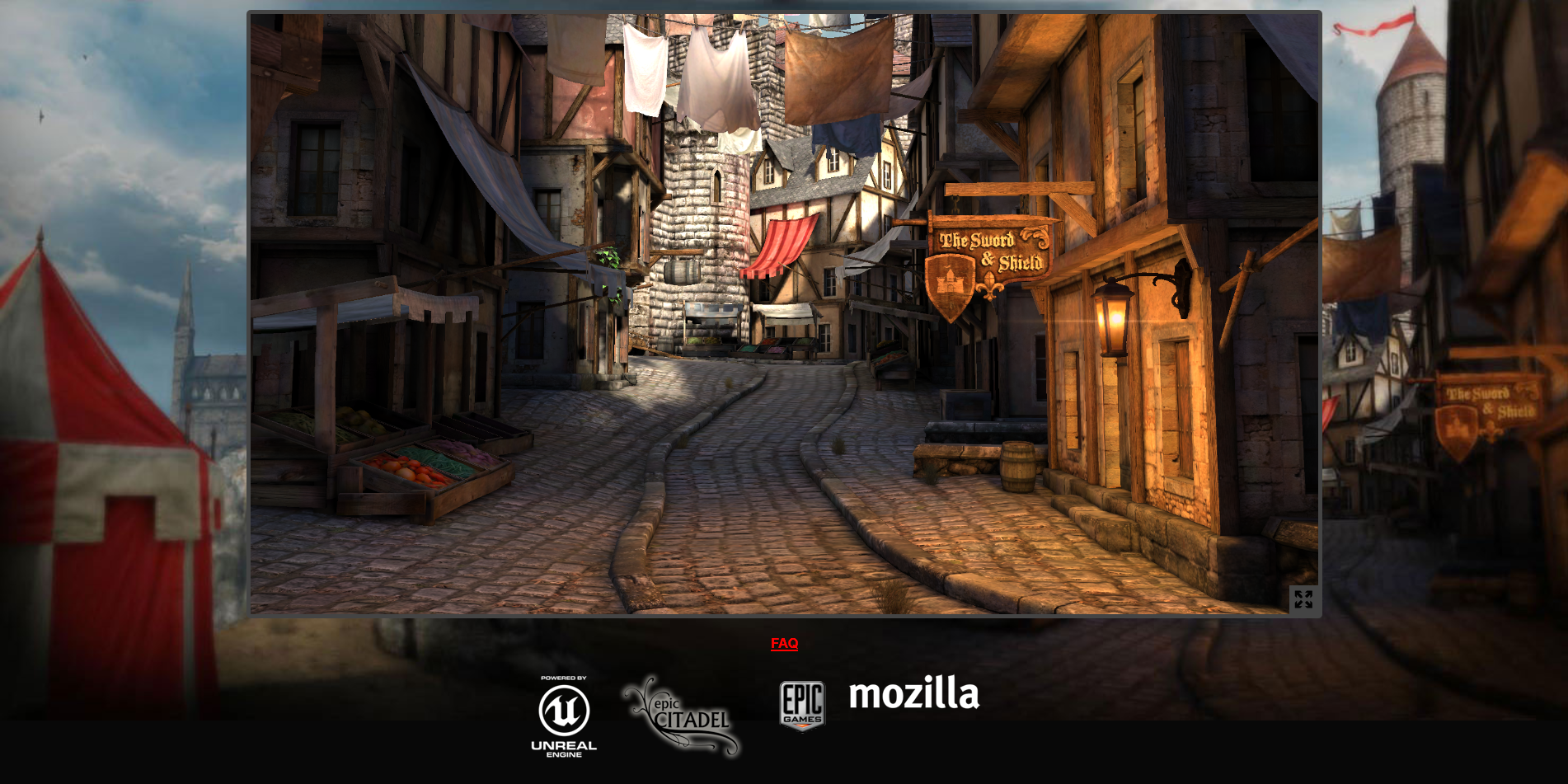
The Epic Citadel demo running in Firefox: Not too shabby, that. (Click to enlarge.)
Say goodbye to the colorful two-dimensional sprites of Maple Story. Today's browsers take full advantage of hardware acceleration and the powers of WebGL—a JavaScript API that lets your browser tap your graphics processor—to deliver robust 3D graphics with minimal hiccups and no plugins (assuming, of course, that your Internet connection is up to the task). Check out the Internet Explorer test drive page (especially Hover!), Google's Chrome Experiments (especially Cathedral!), or this nifty in-browser demo of the classic Quake 3 to see what WebGL and its brethren can do.
Firefox, meanwhile, has recently been focusing on a JavaScript subset dubbed asm.js to turbo-charge its graphics. That endeavor has been so successful that the popular Unreal Engine now plays nice on the Web, as beautifully evidenced by Epic's gorgeous "Citadel" demo.

Face-to-face communications

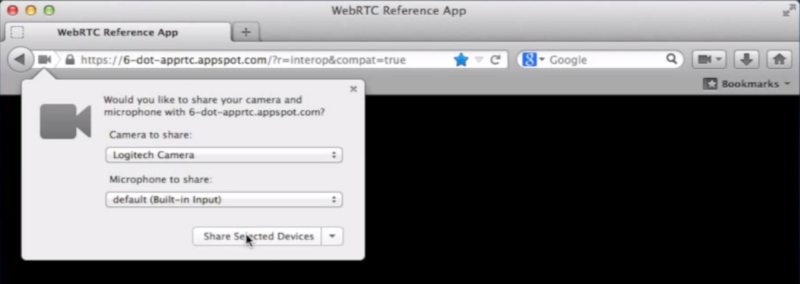
To use WebRTC, you first have to give your browser permission to use your hardware. (Click to enlarge.)
Forget the Skype app, too. Chrome, Firefox, and Opera all support the WebRTC API, which can deliver real-time voice and video chats and peer-to-peer file sharing in-browser via everyday HTML5, without the need for pesky plugins or desktop programs. You can see a demo of it below.
A lot of folks are excited to see WebRTC become commonplace, but its widespread support among browsers is still fairly new. If you want to try the tech out for yourself, head over to talky.io for a free demonstration. (You'll need a buddy—or at least another PC—to play along.) Webmasters can head to WebRTC for info on how to add the cutting-edge protocol to their sites.

Native video playback

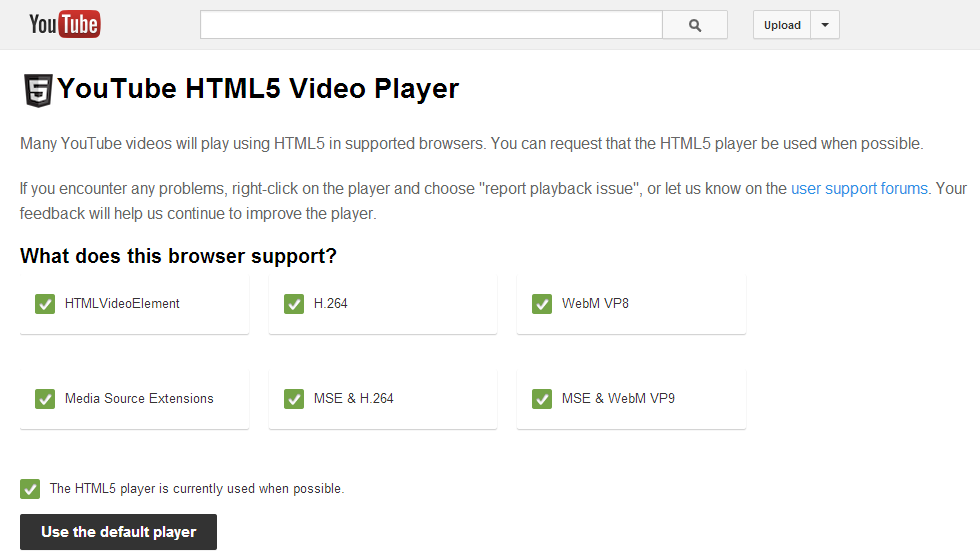
Speaking of ditching plug-ins and discrete programs, websites can now natively play video using HTML5, which could one day render Windows Media Player and Flash superfluous. Some big names are on the native bandwagon: YouTube offers an optional HTML5 mode, while Netflix leans on the language in Windows 8.1's Internet Explorer 11 browser—and that browser alone.
You can opt to default to HTML5 to watch YouTube videos. (Click to enlarge.)
Why the cold shoulder to all the other browsers in the land? Simple: HTML5 has no official media-protection support. The World Wide Web Consortium is working to change that with a new Encrypted Media Extensions addition, however—and it's doing so over the howls of the Electronic Frontier Foundation and Internet activists who loathe the idea of adding DRM to an open standard. IE 11 got the early Netflix nod because Microsoft included a yet-to-be-official implementation of EME in its PlayReady DRM.

Drag and drop

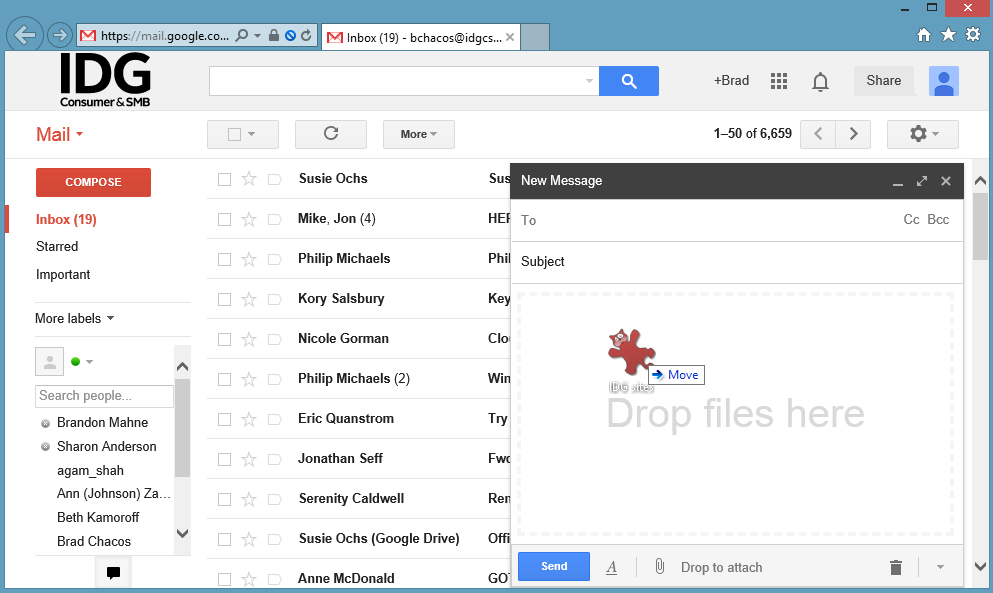
Dragging and dropping desktop files into Gmail. (Click to enlarge.)
Dragging and dropping files—what's more desktop than that? Compiling source code, maybe. But while your browser may not be able to roll its own binaries just yet, it can let you drag local files into online webpages, thanks to some behind-the-scenes HTML5 magic. Watch the lines between online and offline blur as you drag and drop files into Google Drive, Imgur, your Facebook status, or email messages that you compose in Gmail or Outlook.com.

Notifications

For websites that want to get really fancy, Chrome and Firefox support the ability to push desktop notifications to users, popping up little windows in the lower-left corner of the screen. Users have to grant explicit permission for the feature, and few websites take advantage of it—but for the websites that do, it's a handy way to stay on top of things when you have a gajillion tabs open.
Hipchat and Gmail notifications pop up when activity occurs and you aren't actively looking at the relevant tab.
I've allowed Gmail and the HipChat website to push notifications to my desktop, and doing so has made my workdays easier. Rather than opening their respective tabs whenever new messages arrive, I just glance at the notification and continue on my merry way.

Edit docs, images, and more

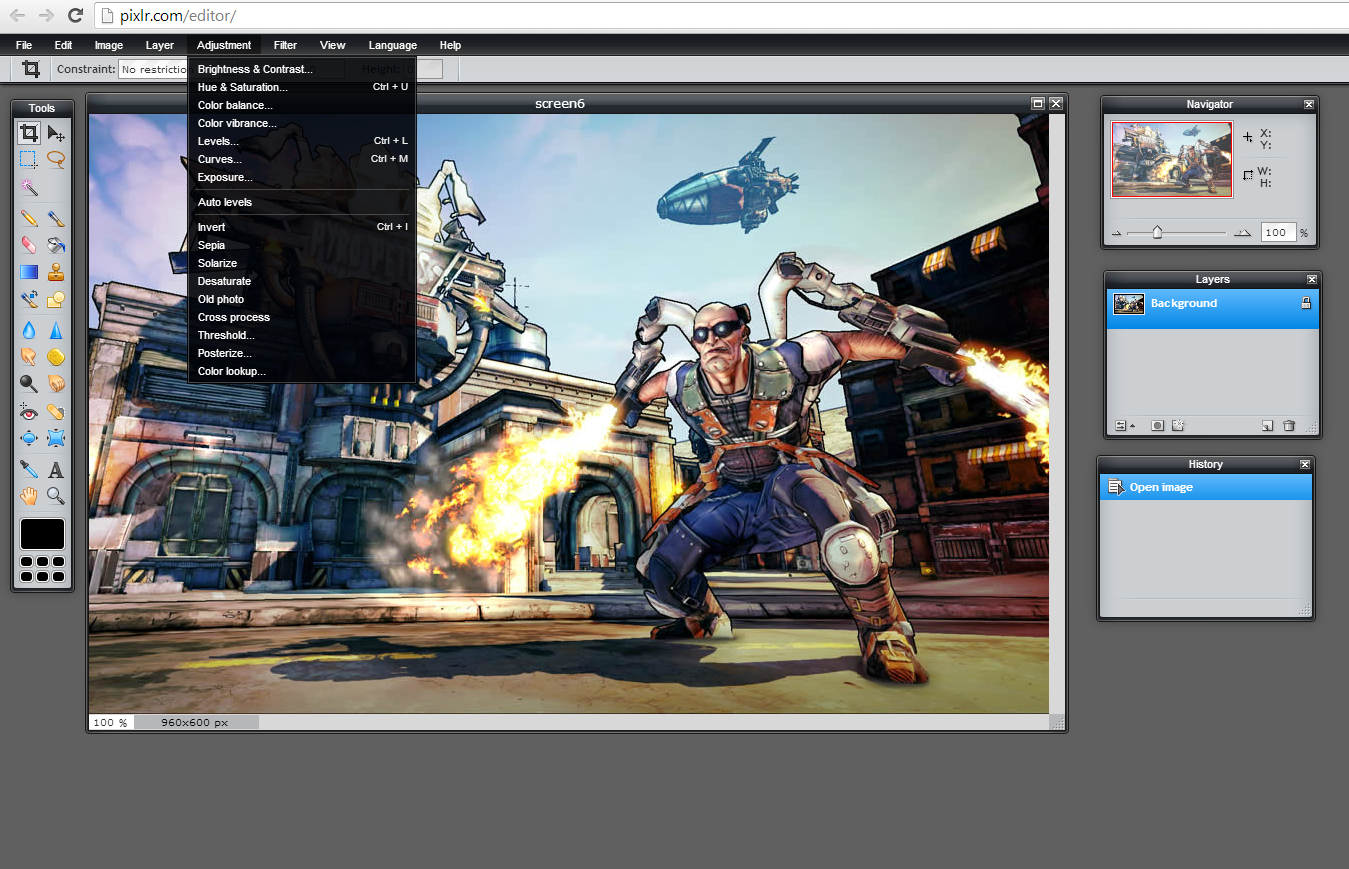
Need a decently robust photo editor? Try the amazing Pixlr. Tune-twiddlers can perform basic tweaks with a website like Soundation or TwistedWave. When the boss comes a-calling, you can get docs, spreadsheets, and more done in Google Drive or Microsoft's Office Web apps, both of which also offer real-time collaboration. And did I mention Prezi's awesome presentation-making capabilities?
It's spelled 'Pixlr,' but I call it 'Photoshop who?' (Click to enlarge.)


Web apps used to be ho-hum also-rans that played second fiddle to tried-and-true desktop software. No more! The growing power of the Web makes all but the most demanding tasks doable in-browser.

Work offline

"Pfah," I hear you pfahing, "Get back to me when these supposedly wonderful Web apps work without an Internet connection." Consider this your wake-up call.
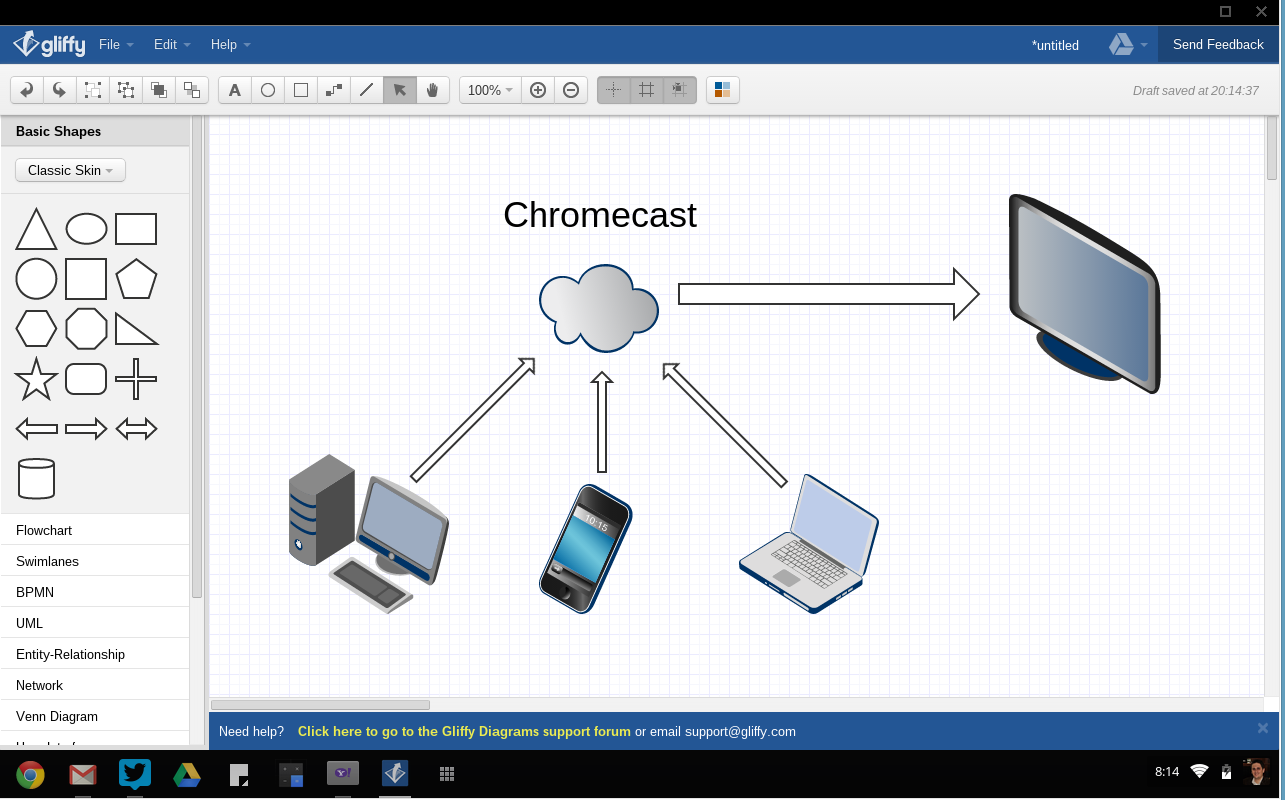
Google now enables offline functionality for all sorts of apps in its Chrome browser. The entire Docs suite lets you view files offline—after some prep work—and you can even edit documents, spreadsheets, and drawings sans connectivity. Gmail can work offline, too.


Gliffy's diagram and flowchart might look like traditional desktop software, but Gliffy is an offline Chrome App.


Chrome's offline functionality doesn't end with Google-sanctioned tools, though. Any developer can create an offline-capable Chrome App, complete with the ability to do desktop-ish things like storing data locally and interacting with your PC's hardware. (Bluetooth compatibility? Check.) Google even released a Start Menu–esque App Launcher to let you launch Chrome Apps right from your taskbar.
Want to try the best the offline Web has to offer? Take a look at PCWorld's list of the best no-Net-needed Chrome Apps available today.

Be an operating system unto itself: ChromeOS

The HP Chromebook 11 runs Google's ChromeOS in a cute and portable package.
With that, we come to the pinnacle of the Web browsing mountain: ChromeOS. Google's operating system is essentially a glorified Chrome browser (surprise!) and powers a legion of low-cost notebooks that are among the few bright spots in today's PC market.
ChromeOS loses some functionality when you're away from the Web, and it won't run traditional Windows desktop programs. But glancing over the potent browser features highlighted in this article, you have to ask yourself: How much longer will that matter?
For now it does. Many of the nifty browser tricks mentioned here involve relatively young technology that is far from widely adopted. But as time marches on and Web browsers become even more potent, Chromebooks will become all the more viable—and the line between the browser and the desktop will become increasingly blurry. Online? Offline? Before long, the distinction might be moot.

Source: http://www.pcworld.com/article/2063182/8-superpowers-hidden-inside-your-browser.html

November 14, 2013

Review: IE11 vs Chrome vs Firefox vs Opera vs Safari

IE11 vs Chrome vs Firefox vs Opera vs Safari
September 22nd, 2013


Internet Browsers by Viktorija Pashuta

Remember when Internet Explorer was always the butt end of internet browsing in comparison to Mozilla Firefox, Google Chrome, Opera, Safari and other popular browsers? Those days are far gone and the days where your internet browser is limited not necessarily by the performance of the browser, but by the apps and extensions offered by the developers in the community. For instance, Google’s new Chromecast requires you to be using their browser, Chrome, in order to use the device for your TV. They offer the streaming extension in the Chrome store for laptop/desktop computing. It this breakdown, I’ll be comparing the top 5 internet browsers across most operating systems: Google Chrome (version 29), Internet Explorer (version 11), Mozilla Firefox (version 24), Opera (version16) and Safari (version5).


Design


Before we get into the nitty-gritty tech specs, let’s consider the layout and design of each browser. While they share many aspects of each other, they have small distinctions that could possibly (though I suggest to not let it) make or break your browser decision.

Chrome
Chrome is very simple. You’ve got at the top about 8% of your screen (depending on your screen resolution) which is what you want. You don’t need all those toolbars and links everywhere cluttering up the internet. At the same time, you still have the option to have a bookmark bar and home buttons. You’ve got your standard back and forward buttons as well as refresh. Also, what you type in the omnibox will do a search on your set search engine or other sites based on what you type before it, for instance: With the Wolfram|Alpha extension, I just type ‘= [tab]‘ before my search and it will do a Wolfram|Alpha search. To the right of the omnibox you can access other great extensions.


IE 11
IE Tabs   IE 11 has a very similar vibe with a little different layout. A unique thing IE has is that when an additional tab is opened, it looks like another session of IE is opened in the taskbar. It differs to Chrome in that the ‘omnibox’ does a Bing search, which is unfortunate.

Firefox
Firefox mirrors the features of the others, but instead of having the ‘omnibox’ feature, it has its own search box area to the right of the address bar. Firefox has a lot of similar extensions that Chrome has, but I think Chrome’s exclusive extensions are greater than those of Firefox.

Opera
Opera has a sleek look to it, however similar to the others. I think it looks like a combination of Chrome and Firefox, which can be nice. It’s got a ‘speed dial’ which is just like the other new tab screens but it also features a discover option, which is kind of neat. It displays random articles from around the ‘net that you might find interesting.

Safari
Safari ensures its originality, like Apple’s other products, by having almost everything as the competition but introducing it as it if were new and ingenuitive. You can customize what is on the navigation bar by dragging and dropping the features to the screen which somehow makes it new and better than ever. Everything else is just about exactly the same, but with a Mac esque feel to it.


Benchmarks

html5test.com simple loads and associates a number with your browser. It tests common features of the upcoming standard of the internet — HTML 5. They don’t claim to test the new features of HTML 5, or the functionality of each features, but it will give you an overview of which elements it’s tested under the total score. Bonus points are based on whether or not the browser supports certain audio and video codecs, SVG or MathML embedding in HTML. Because HTML 5 is the future of internet browsing, it is a high valued benchmark, but isn’t the only factor to consider because HTML5 specifications aren’t finished yet. The highest scoring browser for HTML5 capabilities is currently Maxthon. Maxthon is a cloud-based browser, meaning that what is on one device will be seen on the others. Chrome has a similar functionality and comes in second place on the HTML5 test score.


Through several benchmarking tests online, we can decide which browser is the best. The best considering factors such as speed, usability, features, and so on. The benchmarking programs will give a score. The score is only relevant if you understand each element in the scoring system or you look into what makes up the score. Otherwise, the scores are only significant based on comparison to the other browsers. That’s what I’ll be doing — comparing each browser to the next. This way, we can find out which of the 5 most popular browsers comes out on top.

Peacekeeper – Universal Browser Test (Using Javascript)Peacekeeper


Peacekeeper is a web browser benchmarking tool that measures (all browsers) the speed of your browser by looking at how fast it loads a Javascript function. They consider this a benchmark because Javascript is unavoidable and makes up a lot of the internet. The test is said to take about 5 minutes if everything is running smoothly.
Bonus: Peacekeeper also has a battery testing function to determine the life of your device’s battery. This test will take much longer (the life of a full charged battery to dead), so it requires a set amount of time to be left alone, however difficult it may be.

Chrome
After running the physics, HTML 5 rendering and other visual tests Peacekeeper tracks, Chrome had some trouble running a couple of the tests (a message told me that my browser didn’t support the tests [only about two]). This may or may not had to do with the ad blocker I have (I’m just guessing, it could be Chrome’s fault). Whatever the case, my computer and browser ran through the other tests just fine on Chrome and I got a score of 3365, with an HTML5 capability of 6/7. When completed, the page displays what looks like a leaderboard of browsers. Chrome (on my computer) obviously outscored most other browsers which were run on phones and other mobile devices.Peacekeeper Chrome Score
 

IE 11
I then pasted the URL into Internet Explorer and ran the test. It started out well, but the WebGL in HTML5 test didn’t show up on my screen — just a white screen. It stayed like this for at least 3 minutes so I refreshed the page and tried the test again. So far I’ve noticed not as smooth transitions in the first part of the test, in comparison to Chrome. Now, the WebGL HTML5 test has failed again, so I will continue on without considering Internet Explorer in the Peacekeeper test.

Firefox
Now after failing IE 11, I have a go with Firefox. Not surprisingly, it didn’t have any hick-ups. The last of the transition test had some slow and jittery action, but it wasn’t unbearable. The video tests seemed to have a similar quality and run time as Chrome, and the same video codecs that didn’t work in Chrome didn’t work in Firefox. Considering X% of internet users run Chrome and Z% run Firefox, it wouldn’t be smart for developers to make sites using such elements, so it shouldn’t be a big worry. Developers develop for browsers, not the other way around. In all, I did notice the tests themselves (buffer and loading time) take a little bit longer on Firefox than Chrome, but they ran in a similar fashion. Firefox got a whopping 2197 on Peacekeeper and a similar 6/7 HTML5 capability score.Peacekeeper Firefox Score
 
Opera
Next, I ran the same test in Opera. It started out the same as the previous ones, seeming to load the tests a little faster than Firefox. The last transition test was noticeably better than Firefox, however, noticeably different than Chrome. And yet again, there were about three codecs unsupported by the browser. This was a similar problem in the other browsers, but I think there may have been one more codec unsupported in Opera that was supported in Chrome. The dynamics support of the browser seemed to be smoother than Firefox. Other elements were similar to the other browsers. Much to my surprise, Opera beat Chrome with a score of 3457, but only 5/7 HTML 5 capability.Peacekeeper Opera Score
 
Safar
iFor the Apple users out there, I ran safari (on a Windows machine [much more powerful than any Apple device]) to see how it stacked up against the other competitors. It handled the transitions decently but unfortunately didn’t run the 3D render, the first video didn’t run smoothly, and all HTML5 video codecs following it weren’t supported. Even the 2D game wouldn’t run as it should. Overall, Safari is a bad browser and nobody should buy a Mac, unless all you plan to do is chat on Facebook, but even then it wouldn’t run all of the games smoothly. Peacekeeper gave Safari a score of 1754 and only 3/7 on the HTML 5 capability.Peacekeeper Safari Score

HTML 5 Test – How Each Browser Scores


ChromeHTML5 Test Chrome Score

Google Chrome has a score of 463/500 with 13 bonus points. It lacks in the following areas:

  • MPEG-4 video support
  • Ogg Opus audio support
  • Elements (time, command, menu [toolbar and context])
  • Form input datetime
  • Microdata
  • Custom content handlers
  • Seamless iframe
  • Scopes style element


IE 11

 Internet Explorer 11 has a score of 350/500 with 6 bonus points. It lacks in similar areas of Chrome, but extends beyond the key points.


HTML5 Test IE11 Score

Firefox

Firefox has a score of 414/500 with 14 bonus points. It seems if Chrome doesn’t have it, it’s not meant to be had (yet). Google Chrome is looking to be the leader in internet browsing, as it’s been.

HTML5 Test Firefox Score

Opera

Opera has a score of 442/500 with 9 bonus points. Opera is putting up a good fight in this battle to see which is best in internet browsing. Unfortunately, until these browsers support common video codecs such as h.264 and MPEG-4, they won’t be able to attract enough attention to use standalone (without the aid of video hosting sites like YouTube).


HTML5 Test Opera Score
 
Safari

Safari has a score of 319/500 with 9 bonus points. This Apple browser seems to have displaced Internet Explorer in the realm of browsers. Unfortunately, most Mac users still use Safari. Get with it people!

HTMLL5 Test Safari Score

Octane – Google’s Javascript Benchmark


Octane is another Javascript benchmark, but it’s different and made by Google. It tests many different aspects of the browser such as core language features, math operations, memory & GC, strings & arrays, virtual machine and loading & parsing. Each datum has a score associated with it and then the geometric mean is taken from all the single scores and outputs one score, the Octane Score. Keep in mind, these scores will only have relevance in comparison to the other browser scores.

ChromeChrome has an Octane score of 14495.


Chrome Octane Score

IE 11

 Internet Explorer 11 has an Octane score of 11207.


IE11 Octane Score


Firefox


Firefox has an Octane score of 14592, outscoring Chrome.

Firefox Octane Score

Opera

Opera has an Octane score of 14426.


Opera Octane Score

Safari

Safari has an Octane score of 3187, giving it the lowest score of the five browsers.

Safari Octane Score

Browser Scope – Multipurpose Benchmark


Browserscope is a community-driven project for profiling web browsers. The goals are to foster innovation by tracking browser functionality and to be a resource for web developers.

— http://browserscope.org

ChromeAfter going through a visual test and other backend tests, the browserscope failed to continue on Chrome (I disabled extensions and it still didn’t want to work) so I will take the results from the main graph for this section of the test.


Browserscope Results Menu
IE 11Internet Explorer 11 gave the following results:
IE11 Browserscope Results
FirefoxFirefox gave a higher overall score, but still close to IE.
Firefox Browserscope Results

OperaOpera has scored an even higher overall number than the others.
Opera Browserscope ResultsSafariSafari has yet again scored the lowest out of the browsers.
Safari Browserscope Results

Verdict:


On their homepage, Peacekeeper ranks Google Chrome the best overall browser, as of September 19, 2013, but according to my tests, Opera out-scored Chrome in overall score, but Chrome beat Opera in HTML 5 capabilities. Although Opera isn’t as HTML5-ready as Chrome is, I think it’s still worth a look. Most internet browsers are, more or less, the same, except for one factor: the community. The community, the users, is what makes a browser what it is. For that reason, I think Google Chrome is, and will be for a long time, the best browser for an internet experience. That is, app/extension developers will prioritise the most commonly used browser to develop for. Google’s browser will always be popular as long as they maintain it to industry standards and keep their name on it. With that, any product or extensions developed by Google will only be available through Google. So for an overall great experience for years to come, I think Google takes the gold with Chrome. It may not be the best, but it’s up to industry standards and with it comes the diverse field of developers. All of these browsers work okay. They all have a rather similar format and no more toolbars that take up 20% of the screen. As for under the hood, all but Safari put up a good fight but, unfortunately, what’s under the hood isn’t everything. Google Chrome’s developer community is what makes it the most popular and loved internet browser.


Source: http://mediaunmasked.com/browser-bash/

November 7, 2013

Internet Explorer 11 RTM For Windows 7 SP1 Released

Posted November 7, 2013 – 10:14 pm in: IE

Less than two months after the release of first Release Preview  build of Internet Explorer 11 for Windows 7  and Server 2008 R2, Microsoft has just released the RTM version of Internet Explorer 11 and is now available for download. PC users running Windows 7 with SP1 and Server 2008 R2 (x64) can now download newest version of Microsoft’s web browser.


IE11 for Windows 7sp1


As with the case of IE11 Developer Preview, which was released in July this year, offers improved performance, new F12 developer tools, and faster page load times. As you probably know, unlike Internet Explorer for Windows 8, Internet Explorer 11 for Windows 7 doesn’t come with the Modern UI version of the browser.


According to the official Internet Explorer blog, there are several differences between Internet Explorer 11 on Windows 8.1 and Internet Explorer 11 on Windows 7. That is, Internet Explorer 11 on Windows 7 doesn’t include all the features of IE11 on Windows 8.1. Features such as device orientation events,  drag and drop touch support, hover touch support, pinned site enhancements, scrolling and zooming with touch and other inputs, and high DPI support are not available in IE11 for Windows 7.


As some of you know, Internet Explorer 11 ships with Windows 8.1. The blog also notes that it’s 30% faster than other browsers and includes updates to support the latest Web standards and developer tools improvements.


While you can effortlessly install this  on your Windows 7 machine , you might prefer to test drive the new browser without installing the same. In order to test drive Internet Explorer 11 in a virtual machine, you need to download IE11 virtual machine images for VirtualBox or VMware Player virtualization software. Head over to this page to download IE11 virtual machines.

If you want to uninstall IE11 from your Windows 7 and restore the previous version, follow the instructions provided in our how to uninstall Internet Explorer 11 from Windows 7 guide.
Note that separate installers are available for 32-bit and 64-bit systems. Be sure to download the right one.


Download Internet Explorer 11 for Windows 7

Source: http://www.intowindows.com/internet-explorer-11-for-windows-7-sp1-released/

November 3, 2013

AdBlock Comes To Internet Explorer

AdBlock Comes To Internet Explorer

By | June 19, 2013 | 
AdBlock Comes To Internet ExplorerIf the only reason for not using Microsoft’s Internet Explorer was a lack of official AdBlock extension, then we got some great news for you.


Guys at AdBlock have just released the very first build of its highly popular add-on that will work with IE8 and above. Unfortunately, due to platform limitations, it’s for x86 instruction set only and the add-on must be running a desktop version of Internet Explorer, so no more Metro for you.


You can download it here:

https://adblockplus.org/en/internet-explorer

Source: http://www.favbrowser.com/adblock-comes-to-internet-explorer/

November 2, 2013

Internet Explorer 11 Features: A Complete Rundown


Alongside the release of Microsoft Windows 8.1 Preview yesterday, the new of Internet Explorer – Internet Explorer 11 too was pushed for users’ testing. The new browser claims to be faster than its predecessor with better touch performance, faster page loads, and an integrated browsing experience across your Windows devices.


Internet Explorer 11 400x224 Internet Explorer 11 Features: A Complete Rundown


An extensive overview of the new-generation browser confirmed the support for up to 100 open tabs at a time without compromising the battery power or killing your browser performance. The company says it has implemented some “independent tab suspension” feature that claims to use memory and processor in equal measures.
Web users worrying about privacy while using Chrome, Firefox or other browsers need worry no more. Just don’t keep losing your privacy any further. Download Internet Explorer Beta today, it’s free! The Microsoft MSDN blog post gives a run-down to all the features.


IE 11 Features

Immersive Browsing
IE11 now delivers a fast, fluid experience with your sites displayed in the first place. Under situations where you’d want to have side-by-side web pages open in Windows 8 for reading, IE11 lets you have it. You can quickly swipe back and forth between pages.


Side by Side browsing 600x337 Internet Explorer 11 Features: A Complete Rundown:

Touch Responsiveness
Microsoft has enhanced the touch responsiveness for IE 11. The browser is capable of producing “stick to your finger” touch responsiveness by using the GPU to process gestures such as panning, zooming, and swiping.

Enabling the Next Generation of Sites and Apps
IE11 supports real world standards and compatibility, and new developer tools enable developers to build high-performance Web experiences on Windows devices.

Create live site tiles in the Windows 8.1 Start Screen
Live sites can be pinned as tiles to the Windows 8.1 start screen. The pinned sites can pull the data from your favorite websites at regular intervals of time and be alive with activity. Thereby, keeping you updated.

Hardware-accelerated 3D Web graphics
IE11 finally gets WebGL support. It is an open-graphics standard that is capable of rendering 3D graphics within web browsers. Internet Explorer, until now never had supported WebGL, apparently for security reasons. The company by changing the specifications in new standards has addressed the security issues. Thus, enabling WebGL functionality into the browser can now deliver immersive Web content.

Plugin-free HTML5 video
IE11 supports plugin-free HTML5 video with the latest standards for closed captioning, streaming that adapts to available network bandwidth, and rights management – so all your video content can be as good as the professionals
For complete list of IE 11 features, read the MSDN blog post.

Source: http://www.thewindowsclub.com/internet-explorer-11-features-a-complete-rundown


Internet Explorer 11 New Features and APIs


Internet Explorer 11 is the default Windows 8.1 browser and is available in two different flavors in the modern OS:
  • Desktop Environment
  • Metro Environment
On Windows 8.1 and Windows 7, it boasts a clean design with some powerful developer tools. To bring these tools up, you are required to press the F12 key on your keyboard. There are in all eight distinct tools, each with their own tab in the F12 tools interface. Here’s a list of some of the tools that helps developers diagnose and fix performance issues or make development or debugging tasks easier. All these tools are categorized under New API’s and features.

UI responsiveness tools
The tool helps you find different sources of CPU activity that cause a slowdown in rendering a page. The tool is new to F12 tools in IE11 Preview. Some interesting features it includes
  1. Insight into your webpage’s frame rate
  2. Setting labels on the timeline to isolate user scenarios
Memory profiling tool
The tool tracks memory use of your webpage, helping you identify where memory use is growing, why it’s growing, and how to fix it. Interesting features that can be found in this tool
  1. A timeline displaying progressive changes in memory use
  2. Snapshots to examine the details of memory use at specific points
  3. Snapshot comparisons to identify specific points of growth
Memory Profiler 600x408 Internet Explorer 11 New Features and  APIs
Live DOM explorer
Shows the structure of your webpage being rendered in the browser and makes it possible to edit your HTML and styles in a live page.
DOM Explorer 600x408 Internet Explorer 11 New Features and  APIs
CSS Inspection Tool
Updates with your page so you can explore in a series of iterations how dynamic content is affecting layout or styles

Networking Improvements

Internet Explorer aims to offer the users experience to enjoy the web in a fast, fluid and seamless way and thus incorporates many improvements. It is the first browser to implement the W3C Resource Priorities standard that enables developers to specify which parts of the page are important and should therefore be loaded first. Besides, there’s
SPDY Network Protocol
Pronounced as speedy, SPDY is an open networking protocol developed primarily at Google for transporting web content. Internet Explorer 11 has support for SPDY version that enables some sites to be downloaded faster.
HTML 5 Pre-fetch and Resource Priorities
HTML5 link prefetching and pre-rendering, enables the browser to anticipate where you’ll go next and get those pages ready for you in the first place.
CSS Changes
This covers CSS Border Image and Flexbox Support improvements
Web GL
Internet Explorer 11 supports more web-based standards than ever before. This includes WebGL. It allows creating dynamic 2D and 3D graphics for games and interactive content. The browser also supports rendering WebGL pages including those written with three.js, a popular WebGL library.
Touch Improvements
IE 11 has introduced a new improved Link Highlighting feature for fast visual response to your touch.
Pinned Sites Enhancements
Changes to pinned sites in Internet Explorer 11 support Live Tiles to make your sites more visually engaging when you pin them, save them as favorites, or display them as frequently viewed sites.

Video Improvements

Internet Explorer 11 until now did not support the full capabilities required for Professional Quality Video, so there wasdependence to install browser plug-ins such as Adobe Flash or Microsoft Silverlight. However, things started to change following the association of Microsoft with W3C HTML Working Group, the Timed Text Working Group & the Web Cryptography Working Group. Result, it now supports
Standard based Closed Captioning
Captioning is an intrinsic part of any professional-quality video experience. To achieve the experience of a broadcast television, the Web needs to provide captioning capabilities. This task is fulfilled by IE 11 browser. IE11 Preview offers closed-caption text that can be styled and positioned on your video screen with Simple Deliver Profile support (SDP), as defined by the W3C TTML Simple Delivery Profile for Closed Captions specification. With SDP, you can control things like foreground and background colors, font styles, and text alignment and position.
Encrypted media Extensions
The fast and fluidic browser also introduces support for HTML5 Encrypted Media Extensions (EME). EME extends the video and audio elements to enable Digital Rights Management (DRM) protected content without using plug-ins. EME is supported in IE11 Preview,and Windows Store apps via JavaScript using Windows 8.1 Preview.
Media Source Extensions (MSE)
Support for MPEG-DASH media streaming through HTML5 Media Source Extensions (MSE) exists in IE 11. The extension extends the video and audio elements that you can dynamically change for a media stream without using plug-ins.
ie video improvements 600x314 Internet Explorer 11 New Features and  APIs

Fixes and Tweaks

Some fine adjustments have been made to existing features and settings. It includes
Improved History
Behavior of the history list has somewhat changed in IE 11. The browser’s history list logs pages now regardless of their caching directives.
improved history e1380613697689 Internet Explorer 11 New Features and  APIs
Other improvements have been added to the Password Manager and Favicon Support.
To see the list of some more improvements, visit MSDN.Source: http://www.thewindowsclub.com/internet-explorer-11-new-features-api

IE 11 On Windows 7 Is 30% Faster Than Other Browsers, Launches This Year

by Marcus Cole on September 19, 2013
internet_explorer_11_logo

Microsoft launched the release preview version of Internet Explorer 11 for Windows 7 yesterday. And as you would have expected, the company has now shared a handful of details about its new browser for its old operating system.
The company described the improvements it made in the latest version of its popular web browser, claiming that this new version is 30 percent than any other browser on Windows 7.
In fact, it loads pages 9 percent faster than Internet Explorer 10.
Redmond shared the secrets behind this significant speed boost in a blog post, and it all comes down to the improvements the technology titan made to Chakra — its internal JavaScript engine:
“Internet Explorer 11 advances the performance leadership of our JavaScript engine, Chakra, while ensuring compatibility, interoperability, and security. As we improve performance for real-world sites, IE11’s JavaScript performance on benchmarks like WebKit SunSpider continues to lead compared with latest version of other browsers.”
But speed enhancements are not the only kind of improvements in Internet Explorer 11.
This new browser also brings around better compatibility with existing websites, as well as support for new web standards. At the same time, IE 11 offers a similar mix of experience and performance no matter if it is run using a keyboard, mouse, pen or touch:
“IE11 Release Preview for Windows 7 adds new user controls for the Standard Delivery Profile for Closed Captioning. With the new control, accessible from the Internet Options menu, users can customize how captions appear in the browser, even overriding the default styling provided by the video source. This customization further advances IE11 as the best browser for professional-quality online video without plugins.”


Sold on these new improvements?
But if testing out the Release Preview version is not your cup of tea, then good news is that you will not have to wait too much for the final bits. Microsoft will, for obvious reasons, not launch the stable build of IE 11 for Windows 7 on October 18 — the launch date of Windows 8.1.
Nevertheless, word is that the company is planning to release IE 11 for Windows 7 before the end of the year, as opposed to months into the future. So this is something to look forward to.

Download
Internet Explorer 11 for Windows 7


Read more: http://www.eyeonwindows.com/2013/09/19/ie-11-on-windows-7-is-30-faster-than-other-browsers-launches-this-year/#ixzz2fMyCbRBn

November 1, 2013

Three tools to stop companies spying on your web browsing

Summary: Want to limit the ability of companies to track what sites you visit online? Check out these tools that shut down common ways used to track browsing habits.
By | Image 1 of 3
Companies routinely watch what what we do online and build profiles of our likes and dislikes that can be mined for profit.

The Mozilla Foundation recently released the Lightbeam add-on that allows users to keep tabs on which sites are tracking their browsing habits and how they interact with sites.
Although Lightbeam allows users to block sites that are tracking them, there are tools that make it even easier to stop companies from watching your online activities.

Here are three apps for browsers that make it more difficult for online activity to be monitored by companies, although it's worth remembering that technology used to track online behaviour is constantly evolving.

Ghostery

Ghostery is a browser tool that allows web users to watch who they are being tracked by and block attempts to monitor them.

Ghostery places a button on the toolbar bar. Clicking this button displays a drop down menu that lists all of the companies operating activity tracking scripts on the current website. Users can block each company from tracking them, either on the current site or across all sites, by clicking a button next to the company name.

As well as blocking scripts that interact with cookies or web bugs, Ghostery can block code that loads part of a site, for instance a comment section.

Ghostery keeps a log of companies running scripts on sites you visit and sorts them into a browsable menu under the heading of Advertising, Analytics, Beacons, Privacy and Widgets. This menu can be used to block or allow scripts from these companies.
Sites can also be white-listed to enable them to run tracking scripts that are blocked on other sites.

Ghostery is available for Firefox, Chrome, Safari, Opera, Internet Explorer, as well as a standalone app available for iOS.


DoNotTrackMe

DoNotTrackMe (DNTMe) is another tool for web browsers that collates who is tracking your browsing habits and blocks them.

Unlike Ghostery, which allows users to select which companies to block, DNTMe automatically blocks the majority of attempts to track a user. DNTMe blocks companies based on a list of hundreds of web server addresses used by advertising and other companies that track users. DNTMe stops the browser from communicating with these addresses.
DNTMe places a button in the toolbar that can be clicked to display a menu showing which companies are attempting to track you and which have been blocked. Users can find out more about some of the companies tracking them by clicking through to a guide written by DNTMe creators Abine. A graph in the menu displays how many times the tool has blocked an attempt to connect to a tracking company.

Like Ghostery, users can unblock companies from tracking them either on a particular site or on all sites.

DNTMe is available for Chrome, Firefox, Internet Explorer and Safari on desktop computers. DNTMe doesn't collect data about your browsing behaviour.


NoScript

Every time you load a website chances are you trigger a software script or two.
These scripts perform jobs ranging from loading in ads and images to harvesting data about the sites you visit.
NoScript is a plug-in for Firefox that prevents all non-whitelisted scripts from running on a site. The tool blocks all types of scripts that are commonly run on websites, including JavaScript and those written for Java, Flash and other browser plug-ins.

Enabling NoScript greatly cuts down on the number of third party companies that can connect to your browser when visiting a site. The amount that NoScript reduces third party connections was recently demonstrated by the security blog TaoSecurity. The blog showed the number of third party connections when visiting nhl.com, nfl.com, mlb.com, and google.com dropped from 66 to nine when NoScript was enabled.

NoScript presents users with a bar at the base of the browser that lists all of the scripts blocked on the current web page. From the bar users can enable scripts hosted by a particular web address to run on the current site, across all sites or to whitelist individual sites to run all scripts. Settings can also be altered using a toolbar button.

Although NoScript may cause problems with how some sites and apps load initially users can prevent this by enabling the necessary scripts, across all sites or on the current site.
The add-on also boosts security as by blocking scripts by default NoScript cuts off some common vectors used to infect computers with malware and steal personal details. NoScript provides protections against both XSS and clickjacking.

Those who feel comfortable getting a bit more hands-on can set additional options for how to treat scripts from sites classified as trusted or untrusted, or when connecting via HTTPS.

About

Nick Heath is chief reporter for TechRepublic UK. He writes about the technology that IT-decision makers need to know about, and the latest happenings in the European tech scene.

Source: http://www.zdnet.com/three-tools-to-stop-companies-spying-on-your-web-browsing-7000022774/#photo