Pages

November 22, 2020

The Best Web Browsers for 2020

By Mark Coppock October 13, 2020

Unlike choosing MacOS, Windows, or Chrome OS, where choices are mutually exclusive, switching between web browsers isn’t quite so jarring. You can download any one of the current major browsers in the same amount of time used to read this paragraph. But which is best? Which is the safest and most private?

Best web browsers for 2019

To help you decide, we grabbed the latest browsers and boiled them down. Even if some of them could use a complete overhaul, these options are your best chance for a great online experience.

The best web browsers at a glance

The best web browser: Google Chrome

Chrome is ubiquitous — and for good reason. With a robust feature set, full Google Account integration, a thriving extension ecosystem, and a reliable suite of mobile apps, it’s easy to see why Chrome is the gold standard for web browsers. Chrome even blocks some ads that don’t conform to accepted industry standards.

Chrome boasts some of the best mobile integration available. With a mobile app available on every major platform, it’s easy to keep your data in sync, making browsing between multiple devices a breeze. Sign in to your Google account on one device, and all your Chrome bookmarks, saved data, and preferences come right along. Even your active extensions stay in sync across devices. It’s a standard feature you can find on other platforms, but Chrome’s integration is second to none.

Google released Chrome 69 in 2018 to celebrate the browser’s 10th birthday with a significant visual redesign and some nice new features. The user interface was rounded and smoothed out, losing all of its previous sharper edges and harsh angles for a gentler and more attractive aesthetic. Tabs are easier to identify thanks to more visible favicons, making it perfect for anyone who typically keeps open a large number of tabs.

In addition, Chrome’s password manager now automatically generates and recommends strong passwords when a user creates a new account on a web page. The search bar, or Omnibox, provides “rich results” comprised of useful answers to questions when they’re typed in, plus calculator results, sporting event scores, and more.

Favorites are more accessible, too, and they’re manageable on the New Tab page. Other more recent updates include a Dark Mode for Windows and MacOS, better New Tab customization, tab hover cards, and an in-browser warning if your password was discovered in a data breach. There’s also the ability to quiet notifications so websites don’t bombard you with requests to enable in-browser notifications.

What’s the bottom line? Chrome is fast, free, light, and even better-looking. With a thriving extension ecosystem, it’s as fully featured or as pared down as you want it to be. Everything is right where it should be, privacy and security controls are laid out in plain English, and the browser just gets out of your way.

If you’re not sure which browser to use, install Chrome now.

The best Chrome alternative: Mozilla Firefox

Mozilla Firefox

Firefox comes in a close second — a very close second. Mozilla takes real strides to make its browser a truly modern way to surf from site to site, thanks to efforts like its upgrade to Firefox Quantum and the virtual reality-focused alternative, Firefox Reality. It wasn’t too long ago that Mozilla rebuilt the familiar old standby browser’s interface, offering a cleaner, more modern take on what a web browser should be, and even introduced a password-free browsing experience.

The changes weren’t just skin deep, however: There’s some impressive engineering going on behind the scenes. Firefox Quantum is designed to leverage multi-core processors in ways that its competitors just aren’t doing. It’s not going to make a huge difference in your day-to-day browsing, but the Mozilla Corporation hopes this design will give it an edge moving forward. By engineering for the future now, Firefox Quantum is in a better position to take advantage of quicker and quicker processors as they emerge year after year.

More recent updates include better privacy protections with anti-tracker support, improved password syncing across devices, improved readability, integrated breach alerts, and a Protections Dashboard that provides a summary of how Firefox protects your privacy behind the scenes while browsing. WebRender improves the graphics performance on Windows PCs with Intel and AMD CPUs.

Beneath those changes, it’s still the same Firefox we all know and love. It’s a capable browser, with a deep catalog of extensions and user interface customization. The Firefox Mobile app also received the Quantum treatment, so it’s quicker and more streamlined than ever before. Grab the mobile Firefox app and you can share bookmarks between devices, but you must sign up for a separate Firefox account. Unfortunately, managing settings across platforms isn’t as seamless as Chrome.

Even with a few major overhauls, Firefox is a comfortable, familiar standby. There’s a bit of a fringe benefit, too. Since it’s been around longer than Chrome, some older web apps — the likes of which you might encounter at your university or workplace — work better on Firefox than they do on Chrome. For that reason, it never hurts to keep it around.

As a primary browser, Firefox is more privacy-centric than Chrome and is comparably fast, but its feature set isn’t quite as expansive elsewhere.

The most innovative web browser: Opera

Opera Browser

Also a venerable browser and popular alternative, Opera shares much of Chrome’s DNA. Both browsers are built on Google’s open-source Chromium engine, and, as a result, they have a very similar user experience. Both feature a hybrid URL/search bar, and both are relatively light and fast.

The differences appear when you look at Opera’s built-in features. Where Chrome relies on an extension ecosystem to provide functionality users might want, Opera has a few more features baked right into the browser itself. It also introduced a predictive website preload ability, and an Instant Search feature isolates search results in their separate window while the current page fades into the background — letting users more easily focus on the research task at hand.

You can install extensions from the Opera Addons store, just like Chrome. Similar to Google’s browser, you’ll find useful tools like Giphy, Amazon Assitant, Avast Online Security, Facebook Messenger, WhatsApp, and more. If Chrome’s wide variety of extensions is important to you, then Opera becomes an intriguing alternative. It might just be one of the best browsers for quickly navigating web pages.

Opera also features a built-in “Stash” for saving pages to read later. There’s no need to sign up for a Pocket or Evernote account to save a page for later reading. Similarly, Opera features a speed dial menu that puts all your most frequently visited pages in one place. Chrome also does this but only on a blank new tab. Finally, Opera has a built-in unlimited VPN service, making it a more secure option.

The biggest changes came with Opera 60 and Reborn 3, a complete revamp of the browser’s design that brought a new borderless design, Web 3 support, and a Crypto Wallet allowing users to prepare for blockchain-based sites. If you’re looking for a feature-packed browser that offers some serious privacy and security, then Opera is a great choice.

With version 69, Opera became the first browser with a built-in Twitter tool. Just click the icon on the toolbar, log in to your account, and tweet away right from within the slide-out menu. Twitter integration followed Instagram, which Opera added to the toolbar in version 68. Opera 71 for desktop enabled easy data synchronization with Opera 60 for Android using a QR code.

You can see that we’re well into hair-splitting territory, which is why it’s important to remember that your choice of browser is, more than any other service or app you use each day, entirely dependent on your personal preferences — what feels most right for you. Opera has a unique look and feel, and it combines some of the best features of Firefox and Chrome.

The web browser with the most potential: Microsoft Edge

Microsoft Edge Chromium

Microsoft developed an integrated browser for Windows 10, dubbed Edge, that used an in-house browsing engine and updated along with the operating system. This project was arguably a failure, as Edge remained unable to gain a substantial market share despite serving as the default browser.

In response, Microsoft rewrote Edge using the open-source Chromium web browser engine, taking Google’s lead and making something all its own. The new version launched on February 5, 2020, as a separate, standalone browser that replaced the integrated version. It’s now part of Windows 10 as of the May 2020 Update, although you can still download it for Windows 10 builds prior to version 2004.

At first glance, Microsoft Edge looks and feels like Chrome. It prompts you to import Chrome’s bookmarks toolbar and other settings. This is great if you previously hated Edge and want to give Microsoft’s browser another shot. Even more, it supports Chrome extensions, though the browser leads you to the Microsoft Store for add-ons. You must manually load the Chrome Web Store to install anything not listed in Microsoft’s repository.

However, it’s not Chrome with a Windows 10 theme. Leaked slides show that Microsoft disabled many features, including Google’s Safe Browsing API, ad blocking, speech input, Google-centric services, and more.

The big news here is performance. Microsoft optimized the Chromium-based Edge for Windows 10. As a quick experiment, we loaded six identical pages/tabs in Chrome and Edge. Task Manager showed Chrome consuming 1.4GB of memory while Microsoft Edge only used 665MB. That’s extremely good news for PCs with low memory amounts.

Microsoft Edge provides simpler privacy settings, too. In Chrome, you merely have separate panels for safe browsing, “do not track” requests, and more. Microsoft Edge provides a more graphically friendly interface, displaying three security levels: Basic, Balanced, and Strict. With Balanced set as the default, many sites request you to disable your pop-up blocker even though one isn’t manually installed.

At this point, the new Microsoft Edge shows promise. Even still, it’s also available on MacOS and iOS, giving Mac owners another alternative to Safari. It’s available on Android, too.

Alternative browsers

While the preceding browsers will meet most users’ needs, other alternatives exist for anyone looking for something different.

Apple Safari

If you use MacOS exclusively, Safari is already your default choice. It might not be the fastest browser available — Chrome is significantly quicker — but it’s fast enough that your browser won’t feel sluggish. It’s integrated into MacOS, meaning you feel more at home, and you’ll likely get better battery life thanks to Apple’s in-house optimizations for MacOS and the underlying hardware.

Safari also focuses a great deal on privacy and security. If you want to minimize how you’re tracked and whether Big Brother is looking over your shoulder, then Safari is a good choice. If you also use an iPhone and/or an iPad, then using Safari on your Mac will make for the most seamless transition between platforms. Open websites on an iPad or iPhone and they’re carried over to MacOS.

Safari is not offered outside the Apple ecosystem.

Vivaldi

Vivaldi is truly unique. No two Vivaldi users will have the same setup. When you run it for the first time, you’re guided through a setup process that lays out your browser in a way that makes sense for you. You choose where your tabs and address bar goes, and whether you want browser tabs displayed at the top of the page or in a separate side panel. This is a browser built from the ground up to deliver a unique user experience, and for the most part, it succeeds. Vivaldi 2.0 enhanced the customization features and made them easier to access.

This browser excels at customization, and you can choose from a variety of tasteful themes that don’t feel dated or out of place on a modern PC, in addition to the aforementioned UI choices. It also has some standout privacy-enhancing features, like its team-up with DuckDuckGo, to make the non-tracking search tool the default option when in privacy mode.

Finally, recent updates added more powerful tab management, enhancements like Web Panels that make for smarter browsing, and (as mentioned) even more powerful customization options. Version 3 introduced a built-in ad blocker, a built-in tracker blocker, a clock in the Status Bar, and more. Version 3.1 added a new Notes Manager, while version 3.3 added Break Mode for pausing the internet while keeping the browser open.

Brave

One of the most unusual browsers around is Brave — or, perhaps, its Brave’s business model that’s the strangest. Brave blocks all ads on all web pages by default, which makes it arguably the fastest browser around. Ads are a huge portion of how many websites make money — block these ads, and suddenly the most important web financial tool is eliminated.

That’s where the Brave Rewards program comes in. Users receive Basic Attention Tokens (BATs) when they view alternative ads that Brave places in the browsing stream. Users can pass along a portion of their tokens to publishers. As of September 2020, there were 62,466 websites that supported BAT-based transactions through the Brave browser, including Wikipedia, The Guardian, WikiHow, MacRumors, and more.

What’s in it for users? Simply put, if you’re not waiting for ads to download along with website content, then your web experience will feel much faster. Brave performs no user tracking, making it a private browser as well.

Tor

The Tor Browser is a version of Firefox that serves one very specific purpose: A simple entry point for Tor (The Onion Router).

Tor is software combined with an open network aimed at making you invisible by routing your traffic through several anonymous servers. While it’s not foolproof, it’s very difficult for someone to identify you when you’re properly configured and using something like the Tor Browser to surf the web — especially if combined with a VPN.

There are many legitimate uses of the Tor Browser and the Tor network, such as people who live in countries with repressive governments, as well as journalists and activists. The dark web is also one of the destinations for people using Tor, which includes many nefarious and illegal sites.

In any event, if you want to remain completely anonymous while surfing the web, the Tor Browser and network are for you.

Benchmark tests

Notice we don’t include Internet Explorer and Safari in our main comparison.

Microsoft’s aging Internet Explorer browser received some improvements over the years, but it’s no longer the default browser on Windows 10. It doesn’t offer much beyond the bare minimum, either. It only exists today because some companies still need it for legacy applications.

Meanwhile, Apple’s Safari web browser is still used by Apple device owners. However, it’s not available on Windows, Android, or Chrome OS, so we removed it from our primary list.

Most browsers are compatible with web standards and handle performance with relative ease. A casual user probably won’t notice a difference in the rendering speed between today’s modern browsers, as all six are much faster and leaner than those of a few years ago.

We ran the following benchmarks on a desktop with an Intel Core i7-6820HK processor, 32GB of RAM, and a 1TB solid-state drive. All browsers were clean installs of the most current production versions as of September 2020, and all were run at their default settings.

First, JetStream is a JavaScript and WebAssembly benchmark. It tests how quickly a web browser can start, execute code, and how smoothly it runs.

Firefox 80Edge 85Opera 70Chrome 85
Score:75.31187.48790.68995.585

Notice how all three Chromium-based browsers outperform Firefox. Mozilla’s browser had issues with this test, throwing up a pop-up stating that it was causing the page to run slowly. And while this version of Microsoft Edge isn’t exactly new, Microsoft may need more time to meet Chrome’s performance.

The next test we ran was Speedometer. It measures how responsive a browser is to web applications by repeatedly adding a large number of items to a to-do list.

Firefox 80Opera 70Edge 85Chrome 85
Score:65.0577.786.687.8

Here, Microsoft Edge and Google Chrome went nearly neck to neck, while Firefox fell in last place. Overall, Chrome is the fastest browser of the four after averaging the two test scores together.

Finally, we tested how much RAM each browser uses, both with no tabs open and then with 10 tabs open accessing the same popular sites. We made sure that each browser had no extensions running, and we let each browser settle in before looking at its memory use. For the test with 10 tabs open, we averaged memory use when all of the tabs were first opened and then five minutes later to account for any variability.

It’s not a scientific test, but it should be sound enough to give you an idea of which browsers are the most and least efficient in terms of taking up your RAM. We found Opera to use the least amount of RAM when first opened, while Firefox used the least with all 10 tabs loaded. Chrome was much less efficient with multiple tabs opened, while Microsoft Edge was a solid performer in both instances.

Security and privacy

The most valuable tool for secure browsing is user discretion, especially when you consider that every web browser has encountered security breaches in the past. In particular, Internet Explorer and Chrome’s reputation for protecting users’ security and privacy credentials is spotty at best.

Chrome, Safari, Vivaldi, Opera, and Firefox all rely on Google’s Safe Browsing API to detect potentially dangerous sites. Thanks to constant updates, Mozilla, Chrome, and Opera all make constant security improvements. Microsoft disabled this API in Edge.

All browsers offer a private session option, too. Private sessions prevent the storage of history, temporary internet files, and cookies. Browser support for Do Not Track remains spotty.

Mozilla made some strides in differentiating itself from the others with a real focus on privacy in recent years. It even debuted a Facebook Container in 2018 to make it harder for the social network to harvest user information.

Source: https://www.digitaltrends.com/computing/best-browser-chrome-vs-firefox-vs-safari-vs-edge/

September 30, 2020

Brave Browser Review - based on Chromium


You can download the Brave browser here:
https://brave.com/download/

August 6, 2020

Improve Firefox Performance on Linux by Turning WebRender On

 WebRender promises to deliver a buttery smooth web for all.

A quick and easy way to improve the performance of Firefox on Linux is to force enable WebRender.

At some point in the near future Firefox will make web render the new rendering engine for all users of the browser, on as many systems as possible. But until that happens you can force enable WebRender on Linux to get the benefits (like reduced CPU usage) ahead of time.

What is WebRender? I’ll let Mozilla explain:

“WebRender […] will replace Gecko’s existing compositor, interfacing with Gecko’s main-thread layout code. As WebRender is written in Rust and uses a very different design approach, we expect to get stability and performance benefits from this switch.”

To be (intentionally) reductive: the feature leverages a system’s GPU to render web content rather than the CPU.

It’s a switch that will improved the performance of Firefox on most systems — we’re talking ‘buttery smooth performance at up to 60 frames-per-second’ improvements. KDE’s Nate Graham reports on the performance gains he felt when using web render on his Wayland system, including better overall battery life from reduced CPU usage.

Mozilla began to enable WebRender in Firefox by default on compatible Windows systems starting September 2018. Since then the tech has slowly rolled out to more users on more systems and across more configurations, including macOS.

But WebRender is not yet default on most Linux systems, regardless of whether it is Wayland or Xorg, using closed source or open source graphics drivers, and so on.

To enable WebRender in Firefox on Linux manually:

  1. Open about:config in a new tab (and okay any warnings)
  2. Search for gfx.webrender.all
  3. Set the value to True to enable WebRender (or false to disable it)

Your own milage will vary when using this feature. You may encounter edge cases or introduce issues after turning it on. But as it’s easy to turn off should any hiccups emerge, the probable performance benefits it offers are worth the hassle of trying it out.

Source: https://www.omgubuntu.co.uk/2020/07/firefox-enable-webrender-linux

July 17, 2020

Yes, You Should Quit Using Google Chrome

Is it time to stop using Chrome? We’re certainly ready to put the resource-hogging browser out to pasture, especially given the recent news that a hopeful fix from Microsoft for Chrome’s memory-hogging issues has been thwarted by Google itself.

Other browsers eclipsed Chrome for speed, performance, privacy and/or security ages ago, and there’s no need to stick with something that’s so bloated and slow if you don’t have to—and you don’t have to, because there’s a better version of Chrome out there, but it isn’t developed by Google.
Chrome is a system hog

Chrome hogs your device’s memory and eats through its battery life. Google is testing experimental features to tamp this down, but they only go so far. Worse, Google recently disabled a RAM-saving feature from Microsoft that let Windows 10 users curb Chrome’s system bog, citing performance issues.

There are several factors behind Chrome’s resource-hogging behavior, but they’re mostly unique to Chrome; other Chromium-based browsers like Edge Chromium and Brave do not share Chrome’s voracious appetite. Neither do non-Chromium options like Safari and Firefox.
Chrome’s built-in ad-blocking is limited

Google’s business model is big on ads, and many of the targeted ads you see around the web come from Google (or are informed by its data). To make sure users are still seeing and interacting with these ads, Google limits the types of ads that content-blocking extensions like AdBlock can disable, making a truly-ad free Chrome experience impossible. Yes, you can block some ads, but all.


G/O Media may get a commission

However, browsers like Brave (or its adware-free alternative Bold), Opera and Vivaldi offer Chrome-like browsing with no ads. They also block site trackers and generally provide better privacy and security features out of the box. Heck, Brave takes ad-blocking so seriously it pays you if you decided not to block ads—even if it has been dinged for replacing affiliate links with its own tags, which is sketchy AF.
Chrome’s privacy controls aren’t that comprehensive

Chrome is decent at keeping your browsing activity and personal data out of the hands of hackers and shady outside companies, but not from Google itself.

To be fair, Google’s privacy controls are better than used to be. Users can control some of the data Google collects, and Google Accounts now default to auto-deleting saved data. Nevertheless, there are plenty of techniques Google uses to collect and share your information anyway.

Chrome tracks your data and funnels as much as it legally can to Google’s servers—especially if you’re constantly signed in with your Google account. Google tracking you is different than hackers or stalkers collecting info on your browsing activity, but it still poses major privacy risks, especially if a misconfigured server winds up leaking a bunch of personal info.
No longer the best Chromium browser

Chromium browsers are sleek, fast and easy to use. For years, Chrome was the best Chromium browser out there, and because of that, users put up with its quirks and shortcomings—whether its the way Google Search stacks the deck in favor of certain pages or how it hamstrings browser add-ons that could undermine its ad-based business model.

Google prioritizing its first-party products makes sense. It’s not even that I think it doing so is wrong, per se. Chrome’s seamless integration with Google’s other apps and services is convenient. But not everyone wants to be heavily tied to Google’s ecosystem simply because they enjoy the Chromium-based browsing experience.

Luckily, there are now many solid Chromium-based alternatives out there, any of them offering a nearly-identical Chrome-like browser that’s devoid of Google’s product integrations.

Oh, and you can still use Gmail, Google Drive, YouTube and other Google web apps in pretty much every other browser if you want—though there are plenty of great alternatives to those, too.
Finding a new browser

Ready to ditch Chrome? We can help. Check out our guides for the best ad-blocking browsers (that aren’t Chrome) and the best browsers for security and privacy.

Personally, I use Brave on desktop and the new Firefox mobile browser on Android, but there are plenty of solid options out there. Even pre-installed browsers like Microsoft’s Edge Chromium and Apple’s Safari are better—in fact, Safari might just be the best browser on Mac period.

Source: https://lifehacker.com/yes-you-should-quit-using-google-chrome-1844408232

June 15, 2020

The new Microsoft Edge review: A browser that could rival Google's Chrome

Microsoft is launching a brand new version of its Edge web browser today, and it's a huge departure from the old Edge we've come to know. Microsoft has rebuilt Edge from the ground up using the open-source Chromium project, the same codebase that Google Chrome is based upon. Existing Chrome users will find the new Edge to be very familiar, and that's by design. At first glance, the new Edge is just Chrome, but with a Microsoft logo slapped on the front.
But if you dig a little deeper, there's a lot more going here. I think there's a genuine market for a version of Chrome that doesn't talk to Google's servers, and this new Microsoft Edge fills that role. It syncs up with your Microsoft Account and has customizable tracking prevention features built right in. Microsoft is putting privacy at the top of its game with the new Edge. It's also enterprise-ready with AAD support, an Internet Explorer mode for rendering legacy websites, and much more.
While that's all well and good, we want to know if the new Microsoft Edge is a good browser for more than just the enterprise. Should you, as an average PC user, switch to the new Microsoft Edge? There's a lot here that normal PC users will enjoy, such as cross-platform syncing if you use Microsoft Edge on macOS, iOS, or Android too. It's also the only browser on Windows 10 to support 4K streaming on Netflix.
10 best new features in Microsoft Edge
I've been using the new Microsoft Edge since it entered preview in the spring of last year, and I've been using the release candidate since November. Now that the new Microsoft Edge is officially here, I wanted to write up my thoughts as a review for anybody who's considering making the switch from another browser. Whether you're a user of the old Microsoft Edge or a die-hard Google Chrome fan, I think everybody should be paying attention to this new browser from Microsoft.

A new browser


Microsoft Edge

Price: Free download.
Bottom line: Microsoft's new version of Edge is a complete rebuild with new features, better performance, and cross-platform support, but is launching with several missing features.

The Good

  • Great web performance
  • Familiar UI
  • Access to Chromium-based extensions
  • Google Chrome without the Google

The Bad

  • No history sync at launch
  • Missing features such as Inking onto webpages.

Microsoft Edge set up

Microsoft EdgeSource: Windows Central
Let's start at the very beginning. If you're a user of the old Microsoft Edge, installing and switching to the new browser is incredibly painless. Whether you install the browser yourself or wait for Microsoft to push it to you via Windows Update, the new browser will automatically replace the old one and import all of your data. The first run wizard will move all of your passwords, history, bookmarks, and more into the new Edge in just a few seconds.
Those coming from a third party browser will have to head into the settings area of the new Edge to import their data, but you can still import everything with no issues. Microsoft is making the switching process as easy as possible, as it knows the daunting task of switching browsers is a showstopper for many. Once the new Edge is installed, you should be up and running with all your data intact in under a minute.
Microsoft Edge ImportSource: Windows Central
One thing that doesn't port over from the old Microsoft Edge is extensions. Users will have to manually download all their extensions again when moving to the new Edge. Luckily, the new Microsoft Edge supports all the same extensions as Google Chrome, so you won't be without any of your favorite extensions.
Syncing browser data across devices uses your Microsoft Account, but history and open tabs don't yet sync. This means if you're attempting to switch to the new Edge on multiple devices, you won't be able to view cross-device history or tabs open on other devices.
This also means that the new Microsoft Edge doesn't support Windows 10's own Timeline feature. Microsoft does say that these additional sync settings will light up eventually, but there's no ETA for this. I'm personally not too bothered, but I know not being able to sync history across devices might be a deal-breaker for some. If that's the case, then I recommend waiting a couple of months for all the sync settings to come online before you give the new Edge a try.

Microsoft Edge browsing experience

Microsoft EdgeSource: Windows Central
Once you're all set up, the first thing you'll notice is the new tab page, which has been carried over from the old Microsoft Edge and revamped with more customization features. By default, the browser is set to search the web with Bing, but users can change this in settings if they wish. The new tab page will automatically list your most visited websites, and allow you to pin sites manually as well.
Below that, you can choose to have MSN display a grid of news articles from the last 24 hours, and you can even customize which topics show up here. I know a lot of people don't like being bombarded with information on their new tab page, so this is something that is fully customizable. If you don't want to see any news articles, then you can turn it off entirely.
You can also turn on or off a daily wallpaper that is pulled in from Bing, which gives your new tab page a little bit of flare. I keep this off, as I prefer a more minimalist appearance. But if you like seeing the news, or like seeing a new image every day, those are options for you to configure.
The UI along the top of the browser is very similar to Google Chrome, and this is by design. Microsoft wants to make switching from other browsers to the new Microsoft Edge as painless as possible, and that includes making the new Edge look like every other browser out there. If you're a Google Chrome user coming over to the new Microsoft Edge, you'll find all your imported data in the exact same places they would be in Chrome.
Microsoft EdgeSource: Windows Central
This minimizes the barrier to entry. Users don't like change, so having the new Edge be almost a carbon-copy of Google Chrome means Chrome users won't be as overwhelmed with switching to the new Edge. That said, there are a few minor differences in the UI that align the browser more with Microsoft's own design language. Corners are a little more squared off, and the settings area is a fair bit different too.
Browsing websites is a total breeze. Gone are the days of old Edge not being compatible, or rendering webpages poorly. Browsing the web using the new Microsoft Edge is fast, fluid, and just works. In fact, the web browsing experience is now identical to Chrome thanks to the fact that the new Microsoft Edge is built on the same open-source Chromium project that Google Chrome uses.
I've not had the new Microsoft Edge crash out on me, and I've not noticed it struggle to render webpages like YouTube. The old Microsoft Edge was notorious for being bad at rendering Google-centric sites, and the new Microsoft Edge just doesn't have that problem. Users of old Edge will also appreciate the ability to hide buttons that are listed along the top of the browser. If you don't want a favorites button up there, you can hide it. Finally.

Microsoft Edge web apps

Microsoft EdgeSource: Windows Central
A feature that will be new to Edge users is the ability to install websites as native apps. This feature is useful if there's a service you use that doesn't have a dedicated app for your PC. An excellent example of this is Gmail. Google hasn't built a dedicated Gmail app for Windows 10, but with the new Microsoft Edge, you can just install the Gmail website as an app and have it show up in the Start menu and run in its own window as if it were a real app.
This isn't a new feature if you're coming from Google Chrome, but Microsoft has done some additional work to make these web apps appear more native to Windows. While not available today, an upcoming update will make web apps appear to Windows as if they were actual apps. This means they'll show up in Task Manager as their own listing, and notifications will show up in the Action Center under that websites' specific name.
This feature will become more important when Windows 10X launches later this year. For now, it works as a great way to pin your favorite websites to your taskbar and Start menu.

Microsoft Edge tracking prevention

Microsoft EdgeSource: Windows Central
One significant feature that Microsoft is touting as part of the new Microsoft Edge is its own tracking prevention features. Privacy is a big deal these days, and Microsoft knows it. To help users in their quest for more privacy, the new Microsoft Edge has an easy to use tracking prevention feature built right in, and it's on by default.
Microsoft has three levels of tracking prevention, and by default, it's on level two: Balanced. This mode will block trackers from sites you haven't visited, and will automatically block known harmful trackers too. This mode is designed to keep your data as private as possible without breaking websites. Level one will allow most sites to track you, and level three will allow pretty much no sites to track you unless you give explicit permission.
It's great to see this level of tracking prevention built right into the new Microsoft Edge, and it's customizable too. Users can add their own sites to a blocked or exceptions list if you want a specific website to track or not track you. There's also a simple UI for clearing browsing data, and the option to remove specific data every time you close the browser. If you're privacy-conscious, the new Edge goes to great lengths in making you feel comfortable while using the browser. It isn't the most privacy-focused browser in the world, but it's a great first start for Microsoft.

Microsoft Edge Collections

Microsoft EdgeSource: Windows Central
Collections is a spiritual successor to the "set tabs aside" feature of old Microsoft Edge. Collections allow you to group links, images, and snippets into a listing of things for referring back to later. This is super useful for students who are researching a specific topic, or a chef looking at ideas for their next recipe, for example.
The Collections feature will along the top of the address bar and is accessible from any webpage. I haven't found much use for it yet, but I can totally see how this feature fits into Microsoft's "be more productive" mantra. You can directly import your collections to Excel and Word too if that's something you want to do.
It also syncs to the cloud, meaning you can access your saved collections across all your different devices running Microsoft Edge, including mobile.

Microsoft Edge: What isn't here

Microsoft EdgeSource: Windows Central
While there's a lot new with the new Microsoft Edge, there's also a lot of the old Microsoft Edge that isn't here. Set tabs aside, inking onto webpages, Fluent Design, Timeline support, are all missing from the new Microsoft Edge. Microsoft says that it is weighing which features it wants to bring over to the latest Microsoft Edge, with more inking features being one of them. But not every feature is guaranteed to make it over, and that's a real shame.
Many testers also think that the old Microsoft Edge does a better job at handling touch and scrolling. I personally don't see much of a difference between the two browsers, but die-hard Microsoft Edge fans insist that the new browser does a worse job than the old one at scrolling and touch interaction. The new Edge isn't bad at this by any means; it just means the old Microsoft Edge was exceptionally good in these areas.

Final thoughts on the new Microsoft Edge

Microsoft EdgeSource: Windows Central
The new Microsoft Edge is excellent. It's a massive departure from the old Microsoft Edge, which didn't work well in many areas. If you were someone who tried to switch to the old Microsoft Edge before, I recommend you give the new Microsoft Edge a try. It's a whole different ball game that works and performs better.
Some die-hard users of the old Microsoft Edge might take issue with the missing features that made old Edge unique, but those users are in the minority to begin with. This browser is all about being accessible to the broadest possible audience, and it does that job very well. There are no weird features that get in the way of your browsing experience.
Microsoft's decision to adopt Chromium for Edge is the best decision it's made for a failing product in a long time. Instead of killing Edge entirely, Microsoft decided to try again, and now it has a product that I think really can compete in the browser space. I'd go so far to say that a lot of Chrome users won't mind switching to the new Edge, and might even end up liking it even more than Chrome.
I don't expect the new Edge to take over as the number one browser on day one, but I wouldn't be surprised if this new Edge is the beginning of a turning point for the browser market. Perhaps Chrome isn't the only big boy on the block anymore.

A huge improvement


Microsoft Edge (New)

Microsoft's new version of Edge is a complete rebuild with new features, better performance, and cross-platform support. Download today!

Source: https://www.windowscentral.com/microsoft-edge-review

May 21, 2020

Top web browsers 2020: Firefox stays afloat, Chrome hits 69% for first time

Even as Chrome hit a new record for browser usage in April, Firefox managed to actually grow just a bit.

By Gregg Keizer Senior Reporter, Computerworld |
Firefox staved off another ruinous month by remaining stable in April, while Chrome raised its share to a level last seen more than a decade ago by Microsoft's now largely irrelevant Internet Explorer (IE).

According to data posted Friday by analytics vendor Net Applications, Firefox's share in April rose very slightly — by less than one-tenth of a percentage point — to 7.3%. It was the first month in the last four in which the browser added share — and more importantly — kept it from dropping below the 7% bar, the milestone not seen since 2005, when Firefox was scratching share from Microsoft's IE and Google was more than three years away from introducing Chrome.
Firefox remained behind Edge for the second month in a row after ceding second place to Microsoft's newest browser in March. The gap between them expanded in April by one-tenth of a percentage point to half a point.
Because Firefox remained more or less flat rather than decline as anticipated, Computerworld's new forecast — based on the browser's 12-month average — puts it right at 7% rather than under it at this month's end. The losses could resume, of course, in which case if they matched the last year's average, would drop Firefox under 6% by October and leave it at a very dismal 5.3% by year's end.

Chrome sets record

Chrome climbed by seven-tenths of a percentage point in April, about half what it gained the month before, but it established a record for Google by reaching 69.2%. It was the first time the browser had topped 68% — as it did in March — without slumping the very next month to fall below that level.
In the last 12 months, Chrome has added 3.5 percentage points to its total, the largest change, positive or negative, of any browser during the stretch.
The boost improved Chrome's 12-month forecast yet again, putting the browser on a linear path of significant growth, considering its dominance of the space. Computerworld's prediction now pegs Chrome at above 70% by July and over 71% by November. Only two browsers have accounted for 70% or more of all browser activity since the web's start: Netscape Navigator (an ancestor of Firefox) and IE. Chrome would join a very selective club.
The last time a browser controlled as much share as Chrome did in April was February 2009, when IE had 69.2%. (The most popular version of IE at the time? IE7, although its lead over IE6 was slim, just a couple of points.)
But can Chrome keep it up? Possibly.
Unlike in 2009, when IE faced a significant rival — Firefox, with approximately 22% of the space — as well as a trio of smaller competitors (Chrome, Apple's Safari and Opera Software's Opera), today Chrome's adversaries are individually weak, none with more than 8%. The way Firefox seems to be headed and the continued inevitable decline and ultimate demise of IE, leaves open more percentage points Chrome may scoop up down the line.
Realistically, the only danger to Chrome anytime soon will be Microsoft's Edge, ironically a near-clone of Google's browser.

Edge up, IE down

Microsoft's browsers, the aged IE and rebuilt Edge, combined to lose three-tenths of a percentage point in April, ending the month at 13.2%.
Edge, though, remained the second-most-used browser last month by gaining two-tenths of a point, reaching 7.8%. Meanwhile, IE gave up four-tenths of a percentage point, sliding to 5.5%. Edge's number was a record high; IE's was a record low for the 15 years Computerworld has records from Net Applications.
The Edge-up, IE-down trend has been well established. Though IE's downhill run has been rapid — it's lost three percentage points in the last 12 months — that may not reflect the old browser's residual strength: Browser metrics vendors have a hard time collecting accurate data from enterprise networks, which may mask multiple internal IP addresses by showing a single address externally.
Edge's April addition was the fifth consecutive month of gains, the most since the first 15 months after the browser's mid-2015 kick-off when it grew because of Windows 10's free-upgrade-fueled adoption. Computerworld remained reluctant to call the "Chromiumization" of Edge a success — more data's required — but the seven-tenths of a point in the last three months, the period since Microsoft released a stable build of the browser, certainly puts it on the path toward the major milestone of 10%.
Ultimately, the only way for Edge to grow beyond that will be at Chrome's expense. That's a lot to ask of a browser which is, after all, Chrome at its roots.
Elsewhere in Net Application's numbers, Safari retrieved the three-tenths of a point it lost the month before, getting back to 3.9%, and Opera Software's Opera lost less than a tenth of a point to stay, with rounding, at 1.1%.
Net Applications calculates share by detecting the agent strings of the browsers used to reach the websites of Net Applications' clients. The firm counts visitor sessions to measure browser activity.

Source: https://www.computerworld.com/article/3199425/top-web-browsers-2020-firefox-stays-afloat-chrome-hits-69-for-first-time.html


May 14, 2020

How to use Google Meet

By Jon Martindale May 9, 2020

Google Meet is Google’s videoconferencing service, which allows for up to 100 individuals to chat at a time (or up to 250 individuals on select business plans). The best part about the service is that it is free to use, and all video meetings are encrypted in transit to help prevent anyone from snooping in on your conversations. Follow this guide to learn exactly how to use Google Meet and get started connecting to your friends, family, and co-workers.

Start a Google Meet video meeting

If you are starting the Google Meet conference, you can follow these steps to get started. Note, you will need a Google account or G Suite account to begin. If you are using a G Suite business account, your administrator must enable the service before you can start using it. At this time, Google Meet supports the Chrome web browser, as well as Mozilla Firefox, Microsoft Edge, and Apple Safari. Additionally, Google Meet can be used on iOS and Android devices.

Mac or PC

If you are on a Mac or Windows PC, you can follow these instructions to start a Google Meet video meeting. Be sure to use one of the compatible web browsers, as mentioned above.
  1. Visit the Google Meet website.
  2. Click either Join or Start a Meeting.
  3. If prompted, enter a meeting nickname (for G Suite users).
  4. Click the Join Now button.
To invite individuals to your Google Meet video meeting, you can click the Meeting Details button in the lower-left corner. Then copy the link and share it with anyone you wish to join. Alternatively, you can click the Add People button (shown as a person with a plus symbol) in the top-right corner, then select Invite and enter the person’s email address.

Android or iOS

If you are using a mobile device running Android or iOS, you can follow these instructions to start a Google Meet video meeting. Before beginning, make sure you download the official Google Meet app from either the Android Play Store or iOS AppStore.
  1. Open the Meet app.
  2. Tap the New Meeting button (shown as a plus symbol).
  3. If prompted, enter a meeting nickname (for G Suite users).
  4. Tap Join Meeting.
To invite individuals to your Google Meet video meeting, tap the Info button (i), then select the Share option. Choose how you wish to share the meeting information with your friends, family, or co-workers.

Joining a Google Meet video meeting

Riley Young/Digital Trends
There are quite a few different ways that you can join a Google Meet video meeting. We will be reviewing the most popular options, including from inside Gmail, from Google Calendar, using a meeting link URL, and using a telephone. Follow the steps below based on how you wish to join a Google Meet video meeting.

From Gmail

  1. Visit the Gmail website.
  2. On the left side, click Join a Meeting.
  3. Enter the meeting code or nickname you received.
  4. Click the Join button.

From Google Calendar

  1. Open your Google calendar.
  2. Locate the event and click on it.
  3. Select the Join with Google Meet option.
  4. Click, Join Now.

From a meeting link (URL)

  1. Locate the meeting link URL sent to you.
  2. Click on the Google Meet URL.
  3. Wait for approval to be admitted to the meeting if required.

From a telephone

  1. Locate the phone number provided for your Google Meet.
  2. Dial the phone number on your telephone.
  3. When prompted, enter the PIN provided, tap the # button.

Settings to alter during a meeting

Google Meet
Google allows you to alter certain settings during a Google Meet video call, such as the layout, provided captions, and control over your microphone and camera. These are the most common actions.

Change meeting view

While on a PC or Mac, click the More button (three vertical dots), then click Change Layout. Here you can select from a collection of views — automatic, tiled, spotlight, and sidebar.

Viewing closed captions

On a PC, Mac, Android, or iOS device, click the [CC] captions button to turn on or off English captions; this button may be hidden under the More button (three vertical dots) section.

Send a chat message

On a PC, Mac, Android, or iOS device, click the Chat button (sometimes shown as a tiny text bubble). Enter the message you wish to send to the room, and click the Send button (shown as a small paper airplane).

Present your screen

On a PC, Mac, Android, or iOS device, click the More button (three vertical dots), then click the Present Screen option and click Start Broadcast to begin. To stop presenting, return to Google Meet, and click Stop Broadcast.

Record a meeting

On a PC or Mac, click the More button (three vertical dots), then click Record Meeting. To stop, repeat the steps, and click Stop Recording. Note that participants will be notified when anyone begins recording the meeting. Additionally, the video recording will be saved to your Google Drive for later retrieval.

Stop your webcam or mute your microphone

On a PC, Mac, Android, or iOS device, click the round microphone button to mute or unmute your microphone. Similarly, click the round camera icon (shown as a box with a triangle on the right side) to turn on or turn off your webcam.

Is Zoom better than Google Meet?

Both Google Meet and Zoom are video conferencing solutions that provide similar features. The biggest standout features are pricing. Google Meet is entirely free for up to 100 participants at a time for up to 60 minutes. For Zoom, a free option is also available, allowing for up to 100 participants at a time for up to 40 minutes. Times can be extended on both services but will require a monthly or yearly subscription. Additionally, Zoom has incurred privacy issues in the past, which will make some feel more comfortable trusting their video moments to Google.

Editors' Recommendations

May 1, 2020

Google Meet Is Now Free For Everyone

Google announced that it’s making its video meeting tool for G Suite customers available for free to everyone. Starting next week, Google is opening up access to Meet everyone gradually.

The free meetings can be scheduled up to 100 people that can last any amount of time. After September, free accounts will be limited to meetings that don’t run longer than 60 minutes. Google Meet also provides cross-app integration, making it easy to create and join meetings from the Meet, Google Calendar, and Gmail web pages and Android/iOS apps. Additionally, users need a Google account to use Google Meet, which may add a bit of friction while the competitor product, Zoom, makes it with just a link.

Google puts options for groups within organizations as well. “For organizations that aren’t already G Suite customers, today we’re announcing G Suite Essentials,” it states. “G Suite Essentials is perfect for teams that need access to Meet’s more advanced features, such as dial-in phone numbers, larger meetings, and meeting recording.” Google is providing G Suite Essentials and all of these features free of charge through September 30.

The obvious reason behind this move is to compete against the recent rise of Zoom and increasing video meeting traffic after the start of COVID-19. Another reason may be a desire to enhance the Google Hangouts. But there’s a fact that Google’s new move will change the dynamics of the video conferencing market in the coming term.

Source: https://www.forbes.com/sites/ilkerkoksal/2020/04/30/google-meet-is-now-free-for-everyone/#1dfdce904a0a

Free Google Meet accounts for individuals

You can use Meet to schedule, join or start secure video meetings with anyone—for a virtual yoga class, weekly book club, neighborhood meeting, or happy hour with friends. Until now, Meet has only been available as part of G Suite, our collaboration and productivity solution for businesses, organizations and schools. Going forward, Meet will be available to anyone for free on the web at meet.google.com and via mobile apps for iOS or Android. And if you use Gmail or Google Calendar, you’ll be able to easily start or join from there, too.
Google Meet - Create-New-Meeting_gb.gif
Use your existing Google Account to start a secure meeting in Google Meet
If you have an existing Google Account (for example, if you’re a @gmail.com user), sign in at meet.google.com to get started. If you don’t have a free Google Account, it only takes a minute to create one using your work or personal email address of choice (we require this step as a security measure, and you’ll only need to do this once).
Meetings are limited to 60 minutes for the free product, though we won’t enforce this time limit until after Sept. 30. Creating a trusted meeting space is important, and being mindful when sharing meeting links in public forums can help create a safe experience for all attendees. For more tips on how to use Meet securely and effectively, visit our Help Center.

Source: https://meet.google.com/

March 31, 2020

Mozilla Rolls Out Encrypted Browsing by Default for U.S. Firefox Users

Today, Mozilla is flipping on the switch to turn on encrypted DNS over HTTPS for U.S. users by default. If you’re unfamiliar with the tech, the pitch is this feature will help prevent internet service providers from tracking the sites you go to.

DNS over HTTPS (DoH) is meant to address the inherent privacy vulnerabilities in how you surf the web. The Domain Name Service (DNS) is, in Mozilla’s words, “one of the oldest parts of internet architecture” and one that hasn’t seen a lot of changes in the past 30 years. This plays into tracking because when you go to a URL, your browser needs to look up the site’s corresponding IP address. It does that via the DNS. But, even if the site you’re visiting is encrypted via HTTPS, the DNS lookup is done over plain text. That means ISPs—or other entities—can, if they so choose, easily figure out what websites you’ve gone to and build up a profile of your browsing habits. DoH is meant to circumvent that by ensuring the DNS lookup is also encrypted. It won’t necessarily stop tracking wholesale, but it will make it more difficult.

Mozilla started working on improving DNS privacy about two years ago. Since then, other browsers, including Chrome, have also added support for DoH. That said, the standard is not without its detractors. In the UK, for instance, it’s been argued that DoH also makes it easier for criminals, particularly when it comes to spreading photos of child abuse. There are also complaints that DoH could bypass whitelist filters and parental controls, as well as make it harder for ISPs and lawmakers to block illegal content. To that end, last year Mozilla said in a blog that it would provide opt-in parental controls, as well as honor enterprise configurations, which may also be adversely impacted by DoH.

It should be noted that DoH will only be made default for U.S. users. And while rollout begins today, Mozilla will be doing it in phases so it won’t impact all U.S. users for another few weeks. As for users outside the U.S., they can manually enable DoH if they want by going to Preferences > Settings > Enable DNS over HTTPS.

Source: https://gizmodo.com/mozilla-rolls-out-encrypted-browsing-by-default-for-u-s-1841907206


March 20, 2020

Smart RSS Reader is a feed reader extension for Firefox and Chrome

Web based feed readers are kind of a pain to use. They often implement changes that you don't want, while taking away features that you like.  Local readers are much better when it comes to this, because you can revert to an older version in case of adverse changes.
SmartRSS extension for Firefox
Smart RSS Reader is a feed reader extension for Firefox and Chrome that I have been using for a week; I'm quite impressed by it so far.
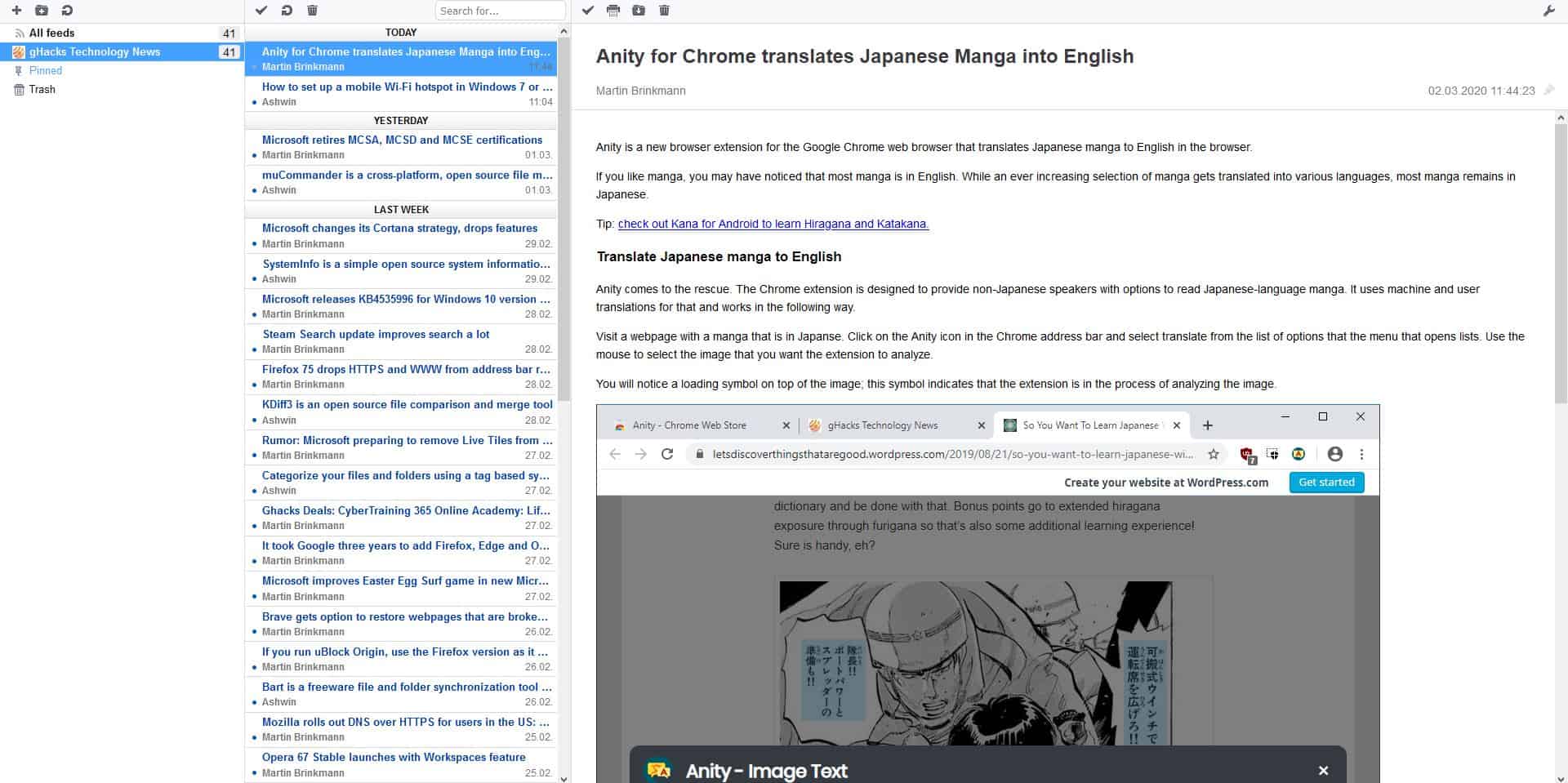
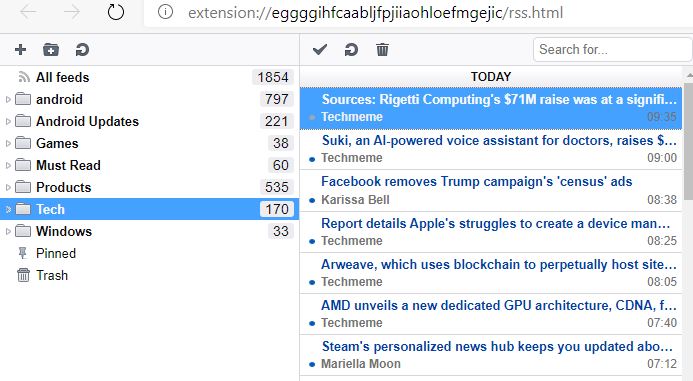
Install the add-on and click its toolbar icon to open a new tab with the extension's RSS reader. It has three panes, each of which has a toolbar at the top. The left pane is the feeds pane and lists all RSS feeds that you're subscribed too. Selecting a feed displays the title of the articles published by the site in the center pane. It also displays the author's name and the date when the article went live.
Click on an article's title to open it in the browser view, aka the right pane. Smart RSS Reader displays the article in its native format (i.e. no misaligned text or items) and it contains the images included in the post too. Use the Pin icon in the top right corner of an article's page to favorite it.
Smart RSS Reader supports offline article reading which is useful when you're away from an internet connection. The extension's toolbar icon flashes a badge when a new article has been published, so you won't miss out on reading your favorite sites.
Smart RSS Reader badge

Adding RSS Feeds

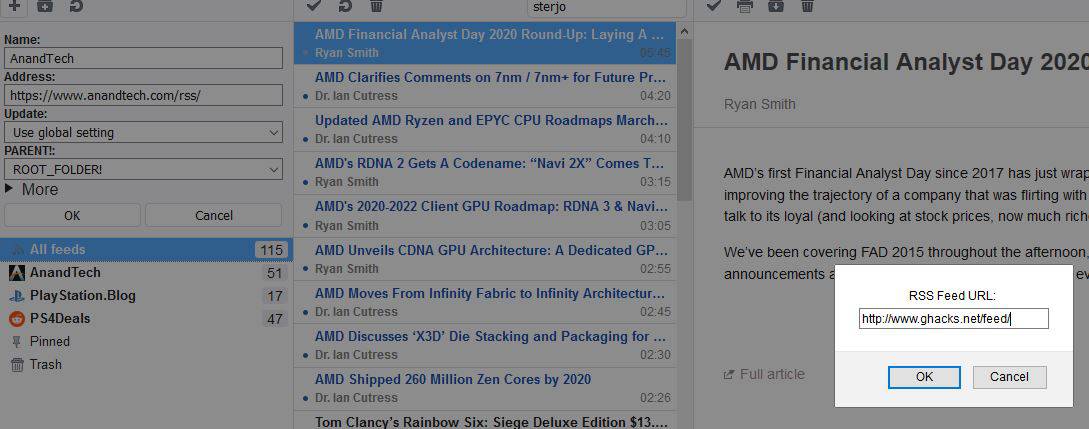
The toolbar on the top of the Feeds pane has a plus button. Clicking it brings up a box where you can enter an RSS Feed's URL. For e.g. http://www.ghacks.net/feed/
Smart RSS Reader adding a feed
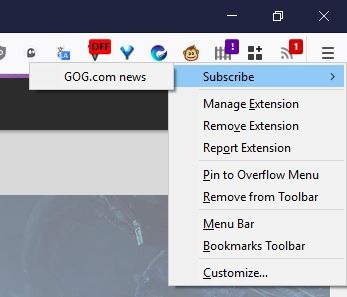
The extension automatically picks-up the name of the website, its favicon and you'll immediately see the list of articles available for reading. Another way to add a feed is by right-clicking on the extension's toolbar icon. This context menu is useful for subscribing to the RSS feed of the website that you're currently on. This doesn't work for every site though, it needs to have an RSS or XML feed available which the add-on pulls automatically.
SmartRSS extension for Firefox - subscribe context menu
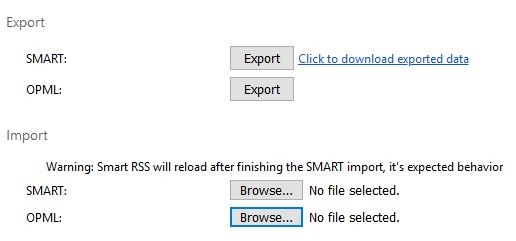
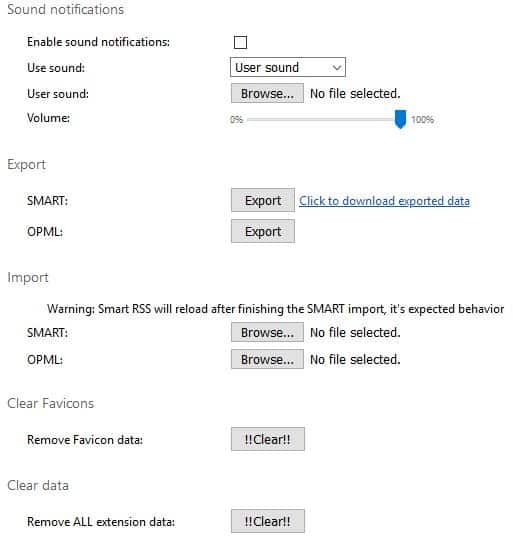
If you're subscribed to a lot of feeds already, don't worry you don't need to waste time re-adding each of those to Smart RSS Reader. Click on the wrench icon in the top right corner to go to the options page, scroll down to the Import section and select the OPML > browse button to pick your OPML file.
Smart RSS Reader import OPML
The feeds are imported instantly, and the add-on preserves the folders that you have set in your previous RSS reader.
Smart RSS Reader imported feeds

Managing Feeds

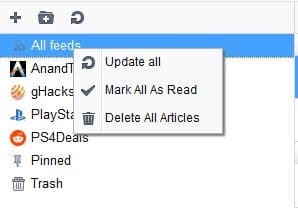
Right-click on the "All feeds" option to view a context menu which allows you to "Update all, Mark all read, and Delete all articles".
Smart RSS Reader manage all feeds
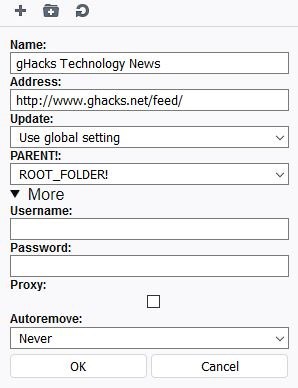
Select a Feed and right-click on it, click on Properties to change the URL, name etc.
Smart RSS Reader managing site feed
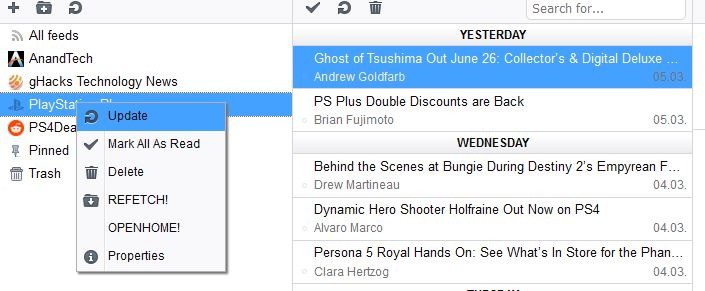
Use the "New Folder" option in the Feeds pane's toolbar to create a new folder, and move RSS feeds into it. This can help you organize things. Each feed has its own context menu that has options to update the list of articles, mark all as read, delete (unsubscribe), refetch (redownload), Openhome (opens the feed's website).
Smart RSS Reader managing feeds
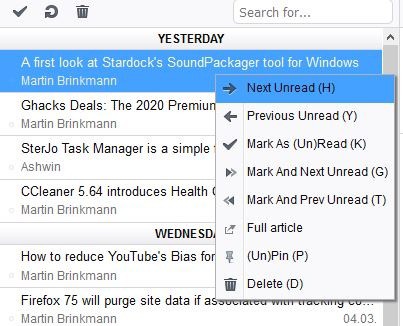
The feeds list pane has yet another context menu. This one can be used to jump  to the next unread, previous unread articles, or to mark articles as unread, mark and next/previous as unread, unpin articles, and to open the article in a new tab. The toolbar at the top of this pane has three icons: mark all read, update, delete. The Search box is handy to search for a particular article in your feeds.
Smart RSS Reader feed options

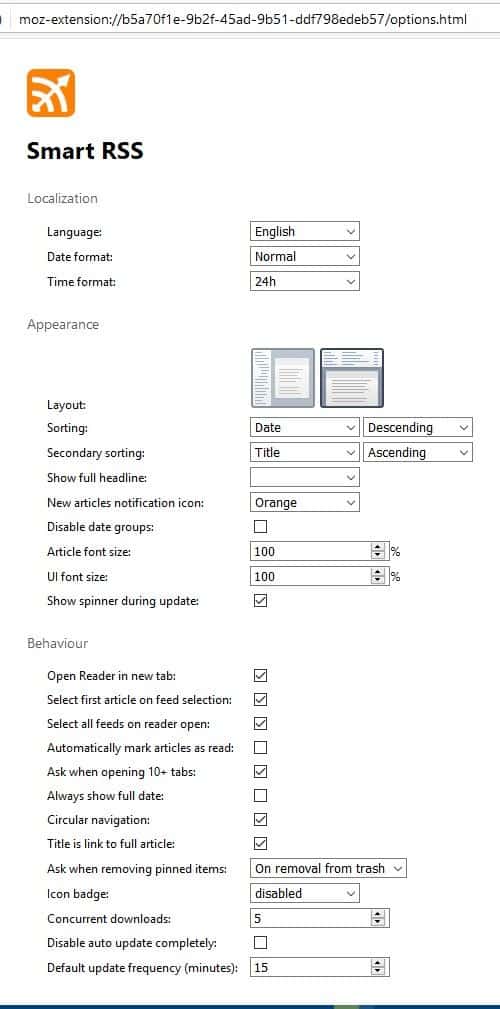
Smart RSS Reader options

The extension has a bunch of options including a 2-pane view, sorting options, article font size, reader behavior, export feeds to OPML or SMART (text document), etc. Smart RSS Reader has many keyboard shortcuts that you can use to read and manage your feeds.
Get the Firefox extension from the add-ons repository, and the Chrome version from the webstore. According to the developer, the extension is a fork of an add-on made by Martin Kadlec, which was made as an alternative to the built-in RSS reader in Opera 12. Smart RSS Reader is an open source extension.
The fact that you don't need an online account to manage your feeds, and that everything is stored locally is really nice. Add-ons like this and Feedbro are the closest alternative for desktop readers, though I do use QuiteRSS myself. Smart RSS Reader is very fast and fluid.

Source: https://www.ghacks.net/2020/03/10/smart-rss-reader-is-a-feed-reader-extension-for-firefox-and-chrome/