Pages

September 2, 2015

The best 7 secure browsers 2015

All browsers claim to be secure these days, so is there any point in using one that majors on its security?


Browse the web with privacy and security with these best secure browsers. Protect your privacy online with the five best secure browsers you can use in 2015.


What does the idea of a secure browser mean in 2015? The world is now more complex than it was in 2010 when we last looked at the contenders. People are more oriented to mobile devices running under very different conditions while a range of security features such as URL filtering, download protection and do not track have transformed mainstream desktop browsers such as Chrome, IE and Firefox. In a sense all browsers could now plausibly claim to be ‘secure’ browsers.


If that’s the case, what has happened to what were once considered secure browsers? One answer is the specialised products are now more focused on the issue of user privacy, of handing back control to the user and opting out of data collection systems of the sort that underpin firms such as Google.


It is perfectly possible to tweak Chrome, Firefox or IE, fine tuning them for security and privacy if that’s important. Each now has a privacy mode – which might or might not convince the sceptic of course. But the philosophy behind the true secure browser is to eschew the notion of platforms and plug-ins, stripping back every non-essential feature to create a more minimalist experience.


The following five (OK, plus one plug-in) achieve this is in different ways. This list is not intended to be exhaustive, merely an indication of what’s on offer from ones that caught our eye. Privacy usually requires compromises so they won't be for everyone.


Best Secure Browser: Epic privacy browser


Based on Chromium, Epic is the perfect example of a browser that strips out every conceivable feature to maximise privacy. It’s rather like using a minimalist Google Chrome with the Google. Cookies and trackers are eliminated after each session, all searches  are proxied through the firm’s own servers (which means there is no way to connect an IP address to a search), and it attempt to  prioritise SSL connections wherever possible., useful for open Wi-Fi connections. It does not collect data about its users and comes with excellent built-in ad blocking.


For a fully-encrypted connection, it includes a one-button proxying feature that does slow down browsing but will appeal to some users (it can’t necessarily be used as a regional bypass proxy because Epic’s servers are based in the US). Despite eschewing plug-ins a handful are available to make life a bit easier, for example password manager LastPass.
Downsides? Epic doesn’t seem to include the malware or anti-phishing protection now found on popular browsers.


Best Secure Browser: Comodo Dragon/Ice Dragon


Comodo has continued to improve its Dragon secure browser, forking it into two version based on Chromium (Dragon) and Firefox (Ice Dragon), sort of remixed versions of the standard browsers that add features while removing some potentially undesirable ones. Which one you choose would depend on your current investment in either Chrome or Firefox because each aims to maintain compatibility with thing like plug-ins, stored passwords, and favourites if desired.
Features? Probably the first one is the ability to choose whether to use Comodo’s SecureDNS servers for either Dragon or all applications (or not at all), which potentially offers privacy and security compared to a user wanting to bypass their ISP’s infrastructure.  This incorporates a domain filtering system designed to limit exposure to problem domains of the sort used by malware     


Probably the most intriguing feature is the browser’s ‘virtualised mode that isolates it from the host system. This is a free feature but requires the user to install Comodo Internet Security (CIS), a free version of the company’s anti-virus software. Not everyone will want to do that but the added security of this approach is worth considering.
Comodo also includes SiteInspector, a system for filtering suspect URLs as they are accessed.


Downsides? Comodo is set up as a parallel world to Chrome or Firefox minus some of the tracking and with some extra added layers of security. Impressive as this sounds it’s almost the polar opposite of Epic’s minimalism - worth experimenting with perhaps.
We should also mention that the recent controversy that engulfed Comodo over its promotion of tools such as PrivDog does not, according to the company, affect Dragon.
‘Chromodo’
Comodo also now offers something called Chromodo. As far as we can tell it is identical to Dragon but with a more standard (i.e. non-Comodo branded) look and feel.

Best Secure Browser: Tor


The Tor browser has become the watchword for the anti-surveillance because it is built on an entire infrastructure of ‘hidden’ relay servers. Built atop a modified Firefox, it can be installed on a Windows, Mac or Linux PC but also on a USB stick if that’s preferable.
The important thing to remember about Tor is that it is really an advanced privacy browser rather than a secure one in that it includes no anti-malware technology and blocks plug-ins by design. It is designed to anonymise a user within certain constraints such as the requirement to use only HTTPS connections (enforced by HTTPS Everywhere – see entry below).  The Tor Project offers a list of do and don’t for using it securely, including being very careful about downloading and opening documents which require external applications. Tor is a privacy browser not a secure environment.
Downsides? Using Tor will be slower than with other browsers and it can be demanding to use to its full privacy potential.  Some people think that anyone who uses Tor is trying to hide something. Of course they are right. If privacy is that important, let them think what they want.


Hornet


As an aside, in 2015 a system called Hornet was proposed fir the future that would speed up Tor’s Onion routing by minimising the system’s network overhead. Today, Tor browsing is slower than conventional browsing but this might not always be the case.


Best Secure Browser: Dooble


Dooble is a lean Chromium-based multi-platform (Windows, Linux, OS X) browser that won’t be for everyone despite its privacy features. In its default state it disables insecure interfaces such as Flash and Javascript which will make it difficult to use with a lot of sites but might be worth it for its stripped-down approach. The browser assumes the user wants to travel incognito from the off, while HTTPS can be enforced and third-party session cookies in iFrames blocked. The handling of cookies is unusually granular.
An innovative feature is that all user content (bookmarks, browsing preferences and history) can be encrypted using various ciphers and a passphrase. Another interesting feature is to set privacy, for example private browsing, for each tab using the right-click option.
Reviewers haven’t taken to Dooble because it lacks refinement in places but we found it fast and in some of its ideas clever.
Downsides? As stated.


Best Secure Browser: Maxthon Cloud Browser


Maxthon is not so much a secure browser as a totally new type of HTML5-compatible browser that wants to act as a straight replacement.  With origins in China, and designed around synchronisation between PC and mobile and builds in features often enabled in other browsers using plug-ins.
Although not a security browser per se, it embeds claimed protection from AdBlock Plus including the (for some) contentious ‘Acceptable Ads’ technology,  AES256 encrypted synchronisation  of files to its cloud services, and says it limits employee access at its end to customer data. That probably gives most people the collywobbles but it’s worth pointing out that exactly the same issues exist for any cloud service, including Google.
Downsides? Despite the interesting aspect of cloud integration we couldn’t see how Maxthon was inherently more secure than running a branded browser with the security settings turned up. In places poorly explained and documented, it’s also unclear whether it has features such as download protection that would come as standard elsewhere.


Best Secure Browser: HTTPS Everywhere

A browser plug-in rather than a browser as such, HTTPS Everywhere is an EFF/Tor project that enforces SSL security wherever that’s possible in Chrome, Firefox and Opera. Its promise is to make what would otherwise be a complex and uncertain process much simpler because it is easy to start out using HTTPS on a website and be sent back to non-HTTPS pages without realising it.
Downsides? It’s another plug-on of course but it’s worth it. A boon for cafĂ© surfers everywhere.

Best Secure Browser: Cocoon browsing


When we first looked at Cocoon in 2014 we were put off by the fact that it didn’t seem to have been much recommended since its first appearance around 2011-2012. More recently the firm seems to have re-launched itself as an ad-supported free product (a more advanced Cocoon+ is ad-free but costs $19.99 per annum) as a “military-grade” product offering a range of alluring security features –anonymous browsing, anti-Facebook tracking, better W-Fi security on open hotspots, and an encrypted end-to-end connection.
Based on a plug-in design (Firefox, Chrome, Safari and IE), Cocoon is really a proxy VPN-like service in which the user logs into its server using a created account, and logs out after conducting any browsing. In theory, this makes it ideal when using unsecured PCs away from home.
We have yet to properly test the browser’s security for this review (that is imminent) but the paid version does advertise some interesting additional features such as ‘mailslots’, basically disposable email addresses that hide the real address (webmail services also offer this through aliases although the underlying service such as Gmail or Yahoo is always apparent). Deleting the temporary email address effectively unsubscribes you from anything signed up for.


Best Secure Browser: IceBrowser (Cocoon)


Based on the Cocoon platform, Icebrowser is a Firefox-only plug-in that offers exactly the same security features as Cocoon but routes traffic via servers in Iceland. The advantage? Browsing data is logged in that country, far from the prying eyes of the NSA and others, or at least we assume that’s the benefit.
Using the service requires the user to sign up to the possibility of a $9.95 per annum charge on the basis of the following:
“You will not be charged at this time. Providing your billing information ensures your service will continue uninterrupted at the end of your free trial and limits one free trial per person to avoid fraud.” Make of that what you will.

Source: http://www.techworld.com/security/best-7-secure-browsers-2015-3246550/3/


August 29, 2015

5 Reasons Why Firefox is Better than Chrome

Google Chrome is a Google-based web browser that begun towards the end of 2008.
As of August 2015, it is reported that this Chrome browser has a market share of about 56%, making it the most dominant web browser on desktops.
Even though this figure is mind-boggling considering that there are a bunch of other web browsers that include Firefox, Opera and Safari. However, many can agree that this web browser isn’t the best there is. One thing that makes Chrome such a popular web browser is the syncing ability it offers users respective of the number of devices they have. Whether you have several desktops, a bunch of smartphones and even a few tablets with you, all data will be synced as long as you have signed in with the same Google account.
Well, if you are not a fun of this syncing stuff, then there is something much better and designed specifically to meet your browsing needs. Mozilla Firefox is the web browser in question here and if you still doubt this stance, here are five reasons to make you ditch Chrome browser in favor of Firefox web browser.
Chrome is a resource hog
Over the years, Google Chrome has developed into a serious resource hog. Even though this application offers the fastest page rendering, this comes at a cost. A lot of RAMis consumed during this process, and the company has gone to the extent of accepting this, with promises that it will look into this matter and come up with a better browser. The fact that Chrome is a resource hog has some detrimental effects on your PC. Your laptop’s battery life wouldn’t be the best when using Chrome to browse the web.
Extensions are a brainchild of Firefox
There is no doubt that Google Chrome is equipped with dozens of extensions. However, you will find Firefox add-ons that are only exclusive to this browser. One such example is the NoScript extension that is only available for Firefox users.
You will also come across Firefox extensions that allow easy downloading of files, for instance, YouTube videos. However, the same extensions will have trouble working on Chrome web browser as Google doesn’t like them and what they do. Users will have to tweak some security settings to install these extensions.
Firefox offers better privacy than Chrome
If privacy is what you treasure most, then you won’t be a friend of Chrome. Google has all of its eyes set on you, and it will keep track of anything on your account to make sure that the ads targeted to you are the most relevant. This browser will always be asking you to associate the application with a Google ID so that it can sync your data; however, this is a big privacy concern.
There is no such stuff on Firefox and in fact, you will get lots of other browser add-ons that will help in tightening the grip on your privacy settings.
Firefox is easy to use
When compared to Chrome, Firefox is a very easy-to-use web browser. Chrome can become problematic in terms of navigation, especially when lots of tabs are open. Elements will start to grow smaller and smaller with each new tab and in the end, it won’t be possible to know which tab has what information.
There is a side scroll user interface in Firefox browser that helps in easy scrolling using a mouse, something that is not possible on Chrome. You will also come across a separate search box where you can easily search from a variety of search engines such as Bing.
Firefox comes with an inbuilt reader mode
Chrome lacks this one area. While you will this reader mode coming preinstalled in Firefox, Microsoft Edge, and Safari web browsers, the same is not available on this Google-based web browser. In this mode, all ads are removed from the website, and users get a website UI that enables them to view an amazing print-style article.
If reading a lot is your thing, Firefox web browser is the best for your needs.

Source: http://neurogadget.com/2015/08/29/5-reasons-why-firefox-is-better-than-chrome/13777

August 11, 2015

Tested: How Flash destroys your browser's performance

We tested the effects of browsing with and without Flash on several major browsers. Enabling Flash is, in a word, catastrophic.


In case you needed another reason to uninstall Adobe Flash, we’ve got one: It can drag down your PC by as much as 80 percent. Yes, 80 percent. So not only is Adobe Flash incredibly unsafe, it’s a memory hog. And we’ve got the numbers to prove it.
As part of an upcoming roundup of the major browsers, we tested their abilities to handle Flash. Two browsers, Mozilla Firefox and Opera, do not include Flash, although you can download a plugin from Adobe to enable it. A third, Microsoft’s new Edge browser, enables Flash by default, although you can manually turn it off. Both Internet Explorer 11 and Google’s Chrome also include Flash, which you can disable or adjust within the Settings menu.
sfgate webpage
The Web’s information superhighway is increasingly littered with ads, popups and worse.

Testing in the real world

Let’s start from the totally naive premise that Flash does not represent a security risk (because it clearly does). Vulnerabilities occur in the background, surreptitiously lifting your data, installing rootkits, and the like. But they don’t impact your day-to-day browsing, right?  Maybe not. But as our tests show, simply using a browser with Flash installed can have major consequences on performance.
As we did in our Windows 10 review, we used a testbed of 30 live sites, ranging from Amazon to The New York Times to iMore to PCMag.com. Most of the sites have embedded ads and trackers, which the sites use to track you, create a profile, and sell you stuff. Because the sites are live, there’s always a possibility that ads and content can change from one visit to the next, but we did our live testing over the course of a single day to minimize this.
We tested Chrome 44, Windows 10’s Edge 12, Firefox 39, Internet Explorer 11, and Opera 31—all the latest versions at press time. We ignored Apple’s Safari browser—sorry, Apple. For Firefox and Opera, we ran our tests without Flash installed, then downloaded the plugin from Adobe’s site. With Edge, we toggled Flash on and off, using its built-in control. We used a Lenovo Yoga 12 notebook with a 2.6GHz Intel Core i7-5600U inside, running a 64-bit copy of Windows 10 Pro on 8GB of memory.
Measuring the impact on your PC's CPU and RAM is somewhat subjective. Loading a page can take as little as a few seconds, for a text-heavy page with few embedded elements. Pages with embedded video, pre-roll advertising, and the like, can take over a minute. We tried to split the difference.
Microsoft edge background processes Mark Hachman
You can dig into the Task Manager (WIN + X) to find out what’s chewing up your system resources. All these background processes slow your PC down.
From our list of links, we cut and pasted each link into a new tab, weakly approximating how a user would add one tab, then another. But we did it quickly, to try and stress the browser by throwing a number of elements at it, all at once. After loading all 30 sites, we then waited 30 seconds for things to settle down, before opening Windows 10’s Task Manager and recording the CPU load and memory consumption of both the apps as well as the background processes. If applicable, we added Flash’s CPU and memory load as well. (We snapped a picture of the screen, then copied the values in by hand—a browser like Chrome, for example, has a ton of background processes, all dynamically changing by the second.)
It’s important to note that, especially with a midrange PC, the amount of CPU cycles an app chews through will probably be what causes your PC to stutter and pause—and that’s going to be what frustrates you most.

OMG, Flash

What we found was shocking. 
We condemned Microsoft Edge, for example, for locking up in previous iterations of our 30-tab stress test. With Flash enabled, Edge survived—a testament, perhaps, to a massive bloc of updated code that Microsoft recently released. With Flash enabled, Edge chewed through 4.72GB of memory, sucking down 84.1 percent of my PC’s CPU cycles. With just Word Mobile open, that left my system functional. 
flash benchmarks
Simply turning on and off Flash can make a significant difference in the amount of resources your browser uses.
But when I toggled Flash off, the same tabs required 4.12GB of memory, and just 24.5 percent of my CPU. That’s an 11-percent drop in memory consumed, and a whopping 61-percent decrease in CPU consumption.
It just got better from there. Opera really surprised me with how efficiently it performed, consuming just 3.47GB of memory with Flash enabled—the lowest of all the browsers we tested. It chewed through 81.2 percent of our CPU. But as a clean install, without Flash, Opera consumed 1.8GB and just 6.6 percent of our CPU cycles. Pages seemed to load like shots from a gun: pow, pow, pow!
Firefox did swimmingly as well, when you removed Flash from the equation. It consumed 1.65GB, and needed only 24.5 percent of the CPU. But after I downloaded Flash, Firefox seemed to throttle itself. The browser never climbed above 29.1 percent of the CPU, but some tabs were unresponsive minutes after loading, and I had to manually check each tab's progress. That was totally unacceptable.
Chrome also consumed 4.23GB of memory, and 71.4 percent of the CPU, with Flash enabled. That was pretty good, just by itself.

For Edge, some redemption

Of all the features that Microsoft highlighted with Edge—its Web Notes, Cortana, the Reading View—the one that jumps out now is its ability to toggle Flash. All the messaging I’ve seen from Microsoft—and the reviews, to boot—have focused on its performance on a few canned benchmarks, rather than real-world browsing. With Flash turned on by default, that performance has been lousy.
microsoft edge adobe flash Mark Hachman
To toggle Adobe Flash off and on in the Microsoft Edge browser, you need to dive into the Advanced Settings menu.
I can’t say for certain which pages require Flash to be functional, if only because I’ve tolerated Flash for so long. But the toggle at least offers the possibility that Edge can be the modern, streamlined browser that Microsoft hopes it to be.
Edge, however, doesn’t offer a middle ground. Flash is either on, or off. Chrome used to have a “Click to Play” option for Flash, but it seems to have disappeared. In Firefox, you can set Flash in a “click to run” mode: Flash is installed, but it won’t fire unless you manually tell it to. To do this, you’ll need to find Firefox's Add-ons menu, then set the Flash plugin(s) to Ask to Activate.  
(Editor's Note: A number of you are wondering what to do with sites whose content you want to see, but that use Flash. We think that Firefox's "Ask to Activate" feature might be a good compromise: turn it off when you don't need it, and simply click to activate it when you want to watch a video or play a game.)
Ideally, being able to turn Flash on and off on a per-tab basis might be even better, but the Edge team doesn’t seem to have that on the feature roadmap.

How do you turn off Flash?

Here’s a quick guide to removing Flash from your browser:
Microsoft Edge: This is easy. Click the “ellipsis” (...) menu to the upper right, then click Settings > Advanced Settings. Flip the Adobe Flash toggle Off.
Google Chrome: From the menu button in the upper right, click Settings, then scroll down to Show advanced settings. Under Privacy, click Content Settings. Scroll down to Plug-ins > Manage Individual Plugins. You’ll have the option to turn Flash on or off.
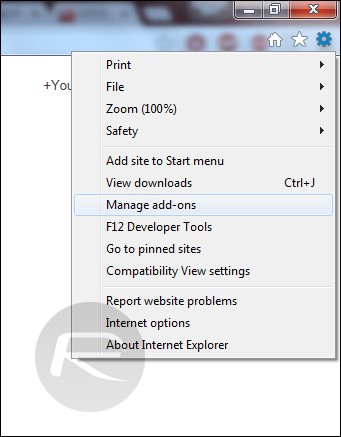
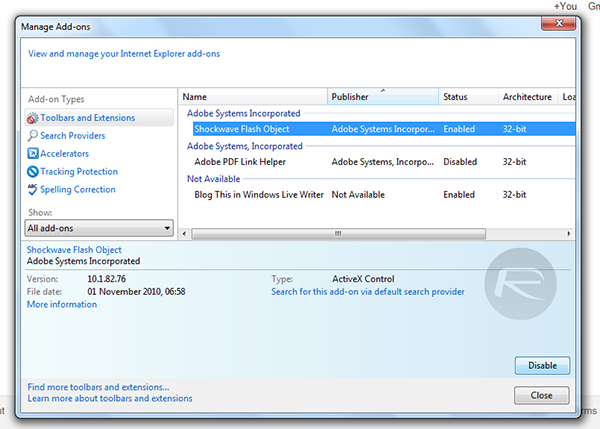
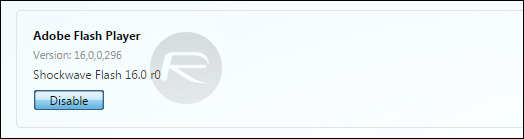
Internet Explorer: Click the gearlike Settings icon to the upper right. Scroll down to Manage add-ons. When you’re presented with a list, click Shockwave Flash Object and the Disable button, at the lower right.
Mozilla Firefox: In Firefox, click the menu button at the upper right, click Add-ons, then set the Shockwave Flash plugin to Never Activate.
Opera: This is a bit tricky. To uninstall Flash in Opera, you need to go to Windows 10 Control Panel's Programs > Programs and Features, then manually uninstall Adobe Flash Player PPAPI. (Thanks to HowtoGeek for the tip.)

Stay tuned for our full review

Flash obviously isn’t the only culprit preventing you from browsing efficiently: Javascript, other plugins, ads, and the like all bog down your browser. But as our tests prove, Flash makes a tremendous difference.
In the next few days, we’ll present our full set of benchmark results comparing the top browsers, and how they fare on Windows 10. Each has their own particular set of skills. This message, however, was worth highlighting: Eliminating Flash can make a world of difference in your day-to-day browsing, and is just as important as any benchmark.
Updated at 9:14 AM to address concerns about sites that use Flash.

Source: http://www.pcworld.com/article/2960741/browsers/tested-how-flash-destroys-your-browsers-performance.html

August 5, 2015

Find the Large Attachments Eating Up Your Gmail Space with a Simple Search


This may come as a surprise, but Google is known for its search capabilities and offers many useful search shortcuts. It's no wonder that Gmail does the same. Network administrator Josh Gilmour points out on his blog that if you're low on space in your Gmail account, one easy way to fix it is to search by message size.
Searching by size is very simple. You just type size: and then the minimum number of you want each message to be. For example, you'd type size:1000000 for messages greater than 1MB. Here are a few more examples, and you can click each link to see the results in your inbox immediately:

July 31, 2015

101 Free Online Alternatives to Popular Desktop Software

Many of us are quite familiar with the suites of office tools that come with our computers, and in fact, we use them every day for a wide variety of word processing tasks. However, the Web offers many free online alternatives to these (sometimes quite pricey) software packages that work just as well or better than their offline equivalents. Here are one hundred and one free online alternatives to popular desktop software packages, ranging from slideshows to email managers to document creation to file management.
Free software icons - Backdrop: Jamie Farrant/iStock Vectors/Getty Images
Backdrop: Jamie Farrant/iStock Vectors/Getty Images

1.  Word Processing

  • Google Docs: Free online office suite that offers document processing, spreadsheets, even work collaboration.
  • Acrobat: Create PDF files, convert files, and make forms.
  • PDFescape: Free PDF form editor within your browser; can also use it to fill in PDF forms online.
  • OpenOffice: Free open source productivity package that is similar to Microsoft Office.
  • AbiWord: Simple word processing program; multiple people can collaborate on one project.
  • Zoho: A free online word processor that works within your Web browser. Share, collaborate, edit, create.
  • NumSum: Create and share Web spreadsheets.
  • Writer: Simple writing utility meant to encourage concentration and focus.
  • CKEditor: Web-based text editor.
  • NeoOffice: Full office suite for Mac users.

2.  Communication

  • Meebo: Centralized dashboard for several different instant messaging programs.
  • TokBox: Live group video chat anywhere, anytime.
  • faxZERO: A free fax tool you can use on your computer (covered more fully in Five Ways to Send a Free Fax Online).
  • Google Voice: A centralized online space for phone calls and voice messages.
  • OoVoo: Free video chat from mobile to mobile, mobile to computer; up to six people at once.
  • eBuddy: Web-based instant messaging that works on any computer; integration of all popular chat programs.
  • Pidgin: Instant messaging plugin for simultaneous chat networks.
  • Trillian: Chat client for computer and phone.

3.  Presentations

  • Sliderocket: Easy to use with many of the same features as PowerPoint.
  • Prezi: Create high quality presentations completely online.
  • ScreenCastle: Free screencast recorder you can use to film activity within your browser.
  • Vcasmo: Multimedia presentation tool with a wide variety of interactive features.
  • Empressr: Presentations with photo, music, audio, and video; can embed anywhere on the Web.
  • Animoto: Slideshows from videos and photos.
  • Flixtime: Video slideshows with sophisticated graphics.
  • PhotoPeach: Free slideshow utility.
  • SlideShare: Share your presentations with others.
  • Screenr: Instant screencasts with a Web-based screen recorder.
  • Storify: Make slideshows using social media content.
  • Vuvox: Produce videos using your own multimedia.

4.  Security

  • ESET Online Virus Scanner: Finds and removes threats; not intended as a full security suite, but a good option.
  • LastPass: Keeps track of all your passwords in one convenient, secure location.
  • VirusTotal: Identifies suspicious files or URLs.
  • ClamXAV: Free virus scanner for Mac computers.
  • Virscan: Free Web-based file scanner; upload a file and it will scan it for infections.
  • Avira: Free antivirus protection program for home computers.
  • Avast: Free protection against viruses and spyware.
  • AVG Rescue CD: Helps you identify deep-rooted virus/spyware infections and get your computer working again.
  • MalwareBytes: Scans your computer for spyware, malware, and viruses.
  • Microsoft Security Essentials: Free antivirus protection from Microsoft.

5.  Image and Video Management and Manipulation

  • Aviary: Similar to Photoshop; all sorts of image manipulation/editing tools here.
  • JayCut: A free online video editor.
  • Splashup: Free image editor and photo manager.
  • SmugMug: Free photo management tool.
  • Vixy: Download videos and convert them into playable formats for your computer.
  • Miro: Converts video files for playback on computers and mobile devices.
  • Talon: Instant screenshot utility; also available as a Google Chrome extension.
  • GIMP: Offers many of the same features as Adobe Photoshop; free image editing program.
  • Pixlr: Online photo editor with menu of advanced effects.
  • Rsizr: Re-sizes images fast.
  • FotoFlexer: Advanced Web-based photo editor.
  • Picnik: Browser-based photo editor with menu of special effects.

6.  Organizational Tools

  • Evernote: Jot notes, take pictures, and organize your thoughts and online life in one place.
  • Springpad: Save, organize, and remind yourself with Springpad's easy to use interface.
  • Toodledo: Type in what your day looks like, and Toodledo organizes it into a personalized to-do list.
  • Toggl: Tracks time spent on task so you can more easily bill it.
  • iClippy: Captures data from anything you copy and paste (text, video, images) and puts it in one convenient place.
  • Zootool: Organizes all your Web bookmarks into a searchable index.
  • MyNoteIt: Geared towards students; a great way to organize notes and share with others.
  • Remember the Milk: Management of all online or offline tasks.

7.  Calculators, Graphs, and Financial Management

  • Mint: Similar to Quicken, Mint offers one of the most robust financial management dashboards on the market.
  • Instacalc: For any mathematical computation you might need. Includes scientific notations.
  • Gliffy: Create free diagrams, graphs, flowcharts, and technical drawings.
  • Web 2.0 Calc: Scientific calculator with standard functions.
  • Create a Graph: Easy online graphs for simple projects.
  • GnuCash: Free accounting software for home and business use.
  • Hourly Rate Calculator: Helpful for freelancers who are trying to figure out how much to bill clients.
  • Buxfer: Free online money management with an intuitive dashboard.
  • Yodlee: Track spending, pay bills, and control your budget.
  • eCalc: Scientific calculator available online and as a download.

8.  File Management, File Sharing, File Conversion, and File Organization

  • WobZip: Unzip compressed files, either from your computer or online.
  • Zamzar: Fantastic tool for file conversion with dozens of file formats available.
  • WebFTPer: Browser-based FTP (file transfer protocol) tool; manage your website files from anywhere with an Internet connection.
  • Movavi: Free file conversion tool that converts multiple files at the same time (limited file size/length).
  • Ubikuo: Storage of online notes available anywhere with an Internet connection.
  • Dropbox: Free file hosting service that allows users to access their files from anywhere.
  • eSnips: Upload, share, or download files, photos, videos, or music.
  • Mediafire: Free hosting and sharing for any file.
  • YouConvertIt: Free file conversion for wide variety of file types.

9.  Project Management and Project Collaboration

  • Pirate Pad: Streamlined notepad application that enables anyone anywhere to collaborate on a project in real time.
  • Mindmeister: Free brainstorming tool with collaborative features; free but does include tiered pricing options for more features.
  • Bubbl.us: Highly functional brainstorming tool that can be used in tandem with other people.
  • Mindomo: Collaborative mind-mapping tool; real time sharing and file uploads.
  • Meeting Wizard: Arrange and schedule meetings between multiple people groups.
  • Writeboard: Collaborative web-based text document creator/editor.
  • Vyew: Free real time meetings, collaboration, annotations.

10.  Lists, Calendars, and Productivity Tools

  • 30 Boxes: Track birthdays, friends, and tasks with this interactive calendar tool.
  • TaDa List: Web-based list maker; make lists and share lists.
  • Monkey On Your Back: A to-do list for what you would like other people to get done.
  • TimeXChange: Task tracking with time/project features.
  • Todoist: Personal project tracking and management.
  • Tom's Planner: Personal project management via charts.
  • Evernote: Organize your notes, photos, videos, etc. in one place for easy access.
  • LiveBinders: Collect online "resources" and organize them easily.
  • Doodle: Create and manage events for multiple participants.
  • Upcoming: Track event calendars in your local area.
  • Google Calendar: Make multiple calendars, share events, track workflow.

Source: http://websearch.about.com/od/web20officealternatives/tp/101-Free-Online-Alternatives-To-Popular-Desktop-Software.htm

July 27, 2015

Textmarker: Mark text temporarily or permanently in Firefox

Textmarker is an easy to use browser extension for Firefox that allows you to mark text on web pages you visit temporarily or permanently.
Web browsers don't come with options to highlight text on web pages, at least not in their default state.
This may sometimes be necessary or desired, for instance when you use a resource regularly and want to make sure that the most important information are highlighted for better accessibility.
With Textmarker for Firefox, things could not be easier. To highlight text simple select it using mouse or keyboard, and hit m afterwards to use the first configured color for the highlighting.
You may hit 2 or 3 instead to mark with different colors instead, and if you don't like the default color scheme for a shortcut, you may modify it in the options.

textmarker

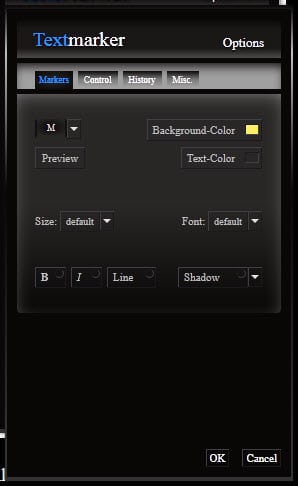
There you may modify the background color but also other parameters such as formatting options, a different text color or size and font.
Textmarker adds an entry to the context menu of the mouse which you may use instead to highlight text on pages you visit in Firefox.
Changes are temporary by default but can be made permanent with a tap on Ctrl-Shift-S. If you think that this is too much work, you may change this directly in the options so that all changes are saved automatically and persist across sessions.

textmarker optionstextmarker options 2

The control options page provides you with options to enable or disable select features. You may disable mouse support there for instance, or disable one of the markers or other functionality that you don't require.
As you can see on the screenshot above, additional shortcuts are provided, for instance to undo the last action or to use the built-in Wikipedia look up option which opens the term you have highlighted on Wikipedia in a new tab in the browser.
Another interesting feature is the extension's built-in bookmarking functionality which scrolls the text automatically to the lowermost bookmark on consecutive visits. This can be useful if you are reading a book online or access a large text on a site that you cannot read in a single session.
Closing Words
Textmarker is a useful add-on for Firefox that adds text highlighting to the browser. While that would be great itself, its the extra features like bookmarking or permanent highlighting that make it shine.

Source: http://www.ghacks.net/2015/07/27/textmarker-mark-text-temporarily-or-permanently-in-firefox/
July 17, 2015

Major Vulnerability In Adobe Flash Found, Here’s How To Disable It In Your Web Browser

By | February 3rd, 2015

n news that won’t shock too many, a major flaw has been discovered in Flash. Yet another zero-day vulnerability for the video plugin software to add to the collection, this particular variant leaves PCs susceptible to hijacking, and if you want to protect yourself by quickly disabling flash, we’ll be showing you how to do so below.
Despite its ubiquity, Adobe’s Flash Player has come under huge scrutiny over the past decade, and seems to typify everything bad about a piece of software. It’s resource-hungry, buggy and sluggish, throwing up vulnerabilities like confetti, and the latest – CVE-2015-0313 – has left Adobe with its third exploit to patch in just two weeks, but with large parts of the tech community shunning Flash in their droves, we’re going to show you how to disable it once and for all.

Adobe Flash main

Firefox
Step 1: Open up the Firefox browser.
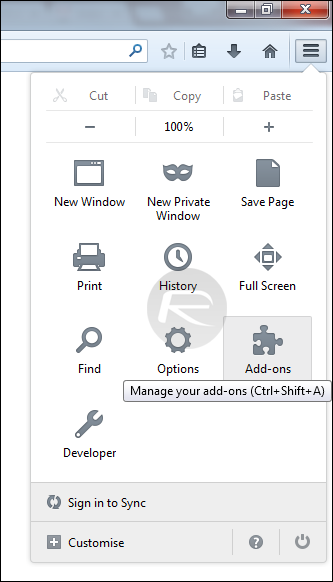
Step 2: Hit the Settings icon represented by three horizontal lines in the top right-hand corner.
Step 3: Click Addons, then Plugins.

FFOX1

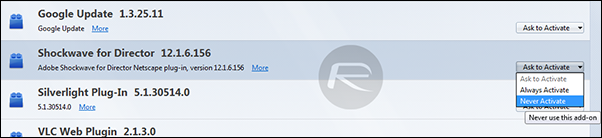
Step 4: Next to any Shockwave or Flash-related objects, you’ll see a drop-down menu. Click on it, and set it to ‘Never Activate.’

FFOX2

Internet Explorer
Step 1: Open your IE browser.
Step 2: Hit the Settings icon represented by the gear-like image in the top right-hand corner.
Step 3: Select ‘Manage add-ons’ from the drop-down menu.

IE1

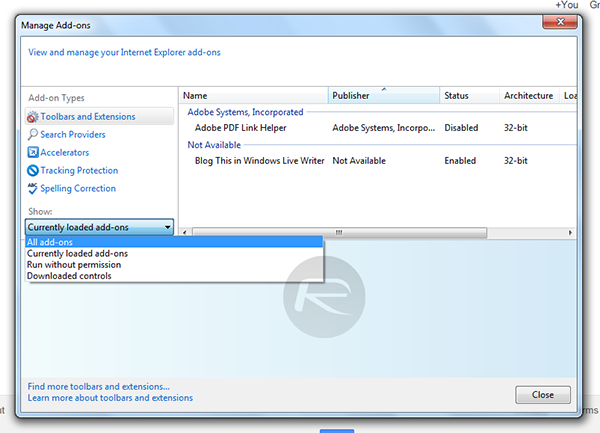
Step 4: Under the ‘Show:’ drop-down, select ‘All add-ons.’

IE2

Step 5: Finally, select Shockwave Flash Object, and in the bottom right-hand corner, select ‘Disable.’

IE3

Opera
Step 1: Open up Opera.
Step 2: In the URL bar, type “about:plugins.”
Step 3: Navigate down to Adobe Flash Player and select ‘Disable.’

OP1

Chrome
Step 1: Open Chrome.
Step 2: In the URL bar, once again type “about:plugins.”
Step 3: Navigate down to Adobe Flash Player and select ‘Disable.’

GC1

Safari
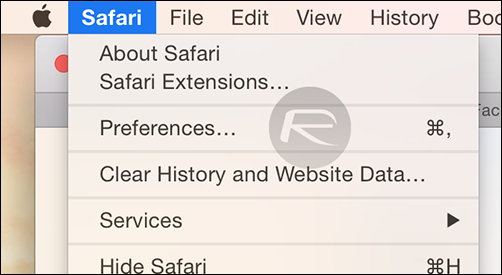
Step 1: Open Safari.
Step 2: Click on Safari in the Menu bar and then ‘Preferences.’

1

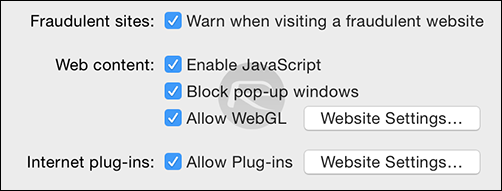
Step 3: Now click on ‘Security.’
Step 4: Click on the ‘Website Settings…’ button next to ‘Allow Plugins.’

2

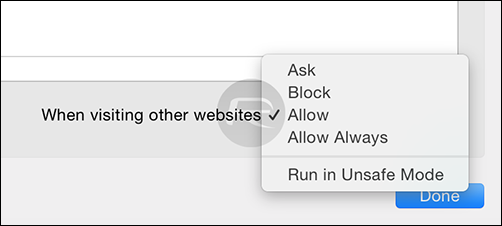
Step 5: Select ‘Adobe Flash Player’ from the left hand-side menu and then select ‘Block’ in the ‘When visiting other websites’ drop-down menu.

3

There’s no fix for the (latest) 0-day vulnerability as yet, but irrespective of Adobe’s plans to release one in the very near future, your best bet is to disable Flash indefinitely and continue about your business.
The Internet has evolved to the point where enabling Flash is no longer a necessity for day-to-day browsing, something which was further cemented by YouTube in its latest move to ditch Flash completely, and by following the steps outlined in the tutorials above, you’re actually safeguarding yourself from the continued, inevitable issues that arise with this antiquated piece of software.
You can follow us on Twitter, add us to your circle on Google+ or like our Facebook page to keep yourself updated on all the latest from Microsoft, Google, Apple and the Web.

Source: http://www.redmondpie.com/disable-flash-in-chrome-firefox-safari-other-web-browsers-to-keep-your-pc-safe-from-vulnerabilities/

July 5, 2015

How to disable Adobe Flash in Firefox and Chrome

I have been annoyed by ads, audio, and YouTube videos in web pages for a long time.  I have tried a bunch of Firefox add-ons with mixed success. But this week I found a simple solution. Just tell the flash plug-in to ask permission before it loads. See the answer from the Mozilla forums.

Some pages have 3, 4, 5 or more adobe flash advertisements running at the same time, which slows the browser down tremendously. Then, if you happen to have multiple tabs open, the browser crawls to a virtual standstill, and many times, stops responding at all.
I would like to be able to choose whether or not a page can run flash content - not have it be something that runs all the time for every page, with the only option being to kill the plugincontainer process in taskmanager - which kills even the Adobe Flash items you might want to view; such as a youtube video.
Why is there not a way to turn Adobe Flash off in the browser? I have updated both Firefox and Adobe Flash but nowhere is there an option for turning it on or off depending on your needs.
Can a control be added to the Internet Options, that you can set, to have a page ask before it is allowed to run Flash Content? Having that kind of control would GREATLY enhance the enjoyment of browsing multiple pages. Any information on how to do this, would be appreciated.

Answer: hello, this is already possible in firefox: go to

firefox/tools > addons > plugins and set shockwave flash to ask to activate
.

then the plugin will stay disabled per default but can be activated on a per-site basis...


Source: https://support.mozilla.org/en-US/questions/988836

Chrome
Step 1: Open Chrome.
Step 2: In the URL bar, once again type “about:plugins.”
Step 3: Navigate down to Adobe Flash Player and select ‘Disable.’


GC1


Source: http://www.redmondpie.com/disable-flash-in-chrome-firefox-safari-other-web-browsers-to-keep-your-pc-safe-from-vulnerabilities/

July 4, 2015

Use Internet Explorer's Built-in "Flash Block" Feature

It's no secret that using Flash Block in Firefox can help protect you from drive-by browser attacks, but what you might not know is that Internet Explorer has a Flash Blocker, of sorts, built right in.


Over at the Winhelponline blog, they've written up a guide to activating the hidden feature, which uses a built-in tweak that is normally used to kill ActiveX controls on specific websites, but can be reversed to only allow a plug-in to work on sites you specify. To make the change for yourself, just head into the Tools -> Manage Add-ons screen and double-click on Shockwave Flash in the list. Once you're there, click the Remove All Sites button to remove the default * option, which allows all sites to use Flash.
Once you've made the change, you'll be prompted anytime you visit a site that uses Flash, and you can enable Flash for just that single site. It's not as elegant of a solution as the Flash Block add-on for Firefox, but if you're stuck using Internet Explorer at work, it's a great way to keep yourself safe—not to mention blocking annoying Flash animations.

June 9, 2015

How to stop autoplaying HTML5 videos


P. Petropoulos blocked Flash videos from playing automatically without his permission. Now he wants to block HTML5 videos, as well.
On New Year’s Day, I told you how to block videos that play automatically when you visit a Web page. In fact, if such a video is starting to play right about…now, you may want to revisit that article.

My previous instructions concentrated on Flash videos, however, and Flash isn’t the only technology designed to annoy you with unwanted videos. So now I’ll tell you how to block HTML5 videos in Chrome and Firefox.
[Have a tech question? Ask PCWorld Contributing Editor Lincoln Spector. Send your query to answer@pcworld.com.]
Alas, I could find no solution for Internet Explorer. If you find one, just put it in the Comments section below.

Chrome

You need to download and install a Chrome extension called, simply enough, Stop YouTube HTML5 Autoplay, by Port Zero. (If that link fails, try the developer’s site and click the link provided there.) And yes, it blocks non-Youtube HTML5 videos as well.
This program, to use a marketing term for one major tech company, “just works.” Install and enable it, and HTML5 videos won’t start automatically. You can click the video to get it going.
0604 html5 not automatic

Firefox

You don’t need an add-on or an extension. You can take care of this with a setting in Firefox itself.
Open a new Firefox window or tab, and in the address field (where you would normally type a URL), enter about:config. Then Click the scary I’ll be careful, I promise button.
0604 firefox warning
You’ll get a long list of settings, and above them all, a search field. In that search field, type autoplay and press Enter. This will bring up one entry: media.autoplay.enabled.
Note the Value column. It will probably be True. Double-click the entry and the Value will change to False.
0604 html5 firefox
The next time you visit a page with an HTML5 autoplaying video, the video box will appear with an image in it. But the video won’t start until you tell it to.

Source: http://www.pcworld.com/article/2922403/how-to-stop-autoplaying-html5-videos.html#tk.rss_howto

Mozilla responds to Firefox user backlash over Pocket integration

Last week, Mozilla updated Firefox with Pocket integration. Over the weekend, some Firefox users began to voice their displeasure over the move on public forums like Bugzilla, Google Groups, and Hacker News. Pocket is a service for managing a reading list of online articles (it allows you to save stories, videos, and websites to check out later). Pocket is already offered as a Firefox add-on, and although Mozilla was developing a homegrown Reading List feature for the browser, the company decided to simply integrate Pocket directly into Firefox.
The complaints center around the fact Pocket is a proprietary third-party service, already exists as an add-on, and is not a required component for a browser. Integrating Pocket directly into Firefox means it cannot be removed, only disabled.


pocket_firefox


The argument follows that bundling the Pocket add-on directly into Firefox would have been a better option. Add-ons can always be entirely removed from Firefox.
While Firefox’s user interface allows the user to remove Pocket from the toolbar and menu,

the only way to properly disable it is in about:config (search for browser.pocket.enabled and set it to false).  

 Firefox users point out that this isn’t very user friendly, and is very unlike Mozilla.

Finally, many Firefox fans feel there wasn’t nearly enough communication that this Pocket integration was coming. Mozilla is typically very transparent about its plans, and while this didn’t come out of the blue, many were still taken by complete surprise.
Those are the complaints. When VentureBeat reached out to Mozilla for an explanation over the weekend, the company took some time and responded a couple days later with the following statement:
Pocket has been a popular Firefox add-on for a long time and we’ve seen that users love to save interesting Web content to easily revisit it later, so it was an easy choice to offer Pocket as a service in Firefox and we’ve gotten lots of positive feedback about the integration from users.
All the code related to this integration within Firefox is open source and Pocket has licensed all the Firefox integration code under the MPLv2 license. On top of that, Pocket asked Mozilla for input on how to improve their policy, based on early comments from Mozillians. After that discussion, Pocket updated their privacy policy in early May to explain more precisely how they handle data. You can read Pocket’s privacy policy here.
Directly integrating Pocket into the browser was a choice we made to provide this feature to our users in the best way possible. To disable Pocket, you can remove it from your toolbar or menu. If Pocket is removed from the toolbar or menu, then the feature is effectively disabled, though you can still find it again by accessing it in the Customize Panel. You can find detailed instructions here.
In other words, Mozilla believes it has done everything in the way an open source company should. For hardcore Firefox users, however, that may not be enough.
At the end of the day, Mozilla has bundled a closed-source tool into its open-source browser. Many believe this was unnecessary, regardless of how the company went about it, because Pocket is not critical to Firefox’s functioning and thus should have remained as an optional add-on.

Source: http://venturebeat.com/2015/06/09/mozilla-responds-to-firefox-user-backlash-over-pocket-integration/

May 16, 2015

Mozilla starts to push Reader Mode to desktop in Firefox 38

There are great things coming to the Firefox browser in both the desktop and Android versions !   Article by Martin Brinkmann on February 7, 2015

One interesting feature of Firefox on Android is the web browser's reader mode. It is basically replicating functionality that extensions and bookmarklets such as Readability for Firefox, Readability Redux for Chrome or the Readability bookmarklet have offered for years: a way to improve how content is displayed in the browser.
It works best for articles on the web. Most site elements, like the navigation, menus, advertisement or social media widgets, are removed in the process. The text itself is processed as well, a new font type and size may be used and the new page uses a color scheme that is light on the eyes and improves the readability of the article.

Reader Mode worked more or less like that. If you are using Firefox on Android all you have to do is tap on the reader mode icon in the browser to process the active web page.
Reader Mode landed in the browser back in 2012 and Mozilla had plans to port it to the desktop in the months following the release.
That did not happen until now though. Tonight, a first implementation of Reader Mode was added to Firefox Nightly. It is not enabled by default thoughand it is unclear when it will land in other versions of the browser.
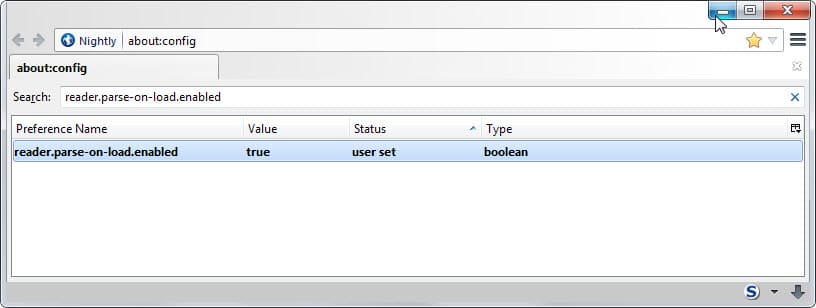
The preference reader.parse-on-load.enabled determines whether Reader Mode is enabled or not.


firefox desktop reader mode
  1.  Type about:config in Firefox's address bar and hit enter.
  2. Confirm you will be careful if the prompt comes up.
  3. Find reader.parse-on-load.enabled.
  4. Double-click the entry to set it to true. This enables the mode.
  5. You may need to restart the browser.
When you visit a website after it is enabled, it is listed as an icon on the right end of the address bar.


reader mode icon


A click enables the feature on the web page you are on and modifies it to a Reader Mode version. This is an automatic process that happens in the background.
The page that opens up is bare bones. It lists the article title and the article itself but all other elements that were part of the original web page are gone.
Links and images are still included but when you navigate away from the page Reader Mode is not used to load the new page.


firefox reader mode


The Android version of Reader Mode supports several configuration options that the desktop version does not ship with currently. It is not possible to click on an icon to change the theme on the page or modify font size and margins.
Since it has just been added to Firefox 38 Nightly, it is possible that those features will be added in a future update.
According to the Bugzilla listing, Reader Mode is currently not compatible with e10s.


Source: http://www.ghacks.net/2015/02/07/mozilla-starts-to-push-reader-mode-to-desktop-firefox/

Firefox 38 Changes

Preferences are now displayed in tabs

firefox preferences tabs


The options are no longer displayed in a window when opened in Firefox but displayed in a tab instead.  There are multiple ways to open the options, for instance by loading about:preferences directly in the browser's address bar or through the Firefox menu.
The options have their own address now and one benefit of that is that you can jump directly to specific option pages you are interested in. Here they are:
  • General: about:preferences#general
  • Search: about:preferences#search
  • Content: about:preferences#content
  • Applications: about:preferences#applications
  • Privacy: about:preferences#privacy
  • Security: about:preferences#security
  • Sync: about:preferences#sync
  • Advanced: about:preferences#advanced
You can restore the old way of displaying preferences in a window instead, at least for now.
  1. Type about:config in the browser's address bar.
  2. Confirm you will be careful if the message comes up.
  3. Search for browser.preferences.inContent
  4. Double-click the entry.
firefox options


If you set it to false, the options open in a window and if you set it to true, they open in a tab in the browser.
Autocomplete=off no longer support for user/password fields
Websites and services can use the HTML input attribute autocomplete to specify whether form fields support auto-completion.
If the feature is disabled, the browser won't display suggestions when you start to type which in turn meant that several password managers would not store login information for sites that use the attribute.
Starting with Firefox 38, the attribute is no longer supported by Firefox for username and password fields which should reduce issues that it caused in the past in this regard.
Encrypted Media Extensions (EME) API support added to Windows Vista and later versions of Windows
Note: A DRM-Free version of Firefox is available as well now. You can download it from the Mozilla FTP server.
This adds DRM playback capabilities to the Firefox web browser. In line with that is the automatic download of the Adobe Primetime Content Decryption Module (CDM) for DRM playback through EME on supported systems.
If you don't watch DRM content in Firefox, you may want to disable or even uninstall the Adobe Primetime CDM especially since it is automatically enabled by default.


Disabling it
disable drm adobe firefox

If you disable Adobe's Primetime CDM, you can reactivate it easily again at any point in time using the same method:
  1. Tap on the Alt-key on your keyboard and select Tools > Add-ons from the menu that opens up.
  2. Alternatively, type about:addons in the browser's address bar.
  3. Switch to Plugins on the page that opens.
  4. Locate Primetime Content Decryption Module provided by Adobe Systems, Incorporated.
  5. Click on always activate and switch it to never activate.
To enable it again, switch it back to always activated.
Note: there is no option to set it to ask to activate (click to play).
Uninstall CDM completely and stop future CDM downloads

play drm content
The second option that you have is to uninstall the CDM in Firefox. This makes sense if you dislike DRM or are sure that you will never use it.
  1. Load about:preferences#content in the browser's address bar.
  2. Locate Play DRM Content on the page.
  3. Uncheck the box next to it.
As soon as you do that, Adobe's Primetime CDM is uninstalled which you can verify by opening the plugins manager in Firefox again.
Note: If you check the box again, Primetime will be downloaded and installed again.
Other changes
  • Improved page load times via speculative connection warmup (this seems to be a rewrite of the Seer backend according to Bug 1009122. You can disable it by switching the preference network.predictor.enabled to false. Thanks Sören)
  • Partial Media Source Extensions (MSE) API support for Mac OS X versions of Firefox to allow HTML5 playback on YouTube.

Developer Changes

  • WebSocket now available in Web Workers
  • BroadcastChannel API implemented which is used for messaging between browser contexts that have the same user agent and origin. Basically, information can be passed along to other instances of a web application such as another tab or window. [further information]
  • Copy is a new function of the web console that you use to copy the argument to the clipboard.
  • The Web Console highlights network requests made as an XMLHTTPRequests now.
  • The Network Monitor shows transferred sizes and security warnings starting with Firefox 38.
  • Firefox's Animations View allows you to play or pause animations on a page.
  • RC4 is disabled when using TLS except for web sites on a whitelist which is only used until the sites on it have fixed the issue (see this list). To disable the whitelist, set the preference security.tls.insecure_fallback_hosts.use_static_list to false using about:config.
  • mozIndexedDB has been removed. [link]
  • 1024-bit SSL certificates are no longer trusted. (see link, link and link)
  • WebRTC now requires Perfect Forward Secrecy (PFS) (see bug 1052610, 1134437 and 1158343)
  • Implemented srcset attribute and <picture> element for responsive images

Firefox for Android

firefox 38 android
Firefox for Android shares most changes with the desktop version of the browser. The following changes are Android-specific:
  • User interface improvements: New "Welcome Screen", Reader View Controls, Synced Tabs panel layout on tablets and Add to Firefox feature from outside Firefox.
  • Support for Android L Theme
  • Send an open tab to another connected device use the new "Send to device" option in the Share menu.
  • New "Add to reading list" button in the overflow menu.
firefox 38 android changes

Security updates / fixes

May 15, 2015

Three Handy Uses for Chrome Beyond Web Browsing

You probably think of Chrome as a web browser—and so you should—but it has a few more tricks up its sleeve than you might have realized. Here are three of our favorite alternative uses for the software, which to a large extent work the same in Mozilla Firefox too.


1. Play music and video


Three Handy Uses for Chrome Beyond Web Browsing1


Chrome can play plenty of common audio and video formats—simply drag the file into a blank tab and it starts playing. You don’t get much in the way of options but there are playback controls, a volume slider and the option to go full-screen in a click. If you don’t want to load up a bulky, feature-packed media player then a Chrome tab is a useful alternative.


2. View text and PDF files


Three Handy Uses for Chrome Beyond Web Browsing


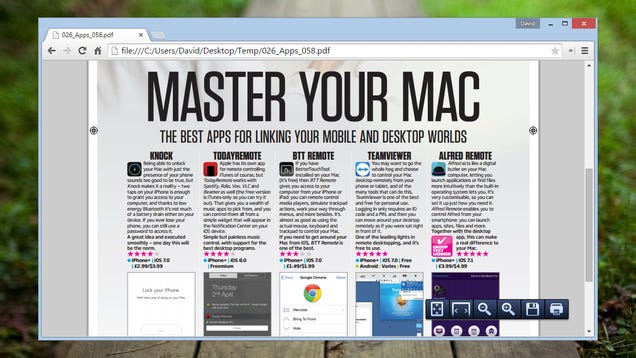
PDF files and text files are another group of formats that Chrome handles well. Notepad opens in a snap, of course, but Adobe Reader is less lightweight so getting your files viewable in Chrome can come in handy. As before, just drag the file into an empty tab. In the case of PDFs you get options for zooming in and out, printing the document or saving it.


3. Browse your system


Three Handy Uses for Chrome Beyond Web Browsing


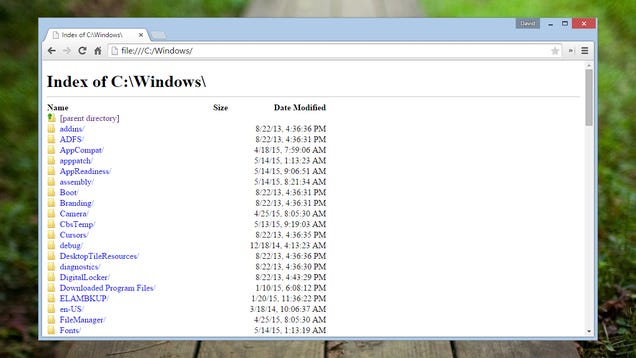
Did you know you can also use Chrome as a rudimentary file browser? There may not be many situations where you need to do this in Chrome rather than the default operating system shell but you never know when a backup is going to be required. Type C:\ into the address bar (or file:/// on a Mac) to get started—you can open up supported files types via this method too.

Note: This also works in Firefox.