Pages

November 20, 2014

15 Tips and Tricks for Google Chrome

We’ve compiled our favorite tips and tricks for the Google Chrome browser to help you save time and do more with the world’s most popular desktop browser.
Google Chrome Tips & Tricks

Here’s a collection of 15 most useful tips and tricks for Google Chrome that will help you work faster and do more with your favorite web browser. You don’t have to install any extensions. It’s a big list so let’s dive right in.

1. Save web pages as PDFs

Google Chrome has a built-in PDF writer. Open any web page, press Ctrl+P on Windows (or Cmd+P on your Mac) and choose “Save as PDF” from the list of available printers to download that page as a PDF file. No extensions required.

2. Assign custom keyboard shortcuts

Google Chrome supports a variety of keyboard shortcuts but you can also assign your own custom shortcuts to launch various extensions and Chrome apps. Type chrome://extensions in the browser’s address bar to open the Extensions page, scroll to the bottom and click the link that says Keyboard Shortcuts.

3. Delete your web history selectively

Google Chrome’s history (chrome://history) doesn’t have a “Select All” button so if you are to delete, say, 20 pages from the history log, you’ll have to select 20 checkboxes. The trick is that you select the first checkbox, hold shift and select the last checkbox. Everything in between will get selected.
Quickly select items in your Google Chrome history

4. Install unapproved Chrome extensions

The newer versions of Chrome do not allow you to install extensions that are not listed in the official Google Chrome store. As a workaround, you can open the Extensions page of Chrome, turn on the Developer mode and drag-n-drop the extension (the .crx file) into your Chrome.

5. Quick Fix for Slow Chrome

Google Chrome may feel sluggish after several hours of continuous usage. The easiest fix is to restart your browser but sometimes the culprit could be a poorly coded extension or even a website. The clue can be found under Tools -> Task Manager. Sort the list by Memory, select the websites and extensions that are consuming more memory and click End Process.

6. Fake your current location

Certain websites, Google Maps for example, may ask the browser for your geographic location. You can choose not to share this data with the website or you may even fake your current location. Go to Tools -> Developer Tools and press the Esc key to open the console. Here switch to the Emulation tab and enter any value for latitude and longitude.

7. Reveal all your hidden passwords

Google Chrome can remember and auto-fill your passwords but they are masked with asterisks. If you would like to reveal a hidden password, open the Developer Tools, visually select the password field on the page and change the input type from password to text. Alternatively, you may find your saved passwords under chrome://settings/passwords.
Reveal Hidden Passwords

8. Compose emails from the address bar

If you are to write a new email in Chrome, you’ll open the Gmail website and hit the compose button. Alternatively, just go to the browser’s address bar and type the mailto command like mailto:recipient@domain.com. This will open the Gmail compose window and auto-fill the address in the To field.

9. Take notes inside Chrome

While there are some good Chrome extensions that add notepad-like capabilities to your browser, there’s a little JavaScript hack that will instantly turn your Chrome into a text editor. Open a new tab and paste data:text/html,<html contenteditable> into the address bar. Click anywhere inside the tab and start typing.

10. Use Chrome as a Media Player

You can drag audio files, videos, images, text files and even PDF documents from your desktop into the Chrome video and view them without opening a dedicated viewer application.

11. Fit more bookmarks in the toolbar

If you would like to fit in more bookmarks in the Bookmarks Toolbar of Chrome, just right-click any bookmark, choose Edit and remove everything in the Name field. Hit save and Chrome will only show the site’s favicon in the toolbar. You can thus fit in many more bookmarks in the same space.

12. Improve Stability, load Flash only when needed

The world has moved to HTML5 but some websites still require the Adobe Flash Player. Go to your browser’s Advanced Settings (chrome://settings/content) and choose the “Click to Play” option under Plugins. The Flash Player will stay disabled in your browser and, should a website require Flash, you can activate it on-demand.

13. Pretend to be mobile on slow Internet

If you are on a slow Internet connection, or if the hotel is billing you for every byte of data, you can pretend to be a mobile device and most websites will serve you mobile-friendly versions that are often light in size. Open Chrome developer tools, switch to Emulation tab and choose either Android or iOS as the User Agent. Make sure Screen and Device emulation is off.

14. Remove embarrassing URLs

When you type a few characters in the Chrome’s address bar, the browser will suggest matching URLs from your web history. If there’s any particular URL that you would not like to appear in the list of suggestions, you can easily remove by clearing the history or from the address bar itself. Highlight any auto-complete URL in the drop-down list and press Shift+Delete to remove it permanently.

15. Switch to Google Cache instantly

Google Cache comes very handy if a web page you are trying is open is offline and Chrome makes it really easy for you to access the cached version of any page. While you are on a page, click the address bar, type cache: before the URL and hit Enter. You’ll be taken straight to the Google Cache, if there’s one.

Source: http://www.labnol.org/software/google-chrome-tips/18024/

How to get rid of Firefox's new ads on the New Tab page


After months of teasing, tweaking, and controversy, Firefox’s native ads have finally landed on the stable release’s New Tab page—and just like we said when we saw the ads in Firefox’s nightly preview builds, they’re actually not so bad.
They’re unobtrusive, clearly labeled, and only collect user information in "aggregate form, meaning no data is personally identifiable." And the ads reduce Mozilla’s overwhelming reliance on Google—which definitely does collect personally identifiable data—for revenue, which is nothing but a good thing for the future of the browser.
firefoxenhancedtiles
The Citizenfour tile is a sponsored tile in this screenshot of Firefox's New Tab page.
Even so, not everyone wants to see them. And continuing in Mozilla’s pro-choice, pro-privacy tradition, Firefox makes it easy to disable the New Tab page ads.
Just open a new tab, then click the gear cog in the upper right-hand corner of the page. Three options appear in a drop-down menu: Enhanced, Classic, and Blank. The new ads will only appear if you’re using the Enhanced option, which is enabled by default.
firefoxclassic
Selecting Classic will force the New Tab page to only display sites from your browsing history, while Blank is, well, a blank page. No aggregate data is collected once you disable the Enhanced tiles, either.
And that’s it! Once you make that one, simple change, ads are gone forever from Firefox’s New Tab page. But consider what you’re doing before you flip the switch—Mozilla needs money to continue developing Firefox and fighting for the future of the open web, and the ads truly aren’t much of an eyesore.

Source: http://www.pcworld.com/article/2848017/how-to-get-rid-of-firefoxs-new-ads-on-the-new-tab-page.html#tk.nl_pwr

November 18, 2014

Hola: Free VPN to bypass internet restrictions and open blocked websites

Hola Unblocker is a free VPN service that lets you bypass internet restrictions and open blocked websites, without anyone knowing about it. Hola is a simple and easy tool that anyone can use without even knowing the meaning of VPN or Virtual Private Network. What basically Hola does, is that it lets you unblock and access blocked or restricted websites in your country by connecting you to the network of the country in which that website is available.


Hola Unblocker browser extension


Hola Hola: Free VPN to bypass internet restrictions and open blocked websites

Hola is installed as a browser extension, and it can be used from the browser itself. To get started, you need to press the small Hola button so that you can view the top websites that are blocked in your country. For an example Netflix is blocked in India, but I can intelligently use it with the help of Hola. It displays around 6 websites that are blocked in your country but you can view all of them by clicking the ‘Popular Sites’ link.
How to view a non-popular website from a different country:
  1. Open a Website by entering its URL.
  2. Click the small Hola icon.
  3. Choose a country from which you want to view the website and wait till the processing completes.
  4. To go back to your own country click the same Hola icon and click on ‘Back to your country’ button to revert the changes made.
Hola Settings1 Hola: Free VPN to bypass internet restrictions and open blocked websites

To view the VPNs you are using, you can click the My Settings option and you will be redirected to page displaying the VPNs you are using for different websites. You can directly open those websites from the same page you’ve been redirected.
Another feature Hola exhibits is the Internet Accelerator which is indeed a useful tool. The accelerator can be easily switched on or off from the Hola extension. Accelerator not only accelerates the internet speed but also reduces the bandwidth usage and hence consumes less leaving behind more bandwidth for browsing the web. The accelerator can even help you reduce internet costs up to some extent.
Hola is an amazing extension to access blocked websites and to accelerate internet speeds as well. It maintains your online privacy by using the simple concept of hiding your IP address. It is much easier and faster than manually using a proxy. You can even get more features by creating a Hola account and then enabling the developer mode.
Overall, it is faster and easier alternative to a proxy and it is more accurate then proxy. Hola offers a great choices between the countries from which you can view a website. If you are a website developer, you can use this tool to see how your website is viewed in different countries.
Bottom Line: Easy and amazing.
Visit Hola.org to learn more and download it.

Speaking of VPN’s, you might want to check out these posts:
  1. Set up & Configure VPN connection in Windows
  2. VPN One Click Review
  3. NeoRouter VPN Software
  4. CyberGhost Secure VPN
  5. SpotFlux VPN Review.

Source: http://www.thewindowsclub.com/hola-unblocker-free-vpn

November 17, 2014

Most useful Mozilla Firefox about:config tweaks

Most useful Mozilla Firefox about:config tweaks

Since its inception Mozilla and has remained highly customizable. In addition, applications run by it can also be configured as per users’ preferences. about:config is a feature of Mozilla that gives access to advanced settings, hidden under the browser. These settings aren’t available in the browser’s standard options window.
To access Firefox’s advanced settings, simply type about:config into the browser’s address bar and press Enter. Thereafter, you should see a warning page. Hit the ‘I’ll be careful, I Promise’ button and proceed towards tweaking Firefox about:config settings.

about config Most useful Mozilla Firefox about:config tweaks

Firefox about:config tweaks

Let us have a look at some of the most useful Firefox about:config tweaks.
1] Open New Tabs at End
Normally, every new tab appears adjacent to the current tab, however, if you would like the tab to open at the end of all the tabs, do the following.
Look for browser.tabs.insertRelatedAfterCurrent and change the value to False. Default value is set as True.
2] Preview Tabs When Switching
To enable previews feature in Firefox, go to browser.ctrlTab.previews and change the default False value to True to view previews.
3] Disable Prefetch of Webpages
An ingenious feature to help pages load faster but problem encountered, consumes large part of bandwidth. As such it is best to keep it off when you have slow Internet connection. How you do it? Look for network.prefetch-next and switch to FALSE value.
4] Increase Network Performance
For enhancing the network performance, search for network.http.max-connections. It manages maximum network connections the browser can make at one time to any number of Web servers. The latest version of Firefox supports 256. If you find the same value, do not change. If not, change it to the defined value.
Find network.http.max-persistent-connections-per-server and change it from 6 (default) to 7 or maximum, 8.
5] Turn off the URL greying
Assuming you have about:config Page opened, search for: browser.urlbar.formatting.enabled

Firefox 5 Most useful Mozilla Firefox about:config tweaks

Double-click it to change it to False. Now, you should find the URLs displaying address in black text. Also, Firefox hides ‘HTTP’ in URLs so that they are easier to read. If you do not like it and would like to unhide the “http” portion of a URL, search for browser.urlbar.trimURLs and Double-click the setting to change it to False. That’s it!
6] Make Firefox’s Spell Checker More Useful
To enable Firefox Spell Checker in all text boxes, search for: layout.spellcheckDefault and set its value to 2. Now, to make those line more noticeable, right-click in empty space of about:config page, Select New > Integer, and name it: ui.SpellCheckerUnderlineStyle.
Thereafter, configure its value to
  1. 0 for no highlighting
  2. 1 for a dotted line
  3. 2 for long dots
  4. 3 for a single straight line
  5. 4 for a double underline
  6. 5 for the default squiggly line
7] Add More Rows and Columns to Firefox’s New Tab Page
Simply move to about:config and search for: browser.newtabpage.rows. Then, browser.newtabpage.columns and set each to the value you want. You will now be given the choice to accommodate more sites on that new tab page.

 Firefox rows Most useful Mozilla Firefox about:config tweaks
Select all text when click on the URL bar
Head to browser.urlbar.clickSelectsAll and Modify value.
False – place cursor at insertion point
True – select all text on click
Same Zoom Level For Every Site
If you want the zoom level to remain same for every website you visit via Firefox browser, simply toggle the value of browser.zoom.siteSpecific from True to False. Default value is set to True.
8] Disable Compatibility Checking for Extensions
Open about:config and right-click on an empty space. Choose New > Boolean and create a new setting called: extensions.checkCompatibility.
Set its value False.
9] Disable Animations for New Tabs
To disable animations for new tabs, Firefox’s “Tab Groups” feature, find  and set the first two of these to False
browser.tabs.animate
browser.panorama.animate_zoom
browser.fullscreen.animateUp
10] Bookmark About:Config
Bookmark About:Config with Ctrl+D. Open Bookmarks with Ctrl+B and find the new bookmark.
Right-click its properties. Give it a short keyword. For instance, I use “AC”. Now there ir no need to type about:config again

Source: http://www.thewindowsclub.com/mozilla-firefox-about-config-tweaks

November 16, 2014

5 anti-mainstream browsers you should give a try

The mainstream trend today, is to avoid being mainstream! Irrespective of what caused this trend, we should agree that it exists due to the obvious wide variety of choices available to us. The times when everyone fancied being a customer or user of a service provided by some big name seem to be over – at least among those who consider themselves as trend-setters. The era of broad opportunities and meritocracy turned everything upside down.
However, where technology is considered, users still tend to stick to well known weather bitten manufacturers or providers. The reasons for that may differ. First, finding a decent, but not well-known piece of software or solution requires bigger expertise from a common user, than finding a high-quality closing manufacturer, who remains unknown to the many. Second, development of a high-quality software product requires substantial human and financial resources that a small start-up looking enterprise can hardly afford. This tends to lower desires for technology experiments among users.

Nevertheless reality often showcases absolute disregard for the rules of logic. IT industry full of examples of high quality software from not so well known developers. With the growing tendency of moving towards the freemium business model, companies no longer depend on the revenue that comes directly from the customers. That’s why more and more IT companies gain the opportunity to produce free software of high quality. And such indispensable apps as browsers are no exception.

Alternate web browsers

The absolute majority of users seem to be completely satisfied with using any of the major browsers on the market – be it Internet Explorer, Google Chrome, Opera or Firefox. More than that, they will hardly ever think of using anything else. A lot of users have never heard about any other alternative browsers for Windows. Such an information diet results in users’ missing out the best browsing experience tailored specially for them. The browsers listed below are here to show you how surprisingly (and sometimes astonishingly) different your habitual browsing experience can be.

1. Citrio – Fast downloader and a random features mix

Citrio browser 5 anti mainstream browsers you should give a try

Citrio is a peculiar Chromium-based browser with a fresh citrus look. It feels and looks exactly like Chrome (you can even sign into Citrio with Google Account and get it fully synchronized). But is has a set of useful features you’ll hardly ever get in Chrome. The most prominent among them is a powerful download manager. Having tested several bulk files for download with several browsers I can definitely assume Citrio downloads like 2-3 times faster. With the same download manager you can also download torrents with no need for any additional software.
Another nice thing about Citrio is a video grabber. You can go practically to any website, play a video there and download it in one click with the help of a tiny yellow download button which appears in the right end of omnibox. Citrio also has an built-in proxy manager for masking your real IP while browsing other websites. In general Citrio presents a nice and new browser with a set of pleasant features which do not seem to be united under any specific concept. Available for Windows and Mac OS.

2. Slimboat – highly customizable with an old-fashioned look

Slimboat is a bit old school looking browser with a nice feature stuffing. As soon as you start it Slimboat offers you to import bookmarks from one of the other browsers you have been using. Upon doing that you see a bit clattered but still familiar and straightforward interface. Dropdown menus, plethora of options and features constitute a massive functionality of a browser. The “View” menu has everything to customize the exterior of your browser so that it looks “Windows Modern Style” or has “Cleanlooks”. The “Tools” menu is so far the most interesting. It has vast social share features, inbuilt pop-up and ad blockers, a user agent and others.
Slimboat’s feature set implies that it cares much about users privacy. You assume it from a rich set of Privacy features. They include cleaning the trace by domain, cleaning address bar history, cleaning quick search history, cookies, cached files and cached authentication information and others. These options may be implicitly present in other browsers as well, but such an approach allows you to get full control of what you are doing.

3. Orbitum – nice looking and socially oriented

While it is hard to define a particular focus of any of the before mentioned browsers, Orbitum is very clear in its intentions. The main and actually the only difference of Orbitum from other Chrome-based browsers is integrated chat window from 3 social networks – Vkontakte, Facebook and Odnoklassniki. This literally means you can chat with your contacts right from your browser’s window, which has a chat panel on the right. You can log into all accounts at once, choose your mode as offline or online. You can also turn the panel off and this way move to the “normal mode”. All the rest looks and works almost the same as in Google Chrome.
However, such a browser is nice for those who like to chat during working hours but don’t want anyone to see the whole Facebook’s interface on their PC. Available for Windows and Mac OS.

4. Sleipnir – tab browsing doesn’t look like anything else

Sleipnir is a tabbed browser which indeed doesn’t look or feel like anything else. It has a nice interface, with small previews of the pages in tabs in the upper part of the window. Search bar rests in the upper right corner and is merged with the address bar. Sleipnir supports mouse gestures (you can switch between pages by moving them right or left holding down the right click button), customizable tabs that can be sorted into groups (for example, a group for business, social networks, email accounts, etc.), you can also protect chosen tabs from accidental closing.
Among the featured browsers Sleipnir is the only one that can be called multi-platform as it is available for desktops (Windows, Mac OS) and mobile (iPhone, Android, Windows Phone). If you use Sleipnir on both computer and mobile device, you can sync bookmarks across all platforms and devices. Another peculiar feature is Sleipnir Linker. With the help of this app that you download and install on your mobile device you can send text to your smartphone or tablet right from the browser opened on desktop. You can also send a whole page this way and get an instant notification on your phone. The only thing which might be bad about Sleipnir is that it doesn’t support any extensions or add-ons. But it is definitely worth a try.

5. Epic browser – total privacy obsession

Epic browser 5 anti mainstream browsers you should give a try

Epic browser’s primary concern is users privacy and security. Epic browser has a clear interface, free from any excessive elements. This contributes both to its looks and functionality. Epic browser surfs Internet exclusively in Incognito mode, but it still can remember usernames and passwords. The app blocks all trackers, cookies, ads, doesn’t record your browser history and even shows how many trackers were blocked on that or another website. It also gathers the list of companies which are tracking your activity in other browsers you use. A small umbrella icon on the top gives access to several security features which can be activated or switched off on a specific website.
Epic browser’s default search engine is epicsearch.in and you can’t change it to any other. The browser doesn’t have address bar suggest, URL check or auto-translate. Epic browser has an inbuilt US proxy server with which you can mask your IP address in just one click. Built on the open source Chromium, Epic browser has familiar simple interface with all the options and features situated right where you’ve been looking for them. Available for Windows and Mac OS.

A thorough research on the topic of non-mainstream/peculiar/unfamiliar browsers has brought to light several observations.

First, most alternative browsers are based on Chromium or Firefox as those two are open source projects. Such an alternative browser is basically always better than its big famous brother as they have all the basic functionality of a major browser plus a set of their own features. Another good side is that if a user has been using Chrome or Firefox for a long time, it won’t be difficult for him to switch to one of the peculiar alternatives and try out some fresh experience.
Second, those browsers, which chose their entirely independent path, usually don’t have any specific focus based on their functionality and thus present a whole of a new browser together with a whole of a new browsing experience. Anyway, no matter how far you want to get in trying out something new, you will always find a decent quality, nice browsing speed and broad customization opportunities. Those are here to prove once again, that anti-mainstream trend setters who want to expand their indie views to the software they use, have all the possibilities to do it without compromising quality.

Source: http://www.thewindowsclub.com/anti-mainstream-alternate-web-browsers-windows

November 5, 2014

10 Firefox Productivity Tips and Tools


By on in Firefox - Last Update: November 5, 2014
As a long time Firefox user I have come to love the options to customize the browser as well as the functionality that it offers and its add-on developers. While it is fine to use Firefox as it comes by default, you will never reach the browser's full potential. Little tweaks and add-ons can improve how you work with Firefox significantly so that you save time by optimizing workflows.

The following list of productivity tips for Firefox are my favorites. I think that they will be useful to a lot of Firefox users even though there are usually multiple ways to do something in the browser.
I'd like to invite you to share your best Firefox productivity tips in the comment section below.

1. Restart Firefox
You won't find a menu option or icon to restart Firefox. While you may receive prompts to do so, for instance when installing or removing an add-on in the add-on manager or after an update, there is no option to restart the browser directly.
  1. Tap on Shift-F2.
  2. Type restart and hit enter.

2. Open the Firefox profile folder

firefox productivity tips


You have two options to open the profile folder of Firefox quickly. The profile folder holds all user data including bookmarks, most add-ons, the browsing history and customizations.
  1. Tap on Shift-F2
  2. Type folder openprofile and hit enter.
The second option is the following:
  1. Type about:support in Firefox's address bar.
  2. Click on Show Folder.
3. Safe Mode
Safe Mode is a special state of the browser in which certain features such as add-ons are not available. This can be useful to troubleshoot issues quickly as you can check if the issue occurs when no add-ons are loaded. If it does not occur, you can then go ahead and find the add-on responsible for it.
  1. Hold down Shift before you launch Firefox to display a prompt to start the browser in Safe Mode.
If Firefox is already open, do the following instead:
  1. Tap on the Alt-key on the keyboard.
  2. Select Help > Start with add-ons disabled.
4. Shortcuts
Firefox supports a lot of shortcuts. The ones that I use the most are the following:
  1. Ctrl-t to open a new tab.
  2. Ctrl+ and Ctrl- to zoom in and out.
  3. Shift-F5 to reload the page bypassing the cache.
  4. F3 to open the on-page find (you can improve that further).
  5. Ctrl-j to open the downloads manager.
  6. F12 to open the Developer Tools.
5. Save File To add-on

save file to

If you download files regularly using Firefox you may have noticed that the save process is not really optimized. The Firefox add-on Save File to changes that as it adds options to the browser to quickly save files to custom directories. This makes it possible to save certain types of files, media, documents or archives into select directories with just two mouse button clicks.

6. Customize page permissions
page permissions


Firefox uses a set of default permissions by default when websites are visited. These permissions determine what websites may or may not do in regards to the browser.
Permissions exist for accessing your location, loading images, opening popup windows or using cookies.

It can be useful to customize the permissions for select websites. If you don't want sites to look up your location but want Google Maps or another mapping service to do so, you can modify the permission for that site only so that you are not queried on it whenever access is required.
You can also do it the other way round, allow or ask as the default permission and block for specific sites that you don't want to permit.
To open the permissions do the following:
  1. Tap on the Alt-key and select Tools > Page Info.
  2. Switch to permissions.
You can click on the icon in front of the url as well and there on More information to open the dialog as well.

7. Copy Plain Text
When you copy text into a rich text editor in Firefox the formatting is carried over. The easiest way to copy only the text and not the formatting is to hold down the Shift key before you paste the text into the editor.

8. Switch dictionaries automatically
If you write in multiple languages you may have noticed that Firefox does not switch the dictionary used to spell check what you type automatically.
Dictionary Switcher is an add-on for the browser that does that for you. It is still necessary to install dictionary files to the browser for the switching to work though.
The dictionary used for spell checking is switched automatically depending on the language encoding of the active website.

9. Remove unnecessary menu entries
Menus display lots of options in the Firefox browser. It is likely that you are not using some at all and others only occasionally.
The add-on Menu Wizard provides you with the means to remove menu entries that you don't need so that they don't show up anymore in the menu bar or right-click context menu.

10. Open multiple links at once
You can only open a single link at once in Firefox. If you are on a page with multiple links that you want to open, downloads, forum threads or image links, you can speed things up by using add-ons.
The add-on that I'm using is called Multi Links but there are others such as Snap Links Plus that are compatible with recent versions of Firefox by default.
All have in common that they let you draw a rectangle around the links that you want to open at once.
Now You: What are your favorite productivity tips and tools for Firefox?

Source: http://www.ghacks.net/2014/11/05/10-firefox-productivity-tips-and-tools/

November 4, 2014

These Add-Ons Let You Make Firefox Look However You Want

By Justin Pot, makeuseof.com. Make Firefox look however you like. Whether you want something modern that frees up space, a dash of colour to keep things interesting, or to bring back the Firefox look of old, there’s a theme or extension out there for you.
Firefox is about freedom, and one of the best things Firefox lets you do that Chrome doesn’t is customize the interface. Sure, sometimes the Mozilla team changes things users don’t like, but they also don’t lock things down. You can change things quite a bit out-of-the-box: just click the settings button at top-right, then click the “Customize” button at the bottom of the box.


customize firefox   These Add Ons Let You Make Firefox Look However You Want


Already you can move around any interface element. You can combine the Bookmarks Bar and Address Bar, if you want, or move icons so that you only see them when you open the menu.
But this is only the beginning. Here are some of best add-ons that let you do even more.

The Fox, Only Better: Auto-hide Everything.

Add-on buttons. Your address bar. Bookmarks. They’re all useful, but do you really need to see them all the time? Do they really need to take away space from the site you’re looking at?
I don’t think so, and if you agree I highly recommend The Fox, Only Better. This add-on lets you auto-hide your bookmarks and address bar until you actually need them. So when you’re just browsing, you don’t see them:


firefox better hidden   These Add Ons Let You Make Firefox Look However You Want


Move your mouse to the top of the window, or even use a keyboard shortcut to activate the address bar, and you’ll see everything:


firefox better showing   These Add Ons Let You Make Firefox Look However You Want


I installed this a month ago and now can’t imagine using Firefox without it. It makes laptop screens seem a lot less cramped, but is worth installing even on huge screens for the way it decreases clutter.
This isn’t some cheap hack: a lot of thought has gone into it. One feature lets you see an indicator, so you know whether a site is encrypted or not. Another shows you the address bar whenever you’re filling in a form, useful if you suspect phishing.


firefox better setting   These Add Ons Let You Make Firefox Look However You Want


All this, combined with some choices for both look and transition animations, make a nice total package for anyone looking to free up some space. Check it out.

Classic Theme Restorer: Get That Familiar Look Back!

If you’re among the many who hate the new Firefox look, and think it’s too Chromesque, good news: you can get your old Firefox back, thanks to Classic Theme Restorer. My colleague Yaara showed you how to restore the classic Firefox look using it, and it works pretty well.


   These Add Ons Let You Make Firefox Look However You Want


This looks great out-of-the-box, but explore the settings a little if you’d like to keep some elements of the new look while reverting others.


   These Add Ons Let You Make Firefox Look However You Want


Yaara points out there are a few bugs, but that hasn’t stopped this tool from being consistently among the highest rated Add-Ons for Firefox.

Font & Size Changer

Having trouble reading this? Font & Size Changer makes it easy to bump up the font size in every site you visit, and even Firefox’s interface elements. Just pick a percentage increase, and you’re done.


firefox change fonts   These Add Ons Let You Make Firefox Look However You Want


This little add-on also lets you use whatever font you want for Firefox’s UI. Change it to Comic Sans and I might cry, but part of what freedom means is giving people the ability to make irresponsible choices.

Personas Plus

firefox personasa featured   These Add Ons Let You Make Firefox Look However You Want


If you don’t like the bland look of Firefox’s UI, it’s worth checking out the huge collection of Firefox themes. The extension Personas Plus helps you keep track of which themes you’ve installed, and also lets you quickly explore themes currently featured by Mozilla. If you love themes, check this extension out.

How Do You Customize Firefox?

I could go on. For example: did you know you can create custom buttons for your favourite bookmarklets? But I want to learn what you know. If you have any Firefox customization tips, please: point them out! Comments are below!

Source: http://www.makeuseof.com/tag/add-ons-let-make-firefox-look-however-want/

October 31, 2014

Firefox Takes on Skype With Browser-Based Video Chat

Mozilla is gearing up to take on services like Skype and Viber with a new browser-based video and voice chat feature called Firefox Hello. It’s available for testing inside the latest Firefox beta release, and it’s scheduled to get its public rollout in the coming weeks.
“Firefox Hello provides more value to Firefox users by making it easier to communicate with your friends and family who might not have the same video chat service, software or hardware as you,” Mozilla explains in a post on its blog.
In other words, you can use Hello to connect with loved ones regardless of your setups. Other than the Firefox browser, it requires no additional software or plugins, and you don’t even need to create an account. What’s more, Hello lets you chat to anyone with a WebRTC-enabled browser — including those who use Chrome or Opera instead — and voice and video calling is absolutely free.

To try Hello, simply download the latest Firefox beta and click the chat bubble icon under the customize menu. You can then share a “callback link” with the person you’d like to communicate with, and all they have to do is click the URL to initiate the call.
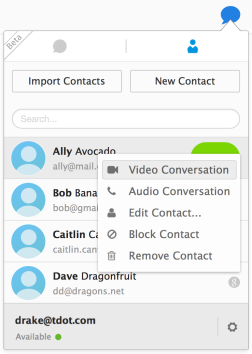
To make voice and video calling even better inside Firefox, Mozilla has also added contacts management for the first time in this release. You can either add contacts manually, one-by-one — or you can import your entire Google address book in a few clicks.
You’ll find links to the latest Firefox beta for Mac, PC, and Linux via the Mozilla blog link below.

Test the new Firefox Hello WebRTC feature in Firefox Beta


We have some exciting updates to our experimental WebRTC feature in Firefox. We’ve added some new functionality to play with and a new name. Say ‘Hi!’ to Firefox Hello.
Firefox Hello provides more value to Firefox users by making it easier to communicate with your friends and family who might not have the same video chat service, software or hardware as you. It’s free to make voice and video calls and there’s no need to download software, plugins or even create an account. It’s ready to go as soon as you open Firefox Beta by clicking on the ‘chat bubble’ icon under the customize menu. Hello allows you to connect with anyone who has a WebRTC-enabled browser, such as Firefox, Chrome or Opera. We should give a shout out to our friends at TokBox, whose OpenTok platform is used to power this new feature.
The new features we’ve added to Firefox Beta include:

New Call Options
One of the great features of Firefox Hello is that you don’t need to create an account in order to connect with the people that matter to you most. You simply share a callback link with the person you want to connect with and when they click on the link the call begins.
Call Management Panel

But let’s say that you start using Hello all the time with your friends and family. As an added convenience, you should sign up for a Firefox account for even easier one-click calling from Firefox. After signing in, you can initiate or receive direct calls with other Firefox Account users, without having to share a callback link first. You can sign into your Firefox Account on every computer you use, so you can be reached at home or at work.

Contacts Integration
We’ve also added contacts management for the first time in this release. You can add contacts to your address book manually or import contacts from your Google account to Firefox Hello. Simply select ‘Import Contacts’ from the address book and then sign into your Google account to give permission. If your contacts have a Firefox Account and are online, then you can call these contacts directly from Firefox.
These are just some of the main improvements that we will be rolling out over the next few weeks to all Firefox Beta users. So please test them out and let us know what you think at the end of your call. Please remember we’re still in the experimental phases and making a lot of changes behind the scenes.
We look forward to receiving your feedback on these new features, so we can get Firefox Hello ready to share with the world.

More information:

October 30, 2014

15 Classic Arcade Games You Should Play in Your Web Browser

October 30, 2014 at 3:45:00 PM by Andrew Moseman | 0 Comments


Behold the Internet Arcade: a web-based collection of hundreds of games that span two decades of the arcade golden age, from the 1970s to the 1990s. Built by Jason Scott, the arcade is an enormous dose of video game nostalgia. The emulators he created even include boot-up sequences in which the games run through a self-analysis.

You could (and maybe should) lose yourself for days in this game collection. If you don't have that kind of free time, then be choosy and play these 15 classics:

Joust: The protagonist is "knight riding a flying ostrich." Isn't that enough?

Defender: Inspired by Space Invaders and Asteroids, this 2D classic will have you saving the planet from waves of hostile aliens.

Food Fight: Find your inner Belushi and gobble up all the ice cream before the four malicious chefs—Oscar, Angela, Jacques, and Zorba—can catch you.

Frogger: One of the simplest, most frustrating, and most famous games of all time.

Galaga: No explanation needed.

Outrun: Maybe the driving physics left a little to be desired, but the shifting behind-the-car third-person view became the template for many driving games to come.

Pitfall II: I played the hell out of the Atari original, and II (Lost Caverns) is great, too.

Street Fighter II: Hadouken!

Return of the Jedi: Fly a speeder bike through the forest, pilot the Millennium Falcon, and take on a Star Destroyer.

Tron: Because there's no racing like light-cycle racing.

Zaxxon: Want to fly a fighter aircraft though an enemy fortress and blast everything in sight? Of course you do.

Track & Field: Sure, it's basically button-mashing, but seeing your little guy sprint down the lane will get your real heart pumping.

Qbert: The 1982 pseudo-3D classic is a must-play.

Centipede: One of the great vertical shooters of the early 80s, and this one had horrifying bugs bearing down on you.

Bionic Commando: The 1987 sequel to the classic Commando (also on the Internet Arcade).

The keyboard controls aren't exactly intuitive. Once you launch a game, hit Tab to see what button does what. You'll need to push a button to "insert a coin" in true arcade fashion, and the control buttons are set as the default main gaming buttons.

But one you get the hang of it, you'll be wasting your afternoon in no time. Now if you'll excuse me, I must run another heat in the 100-yard dash.

Source: http://www.popularmechanics.com/technology/gadgets/tech-news/15-classic-arcade-games-you-should-play-in-your-web-browser-17370532

October 17, 2014

How To Make Free Calls From Your Computer With Google Voice


by David Pierce on July 24, 2009 in Google - Last Update: July 25, 2014
About three weeks ago, I finally got an invite for Google Voice, the new phone-managing service from Google that I’d been itching to try out since before it was even called Google Voice (back then, it was called GrandCentral, and I still wanted it really, really badly).
Google Voice has a ton of great features, and in a lot of ways fundamentally changes the way you’ll use your phone. A lot of things suddenly become easier with Google Voice – checking your voicemail, sending text messages, and more – and they’re all best dealt with through your computer.
But, as of now, Google Voice doesn’t inherently let you make calls from your computer. I mean, I’ve got a microphone and speakers on my computer, as well as a fast Internet connection – why shouldn’t I be able to make calls, ideally for free?
Well, as it turns out, I can – with a little legwork. Here’s how to set it up (I did this on a Mac, so PC directions might be slightly different – the same rules will apply, though).
GV1
Disclaimer: This is all assuming you’ve already got a Google Voice account. They’re sending out invites at lightning-speed, so if you don’t have one, go get on the list!
  1. Download and Install Gizmo5 (create a free account, with no call credits – you won’t need them!).
  2. Open Gizmo. In the “Home” tab of the application, click “Edit My Profile.”
  3. In the tab that pops up, you’ll see, filled in, a number for “SIP number.” Copy that number (everything before the @ sign).
  4. In Google Voice, click “Settings”, and then “Phones.”
  5. Click “Add Another phone” and paste the SIP number from Gizmo (again, only what’s before the @ Sign) into the box.
  6. Name the number “Gizmo” or whatever you want, and then Save it.
Gizmo1
Now, to make calls:
  1. Open Google Voice, and click “Call”
  2. Enter the number you want to call
  3. Make sure the Gizmo phone (whatever you called it) is selected as the “Phone to Ring”
  4. Click “Connect”
  5. You’ll get a pop-up from Gizmo, with your Google Voice number on the caller ID. Answer it!
  6. Google Voice will automatically dial and connect the other person, and you’ll be chatting from your computer!
The whole process only takes about five minutes, and doesn’t cost a nickel. Because you're using a SIP number, all the data is transmitted over your cable connection rather than your phone network. That means you'll need fast Internet to really make this work, but also means it doesn't cost a thing!
I’m not sure how long this will be around (I’m sure carriers won’t be fans), but for now it’s a fantastic solution for making calls directly from your computer.

October 16, 2014

How to change the default fonts in Google Chrome

For anyone looking to change or override the fonts rendered on a web page in Google Chrome, "Font Changer" is a Google Chrome Extension that can do it.

Change the font on Facebook, Twitter, Google, Youtube or any other site. Test Google Web Fonts™. Tired of the old font on Facebook, Twitter, Gmail or any other site? Try changing the font with this chrome extension. Over 500 fonts to choose from. Uses Google Web Fonts for a great selection. You can set a font for all sites, or just specific sites.

Now Select a Custom Font! Upload any .ttf, .otf or .woff file and use it on any website.

Change Log:
v3.0:
- Use Custom Fonts ( Upload any font file and use it )
- New Google Fonts
- Enable options by clicking dropdown (don't have to click the checkbox)

You can get it here: https://chrome.google.com/webstore/detail/font-changer-with-google/jgjhhoglgjdklldfgoffdiaceffijeke


Don’t Like Font On A Website? Change It Using This Chrome Extension

 
Since we’ve got a plethora of information on various websites on the Internet, it is essential that the information is presented in a clean and clear way. But some websites out there present the information in such a way that it becomes hard to read it. Either the fonts are too small or too large, or not readable because of style or the page’s background.
Those who have weak vision or want to zoom-in and zoom-out, can always zoom-in to the webpage by pressing Ctrl and +, and zoom-out using Ctrl and -, but doing this on every site won’t be that convenient.
Wouldn’t it be great if we can change the font size and font style for some sites or every site easily? Fortunately, if you’re using the Chrome browser then you can do this easily using an extension.

Change fonts and font styles in Chrome

Enter Font Changer with Google Web Fonts, an extension for Chrome that allows you to change fonts on just any website. You can either apply a global style that would apply to all websites or simply select some particular sites where you want to apply the font style.
font-settings


When you install the Chrome extension, it adds an icon to the browser’s address bar. Click on it and then start configuring the settings. You can define where you want to apply the selected font styles from the “Use” menu at the top. If you set “Global settings” then all websites will have that font style applied, and if you set “Custom settings” then your selected settings are applied only to the currently open website. Select No settings to revert back the site to use its default fonts.
The extension allows you to configure font name, style, weight and size. This extension is really very easy to use and works great. If you ever wanted to change the fonts on your favorite sites like Facebook, Twitter, Gmail, Wikipedia, Reddit or other, then this is the extension that you should try out.

Source: http://www.valuewalk.com/2013/08/font-on-a-website/

October 14, 2014

Firefox 33 Find out what is new

All versions of the Firefox web browser will be updated to the next major version in the coming 24 hour period. This means that the stable version of the browser, currently at version 32.0.3, will be updated to version 33.
In addition, Firefox Beta, Aurora and Nightly versions will be updated to version 34, 35 and 36 respectively.
It is interesting to note that this Firefox ESR 24.x reaches end of support and that Firefox ESR 31.x will take over from this point onwards.
It is expected that Mozilla will publish all updates on October 14, 2014. The update announcement will be published on the same date and users with automatic updates enabled will receive the new version automatically.
Tip: You can find out which version of the browser you are running by loading about:support in the address bar. There you find the current version listed under Application Basics.


mozilla firefox 33


Firefox 33 Download
It is recommended to download Firefox 33 directly from Mozilla, either by using the browser's update feature or by downloading it directly from the Mozilla website or FTP server.
Many third-party download sites host Firefox 33 before releases and while it may be tempting to download it from those sources, it is possible that this is not the final version of the web browser after all.
There have been incidents in the past where last minute changes resulted in a different build being picked as the official release build.
We have published a download guide for Firefox that explains everything there is to know about that process. Check it out if you are stuck or want direct download links.

Firefox 33 Changes

Firefox 33 introduces several changes to the browser. Some of the changes are visible on the frontend while others improve the browser in the backend.
Windows Off Main Thread Compositing (OMTC)


45


This new feature provides a smoother browsing experience while consuming less resources. It would get too technical to get into details only this much: Mozilla moved compositing to a second thread to make the main thread loop more responsive.
You find all details on Benoit Girard's blog post about the new feature.


OpenH264 Support
openh264 support


When you open Firefox 33 for the first time after upgrading the browser or installing it anew, you will notice that the OpenH264 plugin is now included under plugins automatically.
This can be used by the browser to decode and encode H.264 video so that these videos play in the browser now. If you check the HTML5 page on YouTube for instance you will notice that Firefox supports H.264 now which it did not before.
Search Suggestions on about:home and about:newtab


search suggestions


Firefox displays a Google search form on the new tab page and the home page by default (click here for instructions to remove it).
The search has been improved so that it displays suggestions now when you use it on the page.
Location bar search improvements


firefox local queries


Mozilla has improved how single-word queries and local query searches are handled in the browser. If you search for a number such as 8676586 for instance, you were previously taken to the .com domain regardless of whether it existed or not.
While you could prevent that by adding a ? in front of the query, this is no longer necessary in Firefox 33 as the browser will search automatically by default and without delay.
A prompt is displayed however that you can use to go to the domain instead if that is where you wanted to go in first place. The result is that single-word queries are displayed much faster now by the browser.
Session restore reliability improvements
Mozilla improved the backup process of Firefox sessions in Firefox 33. The new process introduces new files and locations for session restore data.
In the end, it should make the feature more robust so that it is less likely that session restore won't work (for instance because of corruption or after an upgrade).
You can read about the new session restore in Firefox 33 here.
Enhanced Tiles did not land in Firefox 33. The feature that populates the new tab page with tiles will land in Firefox 34 instead.
Other Changes
  • Slimmer and faster JavaScript strings in Firefox. Mozilla has optimized how Latin1 strings are stored in Firefox bringing the requirements down from two bytes to 1 byte. This can save memory on websites as Jan de Mooij points out.
  • Support for connecting to HTTP proxy over HTTPS added. Check out the bug on Bugzilla for additional details.
  • New Content Security Policy backend. You can read more about that on Bugzilla.
  • Azerbaijani [az] locale added
Developer Changes
  • DOMMatrix interface implemented
  • WebCrypto: RSA-OAEP, PBKDF2 and AES-KW support, wrapKey and unwrapKey implemented, Import/export of JWK-formatted keys
  • Event listeners popup. Ev icons show up in Inspector which you can click on to display a list of event listeners attached to the element.
  • New @media sidebar which displays all @media rules and shortcuts to them in the stylesheet.
  • Right-click to add new rules in the Inspector.
  • @keyframes rules are now displayed in the Rules section of the Inspector.
  • Cubic Bezier Editor added.
  • You can hover over any transform CSS property in Inspector to display its original position and see how it transformed.
  • You can disable cache in the settings tab and the selection persists now.
  • Three new commands have been added to the Developer Toolbar: inject, highlight and folder. Inject to inject jQuery or JavaScript libraries into a page, highlight to highlight all nodes matching a selector, and folder to open a directory on the system.
  • WebIDE has landed but it is not enabled by default. To enable it toggle devtools.webide.enabled on about:config.
Unresolved issues
  • When you are using pdf.js, Firefox's built-in pdf reader, you may get wrong colors on some images.

Firefox 33 for Android

firefox 33 android

Some features that landed in the desktop version of Firefox landed in the Android version as well. This includes JavaScript string improvements and the new CSP backend.
  1. Firefox supports sending videos to Chromecast or Roku devices now.
  2. A new option has been added to clear browsing data when the browser is closed. To enable it tap on the menu icon in the top right corner and select settings from the context menu that opens up. Select privacy in the settings window and check the option "always clear when quitting". This opens a customization menu to select the items that you want deleted on exit.
  3. Tab management improvements: list recently closed tabs, close all tabs at once, tab quick switching and undo closed tabs.
  4. Locales added: Aragonese [an], Frisian [fy-NL], Kazakh [kk] and Khmer [km]
Security updates / fixes
Security updates are published after the release of Firefox. We will add those once they become available.

Source: http://www.ghacks.net/2014/10/14/firefox-33-find-out-what-is-new/

October 12, 2014

This is Firefox’s new Privacy Button (Firefox 33)


Firefox is probably the number one browser when it comes to putting users in charge. It is for instance possible to customize the user interface to your liking or disable or change most features that you don't like.
Firefox turns 10 years in November 2014 and Mozilla plans to celebrate that in several ways.

The organization plans to release a new Privacy Button in Firefox 33 and newer as part of that month's focus on privacy in the browser.
The button, displayed in the interface, provides Firefox users with options to perform the following operation:
  • Forget the last five minutes, two hours or all day of browsing.
Once selected, Firefox will delete cookies and the browsing history that fall into the selected range, close all tabs and windows, and open a new window in the end.

firefox forget button
It should be clear from the description that the button is not useful to all users of the browser. If you still require access to open tabs or browser windows you cannot really make use of it at all.

I cannot say yet if Firefox will honor the startup setting or not. If it does, it may load the open tabs again if session restore has been enabled.
Firefox already ships with privacy options to clear browsing data. Hit Ctrl-Shift-Del for example to open the clear all history button.

firefox forget history

While it does not offer 5 minute cleaning and no tab or window closing, it is without doubt the advanced option when it comes to deleting browsing data in Firefox.

It seems that the new Privacy Button has been designed to give users of the browser who don't know about the clear all history feature with an option to delete data in Firefox.
As is the case with the majority of feature additions, it is possible to remove the button from the interface so that it does not take up space.
The clear all history button is not the only option that Firefox users have. It is furthermore possible to open a new private browsing window for example to avoid that data gets recorded during that session.
This separates the core browser window from it so that users can return to it once they have closed the private browsing window in Firefox.


Closing Words


The new Privacy Button may help inexperienced users who don't know enough about the browser's private browsing mode or clear history feature as it highlights a privacy related option to users.
With that said, advanced users won't have any need for that feature. (via Sören).

October 11, 2014

How to do a Google Hangout

This is Google's answer to Facebook. Very interesting. Enjoy.

October 10, 2014

Mozilla's 64-bit Firefox browser will touch down in Spring 2015

By Michael Rougeau  October 3rd

Mozilla has been toying with a 64-bit Firefox browser for years, and now it's finally resolved to make it official.
64-bit Firefox will arrive with Firefox 37, which is scheduled to launch on March 31 2015, according to Mozilla's wiki.
Two of Mozilla's main competitors, Chrome and Internet Explorer, already offer 64-bit versions.
However it's actually Windows 10 that deserves partial for this news, as Mozilla apparently believes Microsoft may drop x86 support entirely with its next OS version.

Face your fears

That would leave Mozilla in hot water without a 64-bit browser, though the company's fear of a 64-bit-only Windows 10 is just that - an unsubstantiated fear.
We've reached out to Microsoft to see if they want to address this question, and we'll update if they do.

Source: http://www.techradar.com/news/software/applications/mozilla-s-64-bit-firefox-browser-will-touch-down-in-spring-2015-1267857?src=rss&attr=all#null


Note: Cyberfox is a 64-bit Firefox build that has been available for some time.
You can get the latest build here:  https://8pecxstudios.com/cyberfox-web-browser