Pages

August 12, 2024

Chrome Is Top Dog, but Firefox Is Still My Favorite Browser

 Google Chrome is undoubtedly the most used browser. Statistics suggest it makes up more than 65% of the worldwide browser market share. However, there are a few important areas where Chrome falls short, which is why I prefer using Mozilla Firefox, which covers just over 2% of the browser market share.

1Built-in Screenshot Tool

If you’re like me and always need to take screenshots, Firefox comes with a built-in screenshot tool that’s really helpful. While you can download a dedicated screenshot tool, it will just take up extra space on your system. Instead, you can use Firefox, which lets you take screenshots in addition to browsing the internet.

To use the Firefox screenshot tool, you can either press the Ctrl+Shift+Escape shortcut or right-click anywhere blank on the webpage and choose the “Take screenshot” option.

Take Screenshot option in Firefox.

The screenshot tool will appear, giving you three options for taking a screenshot. First, you can manually select the area you want to capture. Second, you can click “Save Visible” to take a screenshot of the entire visible screen. Lastly, you can click “Save Full Page” to take a long, vertical screenshot of the whole webpage.

Firefox Sreenshot tool.

2Private Browsing

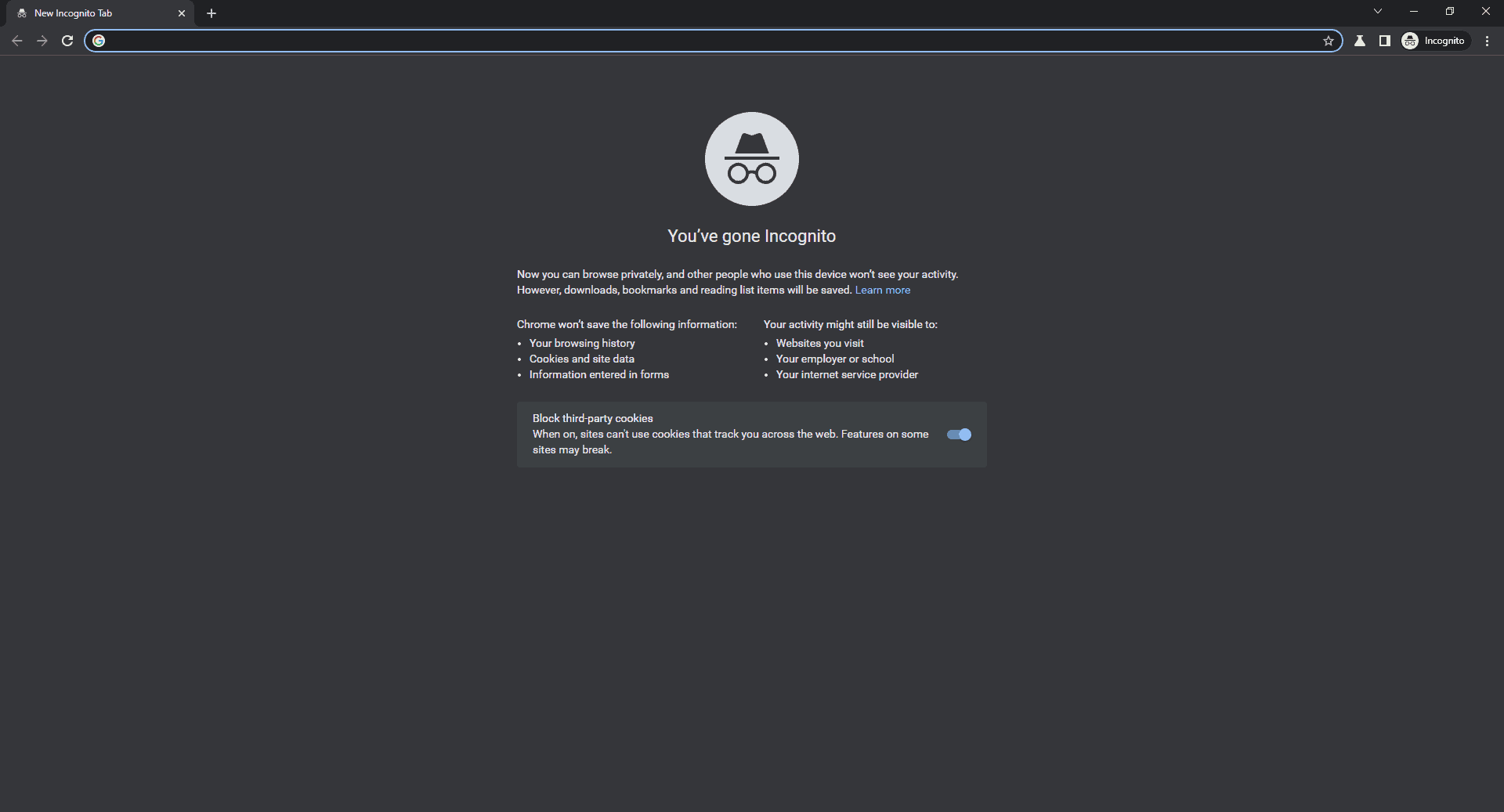
Mozilla Firefox offers a private browsing feature that you can use to browse the internet anonymously without anyone seeing what you’re actually looking at. You might wonder how Chrome’s Incognito mode compares, since it seems to do the same thing. It’s true that Chrome Incognito mode has a similar function to Firefox Private browsing. However, a lawsuit was filed against Google in 2020, alleging that the company monitored users’ browsing even in Incognito mode.

Firefox Private Browsing window.

The way Google tracked browsing in Incognito mode deserves a whole article, but the bottom line is that Google was found guilty and ordered to delete billions of Incognito browsing history records.

Given that history, I prefer to use Firefox’s Private browsing feature whenever I need to browse something I don’t want to be tracked.

3Stop Videos From Playing Automatically

There are a lot of websites that insert ads on their web pages in the form of videos. The worst thing is that whenever you land on a webpage that contains that video, it starts playing automatically.

In Google Chrome, you don't have any option other than to download a dedicated extension to stop the autoplay of these videos. On the other hand, Firefox provides you with an option in its settings to stop these videos from playing automatically.

To stop videos from playing automatically on Mozilla Firefox, open the Firefox settings menu, choose "Privacy & Security" from the left sidebar, and click "Settings" next to Autoplay.

Autoplay Settings option in the Firefox Settings Menu.

Click the drop-down icon next to the "Default for All Websites" option and select "Block Audio and Video." Then, click "Save Changes." Now, the videos will not play automatically, and you will have to click on them if you want them to play.

Save Changes option in the Firefox Settings menu.

4Firefox Blocks Third-party Cookies By Default

There had been news circulating for a long time that Google might block third-party cookies in Chrome. However, these turned out to be just that—rumors. Google released a blog post stating that they are not going to block third-party cookies.

It’s important for a browser to block third-party cookies because these cookies track your online activity so that companies can show you ads based on your preferences. You've probably noticed this in action when you search for a product on Chrome and then start seeing ads related to it on a completely different platform, like YouTube. These cookies can sometimes collect confidential data that you might not want them to, posing a threat to your privacy.

Unfortunately, Chrome doesn't block third-party cookies by default, but Firefox does. This means you can browse anything on Firefox without worrying about a random company spying on your browsing through cookies.

5More Privacy Features

In addition to blocking third-party cookies, Mozilla Firefox offers several other privacy-related features that make it the go-to browser for privacy-conscious users. First, Firefox has a built-in Phishing and Malware Protection feature. This setting checks each website you visit against a list of reported malicious sites to ensure the website is safe.

Firefox Phising and Malware protection feature.

Firefox has enabled DNS over HTTPS by default and uses Cloudflare as the provider. This means all your DNS queries are encrypted, making it extremely difficult for anyone to snoop on your web traffic as it leaves your computer.

In addition to all these features, Firefox collects very little data compared to other browsers, and even the data it does collect is automatically deleted after 13 months.

6Consumes Less Resources

One of the main things you need to be aware of with Chrome is that it uses a lot of system resources. While you might not even notice it on a high-end device, you could have a really bad time using Chrome on a low-end one. Things can get even worse for your system if Chrome is set to start up when your computer boots, as it will dramatically increase your boot time.

If you notice Firefox is using up a lot of your computer's resources, you can use its built-in task manager to find the tab using the most resources and close it if you don't need it anymore. To do this, click the hamburger icon in the top-right corner, then select "More Tools" and choose "Task Manager."

Task Manager option in Firefox.

In the Firefox Task Manager window, click the cross icon next to the tab you want to close.

Close icon in Firefox Task Manager.

Firefox is great, and the above are some of the main reasons for using it over Chrome. However, nothing in this world is perfect. There is definitely room for improvement in Firefox as well. For instance, Firefox has yet to introduce a built-in AI feature. However, there is a very real possibility that the team is already working on it, and that they will introduce this and many more interesting features in the browser in the coming days.

Source: https://www.howtogeek.com/chrome-is-top-dog-but-firefox-is-the-best-browser/?utm_medium=newsletter&utm_campaign=HTG-202408101500&utm_source=HTG-NL&user=amltLm5hZ3kyQGdtYWlsLmNvbQ&lctg=02f46df6687a5c6b6c6a51453f460af32dc1bbe4d7321e3d7b193ec97761583e

July 19, 2024

Chromium Review 2024 - Is It Safe & How Good Is it?

Chromium is the open source framework Google Chrome is based on. Google doesn’t maintain a stable version of the browser for consumer use because it’s a codebase intended for developers. They look alike, despite some major differences, so we’ll take a closer look at Chromium’s unique features in this Chromium review. 02-2024

Since it’s a template for browser development, it’s missing some of Chrome’s default features and may suffer from glitches, security holes and other flaws. Its availability is limited to legitimate third-party sources – but third parties nonetheless – so be careful where you download Chromium from.

Key Takeaways:

  • Chromium is a code base mainly meant for browser developers, not for the consumer browser market.
  • There is no official release of Chromium, and it has to be downloaded and updated manually.
  • Most major contemporary browsers are based on Chromium, except for Firefox.

Yet another variant of Google Chrome exists called Ungoogled Chromium. This version is a stripped-down version of the already stripped-down Chromium interface because its dependencies on Google infrastructure have been taken out.

In other words, Ungoogled Chromium doesn’t send your data back to Google, because it doesn’t contain any Google code at all. Aside from that, it’s identical to Chromium. This review will focus on Chromium unless otherwise noted.

  • 01/09/2022 Facts checked

    Added performance table, updated device synchronization and added other features.

Chromium Review: Alternatives

Chromium Review: Strengths & Weaknesses

Pros:

  • Great open source code for browser developers

Cons:

  • Poor privacy & security
  • No official download source
  • Usually slower than Chrome
  • Lacks many Chrome features

Features

60 % – Fair

Chromium looks and feels just like Chrome for the most part, but it’s missing some of Chrome’s features, and includes a few extra ones. It’s a testing ground for new technologies before they make it to the final release, so new features come and go, and they are usually rough around the edges.

Chromium vs Chrome: What’s the Difference?

The main difference between Chromium and Chrome is that the former is made for developers while the latter is intended for popular use. Chromium’s status as a developer codebase is evident in its instability and relative lack of features. Be sure to check our Chromium vs Chrome comparison for more.

Perhaps the most significant difference between the two is the inability to sign in to Google from the browser. Logging in to your Google account enables you to synchronize data such as bookmarks and passwords between your devices in Chrome, and is a vital feature for the best browsers today.

chromium profiles

Chromium stores user data locally instead of syncing across devices.

Chromium once supported Google accounts, but in March 2021, Google revoked the APIs that made account sync possible. In its current form, Chromium can accommodate multiple user profiles so that the users can keep their data separate and private, but synchronization is not possible.

The removal of the sync APIs has also disabled a number of other features including geolocation, spell-check, translation and a few others. Other browsers based on Chromium were reportedly affected since the availability of the sync API allowed Chrome data to be transferred to third-party browsers.

Chrome Web Store

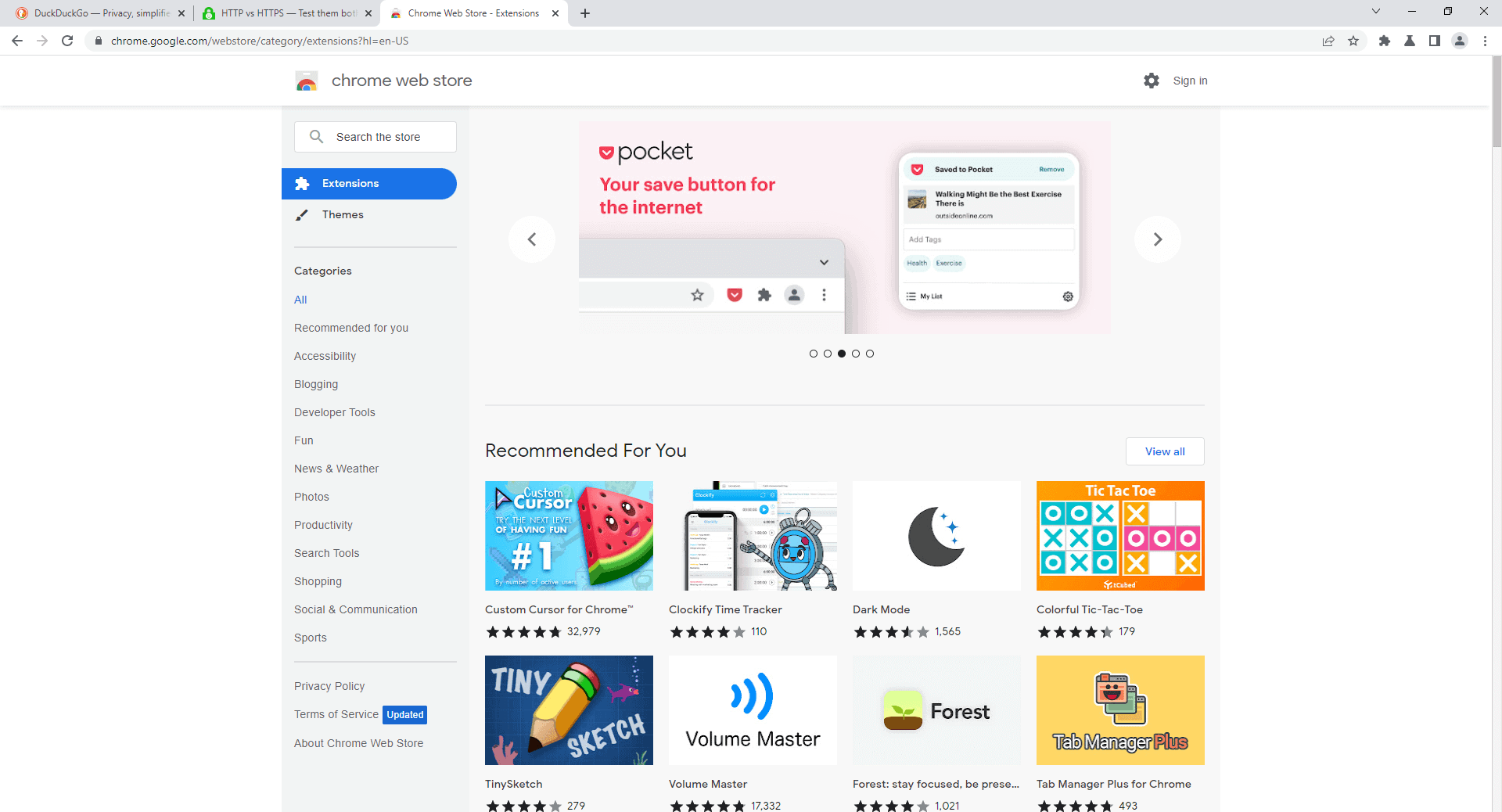
Chromium’s compatibility with extensions in the Chrome web store should fill in the holes in the browser’s missing features. You can download ad blockers, translation extensions, social media integrations and anything you would normally add to Chrome.

chromium extensions

Once you’ve added your favorite extensions, Chromium should look and act just like the fully featured Chrome.

Its compatibility with Chrome extensions is one of Chromium’s most vital features because it enables all Chromium-based browsers to have access to Chrome extensions as well.

Tab Management

Managing your tabs in Chromium is very simple. The tabs shrink as more are added, but there’s a helpful dropdown menu in the omnibar that will show a readable list of all open tabs in case you have too many open at once.

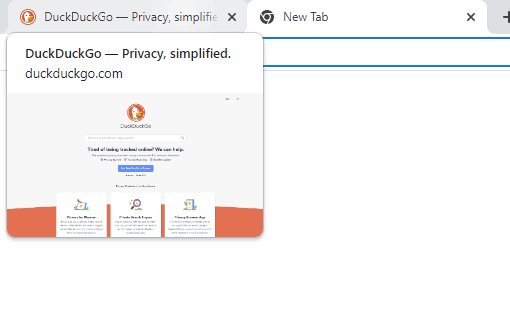
tab previews

We hope Chromium’s tab previews feature is a sign that it will later appear in Chrome.

Unlike its parent browser, Chromium lacks tab groups, but one unique thing Chromium does have is tab previews. Hover your cursor over a background tab to see a small window with an image of the webpage.

The context menu matches that of Chrome in almost every respect except for the image search feature. Right-clicking on an image in Chrome produces the option to search Google with an image, whereas Chromium has the new “search with Google Lens” feature instead.

google lens

Find images on Google with a whole image or with just a small selection of it.

Google Lens will find matching images on the web; it’s similar to the standard Google image search, except you have the option of searching by cropped selections of the image.

Reading List

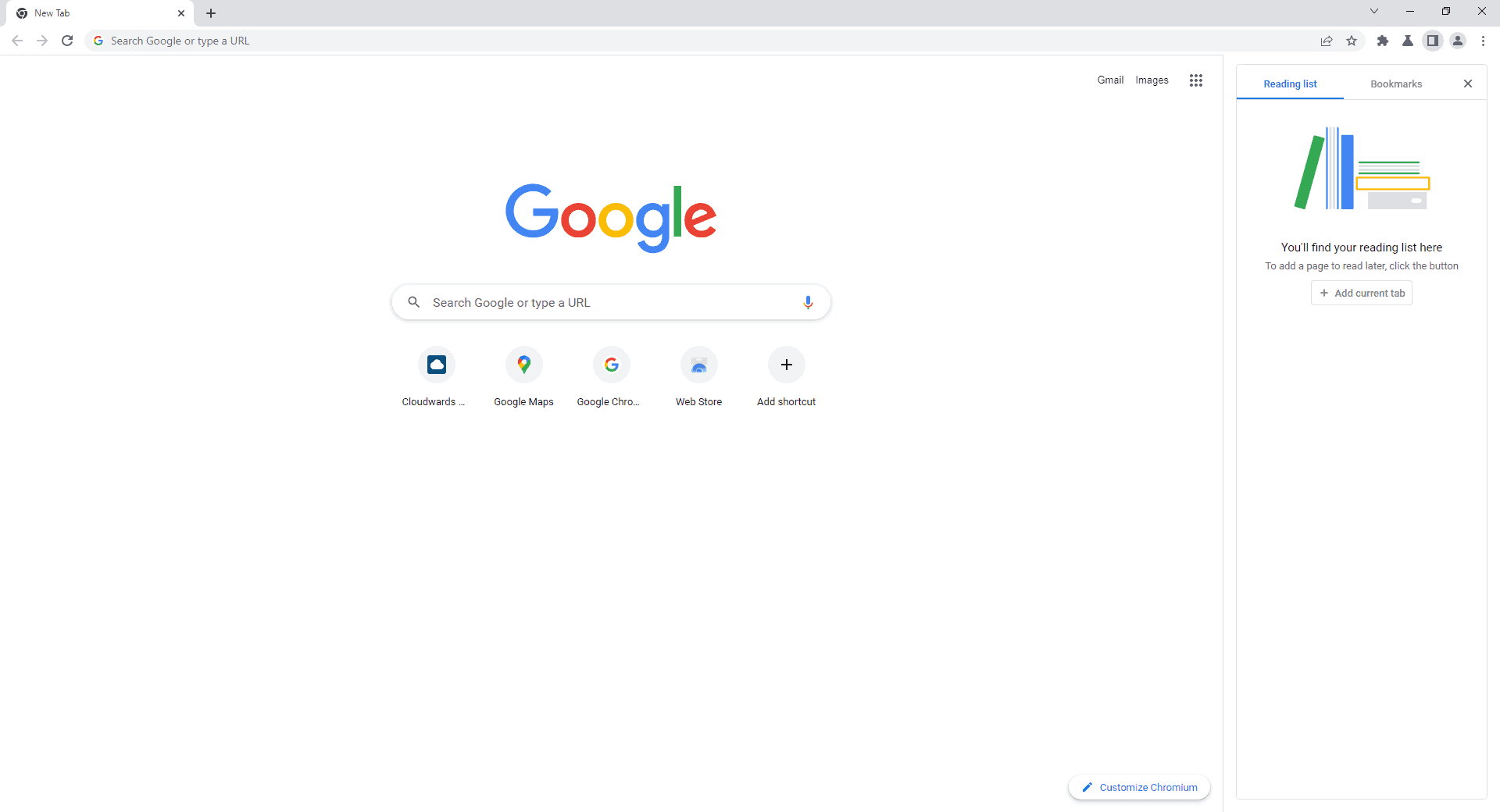
Chrome and Chromium have slightly different reading lists. The Chromium reading list can be accessed by enabling the side panel, which will display a vertical window on the right side of the screen. Both bookmarks and reading list items can be added to the side panel.

reading list

Add pages to your reading list so you can have something to read when you’re traveling while offline.

The reading list is similar to bookmarks, but adding pages to the reading list downloads the page onto your browser, so you can have reading material while you’re offline. Bookmarks establish a new connection to the saved page over the internet, so it doesn’t support offline access.

Ease of Use

50 % – Poor

Chromium can be downloaded on Windows 7 and later, macOS X 10.10 and later, Android 4.4 and later and Linux, but there is no support for iOS devices. The desktop and mobile versions of the browser are identical to each other in almost every way with a few exceptions, as we’ll see below.

Chromium Desktop Version

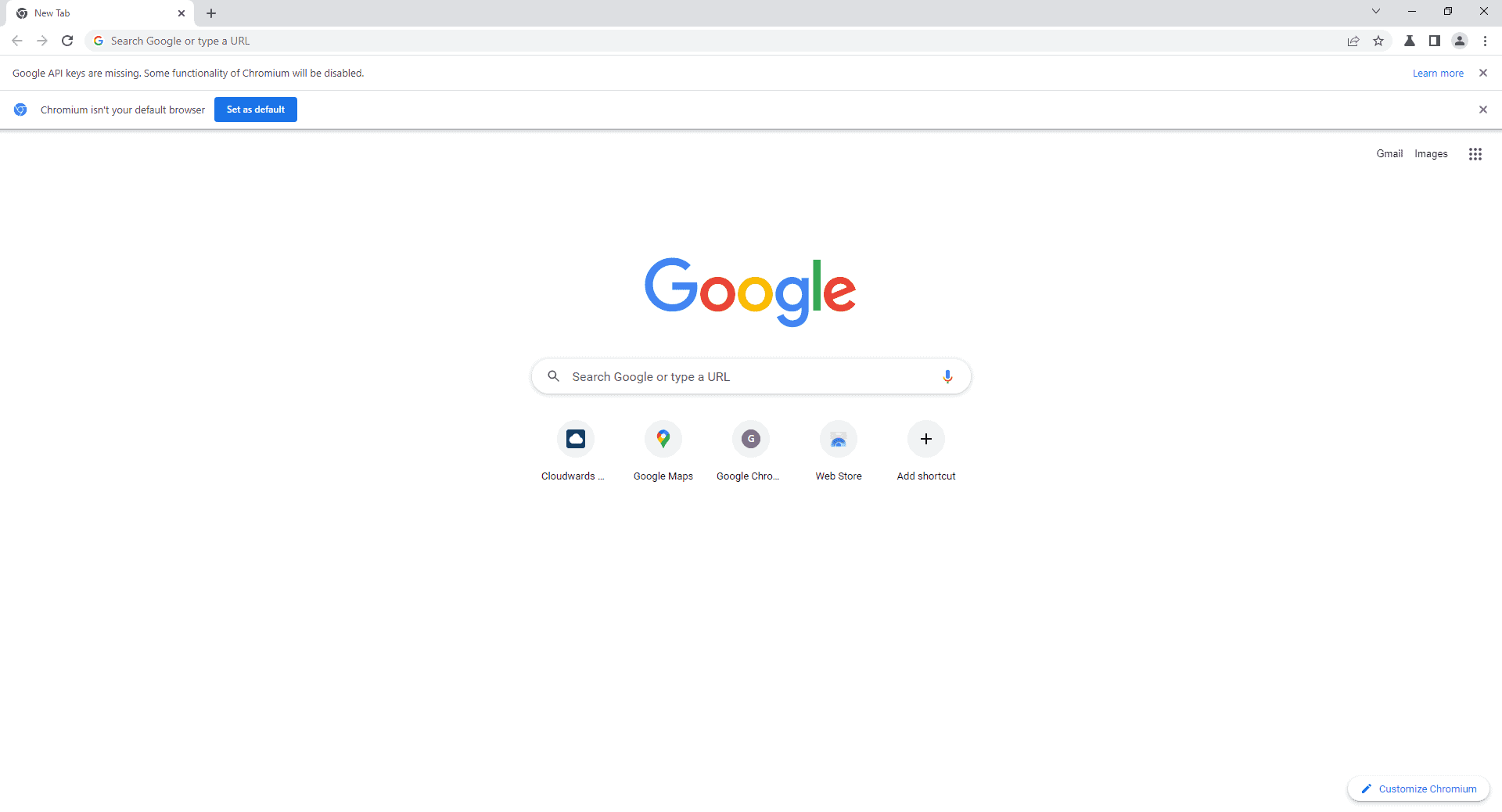
At first glance, Chromium looks just like Chrome. It exhibits the same minimalist user interface with the tabs and omnibar at the top of the screen, the settings menu at the top right and little else, other than the site itself.

chromium page

To the average user, Chromium hardly differs from Chrome at all.

Chromium is a user-friendly browser — except when installing and updating it. Installing and updating the browser requires a little extra work than browsers intended for consumer use, but even then, Chromium is missing some basic features included in Chrome.

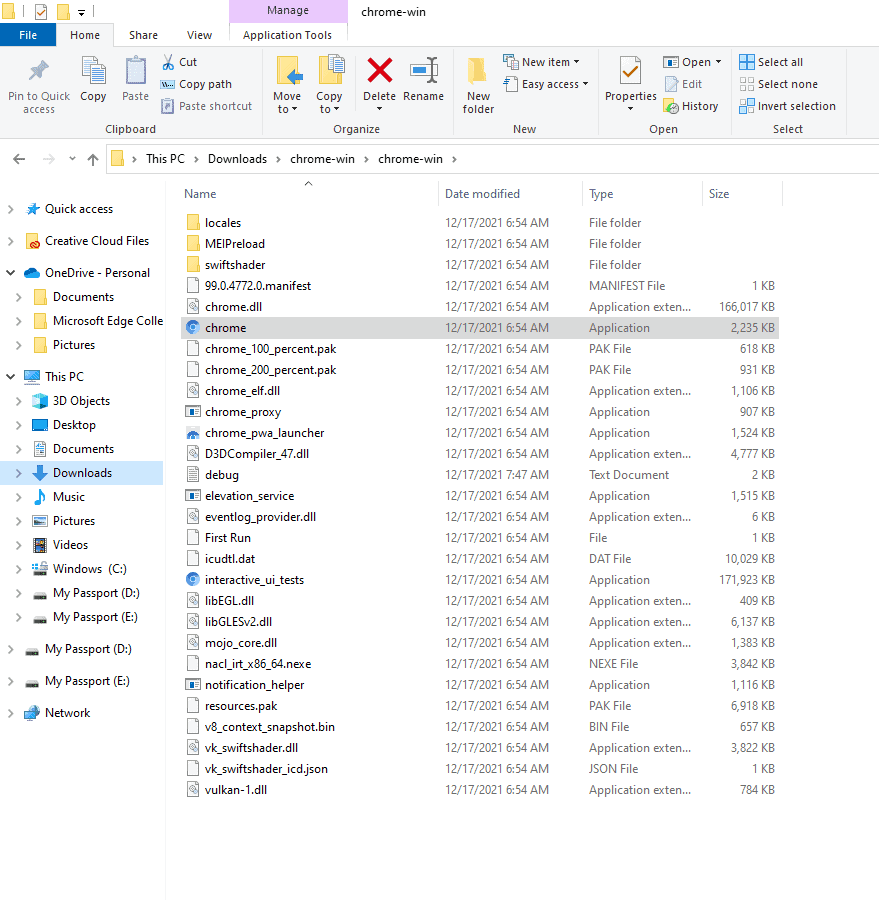
chromium exe

The process of installing Chromium takes some manual effort.

For example, proprietary media codecs like .aac, .h264 and .mp3 don’t come with Chromium by default and have to be manually added; otherwise, you won’t be able to stream media from services like Netflix.

Services that use Google APIs also require manual installation. It’s possible to integrate Google Translate, sync and other services with Chromium, but the API keys must be installed manually before it can work.

Chromium Mobile Version

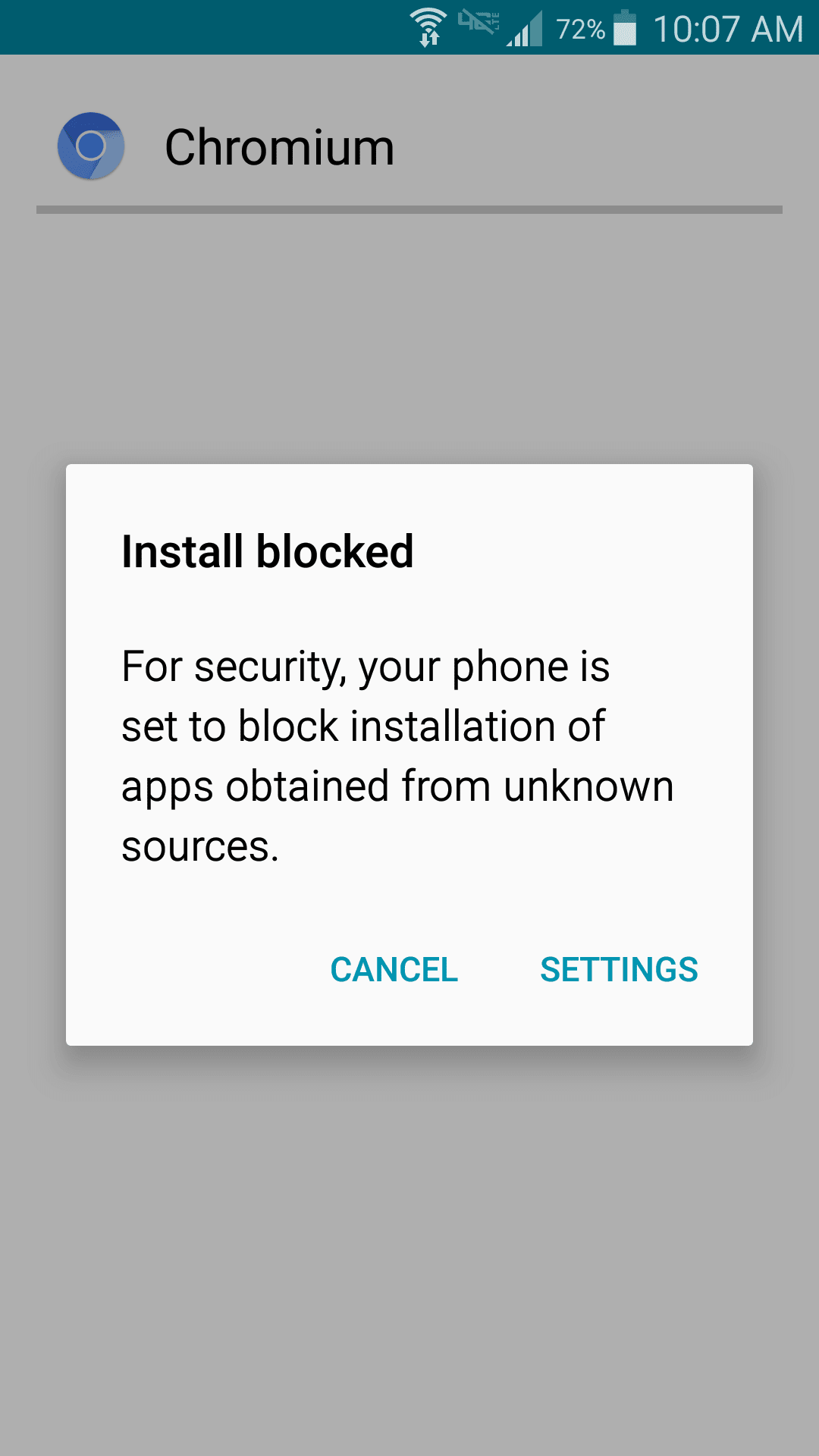
Downloading and installing Chromium on Android is a pain in the neck because Google provides no official download for the mobile version. You’ll have to download the .apk file manually from a third party, which will trigger a malware warning from your device. Make sure to verify the source before you download the file.

chromium android

Be careful about downloading Chromium from malicious sources.

It’s an easy browser to use once you’ve successfully installed it. Chromium Android has a simple layout that matches Chrome’s Android interface exactly. Most of the screen is taken up by the web page itself and the omnibar runs across the top. The three dots icon in the top-right corner opens a menu of the usual Chrome settings and options.

chromium blocked

Downloading Chromium from a legitimate source will still activate a malware warning.

We recommend erring on the side of caution if you’re still not sure about downloading Chromium. Unless you’re determined to use Chromium, it’s better to install Chrome instead to avoid the risk of downloading malware onto your system.

Performance

60 % – Fair

We put Chromium through three browser speed tests alongside Chrome, Microsoft Edge, Opera, Brave, Vivaldi and Firefox. We received mixed results from Chromium. It was toward the bottom of the results in the Speedometer test, but took second place in JetStream 2, surprisingly outpacing Chrome by a narrow margin. Chromium once again fell behind during the Motion Mark test.

Chromium vs Google Chrome, Mozilla Firefox & Microsoft Edge 

Speedometer measures the responsiveness of web applications by simulating user actions and assigns a score based on speed, with higher scores representing faster speeds. Microsoft Edge came in first place for every test we put it through, reaching a score of 131 while Chromium was far behind at only 102. Chrome took second place with a score of 121 (read our Microsoft Edge vs Chrome comparison).

Benchmark Test:Speedometer
BrowserRuns per Minute
Microsoft Edge131
Chrome121
Opera116.6
Brave102
Chromium102
Vivaldi97.3
Firefox95.5

JetStream 2 measures JavaScript and WebAssembly programming techniques and averages the score with a geometric mean. Chromium performed better on this test than it did on any other with a score of 129.732 — not far behind Microsoft Edge. This is the only test where Chromium outperformed Chrome, and it wasn’t by much.

Benchmark Test:JetStream 2
BrowserScore
Microsoft Edge134
Chromium129.732
Chrome125.917
Opera121.802
Brave116.936
Vivaldi116.540
Firefox80.131

Motion Mark tests your browser’s ability to render visual graphics. Chromium was a middleweight performer in this test with a score of 432.50, well behind Edge’s 517 but far higher than Firefox’s 145.93.

Benchmark Test:Motion Mark
BrowserScore
Microsoft Edge517
Chrome496.32
Brave444.67
Chromium432.50
Opera373.27
Vivaldi285.25
Firefox145.93

As you can see, Chromium is neither a blazing-fast browser nor a particularly slow one. Unline Puffin browser, it works just fine for everyday use and we noticed no latency while browsing the web, sending emails and watching HD videos.

Security

40 % – Terrible

Chromium’s lack of automatic updates exposes users to a greater risk of malware, cyberattacks and other online threats compared with Chrome. The only way to stay on top of Chromium security updates is to manually install them yourself.

Downloading and updating Chromium isn’t a straightforward task because Google relies on third parties to distribute installations of Chromium as executable files. Since you won’t find Chromium in the Google Play Store or any other official channel, it can be easy to mistakenly download a fraudulent copy from a malicious source.

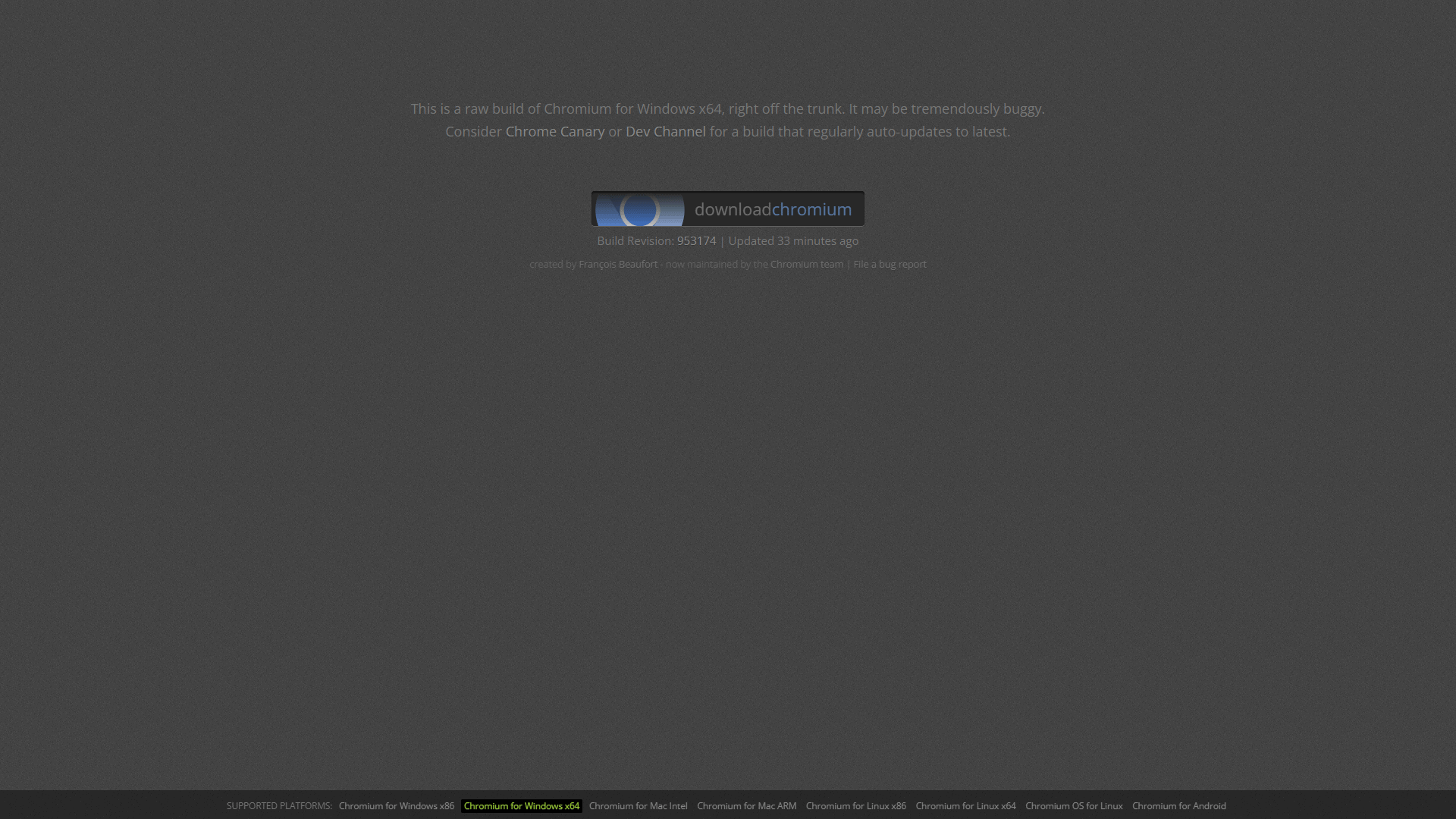
download chromium

We downloaded Chromium from download-chromium.appspot.com

Aside from the possibility of downloading malware, updating Chromium can become a headache for frequent users because it involves deleting the executable and downloading it again.

Furthermore, Chromium issues updates less frequently and consistently than Chrome. The time between Chromium updates can range anywhere between one and two months, which is far below the standard two- to three-week update cycle of Chrome.

The good news is that Chromium uses Google Safe Browsing to protect users against malicious websites, just like Chrome.

Google Safe Browsing matches the URLs of suspicious websites against a database of known malicious URLs and halts the connection if a malicious web address is detected. However, some users have alleged that GSB sends your data to Google for analysis, as well as to third parties.

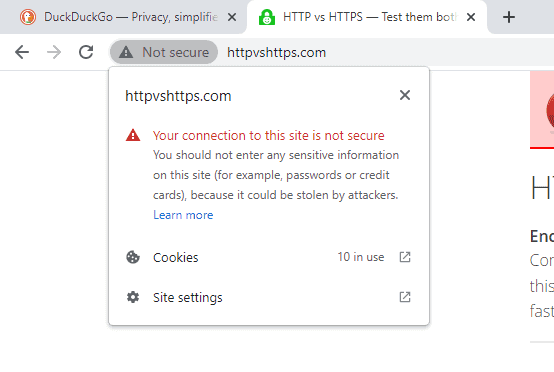
chromium http

Despite Chromium’s vulnerable nature, it has basic protections like detecting insecure HTTP connections.

Be aware that Google Safe Browsing isn’t available in Ungoogled Chromium, given the nature of the project. While blocking all connection with Google infrastructure provides a major privacy benefit, Ungoogled Chromium users will be more exposed to online dangers without alternate protection in place.

Privacy

10 % – Terrible

Chromium collects about as much of your data as Chrome does. Google Safe Browsing gathers data about the websites you visit for security purposes, and Chromium still uses your data to create personalized ads.

Search predictions and the auto-complete function in online forms requires data collection as well. Whatever you would do in Chrome to mitigate data collection should be done here.

Better yet, use a Chromium-based browser with stronger privacy controls. Check out our list of the most secure web browsers for a selection of more secure alternatives to Chrome and Chromium.

It’s possible to erase some of the data Google collected on you — or better yet, you can prevent Google from recording your search history in the first place. Take a look at our guide for erasing your Google history for more info.

Incognito Mode

Chromium has exactly the same incognito mode as Chrome. None of your browsing history, download history or cookies will be saved while browsing in this mode.

chromium incognito

Chromium’s incognito mode will keep your browsing history from being saved.

Incognito mode can come in handy in a variety of different situations, such as keeping your activity and personal data safe from other people using the same device. However, it won’t conceal your IP address from your ISP or the websites you visit.

This common misconception about browser private modes is actually what VPNs do. If you want to have more control over your privacy while using the internet, check out our list of the 10 best VPN providers in 2021. ExpressVPN made it to the top of the list, thanks to its rare combination of strong privacy protections, reasonable long-term plans, fast speed and an abundance of features.

The Verdict

For the non-developer, Chromium is more or less a downgraded version of Chrome that requires some manual work. It has enough features for most users to get by with, but it’s not optimal for the average user — especially when you take its security shortcomings into account.

Chromium isn’t quite as fast as its parent browser, but it’s still a fast and responsive browser for all but the heaviest tasks. It’s missing several key features that Chrome users take for granted in their browser, however, and requires manual installation to fix.

Chromium is not a bad browser overall, but unless you need a foundation for developing a browser of your own, there aren’t many reasons to use Chromium over Chrome.

What do you make of Chromium? Did we overlook any reasons to use Chromium instead of Chrome? Has Chromium aided you in your software development projects? Tell us what you think of our review in the comments section below. As always, thank you for reading.

FAQ

  • The Chromium browser itself won’t harm your machine as long as you download it from a trusted source. Since it’s intended for developers, it’s less stable and less secure than most browsers, and may put you at a higher risk of a malware infection.

  • Chromium is intended to be a developer tool rather than a browser designed for consumer use. Therefore, Chromium is not stable and could act in unpredictable ways during use. It also suffers from major security drawbacks.

  • No, Chromium is a legitimate browser maintained by Google-sanctioned third parties. However, you should be careful where you download Chromium from, as there is no official Google download source.

  • Chrome is Google’s regularly updated browser for consumer use, while Chromium is an unstable build intended for developers.


    Source: https://www.cloudwards.net/chromium-review/

December 14, 2023

How to remove the top left arrow in Chrome

Many folks are not enjoying the latest webui appearance changes to Chrome which adds a drop down arrow on the top left corner. Below is a way to remove this.

On a new tab, enter: chrome://flags   and disable this one:


After, restarting Chrome the left arrow will be removed. Enjoy.


Source:
https://superuser.com/questions/1813266/how-to-remove-the-chromes-arrow-pointing-down-button-on-upper-left-that-was-add

Updating the Theme: 

Also for anyone not enjoying the new retro light blue color theme, try the following theme from the Chrome Web Store: Classic with white Omnibox (shown above)

Here is the link to find it:

https://chromewebstore.google.com/detail/classic-with-white-omnibo/lfjbdknljkihdgnabcdofiabofedjjkh?pli=1


Enjoy.


December 13, 2023

How to disable immersive reader mode in MS-Edge browser

Navigating to websites in the MS-Edge browser and having its immersive reader mode automatically enabled is frustrating to many. Here is how to disable this feature.

Navigate to:  edge://flags

Search on "immersive" and set the flags to "default" as shown below. Enjoy.


November 9, 2023

The Top 10 Internet Browsers for 2023

Get peace of mind and ease of use with our list of the safest, fastest, and most-secure web browsers for PC, Mac, and mobile users.  By Brad Stephenson, Updated on October 24, 2023, Reviewed by Christine Baker

While most devices come with an internet browser, a variety of free browsers offer a more secure user experience, better function, and increased privacy than standard issue browsers.

Here's our ultimate web browser list featuring 10 of the best internet browsers for all platforms, including Windows 11, Windows 10, Mac, and Linux computers to Android devices and iPhones.

01 of 10

Best All-Around Web Browser: Firefox


Firefox web browserWhat We Like
  • Massive library of extensions.
  • Available on all major operating systems.
  • Full support for Windows Hello authentication.


What We Don't Like

  • Frustrating update process.
  • Scrolling not smooth.
  • Limited direct support.


Mozilla's Firefox
is one of the most popular alternatives to Chrome, Edge, and Safari browsers in part because it's been around since 2002, but mostly because of its frequent updates.

The Firefox internet browser updates regularly with bug fixes, speed improvements, security enhancements, and new features. However, these updates can be frustrating when they automatically start installing when you open the app. Then you have to wait several minutes for the new version to download and install.

Firefox is available on Windows, Mac, Linux, iOS, and Android and lets you sync your data between each version through the use of a free Firefox account. The Android, Linux, Mac, and Windows versions of the Firefox browser support a vast library of extensions. The Windows version also supports Windows Hello authentication for enhanced security on compatible websites.

Download Firefox

02 of 10

Best Internet Browser for Apple Users: Safari

Safari web page in Safari browser

What We Like

  • Built-in support for ApplePay and Touch ID.


  • Available on all Macs and iOS devices.


  • Syncs bookmarks and browsing history.


What We Don't Like

  • Unavailable for modern Windows computers.


  • No app on Android smartphones and tablets.


  • Limited customization.


Safari
is Apple's first-party web browser for all of its hardware, from Mac computers and laptops to its iPhones, iPads, iPod touches, and Apple Watches. The browser comes pre-installed on all of Apple's devices and is the default app for opening web pages.

Much like Edge on Windows 10 devices, Safari works well on Apple devices because the same company makes it, and it's designed from the ground up to run on a specific set of hardware. Safari supports all major Apple features, such as Apple Pay and AirDrop, and can also perform Touch ID and Face ID tasks on compatible Apple devices.

By using iCloud, Apple's Safari browser can sync browsing history, bookmarks, and passwords between devices. This feature is only useful if you have a lot of Apple devices, though, as there's no Safari browser for Windows or Android devices.

Download Safari


03 of 10

Best Browser for Windows 10 or 11: Microsoft Edge


Edge download page in the Microsoft Edge browser

What We Like

  • Built-in Cortana integration.


  • Bookmarks and browsing history sync between devices.


  • Windows Timeline support.


What We Don't Like

  • Browser can freeze on ad-heavy pages.


  • Slow to load embedded videos.


  • Needs a powerful computer to open many tabs.


Microsoft Edge is the successor to the classic Internet Explorer browser and comes pre-installed on all new on Windows 10 and Windows 11 devices. This browser is heavily integrated into the operating system and is the default app for opening not only web pages but ebooks and PDF files as well.

This web browser also features built-in inking tools for taking screenshots of pages and Cortana for looking up words and phrases. You can also use its voice dictation to have Edge read articles and other web content to you.

Microsoft Edge also saves your bookmarks and browsing history to the cloud. This data can sync to the iOS and Android app versions for consistent user experience and is compatible with Windows Timeline.

Download Microsoft Edge


04 of 10


Best Private Browser: DuckDuckGo


DuckDuckGo browser screens


What We Like

  • Strong security and privacy.


  • Quickly erase all app data.


  • Simple settings screen.


What We Don't Like

  • No browser for Windows or Mac.


  • Limited cloud sync features.


  • Lack of history can be inconvenient.


DuckDuckGo
is a private internet browser with both mobile and desktop apps. By default, it blocks all forms of online tracking and doesn't upload your search history to anyone's servers. If you're still concerned about your privacy, you can clear all of your tabs and data by tapping on the flame icon in the main menu.

One particular feature that privacy buffs will appreciate is the security rating that appears next to the current website's address at the top of the screen. Sites are rated from D to A on their encryption levels and the number of trackers detected. Tapping on this rating opens a full-screen report card which features an impressive amount of information on how they reached the score.

The browser has light and dark themes and a lock setting that requires Touch ID, Face ID, or passcode to use the app.


Download DuckDuckGo

05 of 10


Most-Functional Browser: Google Chrome


Google Chrome download page in Chrome browser window


What We Like

  • Loads Google services quickly.


  • Massive library of browser extensions.


  • Available on a variety of devices.


What We Don't Like

  • Incognito mode doesn't completely hide your activity.


  • Browser updates have a history of raising privacy concerns.


  • Some extensions collect data.


Google Chrome
launched on Windows in 2008 but has since expanded to Mac and Linux computers as well as iOS and Android smartphones and tablets.

One of Chrome's strongest points is its availability on a multitude of platforms because you can sync your browsing history and other data across different devices. All you have to do is log into your Google account.

This internet browser is also extremely fast, especially when it comes to loading websites owned by Google such as Gmail and YouTube. While other browsers may take a while to load a YouTube video, Chrome usually starts playing the video almost immediately when on a good internet connection.


Download Google Chrome


06 of 10

Most Secure Web Browser: Brave

Brave web browser

What We Like

  • Robust privacy and security features.


  • Alternative way to support online creators.


  • Beginner-friendly introduction to cryptocurrencies.


What We Don't Like

  • Affects websites' revenue models.


  • Inconvenient update methods.


  • Limited extensions.


Brave
is a web browser with a strong focus on privacy and security. By default, this internet browser blocks advertising, cookies, phishing, and malware and provides you with advanced options for enabling HTTPS Everywhere and preventing browser fingerprinting.

All of these security options should help give you peace of mind if you're the type of person to worry about online privacy. These security measures also make web pages load much faster than on other browsers.

What sets Brave apart from other web browsers is its cryptocurrency, the Basic Attention Token (BAT). The Brave browser has an integrated software wallet for storing BAT tokens. You can use these tokens to financially support website owners or online creators when you view their content in the browser. Users can also earn BAT by enabling Brave-run ads during a browsing session.

Brave is available on Windows, Mac, and Linux computers in addition to iOS and Android smartphones and tablets.

Download Brave


07of 10

Best VPN Web Browser for Mobile: Aloha


Aloha browser setup screens

What We Like

  • Optional integrated VPN functionality.


  • Built-in support for VR videos.


  • Uses less traffic than other browsers.


What We Don't Like

  • In-browser ads.


  • VPN isn't automatically on.


  • Lacks iOS password integration.


Aloha is a free web browser designed for iOS and Android tablets and smartphones. It has a built-in VPN service in addition to its own Incognito Mode, both of which provide enhanced security and privacy protection. This VPN service also compresses traffic, which means your smart device uses less data while surfing the web.

This mobile internet browser features a fresh visual design with clear, easy-to-understand icons and settings with the option to customize the app's appearance with a variety of free themes. Aloha also has built-in ad-blocking that stops banner ads and popups from loading on websites.

A couple of VPN settings, such as the ability to use the feature in other apps as well, are hidden behind a paid upgrade, which costs $24.99 annually. The app has ads for the Aloha Premium service; you can remove them by signing up. The ads don't detract too much from the user experience, though.

Download Aloha


08 of 10

Best Internet Browser for Multitasking: Vivaldi


Vilvadi browser welcome screen

What We Like

  • Add any website to the toolbar.


  • Numerous customization options.


  • Supports Google Chrome Extensions.


What We Don't Like

  • Not available for iOS.


  • Not always user-friendly.


  • Inconsistent window sizes when selecting links.


Vivaldi
is a free web browser that was created in 2016 by some of the minds behind the Opera browser. The program is built on the same Chromium-based technology that powers Google Chrome, which allows you to install almost any extension from the Chrome web store.

The main appeal of Vivaldi is its comprehensive options that let you customize its look and functionality to a degree not seen in rival browsers. First, you can change the browser's UI colors anytime you want. You can also move the toolbar can to the top, bottom, or sides, and pin web pages to the side for simultaneous browsing. The latter feature is particularly useful if you like to watch YouTube videos or check a social media site while browsing the web.

Vivaldi is available for Windows, Mac, and Linux computers.


Download Vivaldi

09 of 10


Best Browser for Saving YouTube Videos on iPhone: Documents by Readdle


Documents by Readdle screens


What We Like

  • Allows files usually blocked on iOS.


  • Manages local and cloud files.


  • Supports PDF and ZIP files.


What We Don't Like

  • UI can be confusing.


  • Some functionality requires upgrade.


  • Can run slow on older iPhone and iPad models.


Documents by Readdle is a powerhouse of an iOS app designed for both iPhone and iPad users. In addition to featuring web browser functionality, Documents by Readdle also works as a PDF reader, a ZIP file unzipper, a file manager, a media player, an ebook reader, and a one-stop-shop for all of your various cloud storage accounts.

What makes Documents by Readdle a must-download for any iOS user is its ability to download files from the web that other iOS browser apps would block. Documents by Readdle is the perfect app for downloading video files and other media. You can even use it to save YouTube videos to your Camera Roll.

Something advanced users may appreciate is the option to select the browser agent when using the web browser. This setting lets you tell websites which version of a web browser you're using. Then, if you ever need to test a website in one of those browsers, you don't have to switch between apps manually.

Download Documents by Readdle


10 of 10

Most Diverse Web Browser: Opera


Opera website in Opera browser window

What We Like

  • Opera USB is a unique idea.


  • Extensive library of add-ons.


  • Custom wallpapers.


What We Don't Like

  • Can load slowly.
  • Many extra features feel redundant.


The Opera web browser launched on Windows in 1996 and is now available on Mac, Linux, iOS, Android, and even Java phones.

The desktop versions of Opera support a wide range of add-ons that bring extra functionality to the browser beyond browsing the web. Facebook Messenger and WhatsApp can run within a pinned taskbar on the left side of the screen, and the browser features built-in screen capture functionality as well. How much you use these functions depends on your operating system and preferred apps. If you usually check Facebook Messenger using its app or on your phone, for example, you likely won't find this feature in Opera very useful.

Of particular note is Opera USB, a fully functional version of the web browser that can be run off of a USB drive on any Windows computer running Windows 7 and up. This rather ingenious creation is perfect if you have access to a computer at work or while traveling that doesn't allow for the installation of extra programs.

Download Opera


Source: https://www.lifewire.com/top-internet-browsers-4589106