We take a look at the performance and features of the big four internet browsers to see which one will serve you best in 2017.
The web browser is by far the most important piece of software on
your PC—at least for most users. Unless you’re at a workstation
crunching numbers or editing the next Star Wars you probably spend the majority of your computer time staring at a web app or a website.
That’s
why it’s important to make sure you’ve always got the best tool for the
job, and in 2017 that does not include Internet Explorer. If you still
want the built-in option for Windows that would be Edge, but it’s hard
to stick strictly with Edge when you’ve got other choices including
Google’s Chrome, Mozilla Firefox, and Opera.
Let’s take a look at the four major (and modern) browsers to see how they stack up in 2017.
(If none of these internet browsers strike your fancy, head over to PCWorld's roundup of 10 intriguing alternative browsers.)
GoogleThe
current people’s champion, Google Chrome tops the metrics charts of
both StatCounter and NetMarketShare by a huge margin. Google’s browser
has built a dedicated fan base thanks to its massive extensions library,
and the fact that it just gets out of your way to put the focus on web
content, not the browser’s trimmings.
Chrome isn’t quite as
simplistic as it once was, but it’s still very easy to use. There isn’t
much to Chrome except a huge URL bar—known as the OmniBar—plus a space
for extensions, a bookmarking icon, tabs, and that’s it.
Yet
Google still finds a way to hide all kinds of features inside the
browser, including deep integration with Google’s services. This allows
you to sync your bookmarks, passwords, open tabs, and more across
devices. Chrome also has multi-account support if you need it on a
family machine, a built-in PDF viewer, built-in Google Translate
functionality, a task manager, and the always handy Paste and go context menu item.
If there’s one complaint people have about Chrome it’s that the browser eats up available memory. Our browser testing in 2015 showed that Chrome was definitely a memory beast, but two years later it fared pretty well in our tests.
Firefox
MozillaFor
users who love extensibility but want greater privacy than a
Google-made browser can provide, the open source Mozilla Firefox is your
best bet. Firefox paved the way for other browsers to become
extensible, and while Firefox’s add-on catalog is pretty good, it now
pales in comparison to the Chrome Web Store. Like Google, Firefox has a
sync feature.
Where Firefox has really shined in recent years is with the browser’s incognito mode.
All browsers have a private mode that lets you browse without any of
your activity being logged in your saved history. But most of the time
these private modes still allow websites to track your activity for that
specific session. Firefox does away with this by including an ad and
tracker blocker when using incognito mode.
Opera
OperaBefore
Chrome, Opera was a popular choice among power users—a position former
Opera CEO Jon Stephenson von Tetzchner is trying to take back with Vivaldi.
Opera today is really one of the more under-rated browsers around. It’s
based on the same core technologies as Chrome (the Blink rendering
engine and the JavaScript V8 engine), which means it can run many Chrome
extensions—there’s even an extension for installing extensions from the
Chrome Web Store.
Opera’s also got a few unusual features like
Turbo, which saves on load times and bandwidth by compressing webpages
on Opera’s servers. It’s also got a nice security feature called domain
highlighting that hides most of the URL so that users can see easily and
clearly if they’re on Google.com or google.com.scam.com—with scam.com
being the actual website.
More recently, Opera introduced its own take on the social sidebar
with one-click access to services such as WhatsApp, Facebook Messenger,
and Telegram. Like Chrome and Firefox, Opera also has its own
cross-device syncing feature.
Microsoft Edge
MicrosoftMicrosoft
Edge is still a work in progress. You'll see below that its performance
is getting better, but that’s not all there is to the browser in 2017.
The Edge extensions library is tiny, its sync functionality is near nonexistent, and it doesn’t get updates nearly fast enough—though that is expected to change with the Fall Creators Update.
Despite
its shortcomings, Edge has several helpful features that will appeal to
some. Edge is deeply integrated with Windows 10’s inking capabilities,
as well as with OneNote, making it easy to clip a webpage, annotate it,
and save it to a notebook. Cortana is also a big part of Edge. You can
use Microsoft’s digital assistant to quickly search for information,
compare prices, or get a quick calculation.
Like Chrome, Edge has a
casting feature. There’s also a nifty set-aside tabs feature to stash a
collection of websites, the ability to read ebooks (great for tablets),
and an MSN.com-ish new-tab page. Read on for our benchmark results and our pick for best browser.
Benchmarks
That’s enough of an
overview for our four contestants, let’s get down to business. To see
which browser is worthy of your bandwidth in 2017 we used a variety of
testing tools. For judging JavaScript we used JetStream, and the now
unsupported Octane 2.0 and SunSpider 1.0.2 benchmarking tools. Then we
turned to WebXPRT 2015 and Speedometer to challenge our browsers under
simulated web app workloads.
Finally, we took a look at CPU and
RAM usage. Similar to what we did in 2015, we loaded a set of 20
websites in a single window in quick succession using either a batch
file or the command line depending on the quirks of the browser in
question. Once all tabs began loading, we waited 45 seconds, and then
checked the CPU and RAM usage. The idea was to see the amount of system
resources the browser would use during a heavy workload.
One
difference from 2015 is that Flash was turned off for each
browser—benchmarks were done with and without the plugin in 2015. In
recent years, most browser makers have de-emphasized Flash, enabling it
as “click-to-play” and blocking nonessential website elements that use Flash. Since the web is moving to a Flash-free existence we decided to live the dream right now.
For
these tests our rig was an Acer Aspire E15-575-33BM laptop loaded with
Windows 10 Home (Creators Update), a 1TB hard drive, 4GB RAM, and an
Intel Core i3-7100U. Each browser was tested over a hard line internet
connection.
Edge makes big gains
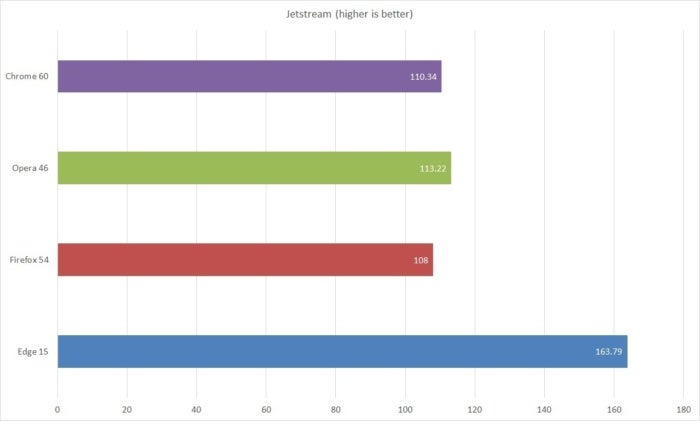
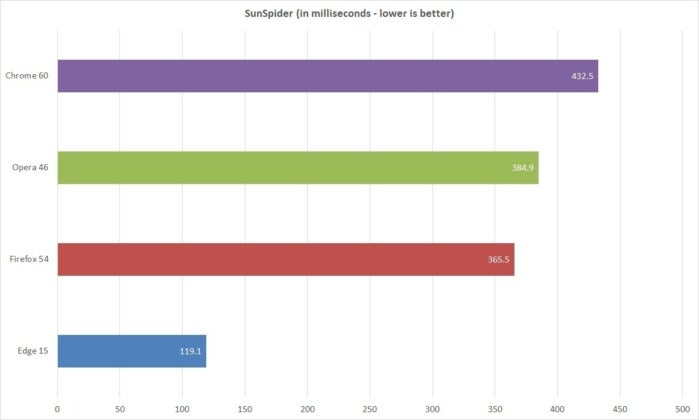
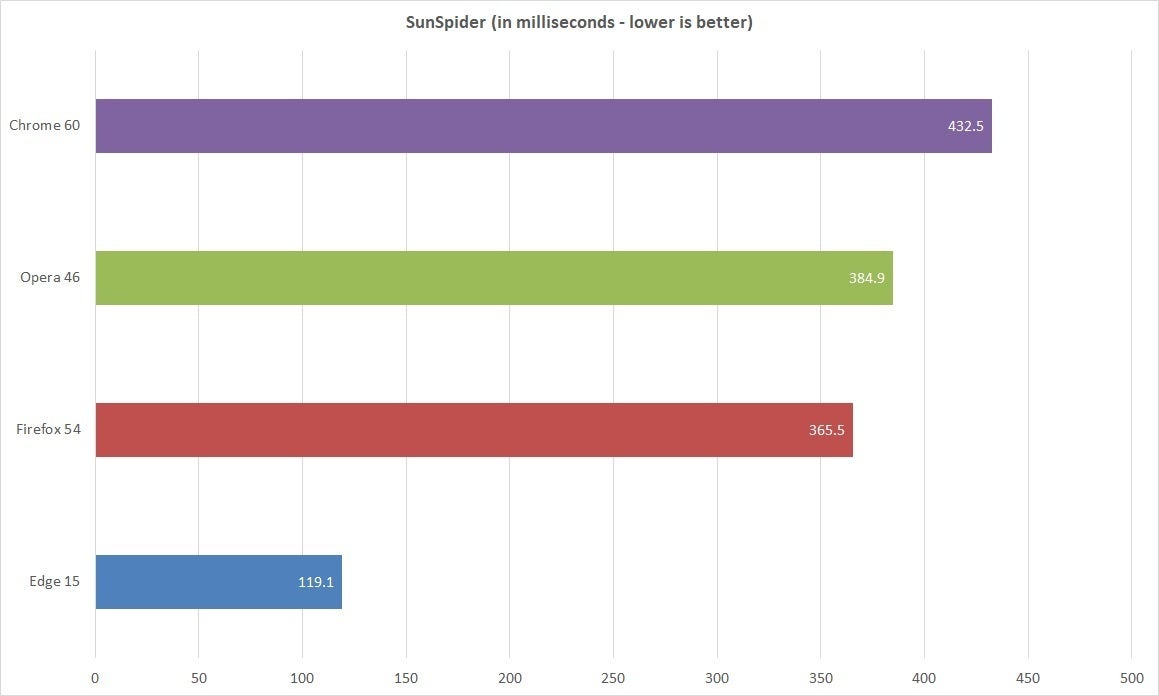
Looking at both Jetstream
and SunSpider, Edge won top marks by a wide margin. SunSpider has been
deprecated for some time and is no longer supported, but the result was
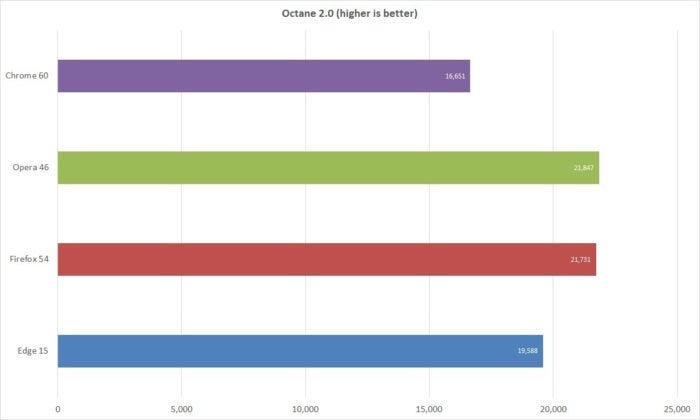
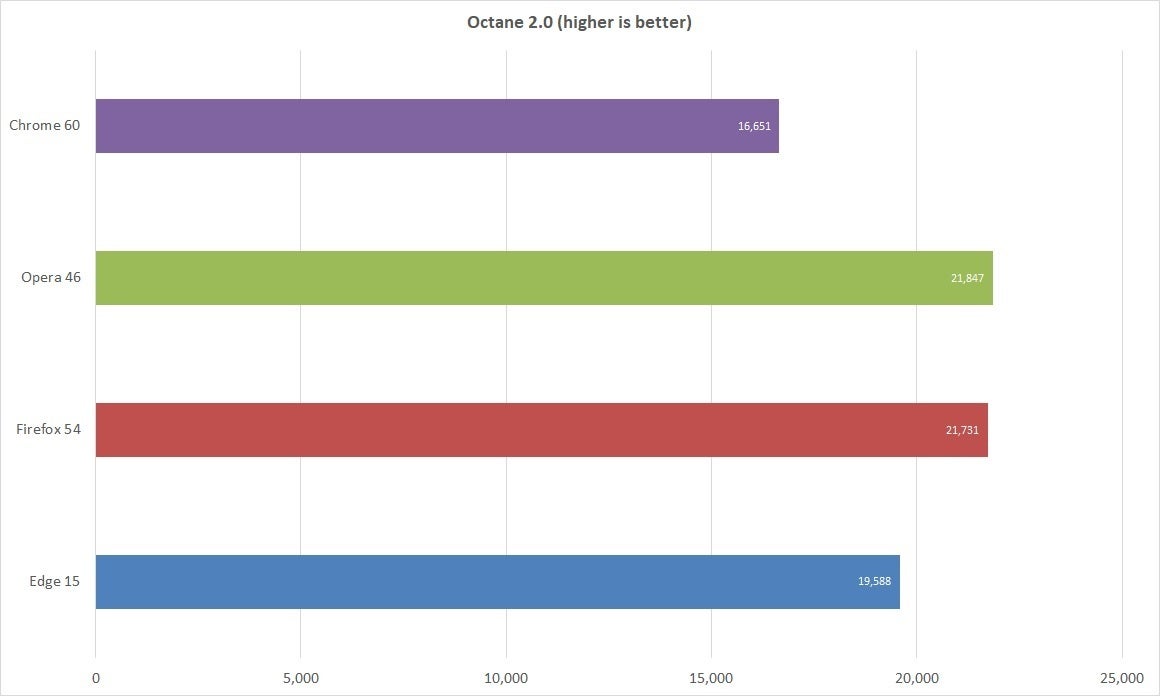
still surprising. For Octane 2.0, which is also no longer supported,
Firefox and Opera vied for top spot, with Chrome the laggard by a wide
margin. For this set of benchmark scores higher is better with the
exception of SunSpider. Melissa Riofrio/IDG
The JavaScript test Jetstream shows Microsoft Edge hanging tough. Melissa Riofrio/IDG
SunSpider also shows Microsoft Edge with a performance edge, loading JavaScript quite a bit more quickly than others. Melissa Riofrio/IDG
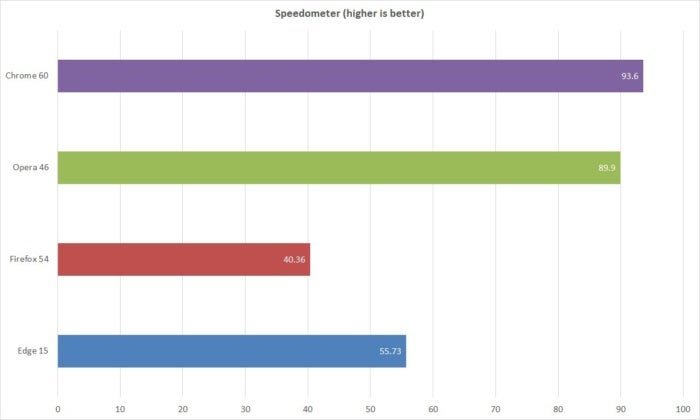
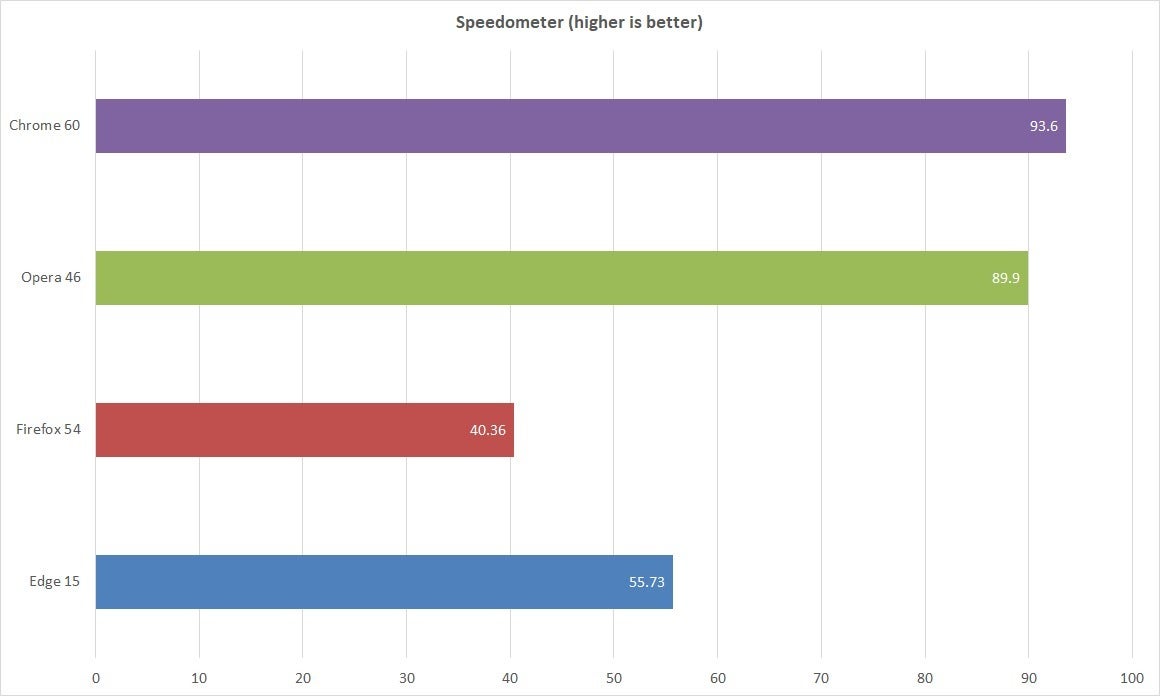
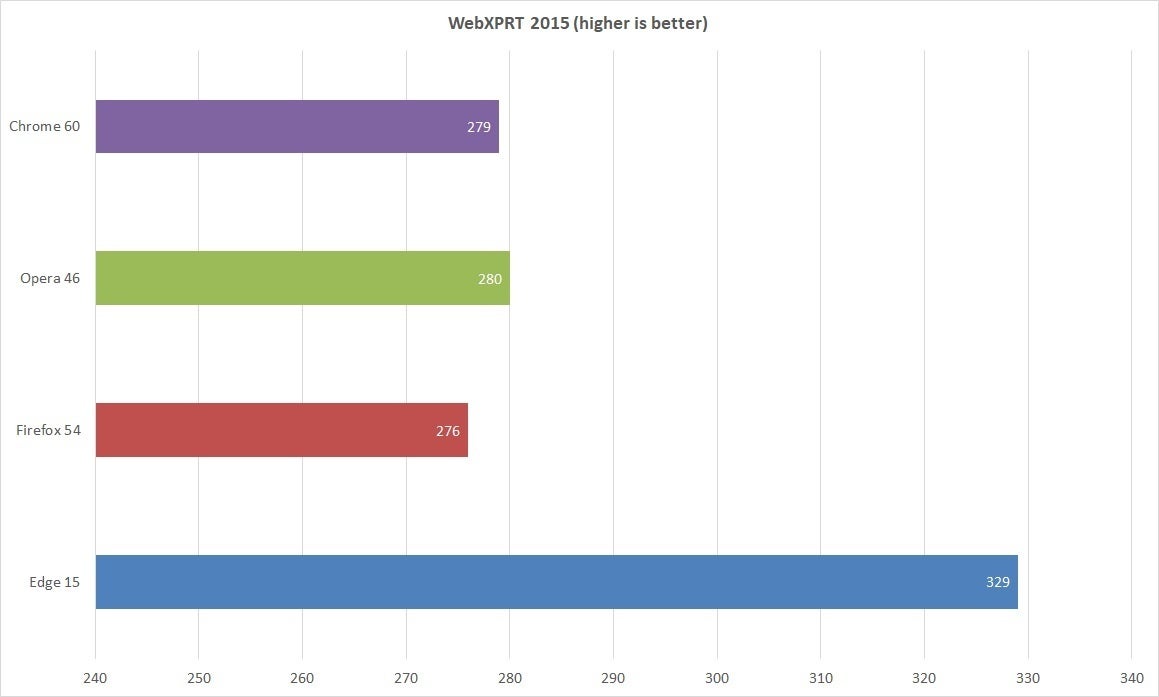
Chrome makes the poorest showing in the Octane test. Moving on to the more modern Speedometer test,
which quickly iterates through a bunch of HTML 5-based to-do lists,
Chrome came out on top. Google’s Blink-based cousin Opera came in
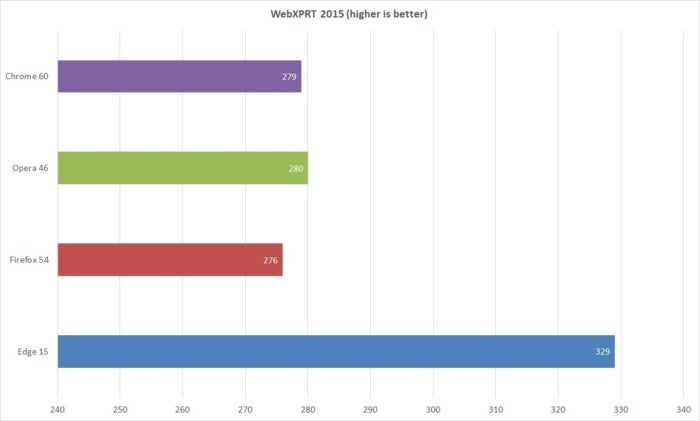
second, with Edge and Firefox way behind. The numbers were much closer
for WebXPRT 2015, which uses a wide number of web apps, from photo
collections to online note-taking to data sets. Edge came out on top
there, while the others were closer together with only a few points
separating the back three. Again, higher is better for these tests. Melissa Riofrio/IDG
Chrome narrowly edges out Opera in HTML-5-based tasks. Melissa Riofrio/IDG
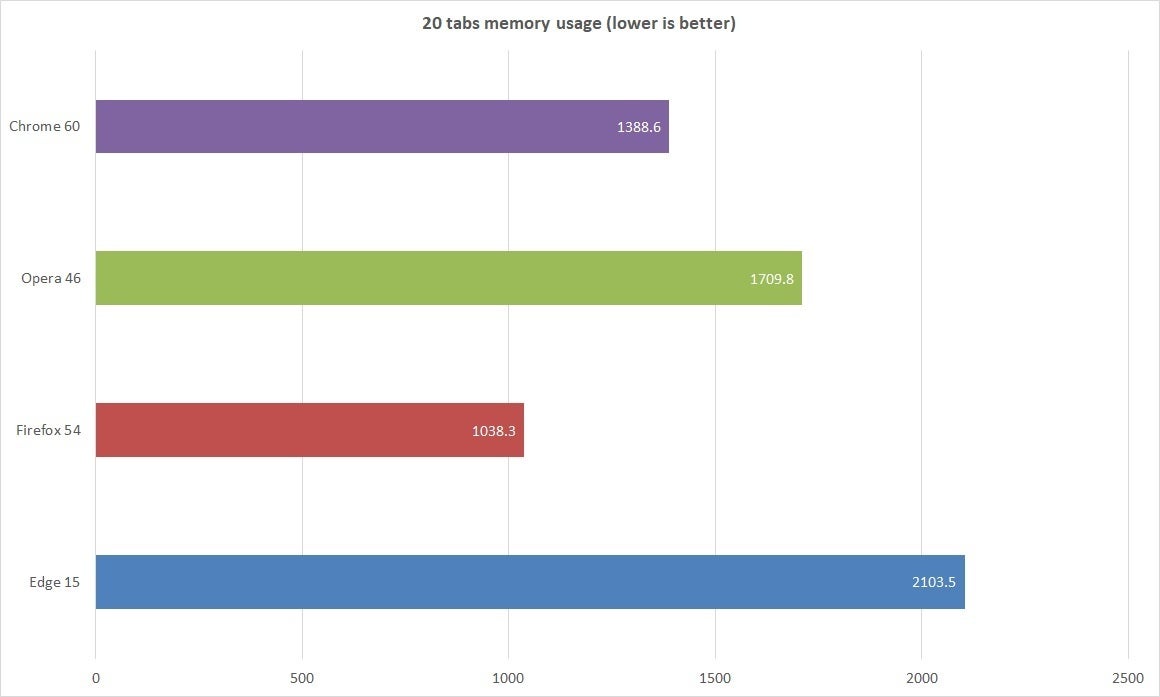
Edge makes another good showing in the web apps realm. Finally, we come to the memory and CPU test.
Slamming an average PC with 20 tabs of mostly media rich sites all at
once is certainly going to chew up a good chunk of CPU and memory. These
browsers did not disappoint in that respect.
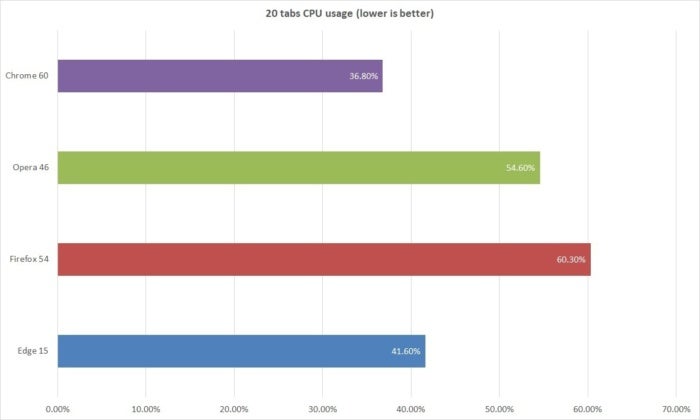
Despite its
reputation, however, Chrome was tops here, using less than 40 percent
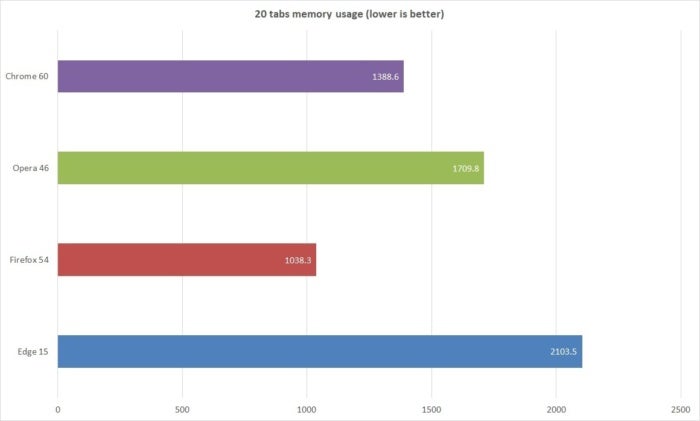
CPU power, followed by Edge. The results were similar for memory with
Chrome using the least. Take those impressive Edge numbers with a
healthy dose of skepticism, however, as during testing the PC froze, and
we couldn’t access task manager as swiftly as with the others. The fact
that the whole PC slowed to a crawl suggests Edge’s numbers don’t tell
the whole story. Based on that experience, power users with multiple
tabs open in Edge would feel some serious pain trying to get work done. Melissa Riofrio/IDG
It's true that running media rich content in multiple tabs will tax your system's CPU. Melissa Riofrio/IDG
As with the CPU test, Chrome's reputation as the biggest resource hog is undeserved these days. As for Firefox, you may notice that the browser
chewed up CPU usage, but was relatively low in memory usage. The reason
for that, as Mozilla reminded us, is that Firefox alone is
transitioning from one browser process to four.
Whereas Chrome and Edge use multiple processes for each tab. The idea
behind the latter is that individual tabs running on separate processes
won't take down the whole browser if they crash. That approach does use
more memory, however. Mozilla is trying to find a middle ground. On the
one hand, Firefox helps maintain overall PC performance under heavier
workloads, but it's not great if you want dozens of sites to load as
quickly as possible.
And the winner is...
So who wins? Here’s the way we see it.
Once
again, Edge gets honorable mention for making some serious gains in
performance and earning some truly impressive scores. But when you
factor in customizability and how Edge fared in the live site stress
test, it still has some work to do—like offering a wider extension
library and the ability to sync across devices.
As in our
previous showdown, Chrome continues to capitalize on these strengths,
and even improves in the performance department by addressing its past
resource issues, making it, once again, our first choice.
Opera
again earns second place since it performed relatively well in the live
stress test, and can be set up to take advantage of nearly all the same
conveniences Chrome can.
As for Firefox, it’s also a fine choice.
Mozilla’s browser definitely gets the job done, it’s very customizable,
and its open source roots puts the browser in a league of its own.
Mozilla will enable its multi-process architecture this year in the Firefox Stable web browser. The organization runs tests currently on Firefox's Beta channel, and provided that those don't result in major stopper bugs, will release the first version of Electrolysis (e10s) when Firefox Stable hits version 46.
This
multi-process version won't ship with all features and improvements
that Mozilla plans to add to it. There will be only one content process
for instance initially with e10s enabled in the Firefox browser.
This
means that websites will share that process for their data, which is
different to how browsers that are based on Chromium handle this as they
launch a new process for every page open in the browser and also for
plugins.
Firefox would not be Firefox if there would not be an option to play around with different content process values.
While
Firefox will ship with one content process initially, nothing is
keeping users from increasing that limit to use more than one content
process.
Each content process is listed as Plugin Container for
"Firefox version" in the operating system's task manager. The file name
is listed as plugin-container.exe on Windows.
Firefox runs as many content processes as you see listed there, provided that multi-process use is enabled in the browser.
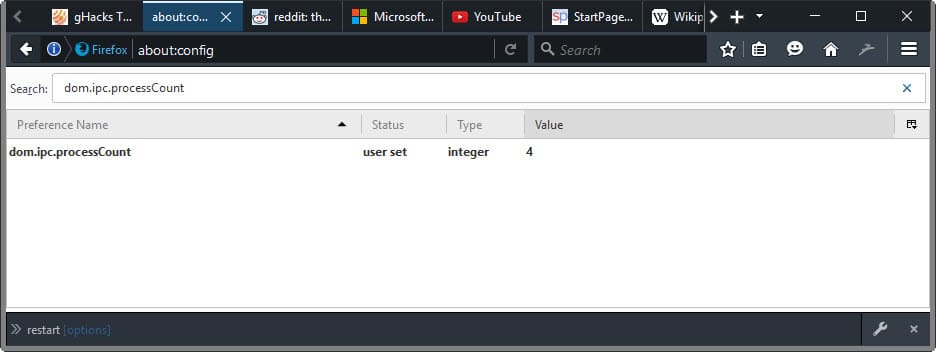
dom.ipc.processCount
It is rather easy to change the number of content processes. Here is how it is done:
Type about:config in Firefox's address bar and hit enter.
Confirm you will be careful if a warning appears.
Search for the preference dom.ipc.processCount.
Double-click on it and change its value. The default value is 1, indicating that one content process is used.
Firefox will use the selected number of content process after the restart.
Please
note that it will use more memory when you increase the number of
content processes in multi-process Firefox, and less memory if you
reduce the number.
Mozilla ran some memory benchmarks recently and
found out that multi-process Firefox will use between 10% to 20% more
memory initially with one content process enabled, and about double the
memory with 8 content processes.
This is probably one of the main
reasons why Mozilla will launch the multi-process architecture with one
content process initially.
Ideally, from a stability and security point of view, you'd separate each tab, plugin and the browser UI individually.
Multi-process
Firefox is fast like other browsers, but won’t suck up memory and slow
down your computer as Chrome will sometimes do.
Today Mozilla is releasing a new version of Firefox
that runs using a multi-process architecture, for the first time using
several separate processes for your web page content (your tabs).
Now,
you might know that some other browsers have done this sort of thing
for a while. But even if you think you know everything about
multi-process browsers, or if you don’t have the first clue, read on.
In
this post I’ll explain what it means for Firefox to run with a
multi-process architecture. I’ll also explore how and why Firefox’s
approach to running with multiple processes is a bit different
from — and often better than — other browsers’.
As I considered how to explain something pretty technical, I thought about a story I frequently read to my daughter Sara: Goldilocks and the Three Bears.
How the Goldilocks principle manifests in web browsers
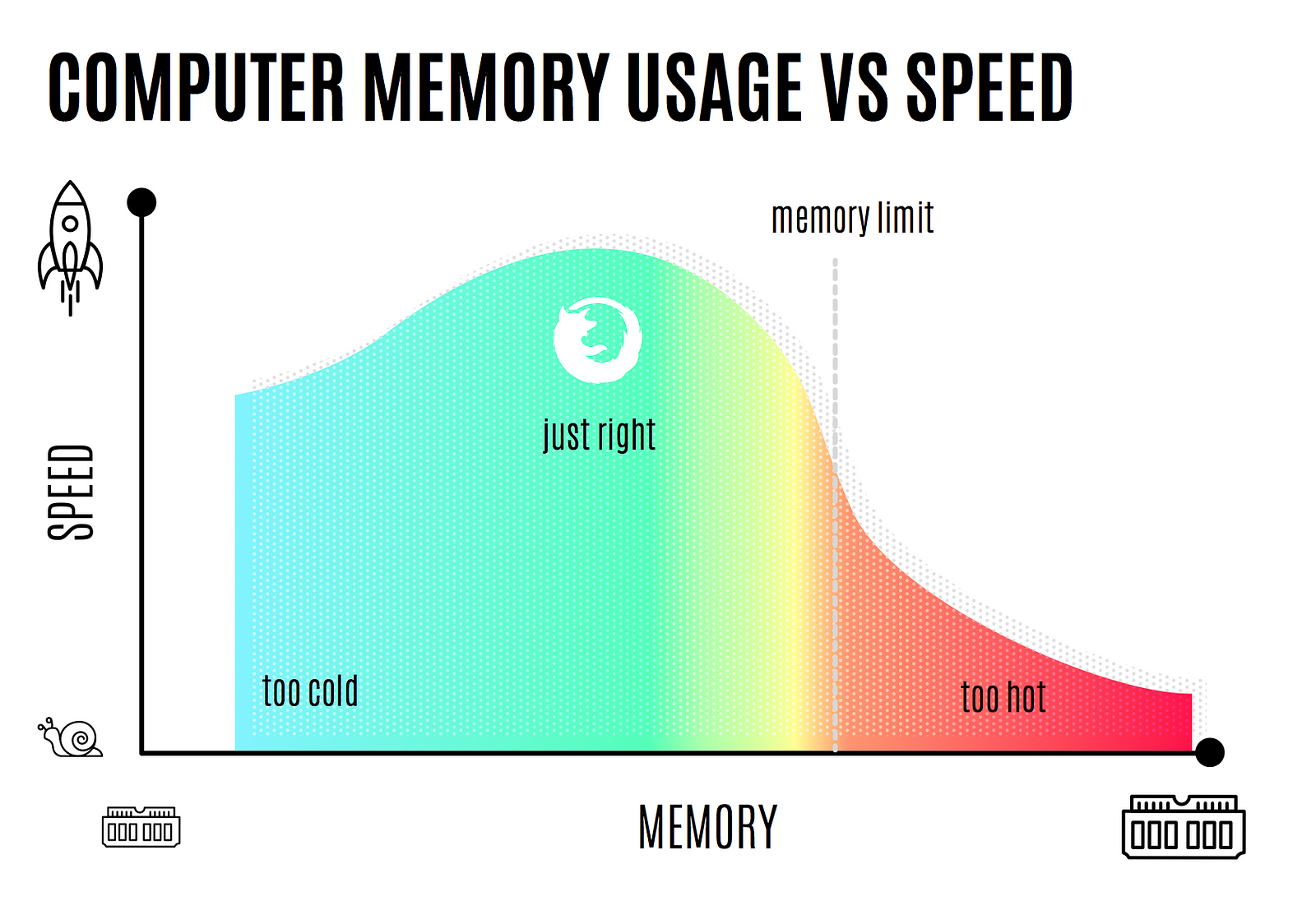
Much as astronomers search for a Goldilocks planet with life,
Mozilla strives to build the Goldilocks browser. In my view, none of
today’s browsers strikes the “just right” balance between speed and
memory usage.
Your
browser’s use of memory impacts your experience both with the browser,
and with the other apps that you’re running on your computer. If a
browser uses too much memory, your computer may not have enough left to
the run the other apps you want to use. In fact, your computer may slow
to a crawl if you try to do too much.
Conversely,
if a browser doesn’t use much memory, it might not be doing some of the
things that it could to make your browsing experience fast and fluid.
The Goldilocks principle suggests that the “just right” browser is one
that uses a moderate amount of memory — enough to run quickly, but not
so much it exhausts your computer’s resources.
Your web browser often consumes more memory than any other app. If it uses too much memory, you might run out, and your whole computer will slow down.
An app’s ingredients
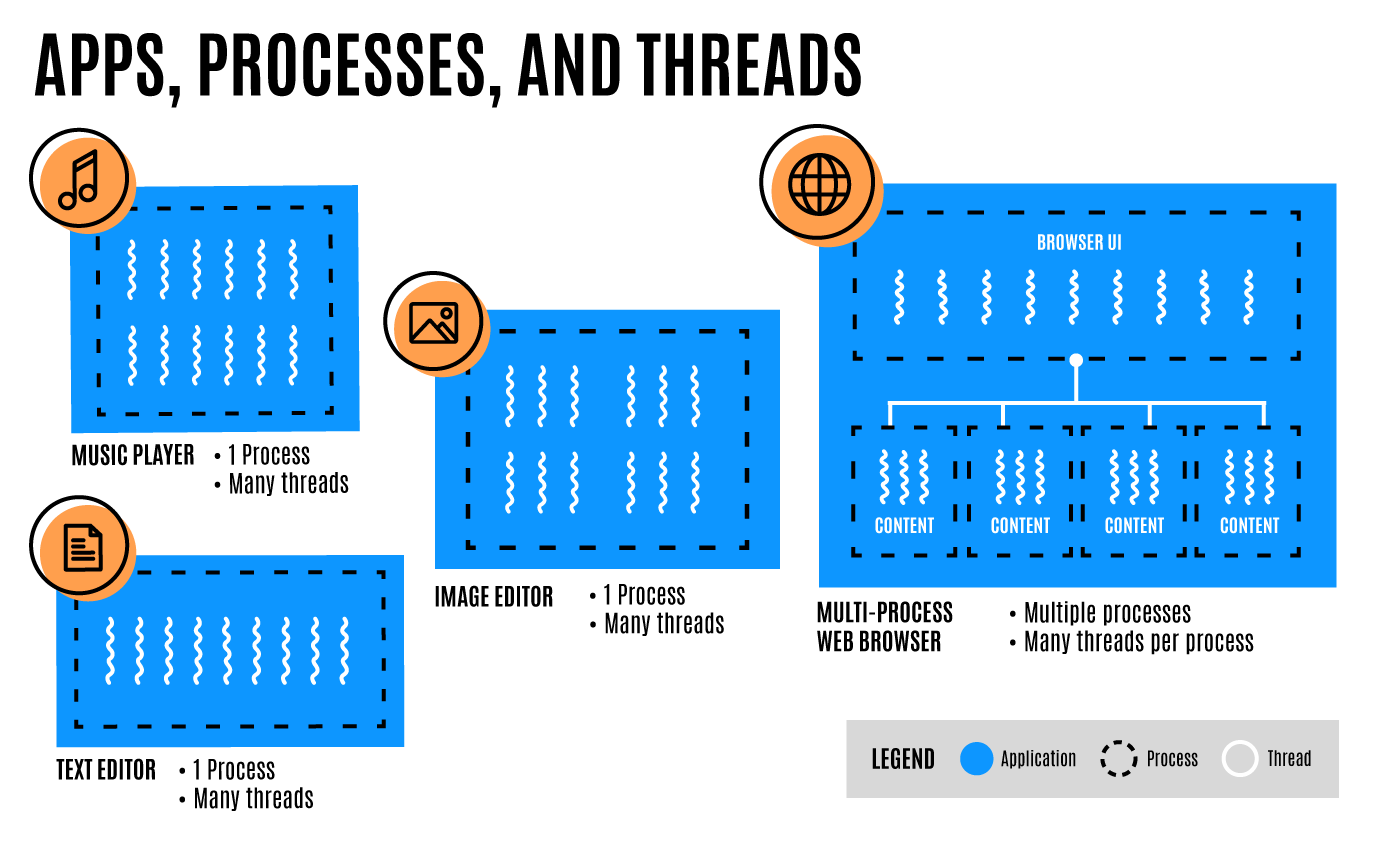
“Mama Bear’s Porridge” combines two ingredients: oats and powdered milk. Apps have ingredients, too: processes and threads.
When
you launch an app, it starts a process. This process can start many
threads of execution, each of which shares the same working memory.
Processes commonly utilize threads to handle different types of work
that need to run at different levels of priority. For example, one
high-priority thread may draw the program’s user interface. So the
browser knows this and will respond instantly to mouse clicks or typing
on a keyboard. Another thread may crunch data in the background at lower
priority. To see the processes running on your computer, open your Task
Manager (Windows) or Activity Monitor (macOS).
Sometimes,
instead of starting a new thread to accomplish a task, an app’s process
will start another process for that work. This makes sense for tasks
that requires a lot more memory and computing power, or for work that’s
better off isolated for security or stability reasons.
Most apps run in a single process, often using multiple threads. But web browsers are not like most apps.
Most apps use one process to run many threads, but browsers work best with multiple procesess.
Warm and tasty: the multi-process browser for the modern web
After
launching Firefox in 2004, Mozilla and its community continued to push
the web’s capabilities forward. Slowly but surely, the web became a
platform, not just for static documents, but for interactive apps like
email, word processing, and social networking.
Welcome to Web 2.0!
While
this new era of the web was wonderful, Firefox and other browsers
couldn’t run multiple web apps simultaneously nearly as fast as the
operating system could run native apps. The solution? The browser itself
needed to work more like an operating system, juggling several web apps
using multiple processes.
With
a multi-process architecture, you could use seamlessly a web page in
one tab, while pages in other tabs might still be busy crunching. While
Mozilla’s engineers knew that this new multi-process approach was
possible, adapting Firefox to run in multiple processes would require
breaking Firefox Add-Ons that depended on a single-process architecture.
Mozilla was reluctant to do this because customizing Firefox through
Add-Ons has always been very popular. My former colleagues who created
Chrome deserve credit for building it as a multi-process browser.
Enter Electrolysis: Mozilla’s project to split Firefox into multiple processes
It
was a long road to establish how Firefox should support Add-Ons that
would live in harmony with a multi-process architecture. Ultimately,
Mozilla committed to two related projects: (1) Electrolysis, an effort
to split Firefox into multiple processes, and (2) the transition from
traditional Add-Ons to cross-browser WebExtensions. Both initiatives
have been huge engineering efforts.
In August 2016, Mozilla launched the first phase of Electrolysis
by splitting Firefox to run its user interface and web page content
(the pages in your tabs) in two separate processes. Today Firefox is
shipping the next big phase of Electrolysis, significantly expanding the
number of processes Firefox uses for processing and securing web page
content, and enhancing the management of those processes to improve
memory use, performance, and stability. These additional processes can
potentially run across multiple computing cores, so it’s much less
likely for web pages to negatively impact each other or the performance
of the web browser in general. And, if a content process crashes, it
should not affect other content processes and the web pages displaying
in them. The upshot of these changes is that Firefox is now faster and more stable than ever.
Why Chrome gets too hot when Firefox does not
While
both Firefox and Chrome now run using multiple processes, Firefox does
some things differently to avoid using up your computer’s limited
memory.
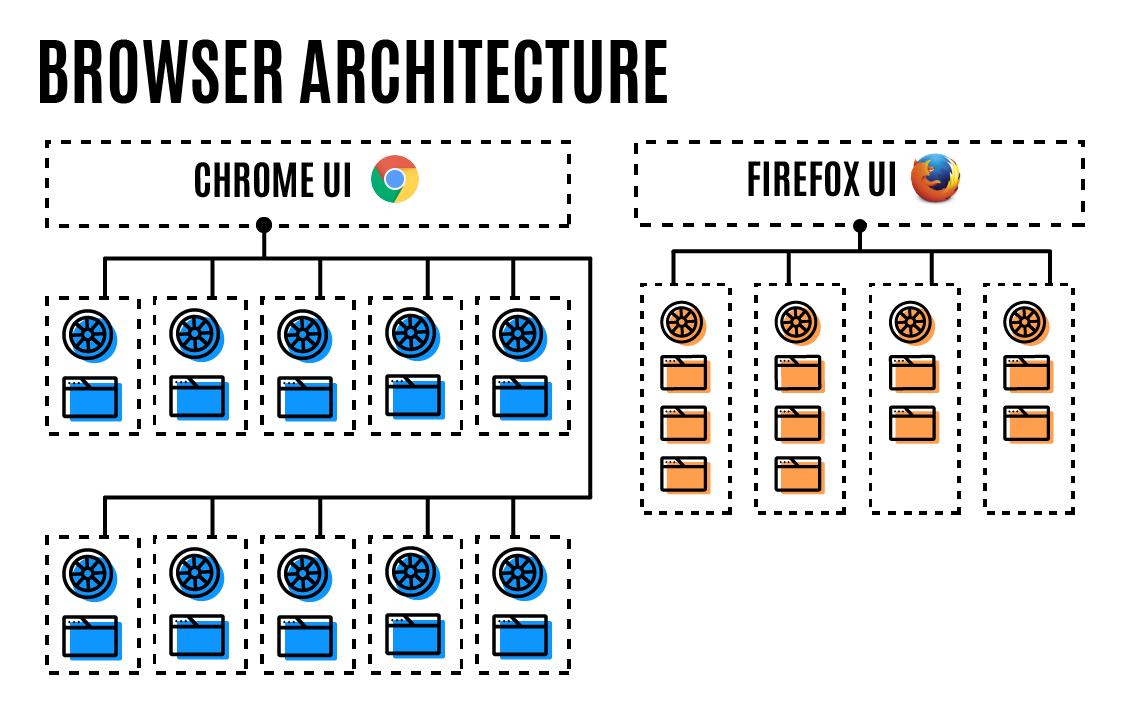
By default, Chrome creates a separate content process for each instance of a site
that you visit. Open 10 different tabs with 10 sites in Chrome, and
you’ll have 10 different processes. Each of those processes has its own
memory — with their own instance of the browser’s engine. One open tab
in Chrome typically consumes hundreds of megabytes of RAM. Chrome’s
liberal approach to creating processes can lead to very high memory
usage.
On
the other hand, Firefox’s more conservative approach to using processes
often results in Firefox using less memory than Chrome. By default,
Firefox now creates up to 4 separate processes for web page content. So,
your first 4 tabs each use those 4 processes, and additional tabs run
using threads within those processes. Multiple tabs within a process share the browser engine that already exists in memory, instead of each creating their own.
Chrome uses a separate content process and engine for each website instance, but Firefox reuses processes and engines to limit memory usage.
Comparing Firefox’s memory usage with other browsers’
Firefox
uses 4 content processes because it’s the “just right” number for many
Firefox users. With 4 content processes, your computer should have
plenty of memory left to run apps besides Firefox.
Windows 10 — Chrome used 1.77X memory as Firefox (64-bit), and 2.44X as Firefox (32-bit)
macOS — Chrome used 1.36X memory as Firefox (64-bit)
Linux — Chrome used 1.42X memory as Firefox (64-bit)
Firefox uses less memory than other browsers.
Especially
if you’re using a laptop with 8GB of memory or less, you’re going to
want to think consciously about which web browser you use. Firefox’s
considerate usage of your computer’s memory means you can browse the web
freely, while still doing the other things you need to do with your
computer.
If you have more than 8GB of RAM, you might want to
bump up the number of content processes that Firefox uses. This makes
Firefox even faster, although it will use additional memory. To change
the number of content processes FIrefox uses, enter about:config in your
address bar, and adjust the number for the dom.ipc.processCount setting
(we’ll be exposing a visible preference for this in an upcoming
release).
Firefox’s new multi-process architecture is a major
step forward, and strikes an excellent balance between speed and memory
usage for many people.
Project Quantum: cooking up the “just right” browser for modern computing
As
proud as Mozilla is of today’s launch, its position is that no browser,
including Firefox, is truly “just right” for modern computers — at
least not quite yet. So much has changed inside of today’s devices, and
no browser has evolved to take full advantage of multi-core CPUs and
GPUs. So, while Electrolysis splits Firefox to run in multiple
processes, Mozilla’s other big project, Quantum, is optimizing the browser engine that runs within a content process.
With
Quantum, Mozilla is building breakthrough enhancements to advance
Firefox in unique ways. As part of the project, Mozilla engineers are
using Rust to code super-fast
parallel algorithms that would be incredibly difficult to code safely
with C++. With these algorithms, major pieces of Firefox’s engine (e.g.
CSS styling), will run in parallel across multiple CPU cores, instead of
sequentially on one core. Also as part of Quantum, Firefox will utilize
threads to focus computing power and your network connection on the
tabs you’re actively using. Firefox will get much faster, while still
being respectful of your memory and your needs.
I hope that you enjoy today’s Firefox release
and that you stay tuned for the Quantum leap ahead. Mozilla’s goal is
to make Firefox the “just right” browser for every computer, for
everyone.
There was a time when Chrome truly sat atop the throne as Browser King, but those days are long gone. The gap has closed, and depending on who you ask, Chrome has been overtaken. I once believed that Chrome was “the best,” but nowadays you may be happier elsewhere.
According to browser market share, Firefox is Chrome’s biggest contender if we ignore Internet Explorer (mainly used in business environments unwillingly). And over the past year, Firefox usage has risen quite a bit — from 7.7 percent in August 2016 to 12.0 percent in May 2017.
Why are people returning to Firefox? I’ve been using Firefox for the past few months and I’m happy to say that I much prefer it to Chrome. Is it time for you to switch? Here are several reasons that may convince you.
1. Firefox Is Better for Battery Life
A lot of people say that Chrome is faster than Firefox — and that’s actually true. But the main reason for this is that Chrome uses more CPU than Firefox. With greater CPU usage comes faster processing and smoother performance. The trade-off is battery drain. And to be honest, Firefox isn’t that much slower.
According to Microsoft, data gathered from millions of Windows 10 users showed that Firefox uses approximately 31 percent less power than Chrome in real-world usage. If you’re on a laptop, this means significantly longer sessions between needing to recharge. 2. Firefox Is Better for Tab-Heavy Users
How do Firefox and Chrome compare in terms of RAM usage? To test this, I ran both browsers (each one separately with no other apps running) under four test cases: one tab, five tabs, 10 tabs, and 15 tabs. Every one of those tabs pointed to the MakeUseOf homepage for consistency.
RAM Usage for Chrome 58
1 Tab — 49.2 MB
5 Tabs — 265.3 MB
10 Tabs — 533.2 MB
15 Tabs — 748.3 MB
RAM Usage for Firefox 53
1 Tab — 116.3 MB
5 Tabs — 376.6 MB
10 Tabs — 437.0 MB
15 Tabs — 518.4 MB
Two things are immediately obvious. First, Chrome actually uses less RAM than Firefox when you don’t have many tabs open. Second, Firefox scales much better than Chrome once you reach about eight tabs or so. If you’re a power user like me and regularly have 20+ tabs open, Firefox clearly wins.
Want to know why Chrome uses so much RAM? Read our overview on why Chrome needs more RAMand what you can do to reduce its RAM footprint.
3. Firefox Knows It’s Just a Browser
A few months back, I read an interesting post from a longtime Chrome enthusiast who ended up throwing in the towel and switching to Firefox. He had a lot to say, but this particular point stuck out to me:
Today, Chrome is not the speedy beast it was in 2011. Today, Chrome is some sort of weird-ass application platform that just happens to also be a browser.
This sums up a good bit of why I’ve personally fallen out of love with Chrome. What used to be a lightweight, fast, and incredibly minimal web browser has now evolved into a complex beast that no longer remembers what made it so lovable in the first place. A lot of the blame can be assigned to Google’s desire to turn Chrome into Chrome OS.
Firefox, on the other hand, is still just a browser. It isn’t the clean, barebones browser that Chrome was on debut, and some might even say that Firefox is too bloated for its own good, but at least Firefox isn’t trying to be something that it isn’t. It knows what it is.
If you want to read that Chrome enthusiast’s full essay, visit this Quora post and look for Luke Harris’s reply.
4. Firefox Embraces the Open Source Mindset
Technically, one could say that Chrome is somewhat open source since it’s based on the Chromium browser, which itself has spawned many Chrome-like browsers (e.g. Opera, Vivaldi, Slimjet, Brave). But a true “open source” mentality involves more than just letting others use your code.
I have contributed code to the Chromium project for over two years . . . but lost motivation because of how closed that platform became. Yes it is open sourced, but it is guarded by a big organization where most of its discussions and future direction are done internally inside their organization.
Google is treating Chrome as a closed competitive product more than an open product. Chrome’s open source model is basically “here is the code for the browser, do whatever you want.” It doesn’t have the same open source culture everyone is used to. Companies these days are abusing the core definition of Open Source, and it is sad.
On the other hand, Firefox has a complete public roadmap that’s influenced by contributors and community members. As of this writing, I can see eight months into the future of Firefox development. That kind of community cooperation is what real open source development should be about.
5. Firefox Actually Cares About Privacy
In 2014, Mozilla released a call-to-arms for users in an effort to promote online privacy, stating that “fighting for data privacy — making sure people know who has access to their data, where it goes or could go, and that they have a choice in all of it — is part of Mozilla’s DNA.”
In 2015, the State of Mozilla report reaffirmed the organization’s beliefs: “There are billions of people online, but not enough transparency and control in the form of security and privacy protections for users from companies, app developers and governments. Mozilla is focused on influencing key internet health issues like privacy and security…”
And if you want nitty-gritty details, consult the Firefox privacy policy to learn more about the browser, any data that may be collected, and what that data is used for.
But even if Mozilla wasn’t so gung-ho about privacy, the real win here is that Mozilla isn’t Google. The one thing we know to be true: Google is a gargantuan data collection company. It already knows too much — do you really want Google to know every aspect of your browsing habits?
6. Firefox Allows More Customization
Degree of customization is the biggest difference between Firefox and Chrome. Every Chrome browser looks nearly identical, even across operating systems and devices. Other than hiding certain toolbars or removing a few icons next to the address bar, the most you can do is skin the title bar and tabs.
Firefox can do more. In addition to moving things around and skinning the general appearance, you can install Complete Themes to completely change the browser’s appearance. You can even emulate the look-and-feel of other browsers with FXChrome, FXOpera, and MX4.
7. Firefox Supports Chrome Extensions
Starting with Firefox 48, Mozilla declared stable support for WebExtensions. WebExtensions is a cross-browser API that allows developers to create extensions once and have them work in multiple browsers. With WebExtensions, Firefox can install Chrome extensions.
All you need to do is install Chrome Store Foxified. After that, you can visit any Chrome extension in the Chrome Web Store and the “Add to Chrome” button at the top right will become an “Add to Firefox” button.
Note that WebExtensions support, while stable, is still a work in progress. At the moment, not all Chrome extensions work, even though many do. Complete support is anticipated by the release of Firefox 57.
8. Firefox Boasts Unique Extensions
Chrome has a vastly larger collection of extensions, but Firefox has several unique extensions that aren’t available to Chrome users. And some of these extensions are so good that you won’t want to leave Firefox after having experienced them.
The best example that comes to mind is Tree Style Tab. This extension turns the tab bar into a sidebar and lets you organize tabs into a tree-based hierarchy that can be shifted around at will. It’s amazing and really shows how much a shame it is that no other browser can do this. (Vivaldi supports sidebar tabs, but they can’t be organized hierarchically.)
In fact, I would probably say that Tree Style Tab is the main reason why I love Firefox so much. Check out this roundup of other unique Firefox extensions.
9. Firefox Can Do What Chrome Can (Mostly)
At the end of the day, the differences between Firefox and Chrome are mostly minor. One might be slightly faster or use less battery, but in terms of usability, they’re both excellent. In other words, anything you can do in Chrome can probably be done in Firefox too.
Want to synchronize tabs, bookmarks, profiles, and more across devices? Need to develop websites with the aid of an element inspector and console? How about sandbox security to prevent malware infections? Or a password manager to make your accounts more secure? Or a task manager to pinpoint performance issues? (Hint: Navigate to about:performance in Firefox.)
Chrome can do these things, and so can Firefox. If you’re reluctant to leave Chrome, just remember that the two browsers have more in common than not.
When Is Chrome Better Than Firefox?
As much as I love Firefox, I still have Chrome installed as a backup because there are certain situations where Chrome is actually better.
Chromecast streaming only works with Chrome.
Advanced web development is often easier in Chrome.
Chrome prioritizes polish and simplicity over freedom, making it easier to use for those who aren’t as tech-savvy.
If you’re deeply integrated with Google services and you don’t care about the privacy implications, then you can use your Google accounts to set up various Chrome profiles.
Chrome has more market share than Firefox and Google appears to have significant influence over the direction of web technologies, so websites and web apps tend to work better in Chrome.
Chrome 52 is rolling out for both Windows and Mac today, and the first thing you’ll notice is that it comes with a slightly new look. This new interface translates better on some devices than it does others, but thankfully if you’re not a fan it’s easy to get the old design back.
Chrome 52 is all about Google’s Material Design, which means the UI is a little more flat and a bunch of the icons have changed. This means tab shapes are different, icons are totally changed, and the ominbox is redesigned to match the mobile apps. Good news though, if you’re not a fan of the new design, you can disable it:
In the URL bar, type in chrome://flags and press Enter.
Search for “Material Design in the browser’s top chrome” and set it to either “Non Material” to revert back to the previous interface, or “Material Hybrid” to enable a hybrid mode. We can’t tell what exactly is different from the hybrid and default modes though.
With that, you can continue on your merry way, ignoring Google’s newest design.
Internet Explorer 11
is a milestone in Microsoft’s evolution towards a fast and modern web
browser that found its force again thanks to improvements in security,
performance, privacy and standards support. Windows 8.1 users know it
very well as it is the built-in browser of this operating system, but in
this tutorial we will talk about the version built for Windows 7. Internet Explorer 11 for Windows 7
is an important Windows update and its installation is recommended for
all users. But before we can see what this browser has to offer, let us,
first, see how you can download and install it on your Windows 7
computer.
This tutorial will cover two methods of installing Internet Explorer 11 on your Windows 7 computer. The first one is based upon using Windows Update. The second one involves an old fashioned download from the official web-page of Internet Explorer 11.
How To Install Internet Explorer 11 Via Windows Update
It goes without saying that this is the easier method you can use to install Internet Explorer. First you have to go to Windows Update by using either this path "Control Panel - > System and Security - > Windows Update", or just by typing "windows update" in the Start Menu search box.
Then do a check for the latest updates. In the list of Optional Updates you should see one that says Internet Explorer 11 for Windows 7. Select it and then click OK.
For the installation procedure to start, you have to click on the Install updates button. For more information about the installation procedure of updates, check out this article: Check for Windows Updates, Learn What They Do & Block Those You Don’t Need.
After Internet Explorer 11 for Windows 7 and any other update you have selected are downloaded, the installation will start.
This new streamlined installation will finish in a few minutes and
shortly after, it will ask you to restart your computer to finish the
whole process. The necessary file and services cannot be updated if the
system is still using them. So just press the Restart now button from the Windows Update window and wait until the computer restarts.
Once this is done, the Internet Explorer 11 shortcut will be placed in your Taskbar.
Now meet your new browser…
How To Install Internet Explorer 11 As A Standalone Download
It is also possible to download Internet Explorer 11 for Windows 7 yourself and install it manually on your computer. You first have to go to the official download page
via Internet Explorer 9 or 10, or any other browser and you will
receive an appropriate download link. Of course, it is also possible for
you to choose the language of the browser.
If you are using another browser, you need to select which Internet Explorer 11 for Windows 7 you want to download and install. This situation appears if you access the download page
for the offline installer. Here, you will find an alphabetized list of
languages where you will have to choose between the 32-bit or 64-bit
versions, and then press the download button. This webpage has a little
more complicated interface, but a more simple way to find your desired
version and language.
Take into account the fact that you can also use the first download link
on a non-Microsoft browser, for the less complicated download
procedure. You will receive a 53.3Mb.exe file, which is the actual
offline installer and not a file downloader.
Then, you just have to run the downloaded installer. You will receive
a separate prompt, that asks you to confirm that you really want to
install Internet Explorer 11 for Windows 7. How Microsoft-ish is this, right? Click on Install.
Wait for the installation process to finish, and then you will be
asked to reboot your computer. Be sure to save all of you ongoing work
and then, press the Restart now button.
After restarting Windows, Internet Explorer 11 for Windows 7 should be installed on your computer.
Conclusion
As you can see from this tutorial, installing Internet Explorer 11 for Windows 7
is not exactly rocket science. It has a streamlined installation, but
one that, unfortunately, still requires you to close your applications
and restart your computer. If you have any problems or questions, do not
hesitate to use the comments form below.
According to data from market research firm Net Applications, Google’s Chrome web browser is the most popular desktop browser in the world by a substantial margin. At last count, Chrome’s global market share sat at 58.53% in February, up slightly from 57.94% in the prior month. The #2 browser in the world, Microsoft’s Internet Explorer, fell about half a point to 19.17% in February, and Firefox inches downward to 11.68% in the #3 spot.
Chrome has plenty of advantages over rival browsers, which is why it has become so popular over the years despite Microsoft’s clear advantage — the company’s Internet Explorer and Edge browsers ship on every PC sold that runs Windows. Of course, Chrome still has its fair share of issues despite its popularity, and a new update released on Tuesday night addresses users’ biggest complaint.
“Efficient power usage is an important aspect of speed, one of Chrome’s key pillars,” Google’s Alexander Timin wrote in a post on the company’s Chromium blog. “To prolong battery life, Chrome should minimize power impact from things users can’t see. This includes background tabs, which consume a third of Chrome’s power usage on desktop. Starting in version 57, Chrome will throttle individual background tabs by limiting the timer fire rate for background tabs using excessive power.”
As anyone who uses the Chrome web browser can attest to, the software can be something of a resource hog when multiple tabs are open in the background. There is perhaps no desktop application that causes more PC fans to kick on around the world than Chrome. That may now come to an end, however, as Chrome 57 marks the start of more effective background tab throttling that puts better limits on resource utilization.
“Chrome has focused on improving the user experience by throttling tab performance for many years,” Timin wrote. “Like many browsers, Chrome has limited timers in the background to only run once per second. Via the new throttling policy, Chrome 57 will delay timers to limit average CPU load to 1% of a core if an application uses too much CPU in background. Tabs playing audio or maintaining real-time connections like WebSockets or WebRTC won’t be affected.”
The Google engineer noted that Chrome 57’s new background tab throttling mechanism typically results in 25% fewer busy tabs running in the background.
Nobody wants to download a bunch of software,
work with a complicated system, or pay money to join a group conference
call. We’ve got good news: There are several awesome, simple services
that you can use for personal video conference calls that don’t cost
anything.
Appear.in offers about the simplest video conferencing you can imagine.
Visit the site and you can create a chatroom with the URL of your
choice. Then, just send that link to your friends through text, email,
or any other means and they’ll instantly join you. There’s no software
to download and any modern browser will work fine.
The
service allows up to eight people in one room. You can “lock” a room if
you’re the owner, which requires guests to “knock” when they visit the
link. This lets you see who’s trying to join and deny them if you see
fit. Screen sharing and text chat (with stickers!) are included — it’s
as simple as that.
While other tools offer more functionality,
Appear.in is your best choice for quick, simple meetings with no set-up.
It’s perfect for chatting with folks who aren’t tech-savvy.
ooVoo
has been around for a while, but it’s resurrected into quite an
impressive form recently. Still free of charge, the service now features
apps for Android, iOS, Windows, Mac, and even Windows Phone and Amazon
Fire Phone. It’s not available in browser, so ooVoo geared towards
groups who all use the app instead of ad-hoc meetings like Appear.in.
True
to its name, FreeConference offers powerful video conference calls at
no cost. You’ll find more business-oriented features on this service
than the others, such as dial-in numbers for audio participants.
FreeConference lets you schedule meetings and send out reminders
automatically, but you can also start meetings instantly if you don’t
need advance notice.
The free plan is limited to 400 audio callers,
10 users in the online meeting, and 3 people broadcasting video. You’ll
have to upgrade to a paid plan to raise those numbers and add features
like call recording, but you shouldn’t need them for personal use.
Another
service with a business focus, Voxeet prides itself on its proprietary
TrueVoice technology that brings crisp, clean voice quality to calls.
This claims to bring concert-hall quality with no static or dropped
words, which is great for important calls. Guests can easily join calls
from their browser with no PIN calls or call-in numbers.
No
list of video calling apps could be complete without Skype, if for no
other reason than many people you know likely already use it. Using apps
for Android/iOS, Windows/Mac, or just in your browser, Skype lets you connect with your friends for easy video calls. Screen sharing is supported as well.
A
maximum of 25 people can join an audio call, but Skype vaguely says
that the maximum number of video callers varies by device. Note that Skype’s fair usage policy
holds that a group video call can only last for four hours. You
shouldn’t have any problem calling with ten or so friends, as long as
each has a strong internet connection.
If you need a more
business-focused solution, Skype for Business Basic offers the
fundamentals of the Skype for Business platform, including Free/Busy
status and meeting support. For most people, though, regular Skype
should be sufficient.
Though
close in name, this tool is different from the aforementioned
FreeConference. FreeConferenceCall boasts the largest number of
participants by far, with support for a staggering 1,000 people. Screen sharing comes standard,
and the service offers several apps to expand your experience as well.
Guests simply have to enter a meeting ID into the website to join
instantly.
FreeConferenceCall is the closest free substitute for GoToMeeting
on this list. Paid features like annotation, switching the presenter
mid-call, screen recording, and even radio streaming all come free.
You’ll probably never have 1,000 people in a call, but this tool is
absolutely worth a try if you’re serious about your meetings.How to Give an Online Presentation from AnywhereHow to Give an Online Presentation from AnywhereDo you work with a
global team or from home? The ability to give a presentation in
real-time is a professional need. Here are five tools to present from
anywhere in the world.Read More
How Do You Hold Meetings?
These six
tools offer different feature set for varying user needs. If you just
want to hold a quickly family call, it doesn’t get much easier than
Appear.in. Friend groups can take advantage of ooVoo’s fun options.
Skype is great because almost everyone uses it, while
FreeConferenceCall, FreeConference, and Voxeet bring business-level
features to personal calls for free.
 Google
 Mozilla
 Opera
Opera Microsoft
 Melissa Riofrio/IDG
  Melissa Riofrio/IDG
  Melissa Riofrio/IDG
  Melissa Riofrio/IDG
  Melissa Riofrio/IDG
  Melissa Riofrio/IDG
  Melissa Riofrio/IDG
  Melissa Riofrio/IDG
  Melissa Riofrio/IDG
  Melissa Riofrio/IDG
  Melissa Riofrio/IDG
  Melissa Riofrio/IDG
  Melissa Riofrio/IDG
  Melissa Riofrio/IDG