Pages

July 22, 2018

The best web browser 2018: faster and more secure


The best web browser


The right web browser can make a huge difference to your everyday browsing – whether your priority is faster performance, better security or more flexibility through downloadable extensions.
However, it can be tricky to break out of your comfort zone. The browser you're currently using might not be the best, but you've probably become use to its idiosyncrasies over the years without realising there are better options around that will make your life so much easier.
Here, we’ve put the biggest browsers through their paces (plus some that you may not be familiar with) to identify the browser that best ticks all of these boxes. And, if you have a particular concern, then read on to see if there’s an alternative that might be better suited to your needs.


1. Mozilla Firefox

Firefox is back after a total overhaul, and has retaken its crown
Very fast
Light on system resources
Strong privacy tools


Firefox recently received its biggest update in 13 years, and it's so impressive, it's propelled the browser to the top of our list. 

Firefox has always been known for its flexibility and support for extensions, but in recent years it had started to lag behind the competition in terms of speed. Firefox Quantum, first released last year, represented a total overhaul of the browser's code base, with speeds now comparable with Google Chrome. That's not just on top-end computers, either – the new Firefox makes frugal use of RAM, even with masses of tabs open.

Firefox also scores serious points when it comes to privacy. Mozilla is non-profit, which means it doesn't have the same impetus to sell your data as some other browser developers. The organization also makes regular updates to help protect its users' privacy as internet companies come under increasing scrutiny over the way they treat people's data.
Quantum also introduced a new system for extensions that prevents rogue developers making malicious changes to the browser's internal code. 

It's not always the absolute fastest – for some pages Chrome still has the edge, as Mozilla's own video demonstrates – but the new Firefox has come out swinging and is our pick for the best web browser of 2018 so far.


2. Google Chrome

If your system has the resources, Chrome is 2018's best browser
Fast performance
Infinitely expandable
Resource-hungry


With Chrome, Google has built an extendable, efficient browser that deserves its place at the top of the browser rankings. According to w3schools' browser trend analysis its user base is only rising, even as Microsoft Edge's install numbers are presumably growing. Why? Well, it's cross-platform, incredibly stable, brilliantly presented to take up the minimum of screen space, and just about the nicest browser there is to use.
Its wide range of easily-obtained and installed extensions mean you can really make it your own, and there's support for parental controls and a huge range of tweaks and settings to ensure maximum efficiency.

However, Chrome isn’t without its downsides. It’s one of the heaviest browsers in terms of resource use, so it’s not brilliant on machines with limited RAM, and its performance doesn’t quite match up to others as far as benchmarking is concerned. And, with Google’s tentacles running through it, you may be uncomfortable with how your browsing data is used.
That said, Google is making some moves towards security, and is pushing HTTPS particularly hard. Future versions of the browser will make it very clear when sites aren't using HTTPS encryption, aiming to make it standard throughout the web.

Like Firefox, Chrome now also supports password-free logins via WebAuthn – either to replace traditional passwords completely, or work as a form of two-factor authentication. The browser also offers more features for web app developers, including more consistent experiences across different VR headsets, and the ability to use input from sensors (such as your device's ambient light sensor and accelerometer).


3. Opera

An underrated browser that's a great choice for slow connections
Excellent Turbo mode
Integrated ad-blocker
Fewer plugins than rivals


It's sad that Opera makes up only around 1% of the browser market, because it really is a quality browser. It launches fast, the UI is brilliantly clean, and it does everything its rivals can do with a couple of extras thrown in for good measure.

The key reason we'd at least recommend having Opera installed alongside your main browser is its Opera Turbo feature. This compresses your web traffic, routing it through Opera's servers, which makes a huge difference to browsing speed if you're stuck on rural dial-up or your broadband connection is having a moment.

It reduces the amount of data transferred too, handy if you're using a mobile connection, and this re-routing also dodges any content restrictions your ISP might place on your browsing, which can be mighty handy. Opera automatically ducks out of the way if you're using secure sites like banks so your traffic is free and clear of any potential privacy violation.

There's also an integrated ad-blocker – which can be switched off if you're morally inclined in that direction – and a battery-saving mode which promises to keep your laptop going for longer.


4. Microsoft Edge

Microsoft's new browser offers full integration with Windows 10
Very fast
Built-in reading mode
Not backwards compatible


The default 'browsing experience' on Windows 10, and unavailable for older operating systems, Edge is an odd one. Quite why Microsoft needs to be running a pair of browser products in tandem rather than making Edge backwards compatible is beyond us. The company's reason, it seems, is that Edge represents the more user-friendly end of Redmond's offering while Internet Explorer scales a little better for enterprise.

Integration with Windows 10's core gimmicks seems to be Edge's main strong point. It happily runs as a modern-skinned app on Windows 10's tablet mode, and works with Cortana. It's also highly streamlined for the current web age, doing away with insecure protocols like ActiveX and forcing you into Internet Explorer if you want to use them. We're more used to browsers failing to render newer pages than we are to being told off for visiting older corners of the web.

Curmudgeonly grumbles aside, actually using Edge is a perfectly pleasant experience. It's super-quick, hammers through benchmarks, its integrated reading mode makes complex sites more palatable, and by sandboxing it away from the rest of the operating system Microsoft has ensured that Edge won't suffer the security breaches of its older brother.
It's just a shame that Microsoft is quite so insistent on forcing Edge upon Windows 10 users, making it the default browser for links opened in the Mail app, adding shortcuts to your desktop after major OS updates, and presenting it as a potential result if you start typing 'Firefox' in the Cortana search box.


5. Microsoft Internet Explorer

Fast and efficient, but less expandable than Firefox and Chrome
Make frugal use of resources
Clean design
Poor plugin support


Microsoft Internet Explorer has seen some ups and downs in its long tenure, from dominating the browser charts to languishing behind its main two competitors. This is partly an issue of choice – particularly the browser choice that Microsoft was forced to give customers after a court ruling – and partially because older versions fell behind the rendering and compatibility curve.

There are no such issues with Internet Explorer 11. It's clean, powerful, highly compatible, and it demands less of your RAM and CPU than equivalent pages would on Chrome or Firefox. Plus it one-ups both of them on WebKit's Sunspider benchmark.

That's not to say this browser is perfect. Google's V8 benchmark sees it struggling, and IE isn't quite as able to handle add-ons and extensions as many of its competitors. So while there's no reason to avoid IE like there might once have been, if you're looking for a more customised browsing experience you're out of luck.


6. Vivaldi

Build your own browser with unique docking and tab-stacking
Incredibly customizable
Creative interface features
Not the fastest


Here's something a bit different. We all spend probably far too much time sitting in front of our web browsers, and up-and-comer Vivaldi wants to make that as pleasant and personal an experience as possible.

The whole style and structure of its interface is entirely up to you. There's a built-in note-taking system, you can dock websites as side panels while using the main window to do your main browsing, and we love its innovative tab stacking tech, which allows you to group up tabs and move them around to avoid the crowding that so often plagues other browsers.
Vivaldi is built on Chromium, which means you can expand it even further with extensions from the Chrome Web Store. Just pick your preferred plugin and click 'Add to Chrome'. Some extensions might behave slightly differently in Vivaldi, but most work perfectly.

Vivaldi is a refreshing and creative take on web browsing, and one to watch in the next couple of years as more features are added.


7. Tor Browser

More than just a browser – a whole suite of online security tools
Keeps browsing private
Blocks tracking cookies
Performance is slow


Tor Browser is, perhaps unjustly, most regularly associated with the seedy underworld of the dark web. While it's true that you can use this web browser to access otherwise unlisted sites, Tor's privacy aspects – where your traffic is routed through random nodes the world over, making it very hard to track - are its real asset.

Tor Browser is really a package of tools; Tor itself, a heavily modified version of the Firefox Extended Support release, and a number of other privacy packages that combine to make it the most secure browsing experience you're likely to find. Nothing is tracked, nothing is stored, and you can forget about bookmarks and cookies.

You'll need to alter your browsing habits to ensure that you don't perform actions online that reveal your identity – Tor Browser is just a tool, after all – but for a secondary browser useful for those private moments it's a great choice. Run it from a USB stick and nobody need even know you have it at all.

May 30, 2018

The 7 Best Free Online Flowchart Makers

Flowcharts may not be what one thinks of as a good time, but there’s no denying that they’re incredibly useful. In fact, we’ve previously outlined creative ways to use flowcharts to streamline your life and work, in case you need ideas.
While there are great flowchart makers for Windows and other platforms, sometimes an online, web-based solution is best. That’s because these don’t need a specific hardware configuration or operating system to work—all you need is a web browser.
Here are some of the best online flowchart makers that you can use for free or at an affordable price.


1. Lucidchart

best free online flowchart makers


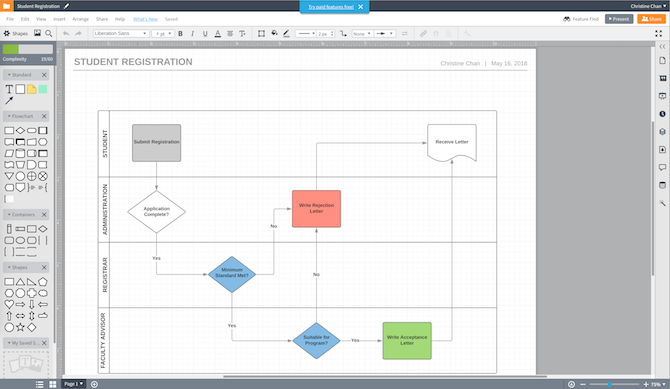
When it comes to these diagrams, Lucidchart is one of the best and most reliable online flowchart makers available.
The fast and fluid drag and drop interface makes it easy to create and manage flowcharts. There are pre-made templates to choose from, or you can start with a fresh blank canvas. Even free accounts get access to basic shapes, arrows, and text boxes. That is enough to get started.
Collaboration is also available for the free tier. But there are some limitations. For example, a Team user can collaborate with a Free user, but the Free user can only edit if it has 60 or fewer objects and if there aren’t any paid-level objects in it.
You can save Lucidchart documents in multiple formats. Lucidchart supports JPEG, PDF, PNG, SVG, and Visio (VDX) formats. There’s even support for importing from Amazon Web Service (AWS), Visio (VSDX), Omnigraffle, and more. And if you need to finish a flowchart later, all of your data gets stored in their cloud, so you just pick up where you left off.
Lucidchart has a free basic account tier, as well as paid plans starting at $5.95 per month for Home, $8.95 for Pro, and $20 for Team. The paid options provide more features such as more storage, unlimited shapes and documents, data linking, Microsoft Visio import, and more. If you stick with a free account, you get 25MB of storage and up to five documents.
Lucidchart is an excellent option to consider if you are looking for an alternative flowchart creator to Visio. It’s accessible from any device with a web browser, has a streamlined and intuitive design, and is affordable.
Lucidchart Is the Visio Alternative You've Been Waiting For Lucidchart Is the Visio Alternative You've Been Waiting For You might not have heard of Lucidchart before, but I bet you've heard of Microsoft Visio. Read More


2. draw.io

best free online flowchart makers


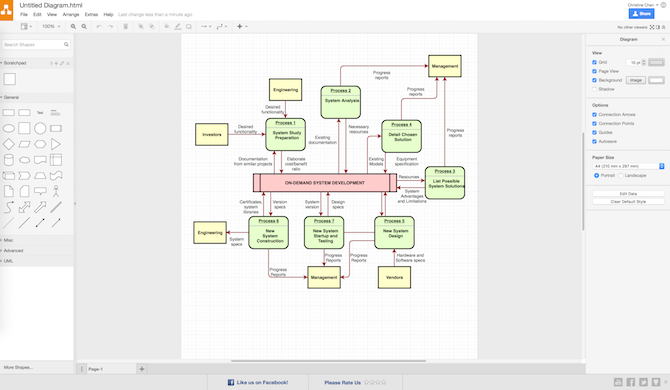
daw.io fits the bill for anyone looking for a completely free flowchart solution.
There’s no account to sign up for with draw.io. All you need to do to get started is choose your storage space, which gets remembered for later. Options include Google Drive, Dropbox, OneDrive, and local storage. If you need collaboration with others, Google Drive is the best choice since draw.io leverages Google Drive’s collaboration features.
Once you pick your storage space option, you can then make a new flowchart diagram from scratch, or use a template from the ones provided. There are only five flowchart templates to pick from (while Lucidchart has over 10 templates). There are other non-flowchart diagram templates if you need them.
If draw.io has the kind of flowchart you need, then go for it. You can add shapes, arrows, and other objects from the side menu just by dropping it in. Everything’s fairly straightforward with draw.io, though it’s not as intuitive or streamlined as Lucidchart.
draw.io supports file imports, and you can import from JPEG, PNG, SVG, Gliffy, Lucidchart, and VSDX. Diagrams you create with draw.io get saved or exported as HTML, JPEG, PDF, PNG, SVG, and XML.
Unlike a lot of the other options, draw.io is completely free with no option for paid accounts. It has a somewhat limited feature set and isn’t as good as other tools, but you can’t beat the price of free.


3. Cacoo

best free online flowchart makers


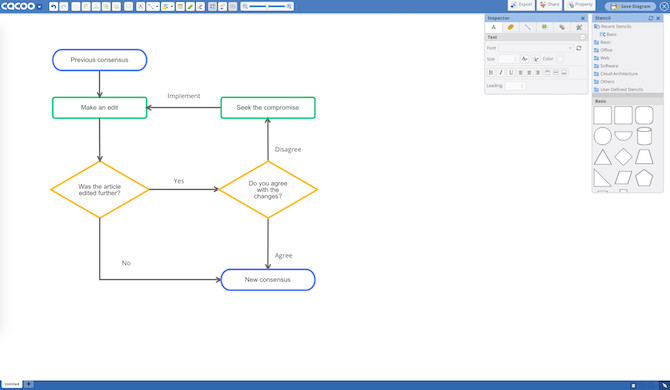
If real-time collaboration is a requirement for your online flowchart maker, then Cacoo has the others beat.
Much like Lucidchart, Cacoo comes with a super streamlined and fluid interface that’s pleasant on the eyes. Cacoo comes with a multitude of templates for your project, whether it’s flowcharts, wireframes, Venn diagrams, and a rich variety of other diagrams. For flowcharts, Cacoo has an extensive range of shapes to choose from, no matter the type of project. And everything’s done through simple drag-and-drop.
The best feature of Cacoo is the real-time collaboration. Multiple people on your team can work on the flowchart at once. Also, there’s a chat feature so you can see and comment on changes as they happen. And since things can get a bit complicated with multiple people working on one document at the same time, Cacoo provides memo fields so you can keep track of who’s involved.
Cacoo seems built with teams in mind, which you clearly see with their project folders and security settings for members. Cacoo’s still great for single users, as you get storage for 1000 sheets, unlimited sharing, SVG import and export, and more.
The pricing for Cacoo is reasonable enough. Single users can get a plan starting at $4.95 per month, and then there’s the Team level starting at $18 per month for three users (and they go up from there). The Enterprise level allows you to install Cacoo on your own private server, and that starts at $600 a year for 10 users. All account levels come with a 14-day free trial.


4. Gliffy

best free online flowchart makers


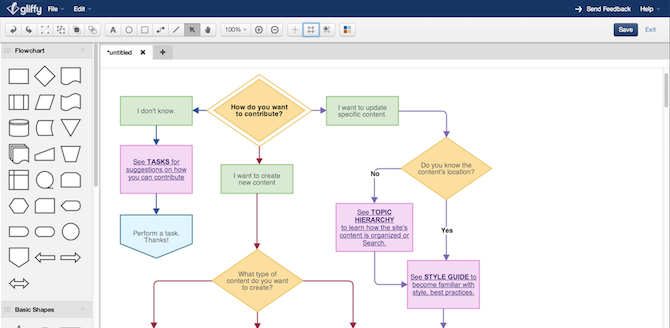
In the moments when you just need a simple and lightweight tool for the job, consider Gliffy.
Compared to the other services, Gliffy is a bit more barebones. It’s a good option when you need to flowchart an idea quickly and easily.
You can create any flowchart in just a few clicks. There are basic templates available that make it even easier to reach your final product. However, when you start to get down and fine-tune your flowcharts, the editing process is not as smooth as others, like Lucidchart. There are a few quirks that may slow you down a bit, but snap-on grids and other alignment tools are nice to have.
As an HTML5 cloud app, it can work offline too. And when you need to collaborate, Gliffy provides ways to share and even invite others to view, edit, or leave comments, but the collaboration isn’t as powerful as other flowcharting tools.
Gliffy offers plans starting at $7.99 per month for single users, and a team plan for $4.99 per month, both billed annually. For enterprise users, it includes everything in the team plan, but with even more security and features.


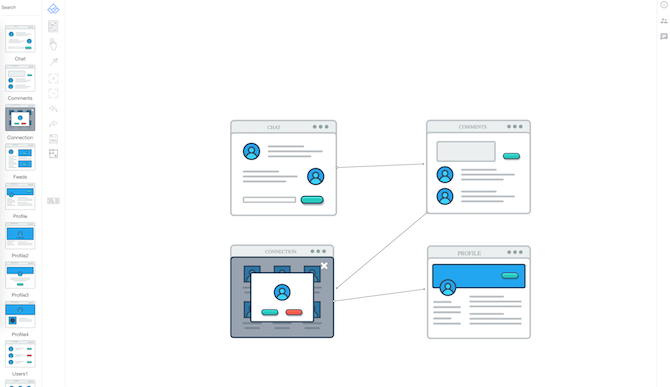
5. Wireflow

best free online flowchart makers


Another completely free option for your consideration is Wireflow. It is the perfect tool for web developers and app designers.
Wireflow is a beautiful flowchart tool for designing user flows and wireframes. A pretty and intuitive interface offers a variety of different chart designs, that you can drag-and-drop onto a fresh canvas. There are many connectors to choose from, and everything’s manageable through drag-and-drop.
When you’re done creating your diagram, you can export the final product as a JPG. This is the biggest drawback of Wireflow, as you’re unable to pick a different format. Again, it’s free to use with no options for paid plans, so that’s expected. There’s also quite a lot of scrolling involved since there are so many different chart types to go through.
If all you need are to create flowcharts to demonstrate user flows for software, then Wireflow gets the job done.


6. Textographo

best free online flowchart makers


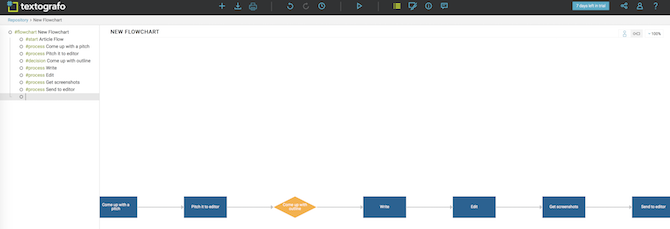
Need to create flowcharts but don’t want to deal with the finicky positioning of shape objects and arrows? Then Textographo is for you.
Textographo is a unique flowchart tool that uses text. All the user needs to do is type out their chart in a specific text syntax that uses hashtags, keywords, and some markup. Textographo takes this text and turns it into static and animated diagrams that include flowcharts, mindmaps, organizational charts, decision trees, and much more.
Once you’ve got the text laid out, Textographo automatically gets to work and organizes everything into diagram form. It’s super easy, intuitive, and streamlined. Users may also customize it by choosing a theme they like or changing the layout to something else that better suits their needs.
Since Textographo saves all documents in their cloud, you’re able to collaborate with your team by inviting them to view, give feedback, and share ideas.
There are two account levels for Textographo: Essentials and Premium. Essentials starts at $8 per month if billed annually, or $12 per month. Premium costs $14 per month annually, or $19 per month. Considering the distinctive and convenient system Textographo uses, the cost is fairly reasonable.


7. Google Drawings

best free online flowchart makers


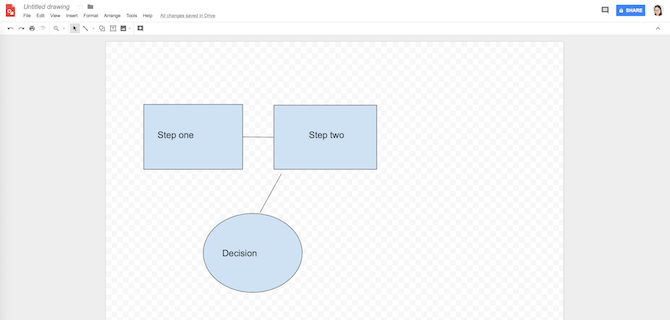
If you’re already using a Google account, then there’s a free option that’s already been available to you: Google Drawings.
In order to access Google Drawings, you’ll first need to get to your Google Drive. Then just click Create New and choose Google Drawings under the More option.
Use the extensive shapes in Google Drawings. Add basic shapes, arrows, callouts, and even equation symbols to your blank canvas. You move everything around through simple drag-and-drop, and you can resize and rotate as needed.
And since Google Drawings is through Google Drive, sharing and collaborating is no problem. Just invite others through email, and give them permissions to view, edit, or comment. You’re able to export your flowchart as an image file or SVG, or you could even publish it to the web.
Google Drawings is free to use since it’s through your Google account, where you get 15GB of free storage across all Google apps. The storage space can get upgraded to 100GB, 1TB, or 10TB for $1.99, $9.99, or $99.99 per month, respectively.

The Best Solution for Visual Brainstorming

Flowcharts are an incredibly powerful tool. They lay out complex processes into a much more simple and easy to understand manner, and complicated projects don’t seem so scary anymore.
We’ve just discussed the best options for online-only flowchart services—some are completely free, and others offer just free trials of their premium plans. But like everything in life, you get what you pay for. That’s why we prefer Lucidchart when making flowcharts online.

Source: https://www.makeuseof.com/tag/free-online-flowchart-makers/

4 Anonymous Web Browsers That Are Completely Private

Private information is big business. It should come as no surprise, therefore, that everyone is trying to watch you. The NSA, the UK government, Microsoft, cyber-criminals, your creepy neighbor from across the street; they all want to know what you’re doing, all the time.

Unfortunately, unless you want to take excessively drastic measures, it’s almost impossible to remove yourself from the global grid completely. But there are some steps you can take to reduce your information footprint.
One of the best places to start is with your browser. It’s your main portal to the web, so using a more secure option will make a big difference to your privacy.
Here are four anonymous web browsers that are (almost) completely private.


1. Tor Browser

Available On: Windows, Mac, Linux
The Tor network has one simple goal: anonymous communication. The network aims to protect a user’s location, browser history, personal data, and online messages from any person or bot that’s performing network traffic analysis.

How it Works

Network traffic analysis is arguably the most powerful weapon in a data collector’s armory. It can track your behavior and interests for advertising companies, it can lead to price discrimination on online shopping sites based on location, it can even reveal your identity to people who might want to silence or harm you.
Basic encryption techniques don’t protect you against traffic analysis. Data sent over the internet has two key aspects: the payload and the header. The payload is the actual data (for example, the contents of an email), the header helps the data get to its destination. It includes information such as source, size, and timestamps. Encryption can only hide the payload, not the header.
And that’s when Tor comes in. It sends your internet traffic through so many individual relays and tunnels that the header is nonsensical to traffic analysis tools. In simple terms, instead of going directly from A to B, the network sends your traffic on a mazy route through lots of locations. A sniffer looking at a single point on that route has no way to tell where the traffic originated or where it’s going.

Browser Features

To access the Tor network, you need to use the Tor Browser. It’s so secure that the US Navy uses it for intelligence gathering and by law enforcement organizations who want to visit websites without leaving government IP addresses in the site’s log.

You don’t need to install any software on your machine; the browser is a portable app that can live on a USB stick. It means you can use the service regardless of what computer you’re working on, even if it’s in a public location such as a library or university.


The browser itself will be instantly recognizable to Firefox users, but there are a couple of notable changes. The biggest difference is the integration of NoScript; it’s included by default. Unlike the regular NoScript add-on – which can be complicated to use – the Tor version has an easy-to-use slider to manage your privacy.
There are also some downsides to using the Tor Browser. For most users, the biggest issue is speed. Because your traffic is taking such a twisty route to get to its destination, your browsing experience will not be as fast. If you have a good connection, it might not be an issue, but if your internet speed is slow, Tor might become painful to use.
Ultimately, Tor doesn’t guarantee anonymity. Taking online risks – such as downloading torrents or using unscrupulous browser plugins – will still leave you vulnerable. But when compared to the mainstream browsers like Chrome and Safari, there is no contest.


Other Options

No other browser comes close to Tor in terms of privacy and anonymity, but three other options deserve your attention.
They’re ideal if Tor sounds a bit extreme, but you still don’t want to give Google et al a free reign on your personal data.


2. Epic Browser

Available On: Windows, Mac
Epic Browser doesn’t use a specialized onion network, but it does immediately disable lots of the most common ways your privacy is comprised when you’re surfing the web.
For example, it doesn’t save your history, there’s no DNS pre-fetching, it doesn’t allow third-party cookies, there are no web or DNS caches, and there’s no autofill feature.


When you close your session, the browser automatically deletes any associated databases, preferences, pepper data, and cookies from Flash and Silverlight.


3. SRWare Iron

Available On: Windows, Mac, Linux, Android
If you’re a Google Chrome user, SRWare Iron will be familiar; it’s based on the open-source Chromium project, so a lot of the on-screen visuals look very similar.
The main difference between Chrome and SRWare Iron is data protection. Experts have criticized Chrome for its reliance on a “Unique User ID”; every time you start a session, Google is alerted to your data usage.
SRWare strips out the usage of an ID along with other Chrome privacy concerns such as search suggestions.

Check the table below for a complete list of differences between the two:


4. Comodo Dragon Browser


Available On: Windows, Mac, Linux
Again, Comodo doesn’t come close to Tor Browser, but it does have some built-in tools that’ll make browsing the web a safer experience.
It’ll automatically block all tracking, cookies, and web spies, it comes with built-in domain validation technology that’ll instantly segregate strong and weak SSL certificates, and it uses the Comodo anti-virus suite to protect you from malware, viruses, and other attack vectors.

Like SRWare Iron, it’s based on Chrome, so it’ll be an easy switch for a lot of people.


Which Browser Do You Use?

There are some other privacy-orientated browsers which deserve an honorable mention such as Yandex and Dooble – but in my opinion, the four I’ve listed are the clear winners.
However, I’m sure many of you don’t agree with me. Now it’s your turn to share your favorites; which browser do you turn to when you want to stay anonymous and out-of-sight?


Source: http://www.makeuseof.com/tag/2-anonymous-web-browsers-completely-private-secure/

April 19, 2018

Google Chrome 66: password export, autoplay blocker, and security updates

Google started the rollout of Google Chrome 66 for all supported platforms today. The new version of the web browser re-introduces a functional password exporter, comes with video autoplay blocking functionality, and security fixes among other changes.
Google is pretty tight-lipped about Chrome releases and Chrome 66 does not change that at all. The official blog post on the Chrome Releases website reveals only some of the changes that went into the new browser version.

The announcement reveals the third-party reported security issues that were fixed in Chrome 66, and that a site isolation trial is run on a small subset of Chrome users.
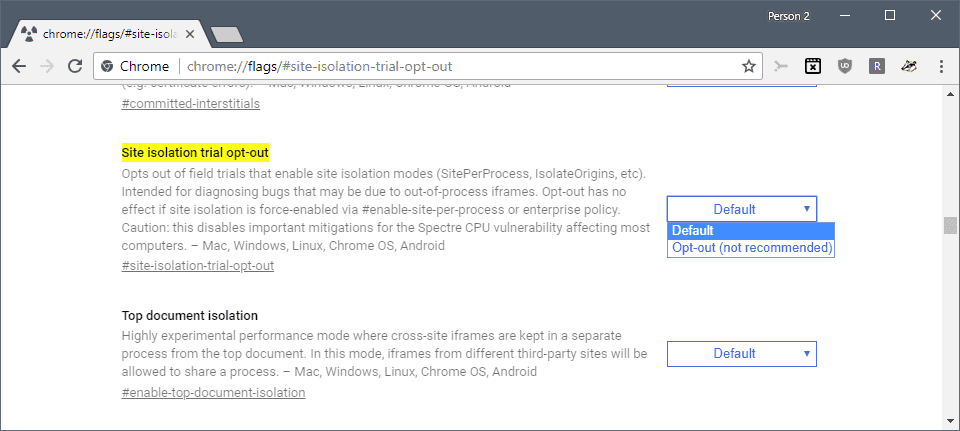
Google Chrome users who don't want to participate in the trial may load chrome://flags#site-isolation-trial-opt-out  to opt-out of the trial by selecting opt-out (not recommended) as the default status.


chrome 66 site isolation


Chrome users who are interested in the feature may visit the test site mentioned on this Chromium page to find out if Site Isolation is active in the browser.
Chrome 66 requires at least Mac OS X 10.10; Chrome 65 was the last version of the web browser that supported Mac OS X 10.9.
Google does publish a changelog for Chrome releases but it is quite long and technical, and it will take hours to go through all of it.
One of the new features in Chrome 66 is better handling of autoplaying video with sound. Basically, what Chrome does is block video on (most) sites if audio is enabled. This should take care of autoplaying video ads with sound and other autoplaying videos with sound on sites.

When Chrome encounters an autoplaying video with audio on a site, it blocks the video from playing but the browser won't interfere with autoplaying video without sound.
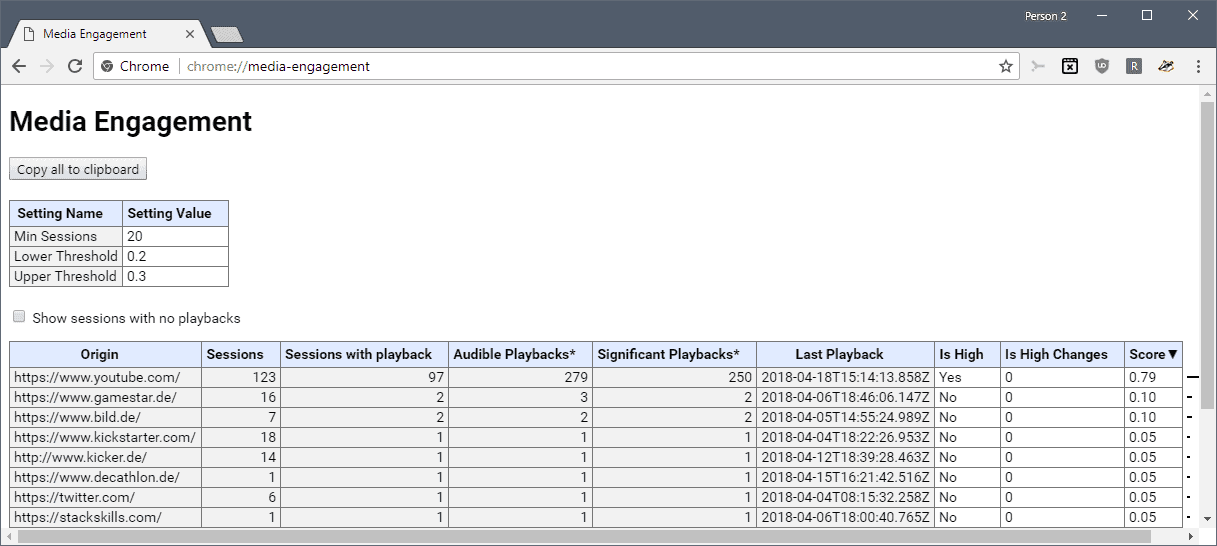
There are exceptions to the rule and the main rule that Chrome uses to determine whether to play video with sound or not is based on a site's Media Engagement Index.
Basically, if you interacted with the site or played media on it previously, video with sound may still autoplay.
Google's initial plan was to release video with sound autoplay blocking in Chrome 64, but the functionality was postponed.
You may load chrome://media-engagement/ in the Chrome browser to display the score of each site you visited.


media engagement chrome


Most users won't notice a difference on sites that play media with sound automatically if they interact with the site regularly. The change affects site new sites originally for the most part that play media with sound automatically.
Tip: check out these guides for additional information on controlling video and audio playback in Chrome:
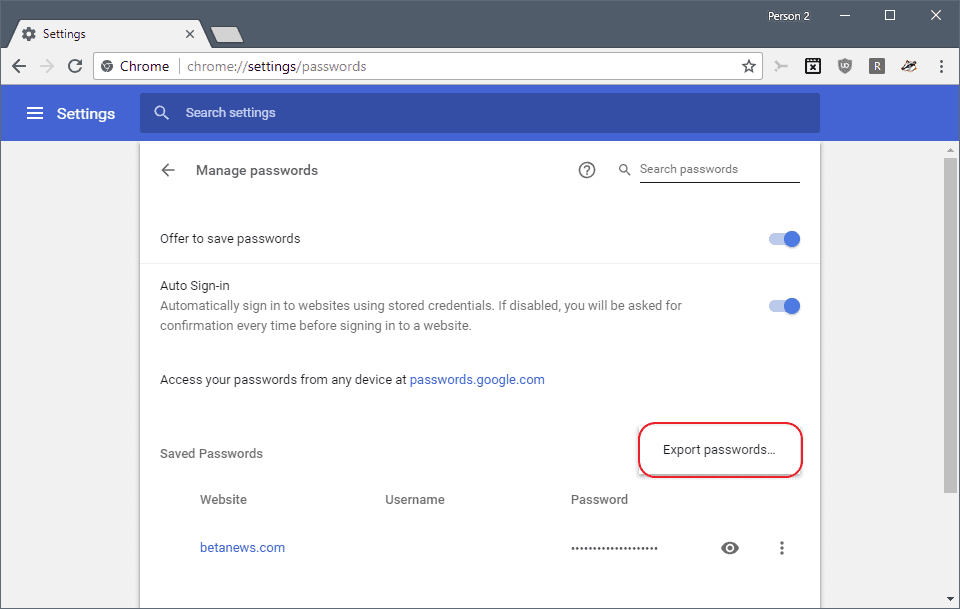
Google re-introduced the option to export passwords in Chrome 66.


chrome export passwords


Here is how you export all saved passwords in Chrome 66 or newer:
  1. Load chrome://settings/passwords.
  2. Click on the menu next to "saved passwords".
  3. Select export passwords.
  4. Select "export passwords" again when the prompt appears. Chrome warns you that saved passwords are not encrypted and thus visible to anyone with access to the exported file.
  5. You are asked to type your Windows username and password to confirm the exporting.
  6. Select a location to save the file Chrome Passwords.csv to.
Google announced that the update to Chrome 66 will roll out in the coming days and weeks. Desktop users, at least, can load chrome://settings/help to run a manual check for updates. Chrome 66 should get picked up during the check.

Source: https://www.ghacks.net/2018/04/18/google-chrome-66-password-export-autoplay-blocker-and-security-updates/

February 5, 2018

Google Chrome news - Major update will change the way you use the internet browser

Google Chrome users will be getting a major new update this month
users will be getting a big update soon that brings with it a game changing new feature.
Google Chrome is without a doubt the most popular internet browser in the world right now.
NetMarketShare stats for the whole of last year show Google Chrome as having a staggering 58.90 per cent chunk of the internet browser marketplace.
Its nearest rival, Mozilla’s FireFox, has a 13.29 per cent share while Internet Explorer is on 13 per cent.
Microsoft’s newer Edge browser, which is bundled in with Windows 10, lags behind with a 3.78 per cent market share.
These stats underline how Chrome’s crown as the world’s most popular internet browser is undisputed.
And fans of Google Chrome will be getting a highly anticipated new feature in an upcoming update.
On February 15 Google Chrome users will be able to download a new update which brings with it the long-awaited built-in ad blocking feature.

Here's how to get the most from your web browser
The upcoming Google Chrome feature won’t block every advert, but will block ones that are deemed unacceptable.
The group that decides this is known as the Coalition for Better Ads, which includes Google, Facebook, News Corp, and The Washington Post.
This includes things such as pop-up adverts, ads that expand on their own and adverts with autoplaying sound and video.
Describing the upcoming feature, Google said: “Chrome has always focused on giving you the best possible experience browsing the web.
“For example, it prevents pop-ups in new tabs based on the fact that they are annoying.
“In dialogue with the Coalition and other industry groups, we plan to have Chrome stop showing ads (including those owned or served by Google) on websites that are not compliant with the Better Ads Standards starting in early 2018.”

An introduction to Google Chrome

One set of websites that have been left fearing for their future in light of the upcoming Google Chrome ad-blocker is torrent sites.
Chrome is the world’s most popular browser, and the leading browser for many torrent websites.
The upcoming ad blocker is expected to have a big effect on torrent sites and the revenue they bring in.
The owner of one torrent site, who did not want to be named, previously told TorrentFreak that the Google Chrome ad blocker could signal the end of torrents.

Source: https://www.express.co.uk/life-style/science-technology/913679/Google-Chrome-update-new-feature-Ad-Blocker-download-release-date

January 5, 2018

What You Need to Do Because of Flaws in Computer Chips

Cade Metz and Brian X. Chen

On Wednesday, a group of security experts revealed two security flaws that affect nearly all microprocessors, the digital brains of the world’s computers. These flaws, called Meltdown and Spectre, could allow hackers to lift passwords, photos, documents and other data from smartphones, PCs and the cloud computing services that many businesses rely on.
Some of the world’s largest tech companies have been working on fixes for these problems. But the researchers who discovered the flaws said one of them, Spectre, is not completely fixable. “It is a fundamental flaw in the way processors have been built over the last decades,” said Paul Kocher, one of the researchers who discovered these flaws.
Here is a guide to what you need to know and what you should do.

Where exactly are these flaws?

Both are issues with the way computer chips are designed.
Meltdown affects most processors made by Intel, the company that supplies the chips for a majority of PCs and more than 90 percent of computer servers.
Spectre is far more difficult for hackers to exploit. But it is even more pervasive, affecting Intel chips, microprocessors from the longtime Intel rival AMD and the many chips that use designs from the British company ARM. Your smartphone most likely contains an ARM chip.

Why are they such a problem?

Both flaws provide hackers with a way of stealing data, including passwords and other sensitive information. If hackers manage to get software running on one of these chips, they can grab data from other software running on the same machine.
This is a particular issue on cloud computing services.

Why are cloud computing services so important?

Operated by companies like Amazon, Microsoft and Google, these are services where any business or individual can rent access to computing power over the internet. On a cloud service, each server is typically shared by many different customers. By exploiting the Meltdown flaw, a hacker can just load some software onto a cloud service and then grab data from anyone else who has loaded software onto the same server.

What about phones and PCs?

Phones and PCs are more difficult targets. Before they can exploit the chip flaws, hackers must find a way of getting their software onto your device. They could fool you into downloading an app from a smartphone app store. Or they could trick you into visiting a website that moves code onto your machine.

But companies are fixing these flaws?

They are trying. Meltdown can be fixed by installing a software “patch” on the machine. Microsoft has released a patch for PCs that use its Windows operating system. Apple said it had released software patches for iOS, Macs and the Apple TV that help mitigate the issue. Intel is also working on updates to help fix the problem.
The onus is now on consumers and businesses to install the fix on their machines.

What should I do as a consumer?

Keep your software up-to-date. That includes your operating system and apps like your web browser and antivirus software. Microsoft, Mozilla and Google have already released patches for Internet Explorer, Firefox and Chrome to help address the problem.
Installing an ad blocker on your web browser is also a safeguard, according to security experts. Even the largest websites do not have tight control over the ads that appear on their sites — sometimes malicious code can appear inside their ad networks. A popular ad blocker among security researchers is uBlock Origin.
“The real problem is ads are dangerous,” said Jeremiah Grossman, the head of security strategy for SentinelOne, a computer security company. “They’re fully functioning programs, and they carry malware.”

How do I update my software?

Your operating system and apps typically have a button you can click to check for software updates. For example, in Google’s Chrome browser on a computer, you can click on the three dots in the upper-right corner and click Update Google Chrome. To update Windows, click the Start button and click through these buttons: Settings, Update & security, Windows Update and Check for updates. To update the Mac system, open the App Store app and check the Updates tab for the latest software.
Don’t procrastinate. Last year, a piece of malware called WannaCry infected hundreds of thousands of Windows machines worldwide. Microsoft had released an update before the attack, but many machines were behind on downloading the latest security updates.

What about the cloud services?

Amazon, Google and Microsoft said that they had already patched most of the of servers that underpin their cloud computing services, and that largely addresses the problem. But Amazon and Google also said customers might need to make additional changes.
To share computing power with customers, cloud services offer “virtual machines.” These are computers that exist only in digital form. Customers use these virtual machines to run their own software. After Amazon, Google and Microsoft update their machines, customers may have to update the operating systems running on their own virtual machines to guard against some exploits.

If everybody updates his or her software, all is good?

No. The researchers who discovered Meltdown said that patching systems would slow them down by as much as 30 percent in certain situations. That could be a problem for big cloud systems.
Independent software developers also ran tests on a patched version of Linux, the open-source operating system that now drives more than 30 percent of the world’s servers, and saw similar slowdowns.
“There are many cases where the performance impact is zero,” said Andres Frome, a software developer who has tested the new code. “But if you are running something like a payment system, where a lot of small changes are made to data, it looks like there will be a significant performance impact.”
Consumers are less likely to be affected, and Mr. Kocher said slowdowns could dissipate over time as companies refined their patches.

What about the Spectre flaw?

According to the researchers who discovered these flaws, including security experts at Google, the memory chip maker Rambus and various academic institutions, Spectre can’t be completely fixed. But patches can solve the problems in some situations. Intel and Microsoft and others said the same.

Spectre can’t be fixed?

No, according to the researchers. But Spectre is much more difficult than Meltdown for hackers to exploit.
Similar to Meltdown, Spectre can steal information from one application and share it with another. For example, an app you download from the web could steal information like passwords from other software on a computer.
On Wednesday, the Department of Homeland Security issued an alert that said the only solution to the threats posed by Meltdown and Spectre would be a full replacement of the chips. But that does not seem feasible, given how many machines are involved. “Spectre is going to be with us a lot longer,” Mr. Kocher said.
An Intel vice president, Donald Parker, is adamant that the company’s chips will not need to be replaced. He said that with software patches and “firmware updates” — a way of updating code on the chip itself — Intel and other companies could “mitigate the issues.”

Source: https://www.nytimes.com/2018/01/04/technology/meltdown-spectre-questions.html

Mozilla Firefox 57.0.4 released

Mozilla released Firefox 57.0.4 to the Stable browser channel on January 4, 2018. The new version of Firefox comes with two timing-based mitigations designed to protect Firefox users against Meltdown and Spectre attacks.

We talked about these vulnerabilities before here on Ghacks. I suggest you check out the initial article on Microsoft releasing updates for Windows to address the issues for an overview.

Only this much: what was thought to be an Intel-specific vulnerability at first turned out to be more widespread than that. Intel, AMD and ARM processors are affected, and so are operating systems such as Windows or Linux, and even individual programs such as web browsers.

Source: https://www.ghacks.net/2018/01/05/mozilla-firefox-57-0-4-released/

December 21, 2017

How to get curved tabs in Firefox 57

You can change Firefox 57 Quantum to look like the old Firefox with curved tabs by using the developer style sheets.

Photon Australis: Bringing sexy curves back to Firefox Photon.

How do I get this sexy thing? 😍

Since Firefox 57+, the only way to customize your browser UI is through userChrome.css. Learn more here.
Rough instructions:
  1. Go to your Firefox browser, type about:profiles in your url bar.
  2. Under the profile that is in use, open the Root Directory folder.
  3. If that folder does not have a chrome folder, create a folder, name it chrome.
  4. In the chrome folder, create a file named userChrome.css
  5. Copy and paste the code that matches your Firefox theme. Dark, Default, Light
  6. Restart Firefox and enjoy some sexy curves :D

    Source: https://github.com/wilfredwee/photon-australis

Google Chrome’s native ad-blocking begins on February 15, 2018

Webmasters whose sites don't adhere to the Coalition for Better Ads standards for display advertisement will have advertisement blocked on affected sites in Google Chrome beginning February 15, 2018.
An email by the Google Web Tools Team is sent out to webmasters currently that informs them about the change provided that the site is registered on Google Search Console (formerly known as Google Webmaster Tools).
Chrome will stop showing ads on SITENAME on Feb 15, 2018. Violating ad experiences detected on mobile.
Google systems have detected ad experiences on your site that may be highly annoying, misleading, or harmful to users. To protect your site’s visitors, on Feb 15, 2018 Google Chrome will stop showing all ads on mobile unless the issues are fixed.
Google announced plans to integrate an ad-blocker in Chrome in June 2017. The company designed the ad-blocker to block ads on sites that violate standards the coalition agreed on. What this means is that it will only block ads on sites that are in violation, and that it will block all ads on these sites. In turn, it won't block ads on sites that are not in violation.


ad density

Tip: The ad-blocking is already an option in development builds of Chrome.
The ad-blocking is Google's solution to content blocking that threatens the company's main source of revenue. The main idea is to block most of the annoyances to limit the impact that annoying ads have on a user's decision to install ad-blocking solutions.
The following ad types or formats are in violation, and sites that use at least one of the types or formats will have their ads disabled in Chrome on mobile: pop-up ads, prestitial ads, pages with ad-density higher than 30%, flashing animated ads, auto-playing video ads with sound, postitial ads with countdown, full-screen scrollover ads, large sticky ads.
Webmasters who added their sites to the Search Console can open the Ad Experience Report on it to see screenshots and videos of violations that Google found on the site. Webmasters may request a review after they have altered ad serving on affected sites to get the issue overturned and avoid having ads disabled on affected sites in Chrome.
Google gets more control over the ad industry thanks to the dominating position of the company's Chrome web browser. Other advertising companies need to comply, or have their ads disabled by the majority of Internet users.

Closing Words

As a user, I think it is long overdue that advertisement companies stop supporting annoying ad formats and types. Google, the largest advertisement company in the world, tries to address the threat to its very existence by implementing ad-blocking into Chrome.
The new system may slow down the rise of ad-blocking software and systems, but it does not go far enough in my opinion.
For instance, while video with sound is on the list of unwanted formats, video without sound is not. The latter may not be as annoying but it still is annoying and sucks up lots of bandwidth and CPU.
Google does not address other issues for using content blocking at all on top of that. There is the abuse of advertisement to distribute malware, and the tracking of users. Both of these valid reasons for using content-blocking are not addressed at all.
There is still not a single solution out there that offers "ethical" ad serving.

Source: https://www.ghacks.net/2017/12/20/google-chromes-native-ad-blocking-begins-on-february-15-2018/

December 11, 2017

Firefox Quantum vs. Chrome: Which Is Faster?

Accompanying every new web browser version release is a flood of claims that it’s faster than anything else on the internet. And why not? In a cramped market, where name value matters and personal preferences reign, anything that can shift attention for a few minutes is welcome. So with this week's drop of Firefox Quantum, the latest incarnation of Mozilla's stalwart browser, the company's boast about its new version being speedier than Google Chrome was pronounced more quickly than, well, you can open a new tab.


Chrome Firefox Comparison 675403


Mozilla insists that Firefox Quantum's "crazy powerful browser engine" makes the process of loading pages twice as fast as it is on Google's flagship browser. It also claims that it's 30 percent lighter in terms of memory usage. But is any of it true?
To slash through all the bragging and unearth some facts, I fired up a series of benchmark tests and did some real-world investigation to get a better idea of the performance of both browsers under typical usage. All tests on Firefox Quantum 57 and Google Chrome 61.0.3163.100 were performed on the same Windows 10 machine, a Dell XPS 13 laptop with a 2.5GHz Intel Core i7-7660U processor and 16GB of RAM.


Synthetic Benchmark Tests


First up in the regimen of synthetic benchmark tests was WebXPRT 2015, a test that is made up of six HTML5- and JavaScript-based workloads that cover a range of basic, everyday tasks. Firefox Quantum was the winner here, with a score of 491 (from an average of five runs, with the highest and lowest results tossed out) to Chrome's 460 — but that wasn't quite the whole story. Whereas Firefox performed noticeably better on the Organize Album and Explore DNA Sequencing workloads, Chrome proved more adept at Photo Enhancement and Local Notes, demonstrating that the two browsers have different strengths.


WebXPRT 2015 Performance


Things were tighter still on BrowserBench's JetStream 1.1. Described as "a JavaScript benchmark suite focused on the most advanced web applications," JetStream 1.1 uses more than three dozen tests to measure browser latency and throughput, and to provide a geometric mean of the scores (which is what we're reporting). Firefox Quantum was faster here, too, with a score of 183.1 to Google Chrome's 178.4.


JetStream


You might think that Octane 2.0, which started out as a Google Developers project, would favor Chrome — and you'd be (slightly) right. This JavaScript benchmark runs 21 individual tests (over such functions as core language features, bit and math operations, strings and arrays, and more) and combines the results into a single score. Chrome's was 35,622 to Firefox's 35,148 — a win, if only a minuscule one.


Octane 2.0


Browser Start Time

Although you may frequently think about the boot time of your computer (especially if it's older!), the start time of individual programs tends to be overlooked more often. When you click on an icon, you want it to open, and if it lags, you notice. (We're looking at you, Photoshop — but you do a ton of stuff, so it's okay.) Given how simple a web browser is, it doesn't seem too much to ask that it open immediately.
The good news is that you essentially get that with both Firefox Quantum and Google Chrome. I used PassMark AppTimer to measure the timing of opening and closing 50 windows of each program, and I rebooted the computer before switching between them. With an average time of 0.287 seconds, Firefox again won. But since Chrome averaged 0.302 seconds, you don't have to worry either way.


Memory Usage

If there's a natural enemy of web-browser performance, it's RAM usage. More or less since their advent, web browsers have tended to gobble up memory resources and compound the problem with each new tab or window you open. But although the gradual uptick of RAM amounts in most computers has mitigated this problem somewhat, it is still a problem — and something you want to be aware of.
In order to determine which browser (if either) was less of a mud-wallowing memory hog, I gathered together a list of 10 popular websites, including our own Tom's Guide and Laptop; CNN and ESPN; Facebook and Twitter; and others. I then opened them all in individual tabs within one browser window (with the YouTube tab playing a video), and used the Windows Task Manager to monitor the memory usage after 5 minutes. (As I did previously, I rebooted the computer before switching to the other browser.)


Memory-Usage-2


Again, the results were close. Yes, Chrome used marginally less memory just running its main app (an average of 126.3MB versus 145.3MB for Firefox), and it averaged a lower amount of memory across all the background processes it started when it ran (1,362.4MB across 13 or 14 processes, as compared to Firefox's 1,400.5MB across a consistent six). It's worth noting, though, that in two of our three tests, Firefox did finish leaner, but in no case did it live up to Mozilla's claim that Quantum consumes "roughly 30 percent less RAM than Chrome."
The news changed a bit when more tabs were involved. With 30 tabs open, Firefox Quantum averaged 3,883MB of RAM from six processes and Chrome averaged 4,151.3MB from 34. As Mozilla touts Quantum's facility with multiple tabs, this is good to know, though Firefox was more sluggish keeping up with multiple simultaneous YouTube video streams. (Both browsers flipped through and closed tabs snappily.)


Chrome Firefox Comparison 675403


Is Firefox Quantum Faster Than Chrome?

Firefox Quantum delivers on the spirit of Mozilla's promises. It did demonstrate speed increases, albeit ones that were generally modest and intermittent, and memory savings that were primarily noticeable only with loads of active tabs. What this proves, though, is that no matter which browser you choose, you're getting one that's decently fast and capable when both handle all of the content you're likely to encounter during your regular surfing sessions. And that, more than performance that's a tad better here or there, is what matters most.

Credit: Laptop Mag

Source: https://www.laptopmag.com/articles/firefox-quantum-vs-chrome