Pages

June 15, 2020

The new Microsoft Edge review: A browser that could rival Google's Chrome

Microsoft is launching a brand new version of its Edge web browser today, and it's a huge departure from the old Edge we've come to know. Microsoft has rebuilt Edge from the ground up using the open-source Chromium project, the same codebase that Google Chrome is based upon. Existing Chrome users will find the new Edge to be very familiar, and that's by design. At first glance, the new Edge is just Chrome, but with a Microsoft logo slapped on the front.
But if you dig a little deeper, there's a lot more going here. I think there's a genuine market for a version of Chrome that doesn't talk to Google's servers, and this new Microsoft Edge fills that role. It syncs up with your Microsoft Account and has customizable tracking prevention features built right in. Microsoft is putting privacy at the top of its game with the new Edge. It's also enterprise-ready with AAD support, an Internet Explorer mode for rendering legacy websites, and much more.
While that's all well and good, we want to know if the new Microsoft Edge is a good browser for more than just the enterprise. Should you, as an average PC user, switch to the new Microsoft Edge? There's a lot here that normal PC users will enjoy, such as cross-platform syncing if you use Microsoft Edge on macOS, iOS, or Android too. It's also the only browser on Windows 10 to support 4K streaming on Netflix.
10 best new features in Microsoft Edge
I've been using the new Microsoft Edge since it entered preview in the spring of last year, and I've been using the release candidate since November. Now that the new Microsoft Edge is officially here, I wanted to write up my thoughts as a review for anybody who's considering making the switch from another browser. Whether you're a user of the old Microsoft Edge or a die-hard Google Chrome fan, I think everybody should be paying attention to this new browser from Microsoft.

A new browser


Microsoft Edge

Price: Free download.
Bottom line: Microsoft's new version of Edge is a complete rebuild with new features, better performance, and cross-platform support, but is launching with several missing features.

The Good

  • Great web performance
  • Familiar UI
  • Access to Chromium-based extensions
  • Google Chrome without the Google

The Bad

  • No history sync at launch
  • Missing features such as Inking onto webpages.

Microsoft Edge set up

Microsoft EdgeSource: Windows Central
Let's start at the very beginning. If you're a user of the old Microsoft Edge, installing and switching to the new browser is incredibly painless. Whether you install the browser yourself or wait for Microsoft to push it to you via Windows Update, the new browser will automatically replace the old one and import all of your data. The first run wizard will move all of your passwords, history, bookmarks, and more into the new Edge in just a few seconds.
Those coming from a third party browser will have to head into the settings area of the new Edge to import their data, but you can still import everything with no issues. Microsoft is making the switching process as easy as possible, as it knows the daunting task of switching browsers is a showstopper for many. Once the new Edge is installed, you should be up and running with all your data intact in under a minute.
Microsoft Edge ImportSource: Windows Central
One thing that doesn't port over from the old Microsoft Edge is extensions. Users will have to manually download all their extensions again when moving to the new Edge. Luckily, the new Microsoft Edge supports all the same extensions as Google Chrome, so you won't be without any of your favorite extensions.
Syncing browser data across devices uses your Microsoft Account, but history and open tabs don't yet sync. This means if you're attempting to switch to the new Edge on multiple devices, you won't be able to view cross-device history or tabs open on other devices.
This also means that the new Microsoft Edge doesn't support Windows 10's own Timeline feature. Microsoft does say that these additional sync settings will light up eventually, but there's no ETA for this. I'm personally not too bothered, but I know not being able to sync history across devices might be a deal-breaker for some. If that's the case, then I recommend waiting a couple of months for all the sync settings to come online before you give the new Edge a try.

Microsoft Edge browsing experience

Microsoft EdgeSource: Windows Central
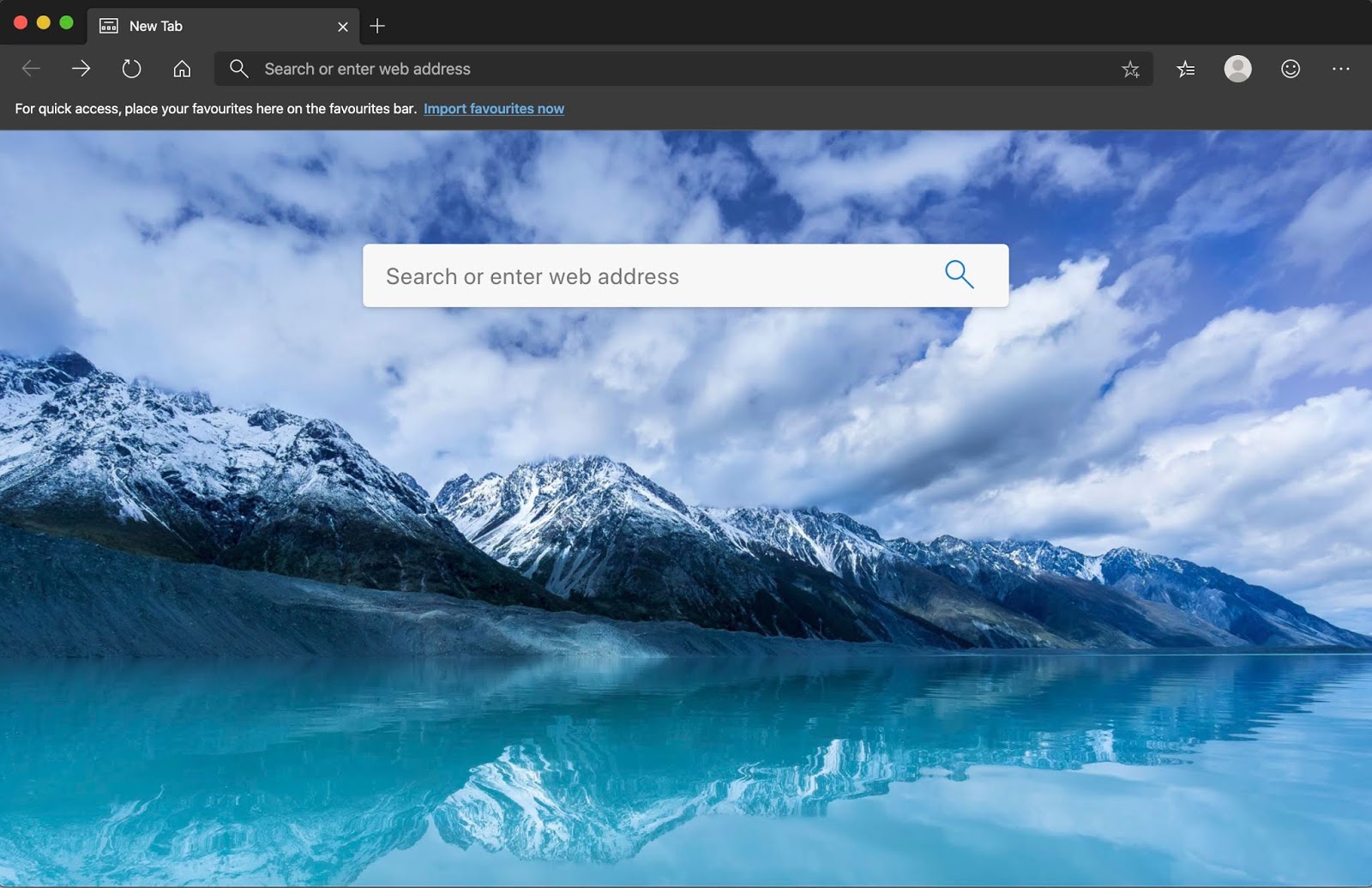
Once you're all set up, the first thing you'll notice is the new tab page, which has been carried over from the old Microsoft Edge and revamped with more customization features. By default, the browser is set to search the web with Bing, but users can change this in settings if they wish. The new tab page will automatically list your most visited websites, and allow you to pin sites manually as well.
Below that, you can choose to have MSN display a grid of news articles from the last 24 hours, and you can even customize which topics show up here. I know a lot of people don't like being bombarded with information on their new tab page, so this is something that is fully customizable. If you don't want to see any news articles, then you can turn it off entirely.
You can also turn on or off a daily wallpaper that is pulled in from Bing, which gives your new tab page a little bit of flare. I keep this off, as I prefer a more minimalist appearance. But if you like seeing the news, or like seeing a new image every day, those are options for you to configure.
The UI along the top of the browser is very similar to Google Chrome, and this is by design. Microsoft wants to make switching from other browsers to the new Microsoft Edge as painless as possible, and that includes making the new Edge look like every other browser out there. If you're a Google Chrome user coming over to the new Microsoft Edge, you'll find all your imported data in the exact same places they would be in Chrome.
Microsoft EdgeSource: Windows Central
This minimizes the barrier to entry. Users don't like change, so having the new Edge be almost a carbon-copy of Google Chrome means Chrome users won't be as overwhelmed with switching to the new Edge. That said, there are a few minor differences in the UI that align the browser more with Microsoft's own design language. Corners are a little more squared off, and the settings area is a fair bit different too.
Browsing websites is a total breeze. Gone are the days of old Edge not being compatible, or rendering webpages poorly. Browsing the web using the new Microsoft Edge is fast, fluid, and just works. In fact, the web browsing experience is now identical to Chrome thanks to the fact that the new Microsoft Edge is built on the same open-source Chromium project that Google Chrome uses.
I've not had the new Microsoft Edge crash out on me, and I've not noticed it struggle to render webpages like YouTube. The old Microsoft Edge was notorious for being bad at rendering Google-centric sites, and the new Microsoft Edge just doesn't have that problem. Users of old Edge will also appreciate the ability to hide buttons that are listed along the top of the browser. If you don't want a favorites button up there, you can hide it. Finally.

Microsoft Edge web apps

Microsoft EdgeSource: Windows Central
A feature that will be new to Edge users is the ability to install websites as native apps. This feature is useful if there's a service you use that doesn't have a dedicated app for your PC. An excellent example of this is Gmail. Google hasn't built a dedicated Gmail app for Windows 10, but with the new Microsoft Edge, you can just install the Gmail website as an app and have it show up in the Start menu and run in its own window as if it were a real app.
This isn't a new feature if you're coming from Google Chrome, but Microsoft has done some additional work to make these web apps appear more native to Windows. While not available today, an upcoming update will make web apps appear to Windows as if they were actual apps. This means they'll show up in Task Manager as their own listing, and notifications will show up in the Action Center under that websites' specific name.
This feature will become more important when Windows 10X launches later this year. For now, it works as a great way to pin your favorite websites to your taskbar and Start menu.

Microsoft Edge tracking prevention

Microsoft EdgeSource: Windows Central
One significant feature that Microsoft is touting as part of the new Microsoft Edge is its own tracking prevention features. Privacy is a big deal these days, and Microsoft knows it. To help users in their quest for more privacy, the new Microsoft Edge has an easy to use tracking prevention feature built right in, and it's on by default.
Microsoft has three levels of tracking prevention, and by default, it's on level two: Balanced. This mode will block trackers from sites you haven't visited, and will automatically block known harmful trackers too. This mode is designed to keep your data as private as possible without breaking websites. Level one will allow most sites to track you, and level three will allow pretty much no sites to track you unless you give explicit permission.
It's great to see this level of tracking prevention built right into the new Microsoft Edge, and it's customizable too. Users can add their own sites to a blocked or exceptions list if you want a specific website to track or not track you. There's also a simple UI for clearing browsing data, and the option to remove specific data every time you close the browser. If you're privacy-conscious, the new Edge goes to great lengths in making you feel comfortable while using the browser. It isn't the most privacy-focused browser in the world, but it's a great first start for Microsoft.

Microsoft Edge Collections

Microsoft EdgeSource: Windows Central
Collections is a spiritual successor to the "set tabs aside" feature of old Microsoft Edge. Collections allow you to group links, images, and snippets into a listing of things for referring back to later. This is super useful for students who are researching a specific topic, or a chef looking at ideas for their next recipe, for example.
The Collections feature will along the top of the address bar and is accessible from any webpage. I haven't found much use for it yet, but I can totally see how this feature fits into Microsoft's "be more productive" mantra. You can directly import your collections to Excel and Word too if that's something you want to do.
It also syncs to the cloud, meaning you can access your saved collections across all your different devices running Microsoft Edge, including mobile.

Microsoft Edge: What isn't here

Microsoft EdgeSource: Windows Central
While there's a lot new with the new Microsoft Edge, there's also a lot of the old Microsoft Edge that isn't here. Set tabs aside, inking onto webpages, Fluent Design, Timeline support, are all missing from the new Microsoft Edge. Microsoft says that it is weighing which features it wants to bring over to the latest Microsoft Edge, with more inking features being one of them. But not every feature is guaranteed to make it over, and that's a real shame.
Many testers also think that the old Microsoft Edge does a better job at handling touch and scrolling. I personally don't see much of a difference between the two browsers, but die-hard Microsoft Edge fans insist that the new browser does a worse job than the old one at scrolling and touch interaction. The new Edge isn't bad at this by any means; it just means the old Microsoft Edge was exceptionally good in these areas.

Final thoughts on the new Microsoft Edge

Microsoft EdgeSource: Windows Central
The new Microsoft Edge is excellent. It's a massive departure from the old Microsoft Edge, which didn't work well in many areas. If you were someone who tried to switch to the old Microsoft Edge before, I recommend you give the new Microsoft Edge a try. It's a whole different ball game that works and performs better.
Some die-hard users of the old Microsoft Edge might take issue with the missing features that made old Edge unique, but those users are in the minority to begin with. This browser is all about being accessible to the broadest possible audience, and it does that job very well. There are no weird features that get in the way of your browsing experience.
Microsoft's decision to adopt Chromium for Edge is the best decision it's made for a failing product in a long time. Instead of killing Edge entirely, Microsoft decided to try again, and now it has a product that I think really can compete in the browser space. I'd go so far to say that a lot of Chrome users won't mind switching to the new Edge, and might even end up liking it even more than Chrome.
I don't expect the new Edge to take over as the number one browser on day one, but I wouldn't be surprised if this new Edge is the beginning of a turning point for the browser market. Perhaps Chrome isn't the only big boy on the block anymore.

A huge improvement


Microsoft Edge (New)

Microsoft's new version of Edge is a complete rebuild with new features, better performance, and cross-platform support. Download today!

Source: https://www.windowscentral.com/microsoft-edge-review

May 21, 2020

Top web browsers 2020: Firefox stays afloat, Chrome hits 69% for first time

Even as Chrome hit a new record for browser usage in April, Firefox managed to actually grow just a bit.

By Gregg Keizer Senior Reporter, Computerworld |
Firefox staved off another ruinous month by remaining stable in April, while Chrome raised its share to a level last seen more than a decade ago by Microsoft's now largely irrelevant Internet Explorer (IE).

According to data posted Friday by analytics vendor Net Applications, Firefox's share in April rose very slightly — by less than one-tenth of a percentage point — to 7.3%. It was the first month in the last four in which the browser added share — and more importantly — kept it from dropping below the 7% bar, the milestone not seen since 2005, when Firefox was scratching share from Microsoft's IE and Google was more than three years away from introducing Chrome.
Firefox remained behind Edge for the second month in a row after ceding second place to Microsoft's newest browser in March. The gap between them expanded in April by one-tenth of a percentage point to half a point.
Because Firefox remained more or less flat rather than decline as anticipated, Computerworld's new forecast — based on the browser's 12-month average — puts it right at 7% rather than under it at this month's end. The losses could resume, of course, in which case if they matched the last year's average, would drop Firefox under 6% by October and leave it at a very dismal 5.3% by year's end.

Chrome sets record

Chrome climbed by seven-tenths of a percentage point in April, about half what it gained the month before, but it established a record for Google by reaching 69.2%. It was the first time the browser had topped 68% — as it did in March — without slumping the very next month to fall below that level.
In the last 12 months, Chrome has added 3.5 percentage points to its total, the largest change, positive or negative, of any browser during the stretch.
The boost improved Chrome's 12-month forecast yet again, putting the browser on a linear path of significant growth, considering its dominance of the space. Computerworld's prediction now pegs Chrome at above 70% by July and over 71% by November. Only two browsers have accounted for 70% or more of all browser activity since the web's start: Netscape Navigator (an ancestor of Firefox) and IE. Chrome would join a very selective club.
The last time a browser controlled as much share as Chrome did in April was February 2009, when IE had 69.2%. (The most popular version of IE at the time? IE7, although its lead over IE6 was slim, just a couple of points.)
But can Chrome keep it up? Possibly.
Unlike in 2009, when IE faced a significant rival — Firefox, with approximately 22% of the space — as well as a trio of smaller competitors (Chrome, Apple's Safari and Opera Software's Opera), today Chrome's adversaries are individually weak, none with more than 8%. The way Firefox seems to be headed and the continued inevitable decline and ultimate demise of IE, leaves open more percentage points Chrome may scoop up down the line.
Realistically, the only danger to Chrome anytime soon will be Microsoft's Edge, ironically a near-clone of Google's browser.

Edge up, IE down

Microsoft's browsers, the aged IE and rebuilt Edge, combined to lose three-tenths of a percentage point in April, ending the month at 13.2%.
Edge, though, remained the second-most-used browser last month by gaining two-tenths of a point, reaching 7.8%. Meanwhile, IE gave up four-tenths of a percentage point, sliding to 5.5%. Edge's number was a record high; IE's was a record low for the 15 years Computerworld has records from Net Applications.
The Edge-up, IE-down trend has been well established. Though IE's downhill run has been rapid — it's lost three percentage points in the last 12 months — that may not reflect the old browser's residual strength: Browser metrics vendors have a hard time collecting accurate data from enterprise networks, which may mask multiple internal IP addresses by showing a single address externally.
Edge's April addition was the fifth consecutive month of gains, the most since the first 15 months after the browser's mid-2015 kick-off when it grew because of Windows 10's free-upgrade-fueled adoption. Computerworld remained reluctant to call the "Chromiumization" of Edge a success — more data's required — but the seven-tenths of a point in the last three months, the period since Microsoft released a stable build of the browser, certainly puts it on the path toward the major milestone of 10%.
Ultimately, the only way for Edge to grow beyond that will be at Chrome's expense. That's a lot to ask of a browser which is, after all, Chrome at its roots.
Elsewhere in Net Application's numbers, Safari retrieved the three-tenths of a point it lost the month before, getting back to 3.9%, and Opera Software's Opera lost less than a tenth of a point to stay, with rounding, at 1.1%.
Net Applications calculates share by detecting the agent strings of the browsers used to reach the websites of Net Applications' clients. The firm counts visitor sessions to measure browser activity.

Source: https://www.computerworld.com/article/3199425/top-web-browsers-2020-firefox-stays-afloat-chrome-hits-69-for-first-time.html


May 14, 2020

How to use Google Meet

By Jon Martindale May 9, 2020

Google Meet is Google’s videoconferencing service, which allows for up to 100 individuals to chat at a time (or up to 250 individuals on select business plans). The best part about the service is that it is free to use, and all video meetings are encrypted in transit to help prevent anyone from snooping in on your conversations. Follow this guide to learn exactly how to use Google Meet and get started connecting to your friends, family, and co-workers.

Start a Google Meet video meeting

If you are starting the Google Meet conference, you can follow these steps to get started. Note, you will need a Google account or G Suite account to begin. If you are using a G Suite business account, your administrator must enable the service before you can start using it. At this time, Google Meet supports the Chrome web browser, as well as Mozilla Firefox, Microsoft Edge, and Apple Safari. Additionally, Google Meet can be used on iOS and Android devices.

Mac or PC

If you are on a Mac or Windows PC, you can follow these instructions to start a Google Meet video meeting. Be sure to use one of the compatible web browsers, as mentioned above.
  1. Visit the Google Meet website.
  2. Click either Join or Start a Meeting.
  3. If prompted, enter a meeting nickname (for G Suite users).
  4. Click the Join Now button.
To invite individuals to your Google Meet video meeting, you can click the Meeting Details button in the lower-left corner. Then copy the link and share it with anyone you wish to join. Alternatively, you can click the Add People button (shown as a person with a plus symbol) in the top-right corner, then select Invite and enter the person’s email address.

Android or iOS

If you are using a mobile device running Android or iOS, you can follow these instructions to start a Google Meet video meeting. Before beginning, make sure you download the official Google Meet app from either the Android Play Store or iOS AppStore.
  1. Open the Meet app.
  2. Tap the New Meeting button (shown as a plus symbol).
  3. If prompted, enter a meeting nickname (for G Suite users).
  4. Tap Join Meeting.
To invite individuals to your Google Meet video meeting, tap the Info button (i), then select the Share option. Choose how you wish to share the meeting information with your friends, family, or co-workers.

Joining a Google Meet video meeting

Riley Young/Digital Trends
There are quite a few different ways that you can join a Google Meet video meeting. We will be reviewing the most popular options, including from inside Gmail, from Google Calendar, using a meeting link URL, and using a telephone. Follow the steps below based on how you wish to join a Google Meet video meeting.

From Gmail

  1. Visit the Gmail website.
  2. On the left side, click Join a Meeting.
  3. Enter the meeting code or nickname you received.
  4. Click the Join button.

From Google Calendar

  1. Open your Google calendar.
  2. Locate the event and click on it.
  3. Select the Join with Google Meet option.
  4. Click, Join Now.

From a meeting link (URL)

  1. Locate the meeting link URL sent to you.
  2. Click on the Google Meet URL.
  3. Wait for approval to be admitted to the meeting if required.

From a telephone

  1. Locate the phone number provided for your Google Meet.
  2. Dial the phone number on your telephone.
  3. When prompted, enter the PIN provided, tap the # button.

Settings to alter during a meeting

Google Meet
Google allows you to alter certain settings during a Google Meet video call, such as the layout, provided captions, and control over your microphone and camera. These are the most common actions.

Change meeting view

While on a PC or Mac, click the More button (three vertical dots), then click Change Layout. Here you can select from a collection of views — automatic, tiled, spotlight, and sidebar.

Viewing closed captions

On a PC, Mac, Android, or iOS device, click the [CC] captions button to turn on or off English captions; this button may be hidden under the More button (three vertical dots) section.

Send a chat message

On a PC, Mac, Android, or iOS device, click the Chat button (sometimes shown as a tiny text bubble). Enter the message you wish to send to the room, and click the Send button (shown as a small paper airplane).

Present your screen

On a PC, Mac, Android, or iOS device, click the More button (three vertical dots), then click the Present Screen option and click Start Broadcast to begin. To stop presenting, return to Google Meet, and click Stop Broadcast.

Record a meeting

On a PC or Mac, click the More button (three vertical dots), then click Record Meeting. To stop, repeat the steps, and click Stop Recording. Note that participants will be notified when anyone begins recording the meeting. Additionally, the video recording will be saved to your Google Drive for later retrieval.

Stop your webcam or mute your microphone

On a PC, Mac, Android, or iOS device, click the round microphone button to mute or unmute your microphone. Similarly, click the round camera icon (shown as a box with a triangle on the right side) to turn on or turn off your webcam.

Is Zoom better than Google Meet?

Both Google Meet and Zoom are video conferencing solutions that provide similar features. The biggest standout features are pricing. Google Meet is entirely free for up to 100 participants at a time for up to 60 minutes. For Zoom, a free option is also available, allowing for up to 100 participants at a time for up to 40 minutes. Times can be extended on both services but will require a monthly or yearly subscription. Additionally, Zoom has incurred privacy issues in the past, which will make some feel more comfortable trusting their video moments to Google.

Editors' Recommendations

May 1, 2020

Google Meet Is Now Free For Everyone

Google announced that it’s making its video meeting tool for G Suite customers available for free to everyone. Starting next week, Google is opening up access to Meet everyone gradually.

The free meetings can be scheduled up to 100 people that can last any amount of time. After September, free accounts will be limited to meetings that don’t run longer than 60 minutes. Google Meet also provides cross-app integration, making it easy to create and join meetings from the Meet, Google Calendar, and Gmail web pages and Android/iOS apps. Additionally, users need a Google account to use Google Meet, which may add a bit of friction while the competitor product, Zoom, makes it with just a link.

Google puts options for groups within organizations as well. “For organizations that aren’t already G Suite customers, today we’re announcing G Suite Essentials,” it states. “G Suite Essentials is perfect for teams that need access to Meet’s more advanced features, such as dial-in phone numbers, larger meetings, and meeting recording.” Google is providing G Suite Essentials and all of these features free of charge through September 30.

The obvious reason behind this move is to compete against the recent rise of Zoom and increasing video meeting traffic after the start of COVID-19. Another reason may be a desire to enhance the Google Hangouts. But there’s a fact that Google’s new move will change the dynamics of the video conferencing market in the coming term.

Source: https://www.forbes.com/sites/ilkerkoksal/2020/04/30/google-meet-is-now-free-for-everyone/#1dfdce904a0a

Free Google Meet accounts for individuals

You can use Meet to schedule, join or start secure video meetings with anyone—for a virtual yoga class, weekly book club, neighborhood meeting, or happy hour with friends. Until now, Meet has only been available as part of G Suite, our collaboration and productivity solution for businesses, organizations and schools. Going forward, Meet will be available to anyone for free on the web at meet.google.com and via mobile apps for iOS or Android. And if you use Gmail or Google Calendar, you’ll be able to easily start or join from there, too.
Google Meet - Create-New-Meeting_gb.gif
Use your existing Google Account to start a secure meeting in Google Meet
If you have an existing Google Account (for example, if you’re a @gmail.com user), sign in at meet.google.com to get started. If you don’t have a free Google Account, it only takes a minute to create one using your work or personal email address of choice (we require this step as a security measure, and you’ll only need to do this once).
Meetings are limited to 60 minutes for the free product, though we won’t enforce this time limit until after Sept. 30. Creating a trusted meeting space is important, and being mindful when sharing meeting links in public forums can help create a safe experience for all attendees. For more tips on how to use Meet securely and effectively, visit our Help Center.

Source: https://meet.google.com/

March 31, 2020

Mozilla Rolls Out Encrypted Browsing by Default for U.S. Firefox Users

Today, Mozilla is flipping on the switch to turn on encrypted DNS over HTTPS for U.S. users by default. If you’re unfamiliar with the tech, the pitch is this feature will help prevent internet service providers from tracking the sites you go to.

DNS over HTTPS (DoH) is meant to address the inherent privacy vulnerabilities in how you surf the web. The Domain Name Service (DNS) is, in Mozilla’s words, “one of the oldest parts of internet architecture” and one that hasn’t seen a lot of changes in the past 30 years. This plays into tracking because when you go to a URL, your browser needs to look up the site’s corresponding IP address. It does that via the DNS. But, even if the site you’re visiting is encrypted via HTTPS, the DNS lookup is done over plain text. That means ISPs—or other entities—can, if they so choose, easily figure out what websites you’ve gone to and build up a profile of your browsing habits. DoH is meant to circumvent that by ensuring the DNS lookup is also encrypted. It won’t necessarily stop tracking wholesale, but it will make it more difficult.

Mozilla started working on improving DNS privacy about two years ago. Since then, other browsers, including Chrome, have also added support for DoH. That said, the standard is not without its detractors. In the UK, for instance, it’s been argued that DoH also makes it easier for criminals, particularly when it comes to spreading photos of child abuse. There are also complaints that DoH could bypass whitelist filters and parental controls, as well as make it harder for ISPs and lawmakers to block illegal content. To that end, last year Mozilla said in a blog that it would provide opt-in parental controls, as well as honor enterprise configurations, which may also be adversely impacted by DoH.

It should be noted that DoH will only be made default for U.S. users. And while rollout begins today, Mozilla will be doing it in phases so it won’t impact all U.S. users for another few weeks. As for users outside the U.S., they can manually enable DoH if they want by going to Preferences > Settings > Enable DNS over HTTPS.

Source: https://gizmodo.com/mozilla-rolls-out-encrypted-browsing-by-default-for-u-s-1841907206


March 20, 2020

Smart RSS Reader is a feed reader extension for Firefox and Chrome

Web based feed readers are kind of a pain to use. They often implement changes that you don't want, while taking away features that you like.  Local readers are much better when it comes to this, because you can revert to an older version in case of adverse changes.
SmartRSS extension for Firefox
Smart RSS Reader is a feed reader extension for Firefox and Chrome that I have been using for a week; I'm quite impressed by it so far.
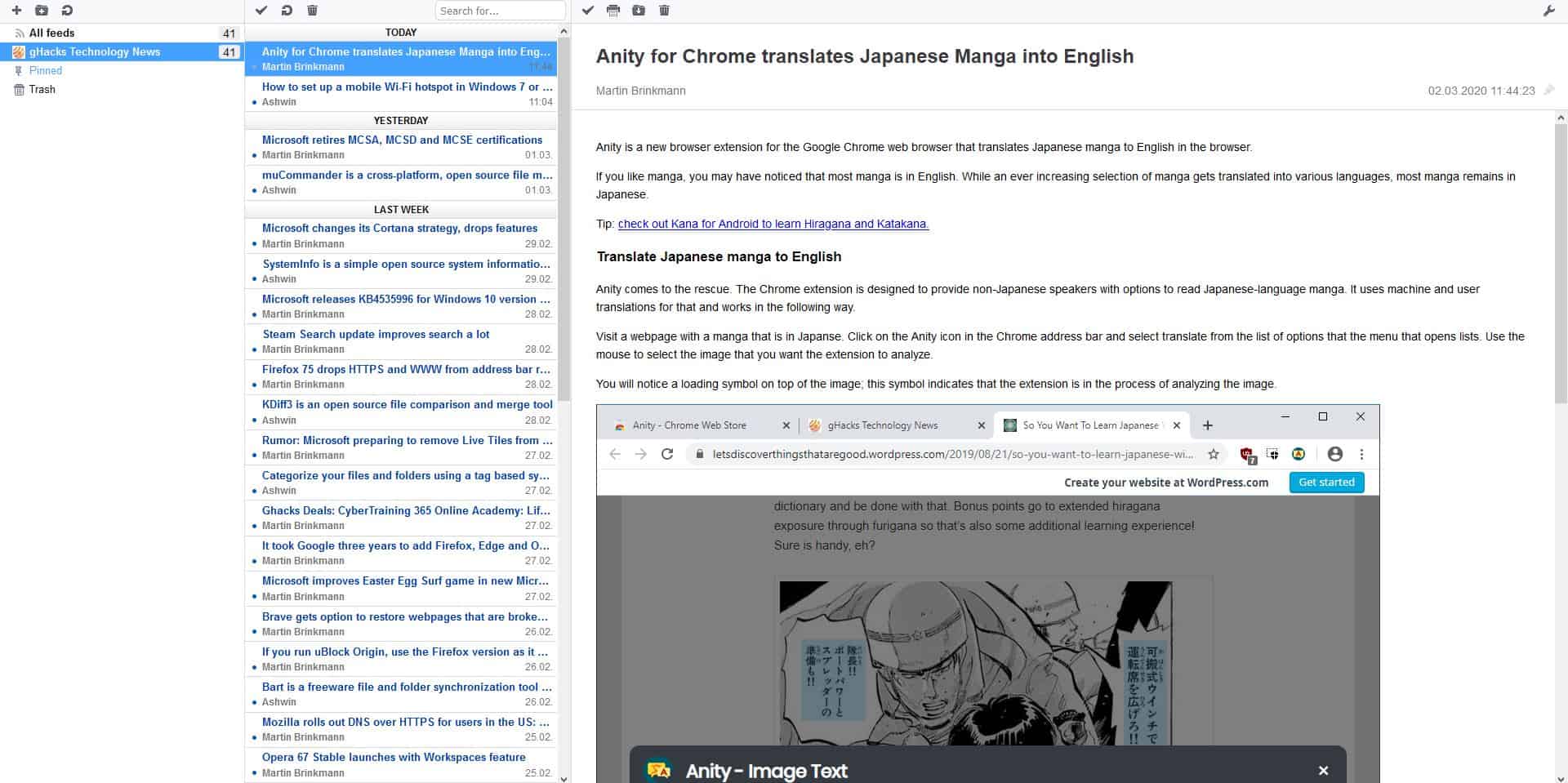
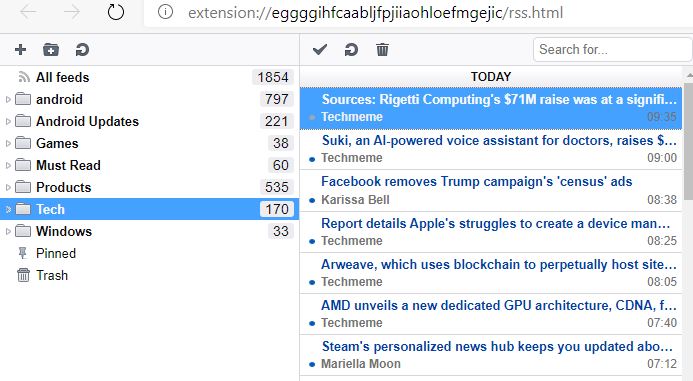
Install the add-on and click its toolbar icon to open a new tab with the extension's RSS reader. It has three panes, each of which has a toolbar at the top. The left pane is the feeds pane and lists all RSS feeds that you're subscribed too. Selecting a feed displays the title of the articles published by the site in the center pane. It also displays the author's name and the date when the article went live.
Click on an article's title to open it in the browser view, aka the right pane. Smart RSS Reader displays the article in its native format (i.e. no misaligned text or items) and it contains the images included in the post too. Use the Pin icon in the top right corner of an article's page to favorite it.
Smart RSS Reader supports offline article reading which is useful when you're away from an internet connection. The extension's toolbar icon flashes a badge when a new article has been published, so you won't miss out on reading your favorite sites.
Smart RSS Reader badge

Adding RSS Feeds

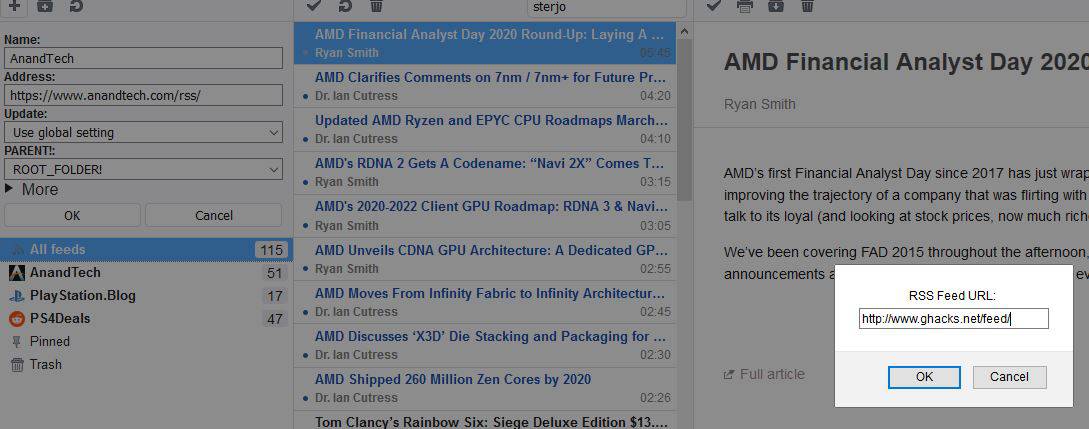
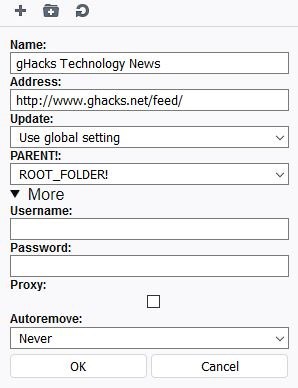
The toolbar on the top of the Feeds pane has a plus button. Clicking it brings up a box where you can enter an RSS Feed's URL. For e.g. http://www.ghacks.net/feed/
Smart RSS Reader adding a feed
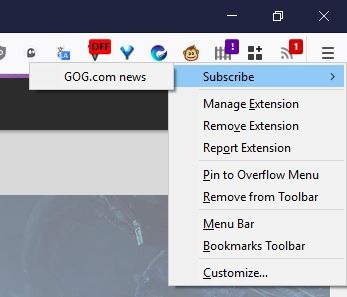
The extension automatically picks-up the name of the website, its favicon and you'll immediately see the list of articles available for reading. Another way to add a feed is by right-clicking on the extension's toolbar icon. This context menu is useful for subscribing to the RSS feed of the website that you're currently on. This doesn't work for every site though, it needs to have an RSS or XML feed available which the add-on pulls automatically.
SmartRSS extension for Firefox - subscribe context menu
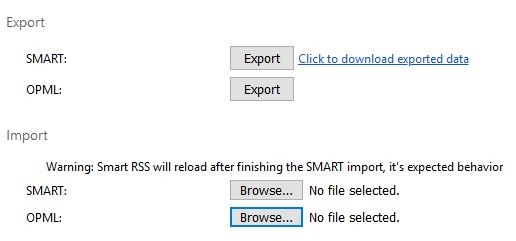
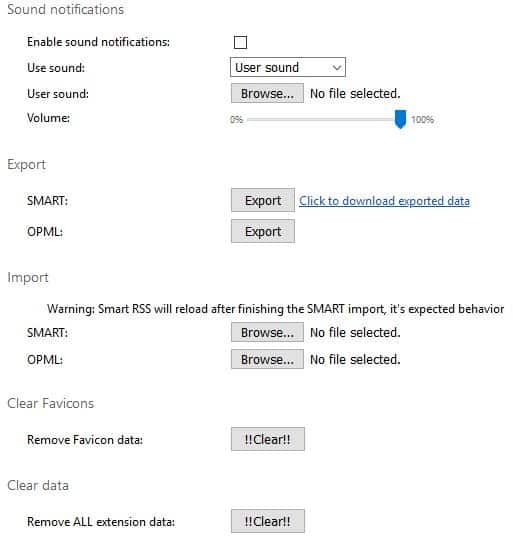
If you're subscribed to a lot of feeds already, don't worry you don't need to waste time re-adding each of those to Smart RSS Reader. Click on the wrench icon in the top right corner to go to the options page, scroll down to the Import section and select the OPML > browse button to pick your OPML file.
Smart RSS Reader import OPML
The feeds are imported instantly, and the add-on preserves the folders that you have set in your previous RSS reader.
Smart RSS Reader imported feeds

Managing Feeds

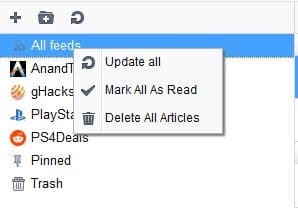
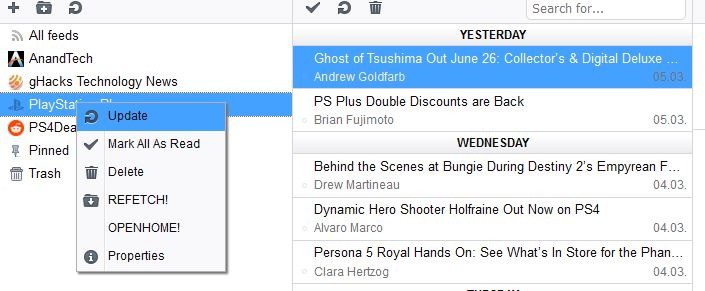
Right-click on the "All feeds" option to view a context menu which allows you to "Update all, Mark all read, and Delete all articles".
Smart RSS Reader manage all feeds
Select a Feed and right-click on it, click on Properties to change the URL, name etc.
Smart RSS Reader managing site feed
Use the "New Folder" option in the Feeds pane's toolbar to create a new folder, and move RSS feeds into it. This can help you organize things. Each feed has its own context menu that has options to update the list of articles, mark all as read, delete (unsubscribe), refetch (redownload), Openhome (opens the feed's website).
Smart RSS Reader managing feeds
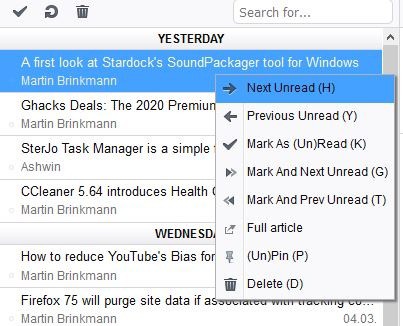
The feeds list pane has yet another context menu. This one can be used to jump  to the next unread, previous unread articles, or to mark articles as unread, mark and next/previous as unread, unpin articles, and to open the article in a new tab. The toolbar at the top of this pane has three icons: mark all read, update, delete. The Search box is handy to search for a particular article in your feeds.
Smart RSS Reader feed options

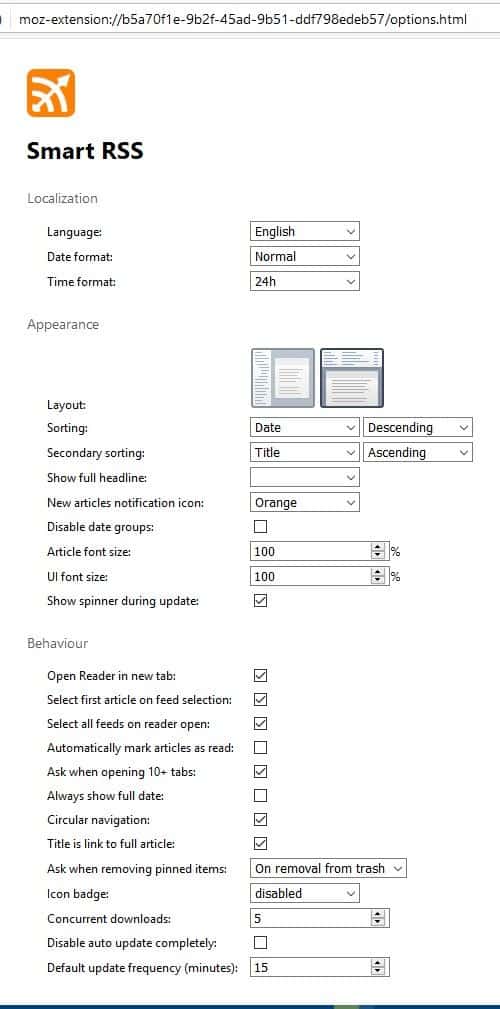
Smart RSS Reader options

The extension has a bunch of options including a 2-pane view, sorting options, article font size, reader behavior, export feeds to OPML or SMART (text document), etc. Smart RSS Reader has many keyboard shortcuts that you can use to read and manage your feeds.
Get the Firefox extension from the add-ons repository, and the Chrome version from the webstore. According to the developer, the extension is a fork of an add-on made by Martin Kadlec, which was made as an alternative to the built-in RSS reader in Opera 12. Smart RSS Reader is an open source extension.
The fact that you don't need an online account to manage your feeds, and that everything is stored locally is really nice. Add-ons like this and Feedbro are the closest alternative for desktop readers, though I do use QuiteRSS myself. Smart RSS Reader is very fast and fluid.

Source: https://www.ghacks.net/2020/03/10/smart-rss-reader-is-a-feed-reader-extension-for-firefox-and-chrome/

January 15, 2020

10 Tips to get started with the new Chromium-based Microsoft Edge browser

Microsoft plans to release the stable version of the company's Chromium-based Microsoft Edge browser officially today. Most Home users will receive the browser via Windows Update as it is pushed to systems that way to replace the classic Microsoft Edge web browser.

Tip: Microsoft released a blocker toolkit to prevent the installation of the new Edge browser on Windows systems.
New and existing Edge users may find the following selection of tips useful as they highlight features of the browser that improve the browser in meaningful ways.  Feel free to add your own tips in the comment section below.

Tip 1: Install Chrome or Edge extensions

edge install chrome extensions


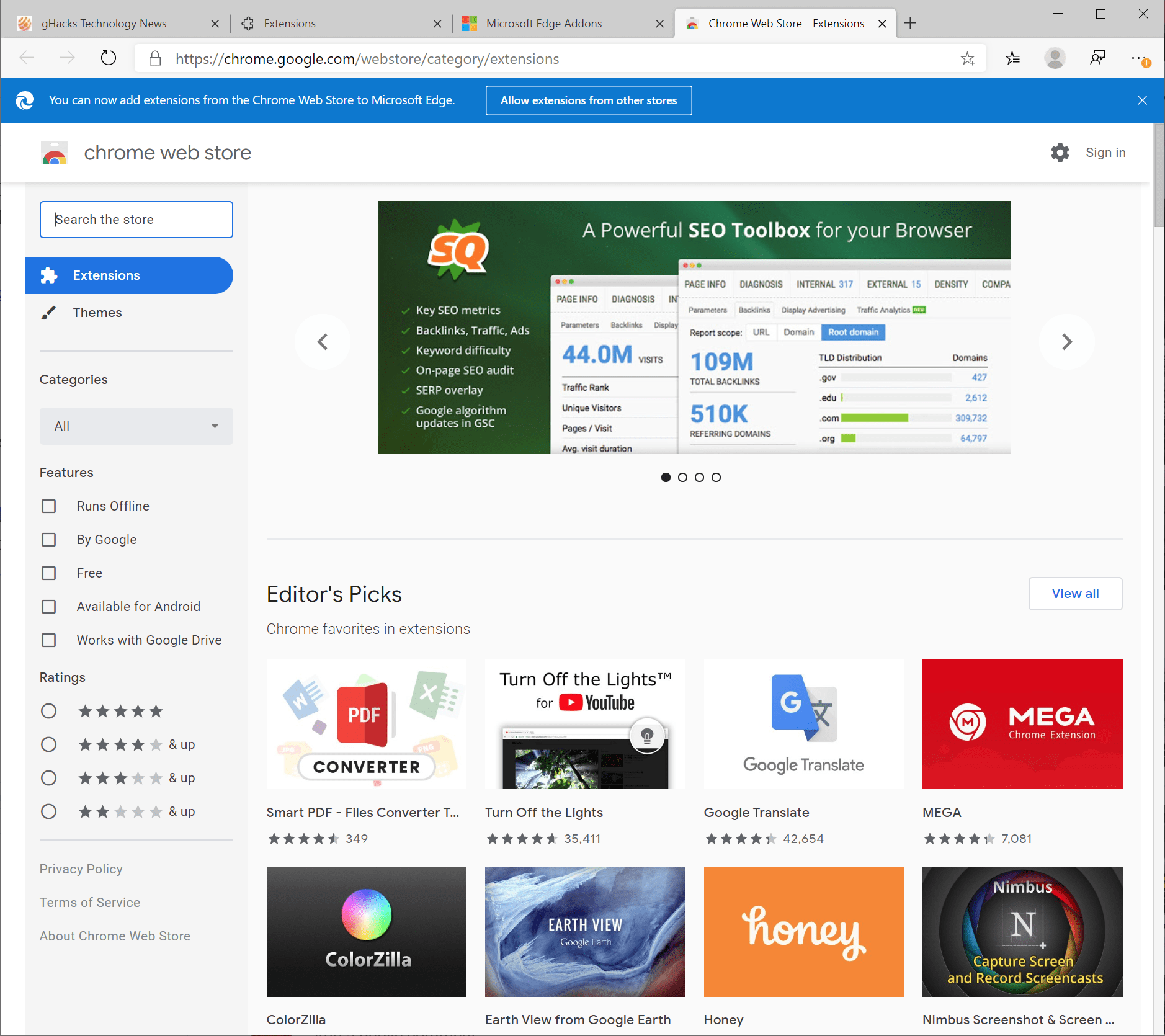
The new Microsoft Edge web browser is based on Chromium, the same core that Google Chrome is based on. It is therefore possible to install Chrome extensions in Microsoft's new web browser or extensions made for Edge exclusively.
To install regular extensions, visit the Edge extension store to browse what is available and install the extensions that you want. There are not that many extensions available but you find a selection of important extension types such as password managers, download extensions, ad blockers, and others.
To install Chrome extensions, visit the Chrome Web Store. Edge should display a banner at the top that provides you with an option to allow extension installations from that store.
Activate the button to allow the installation of Chrome extensions; then, browse the store and click on the "add to chrome" link to install it in Microsoft Edge.

Tip 2: Configure Tracking Prevention

edge tracking prevention


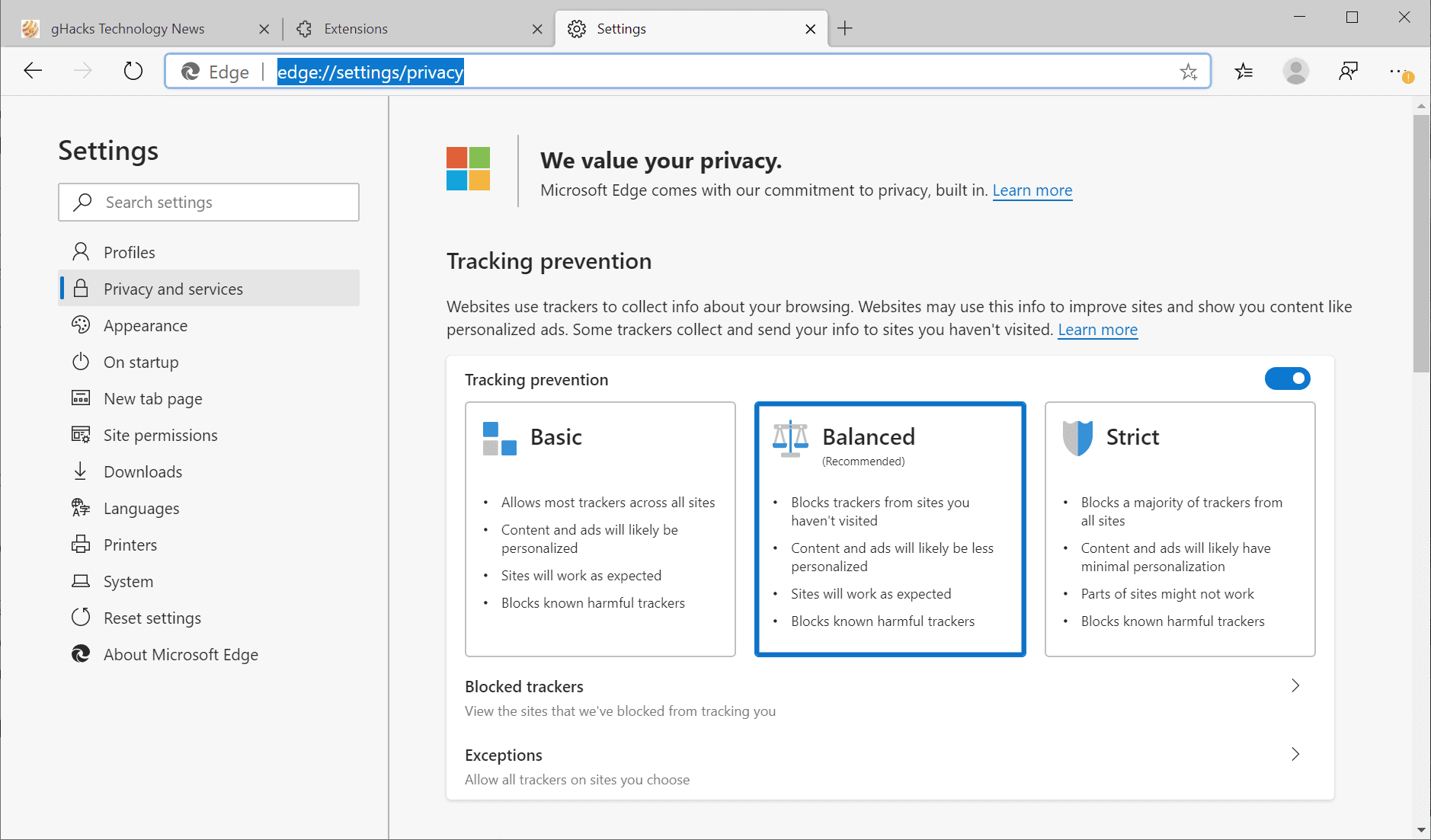
The Chromium-based Microsoft Edge browser supports a tracking prevention feature that works similarly to Mozilla Firefox's Tracking Protection feature. The default level is set to balanced which aims to strike a balance between protecting privacy and making sure that sites continue to work.
Edge users may configure Tracking Prevention by loading edge://settings/privacy in the browser's address bar. There it is possible to switch to Basic or Strict levels; the former allows more trackers and may improve compatibility, the latter blocks even more but some sites may not work properly anymore.
Options to look at the list of blocked trackers and to add sites to the list of exceptions are provided as well.

Tip 3: Other Privacy enhancements

edge block cookies


While we are at it, Edge comes with additional privacy settings that you may want to go over on first run to make sure that they are set to your satisfaction.
Load edge://settings/privacy again as a start.
  • Configure the data that you want cleared when Edge exits.
  • Disable "Allow sites to check if you have payment info saved".
  • Disable (if enabled) the "Help improve Microsoft Edge" Telemetry settings.
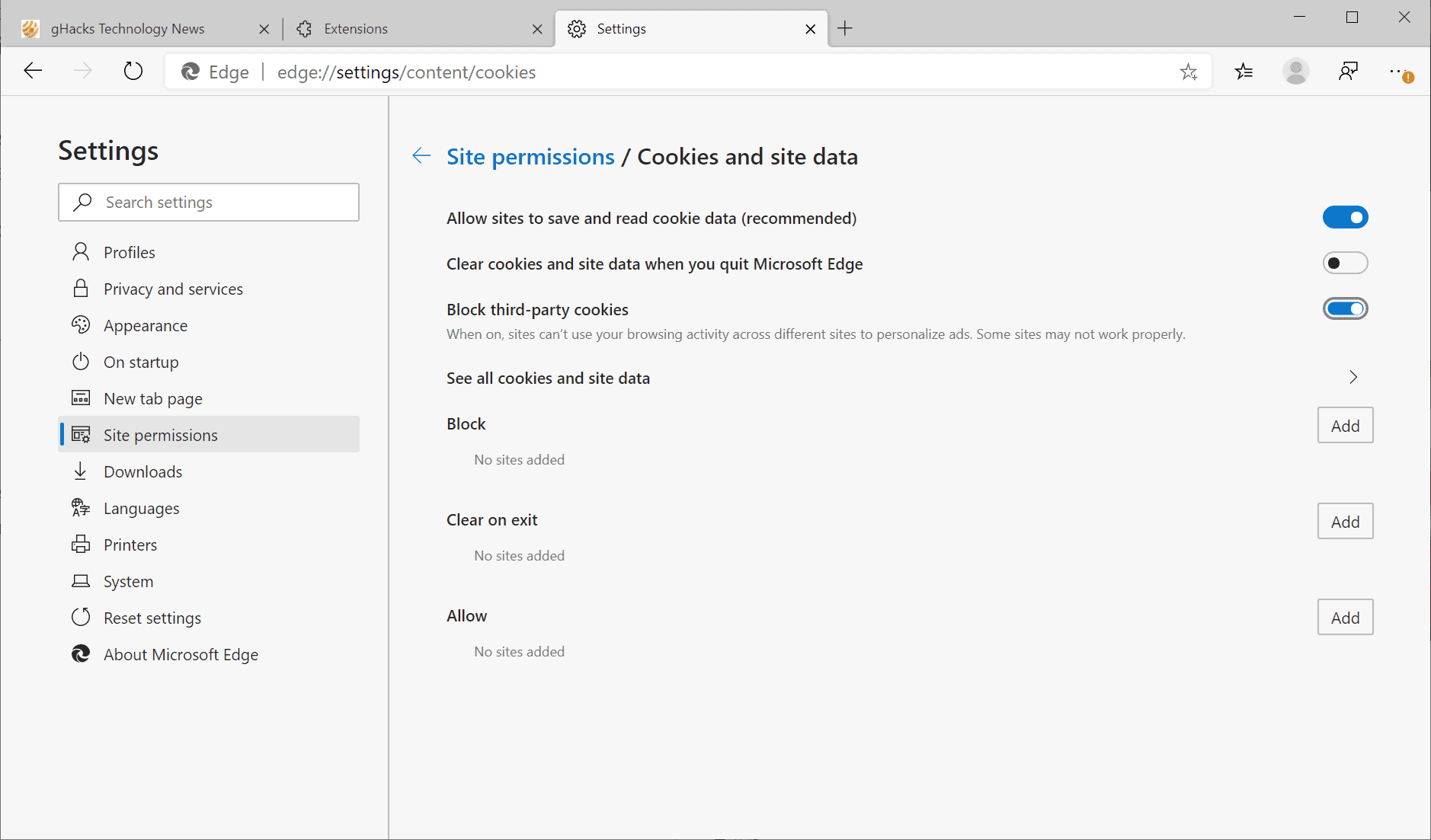
Load edge://settings/content next.
  • Select Cookies and site data. There you find an option to block third-party cookies.

Tip 4: Disable notifications

edge notifications


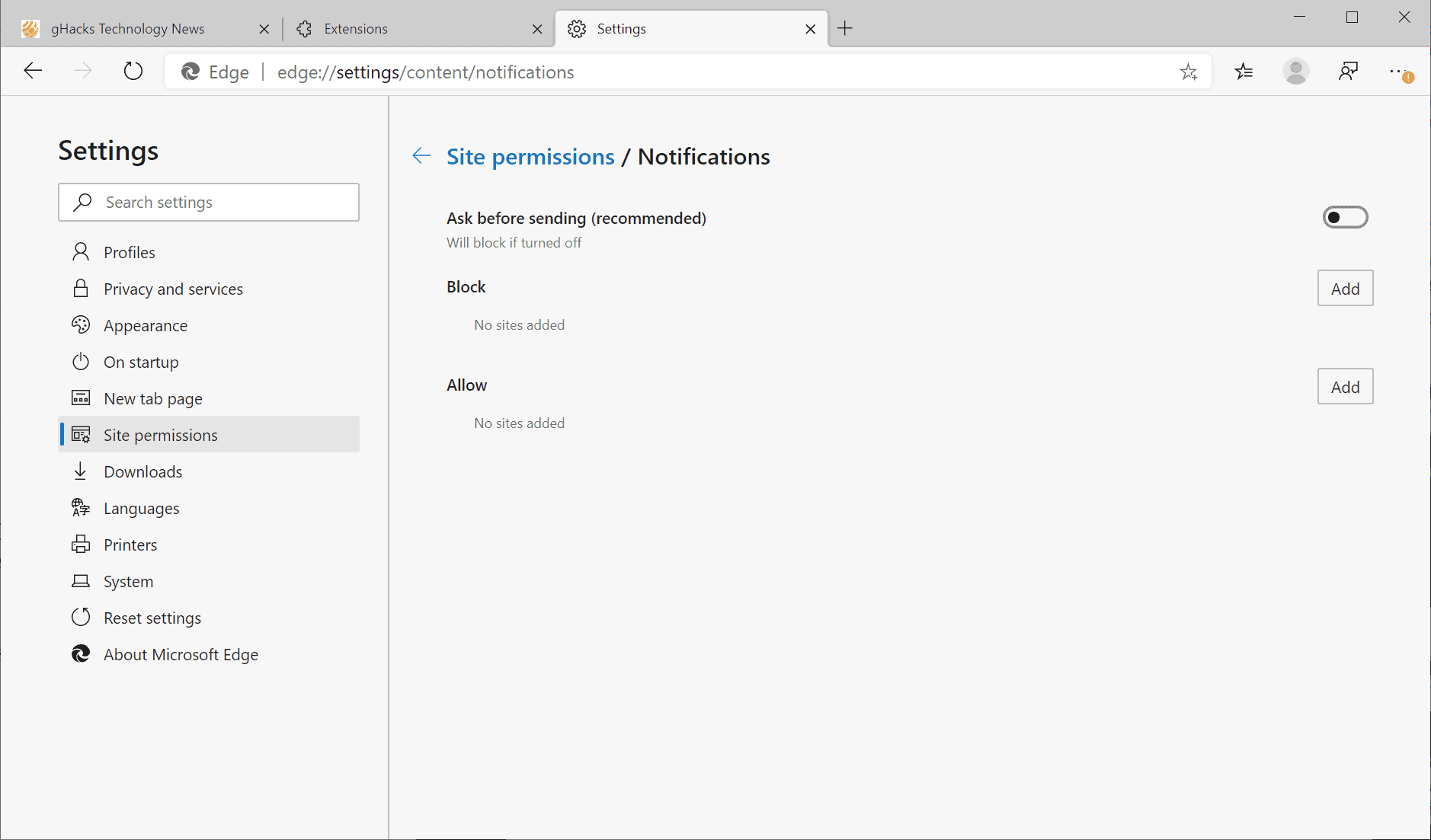
If you dislike notification prompts that many sites display the moment you open them, and don't use notifications at all, you may want to consider disabling these entirely in Edge. You could alternatively allow them for select sites.
  1. Load edge://settings/content/notifications in the web browser's address bar.
  2. Toggle "ask before sending" to off to block notifications.

Tip 5: Customize the New Tab Page

edge new tab page


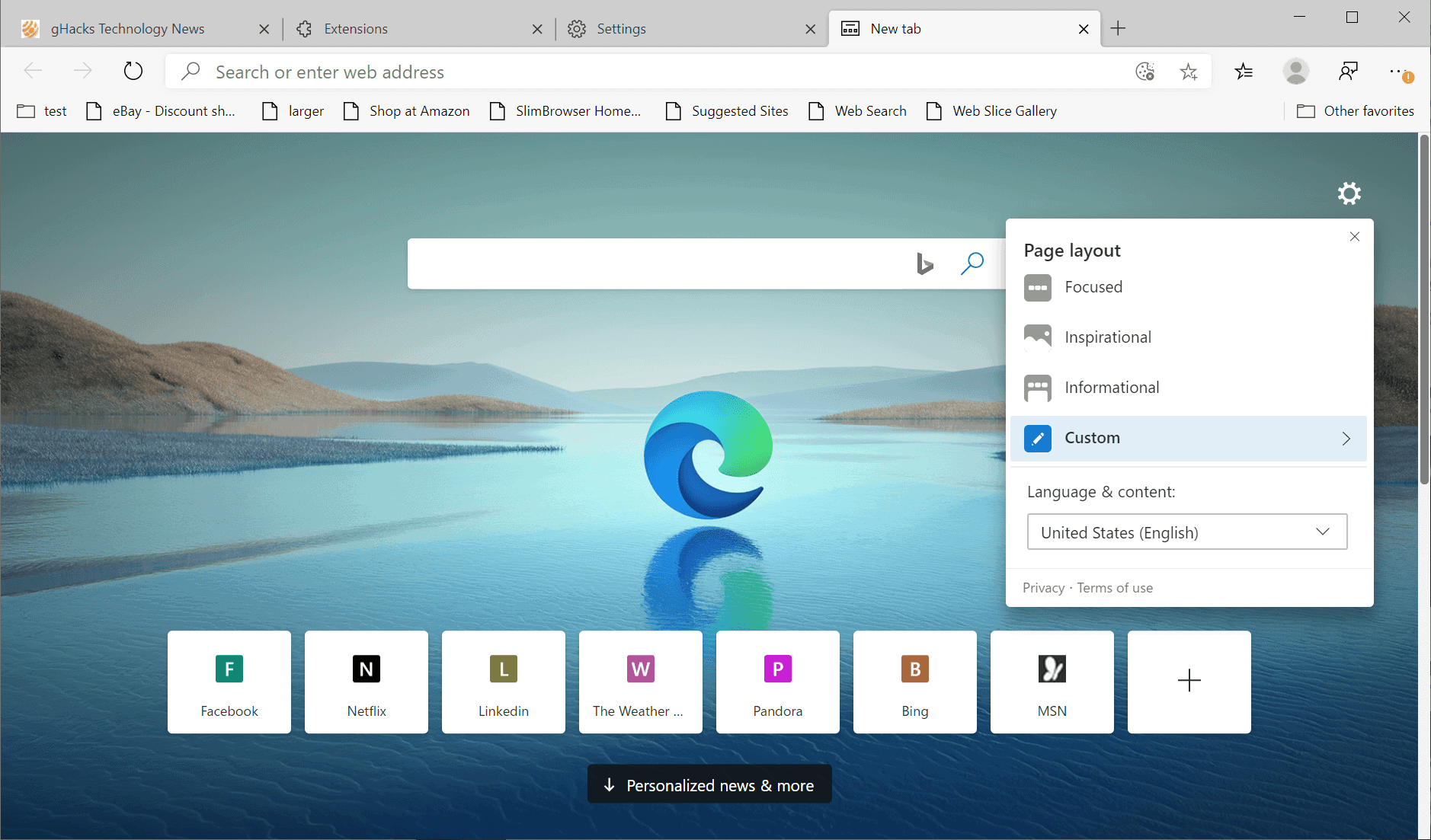
You can customize the New Tab Page of the Edge browser. Just open the page and activate the settings icon to get started.
Microsoft Edge supports three designs -- focused, inspiration and informational -- as well as a custom option. You may set the language on the page and if you select custom, disable some of the elements (quick links, image of the day and content) on the page.
An option to display a blank page is not available but you can install the Blank Tab extension for Edge to make it blank.

Tip 6: Immersive Reader improves the readability of articles

edge immersive reader


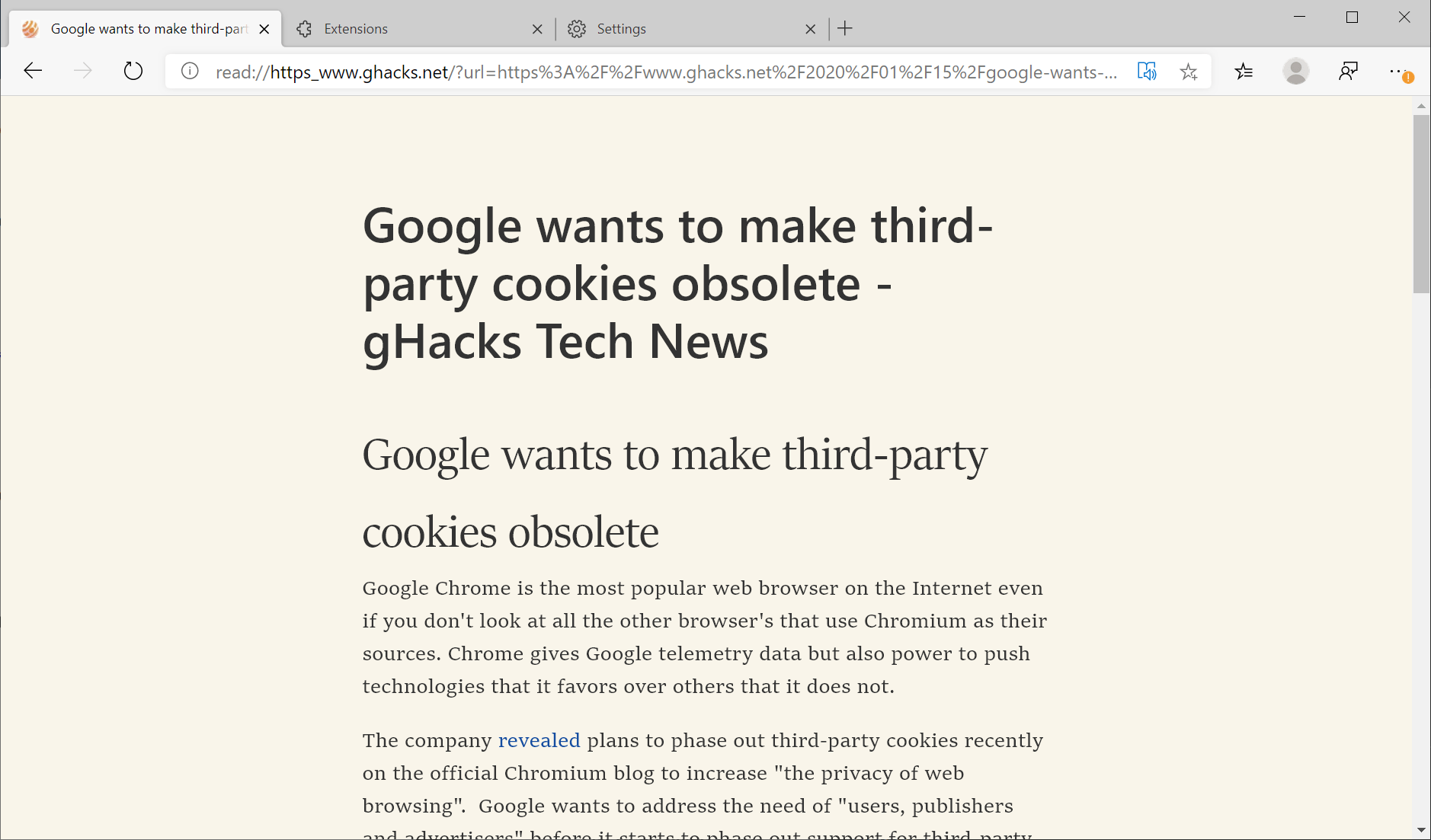
Microsoft Edge comes with its own readability module that converts articles on the Web to a format that improves readability. It removes most page elements such as advertisement, menus, or comments, and changes the formatting of text and other formatting options when activate.
To use it, just click on the Immersive Reader icon in the Edge address bar when the article that you want to convert is active in the browser.

Tip 7: Improve security by disabling automatic downloads


edge safer downloads


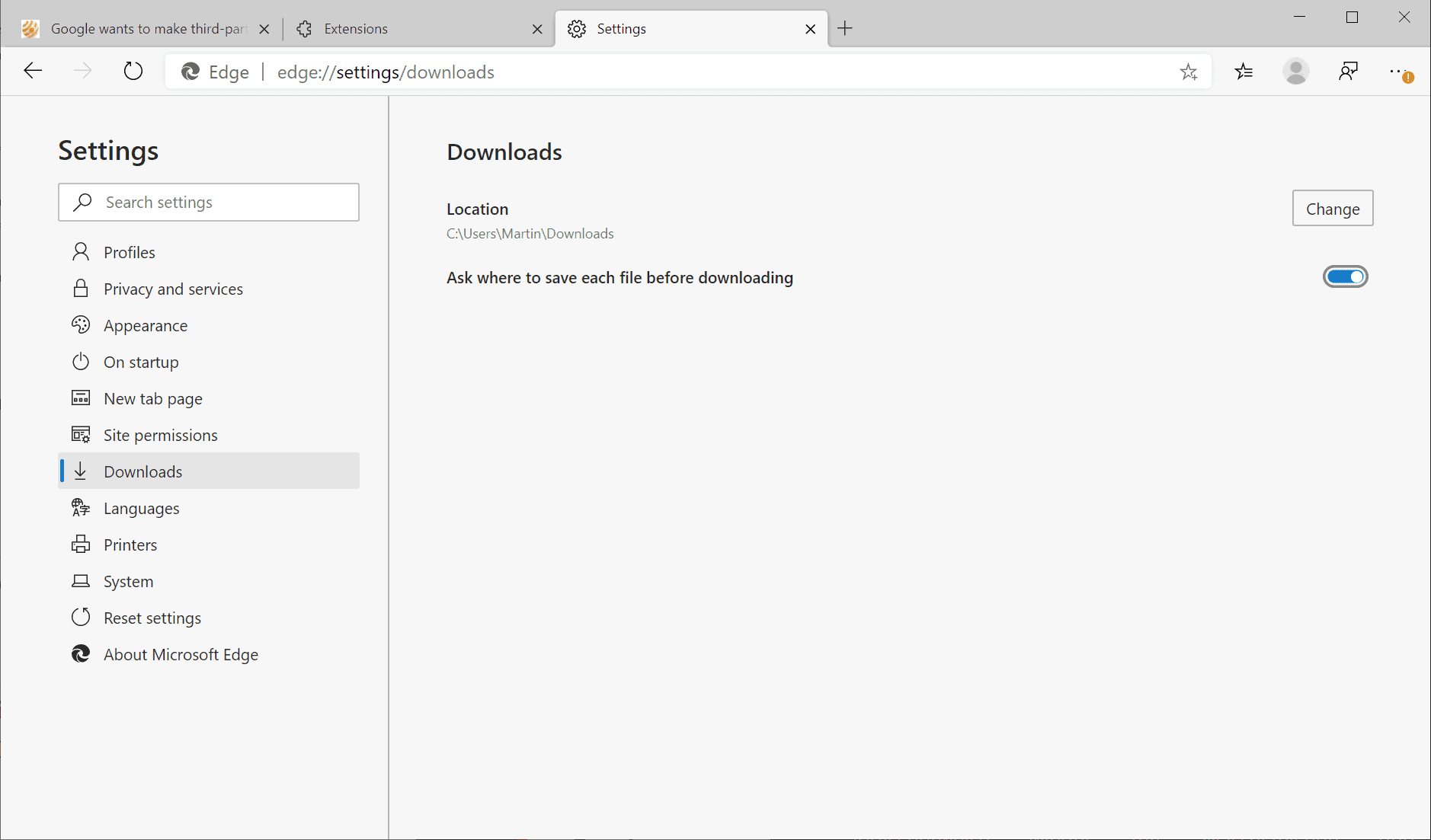
Edge downloads files automatically to the main Downloads location if you run the web browser on Windows. It may be a good idea to disable the automatic downloading by enabling the download dialog that is displayed by the browser when downloads are initiated.
  1. Load edge://settings/downloads in the browser's address bar to get started.
  2. There you need to enable "Ask where to save each file before downloading" to prevent automatic downloads. You may also change the default download location on the page.
  3.  
Tip 8: Experiments

edge experiments


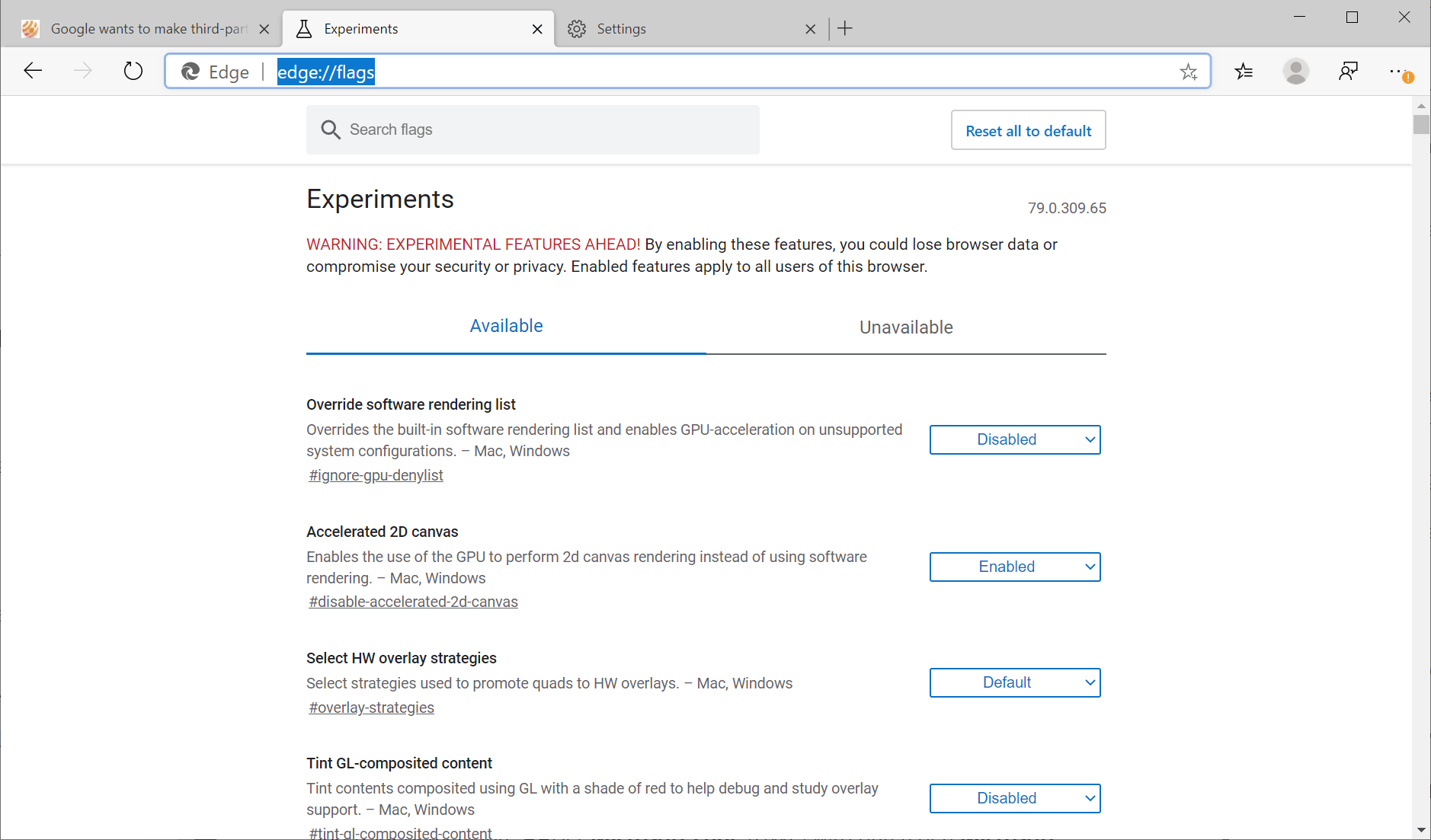
Microsoft Edge supports experiments just like Google Chrome. You may want to go through them every now and then to find out what is new and to make configuration changes.
These experiments may be integrated natively in the browser one day or may be removed without further notice. They are used, for the most part, to test features that are need more testing before they are launched for all users.
Just load the edge://flags/ address in the address bar to get started.

Tip 9: Task Manager

ege task manager

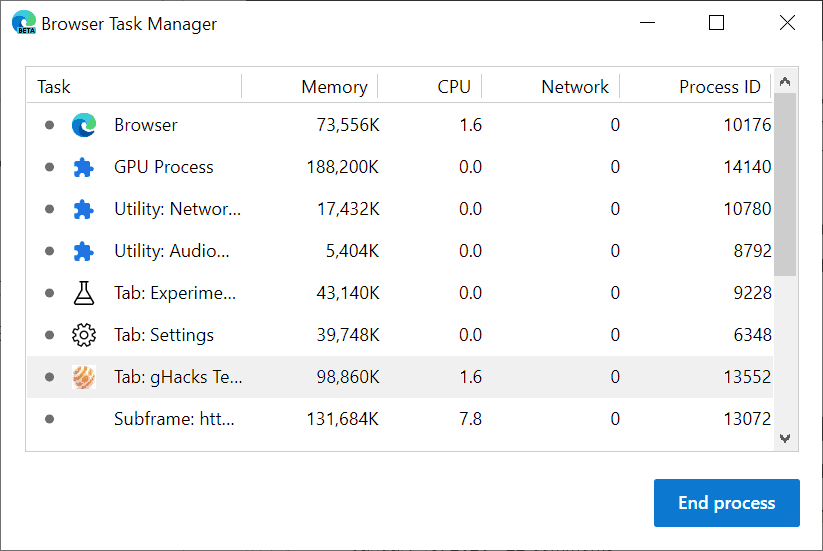
Microsoft Edge , just like Google Chrome, comes with a Task Manager that you may run at any time in the browser to display memory, cpu and network use of processes.
It can be helpful in determining the sites or processes that use the most memory or CPU. You may use it to end certain processes as well.

Tip 10: Read Aloud

edge read aloud

Microsoft Edge may read aloud any webpage that you visit. To use the feature, load the webpage first and select Menu > Read Aloud afterwards.
A click on voice options displays settings to change the voice and the speed. Note that Edge will read anything that is readable on the page by default; it is usually a good idea to switch to the immersive reader first before using the read aloud feature.

Now You: Got anything to add? Let us know in the comments below.

Summary
10 Tips to get started with the new Chromium-based Microsoft Edge browser
Article Name
10 Tips to get started with the new Chromium-based Microsoft Edge browser
Description
Here are ten tips to get you started with the new Microsoft Edge web browser that is based on Chromium.
Author
Publisher
Ghacks Technology News
Logo
Advertisement

About Martin Brinkmann

Martin Brinkmann is a journalist from Germany who founded Ghacks Technology News Back in 2005. He is passionate about all things tech and knows the Internet and computers like the back of his hand. You can follow Martin on Facebook or Twitter

Source: https://www.ghacks.net/2020/01/15/10-tips-to-get-started-with-the-new-chromium-based-microsoft-edge-browser/

December 23, 2019

Review | Goodbye, Chrome: Google’s Web browser has become spy software
Washington Post - This was made possible by the Web’s biggest snoop of all: Google. Seen from the inside, its Chrome browser looks a lot like surveillance software.

Lately I’ve been investigating the secret life of my data, running experiments to see what technology really gets up to under the cover of privacy policies that nobody reads. It turns out, having the world’s biggest advertising company make the most popular Web browser was about as smart as letting kids run a candy shop.

It made me decide to ditch Chrome for a new version of nonprofit Mozilla’s Firefox, which has default privacy protections. Switching involved less inconvenience than you might imagine.

My tests of Chrome vs. Firefox unearthed a personal data caper of absurd proportions. In a week of Web surfing on my desktop, I discovered 11,189 requests for tracker “cookies” that Chrome would have ushered right onto my computer but were automatically blocked by Firefox. These little files are the hooks that data firms, including Google itself, use to follow what websites you visit so they can build profiles of your interests, income and personality.

Chrome welcomed trackers even at websites you would think would be private. I watched Aetna and the Federal Student Aid website set cookies for Facebook and Google. They surreptitiously told the data giants every time I pulled up the insurance and loan service’s log-in pages.

And that’s not the half of it.

Look in the upper right corner of your Chrome browser. See a picture or a name in the circle? If so, you’re logged in to the browser, and Google might be tapping into your Web activity to target ads. Don’t recall signing in? I didn’t, either. Chrome recently started doing that automatically when you use Gmail.

Chrome is even sneakier on your phone. If you use Android, Chrome sends Google your location every time you conduct a search. (If you turn off location sharing it still sends your coordinates out, just with less accuracy.)

Firefox isn’t perfect — it still defaults searches to Google and permits some other tracking. But it doesn’t share browsing data with Mozilla, which isn’t in the data-collection business.

At a minimum, Web snooping can be annoying. Cookies are how a pair of pants you look at in one site end up following you around in ads elsewhere. More fundamentally, your Web history — like the color of your underpants — ain’t nobody’s business but your own. Letting anyone collect that data leaves it ripe for abuse by bullies, spies and hackers.

Google’s product managers told me in an interview that Chrome prioritizes privacy choices and controls, and they’re working on new ones for cookies. But they also said they have to get the right balance with a “healthy Web ecosystem” (read: ad business).
Firefox’s product managers told me they don’t see privacy as an “option” relegated to controls. They’ve launched a war on surveillance, starting this month with “enhanced tracking protection” that blocks nosy cookies by default on new Firefox installations. But to succeed, first Firefox has to persuade people to care enough to overcome the inertia of switching.

It’s a tale of two browsers — and the diverging interests of the companies that make them.


The cookie fight


A decade ago, Chrome and Firefox were taking on Microsoft’s lumbering giant Internet Explorer. The upstart Chrome solved real problems for consumers, making the Web safer and faster. Today it dominates more than half the market.

Lately, however, many of us have realized that our privacy is also a major concern on the Web — and Chrome’s interests no longer always seem aligned with our own.

That’s most visible in the fight over cookies. These code snippets can do helpful things, like remembering the contents of your shopping cart. But now many cookies belong to data companies, which use them to tag your browser so they can follow your path like crumbs in the proverbial forest.

They’re everywhere — one study found third-party tracking cookies on 92 percent of websites. The Washington Post website has about 40 tracker cookies, average for a news site, which the company said in a statement are used to deliver better-targeted ads and track ad performance.

You’ll also find them on sites without ads: Both Aetna and the FSA service said the cookies on their sites help measure their own external marketing campaigns.

The blame for this mess belongs to the entire advertising, publishing and tech industries. But what responsibility does a browser have in protecting us from code that isn’t doing much more than spying?

In 2015, Mozilla debuted a version of Firefox that included anti-tracking tech, turned on only in its “private” browsing mode. After years of testing and tweaking, that’s what it activated this month on all websites. This isn’t about blocking ads — those still come through. Rather, Firefox is parsing cookies to decide which ones to keep for critical site functions and which ones to block for spying.

Apple’s Safari browser, used on iPhones, also began applying “intelligent tracking protection” to cookies in 2017, using an algorithm to decide which ones were bad.

Chrome, so far, remains open to all cookies by default. Last month, Google announced a new effort to force third-party cookies to better self-identify, and said we can expect new controls for them after it rolls out. But it wouldn’t offer a timeline or say whether it would default to stopping trackers.

I’m not holding my breath. Google itself, through its Doubleclick and other ad businesses, is the No. 1 cookie maker — the Mrs. Fields of the Web. It’s hard to imagine Chrome ever cutting off Google’s moneymaker.

“Cookies play a role in user privacy, but a narrow focus on cookies obscures the broader privacy discussion because it’s just one way in which users can be tracked across sites,” said Ben Galbraith, Chrome’s director of product management. “This is a complex problem, and simple, blunt cookie blocking solutions force tracking into more opaque practices.”

There are other tracking techniques — and the privacy arms race will get harder. But saying things are too complicated is also a way of not doing anything.

“Our viewpoint is to deal with the biggest problem first, but anticipate where the ecosystem will shift and work on protecting against those things as well,” said Peter Dolanjski, Firefox’s product lead.

Both Google and Mozilla said they’re working on fighting “fingerprinting,” a way to sniff out other markers in your computer. Firefox is already testing its capabilities and plans to activate them soon.


Making the switch


Choosing a browser is no longer just about speed and convenience — it’s also about data defaults.

It’s true that Google usually obtains consent before gathering data, and offers a lot of knobs you can adjust to opt out of tracking and targeted advertising. But its controls often feel like a shell game that results in us sharing more personal data.

I felt hoodwinked when Google quietly began signing Gmail users into Chrome last fall. Google says the Chrome shift didn’t cause anybody’s browsing history to be “synced” unless they specifically opted in — but I found mine was being sent to Google and don’t recall ever asking for extra surveillance. (You can turn off the Gmail auto-login by searching “Gmail” in Chrome settings and switching off “Allow Chrome sign-in.”)

After the sign-in shift, Johns Hopkins associate professor Matthew Green made waves in the computer science world when he blogged he was done with Chrome. “I lost faith,” he told me. “It only takes a few tiny changes to make it very privacy unfriendly.”

There are ways to defang Chrome, which is much more complicated than just using “Incognito Mode.” But it’s much easier to switch to a browser not owned by an advertising company.

Like Green, I’ve chosen Firefox, which works across phones, tablets, PCs and Macs. Apple’s Safari is also a good option on Macs, iPhones and iPads, and the niche Brave browser goes even further in trying to jam the ad-tech industry.

What does switching to Firefox cost you? It’s free, and downloading a different browser is much simpler than changing phones.

In 2017, Mozilla launched a new version of Firefox called Quantum that made it considerably faster. In my tests, it has felt almost as fast as Chrome, though benchmark tests have found it can be slower in some contexts. Firefox says it’s better about managing memory if you use lots and lots of tabs.

Switching means you’ll have to move your bookmarks, and Firefox offers tools to help. Shifting passwords is easy if you use a password manager. And most browser add-ons are available, though it’s possible you won’t find your favorite.

Mozilla has challenges to overcome. Among privacy advocates, the nonprofit is known for caution. It took a year longer than Apple to make cookie blocking a default.

And as a nonprofit, it earns money when people make searches in the browser and click on ads — which means its biggest source of income is Google. Mozilla’s chief executive says the company is exploring new paid privacy services to diversify its income.

Its biggest risk is that Firefox might someday run out of steam in its battle with the Chrome behemoth. Even though it’s the No. 2 desktop browser, with about 10 percent of the market, major sites could decide to drop support, leaving Firefox scrambling.

If you care about privacy, let’s hope for another David and Goliath outcome.


Dig deeper: New Technology + Privacy


Want to explore the impact of new technology on our privacy? Check out our curated list of stories below.

An Oregon sheriff’s department became the first law enforcement agency in the country to use Amazon’s facial-recognition software, running 1,000 searches in a year to help solve crimes. But experts fear it could increase wrongful arrests.

There is no proof that facial-recognition software can prevent school shootings, yet companies are building sales pitches to schools around the promise of keeping children safe from school shooters.

Our tech reviewer found more than 11,000 requests in a week for trackers from websites in Google Chrome. The browser even welcomed trackers from websites you would think were private, like Aetna and the Federal Student Aid website.

Read more tech advice and analysis from Geoffrey A. Fowler:

Source: https://www.washingtonpost.com/technology/2019/06/21/google-chrome-has-become-surveillance-software-its-time-switch/

What’s the Difference Between Chromium and Chrome?


Chromium is an open-source browser project that forms the basis for the Chrome web browser. But let’s take a little deeper look at what that means.
When Google first introduced Chrome back in 2008, they also released the Chromium source code on which Chrome was based as an open-source project. That open-source code is maintained by the Chromium Project, while Chrome itself is maintained by Google.
The biggest difference between the two browsers is that, while Chrome is based on Chromium, Google also adds a number of proprietary features to Chrome like automatic updates and support for additional video formats. Google also took a similar approach with the Chromium OS, which is an open-source project that forms the basis for their own Chrome OS—the operating system that runs on Chromebooks.

What Chrome Has That Chromium Doesn’t

Chrome is based on Chromium, but Google adds a number of proprietary, closed-source bits to their Chrome browser that Chromium lacks. Specifically, Google takes Chromium and then adds the following:
  • AAC, H.264, and MP3 Support. Chrome includes licensed codecs for these proprietary media formats, giving you acess to a wider variety of media content—particularly sites using HTML5 video to stream H.264 videos. Both browsers include the basic, free codecs: Opus, Theora, Vorbis, VP8, VP9, and WAV.
  • Adobe Flash (PPAPI). Chrome includes a sandboxed Pepper API (PPAPI) Flash plug-in that Google automatically updates along with Chrome. This is the only way to get the most modern version of Flash on Linux. Even on Windows and Mac, you’re better off with the sandboxed PPAPI Flash plugin from Chrome rather than the older NPAPI Flash plug-in available from Adobe’s website. (You can actually get a Pepper Flash plug-in from Chrome and then install it and use it in Chromium, if you like.)
  • Google Update. Windows and Mac users of Chrome get an extra background app that automatically keeps Chrome up-to-date. Linux users use their standard software management tools.
  • Extension Restrictions. For Chrome, Google disables extensions that are not hosted in the Chrome Web Store.
  • Crash and Error Reporting. User of Chrome can opt to send statistics on crashes and errors to Google for analysis.
  • Security Sandbox (?). Google also notes that some Linux distributions may disable Chromium’s security sandbox, so you’ll want to navigate to about:sandbox in Chromium to ensure the sandbox is enabled and functioning by default. This is one of Chromium (and Chrome’s) best features.

You should note that while it’s not Google-branded, Chromium is still very Google-centric. For example, Chromium contains the same sync features found in Chrome, allowing you to log in with a Google account and sync your data.

Getting Chromium

Getting Google Chrome on pretty much any platform just involves visiting the Google Chrome download page, so let’s just take a look at how you can get your hands on Chromium if you want it.
On Linux, you can often install Chromium directly from your Linux distribution’s software repositories. On Ubuntu Linux, for example, you can install it by opening the Ubuntu Software Center, searching for Chromium, and then clicking Install. Chromium gets updated with security updates through your Linux distribution’s software repositories.

On Windows and Mac, using Chromium is a little tougher. You can get official Chromium builds, but they’re bleeding-edge-only and won’t automatically update. The updater is a closed-source part of Google Chrome. You could get third-party builds from someone, but they wouldn’t automatically update either and you’d have to trust the third-party distributor. You could also compile Chromium from the source code yourself, but would you really want to do that every time an update is available? Probably not.

What About the “Spyware?” (It’s Not Actually Spyware)

Google Chrome includes crash reporting features not found in Chromium. If you choose to enable crash reporting in Chrome, information about crashes will be sent to Google. If you use Chromium, this crash reporter isn’t present and you’ll have to get a bug trace the old-fashioned way. Linux distributions may also modify Chromium’s code before giving it to you. If you’re trying to pin down some Chrome bug, you’re probably better off using Chrome instead of Chromium.
Chromium also lacks the usage-tracking or “user metrics” feature found in Chrome. This is an optional feature that sends information about how you use the different parts of the browser to Google, giving them data they can use to base decisions on. (This was the sort of data Microsoft claimed they used when they said they removed the Start menu because no one used it, so perhaps geeks should start leaving such features on.)
In the past, users were worried that each Chrome browser shipped with a unique “client ID” and noted that Chromium did not. Google stopped doing this back in 2010.
However, Chromium does include many features that depend on Google’s servers, and those features are enabled by default. You’ll see these features listed on the Chromium Settings page. They include a web service that helps fix mistyped web addresses, a prediction service, Google’s anti-phishing feature, and more.

So, Which Should You Use?

Chromium is nice because it allows Linux distributions that require open-source software to package up a web browser that’s almost identical to Chrome and ship it to their users. Such Linux distributions could even use Chromium as their default web browser instead of Firefox—and some do. If you’re into open-source software and try to avoid any closed-source bits, Chromium is a good option for you.
However, many Linux users who aren’t so passionate about open-source software might want to install Chrome rather than Chromium. Installing Chrome gets you a better Flash player if you’re using Flash and unlocks a larger amount of media content online. For example, Google Chrome on Linux can now stream Netflix videos. This requires H.264 support for HTML5 video, something Chromium doesn’t include.


So, Chrome or Chromium? If you’re using Windows and Mac, the choice is pretty clear. Chromium is just too finicky to actually use—mostly because you can’t get official stable builds that will update automatically. The real choice here is should be made by Linux users.

Chris Hoffman is a technology writer and all-around computer geek. He's as at home using the Linux terminal as he is digging into the Windows registry. Connect with him on Twitter.

Source: https://www.howtogeek.com/202825/what%E2%80%99s-the-difference-between-chromium-and-chrome/

December 1, 2019

It's Official: Chromium-Based Microsoft Edge Web Browser Is Coming to Linux

Microsoft has confirmed during its Ignite 2019 conference that the forthcoming Chromium-Based Microsoft Edge web browser will also be available on the Linux platform.


Initially designed only as a replacement for the existing Microsoft Edge web browser that ships with the latest Windows 10 operating system, the new Chromium-based build aims to be cross-platform, allowing users to use it on their Windows PCs, Macs, and even Linux PCs, as well as on mobile devices.

During the Microsoft Ignite 2019 conference, an annual gathering of technology leaders and practitioners, the tech giant revealed all the platforms on which is upcoming Edge browser will be compatible with, such as Android, iOS, and macOS, and, to our surprise, a Linux version will be coming in the near future as well.

Chromium-based Microsoft Edge launches on January 15th, 2020
At the moment, Microsoft's Chromium-based Edge web browser is still in development with an RC (Release Candidate) build already available for download on Windows and Mac platforms. The company confirmed the general availability on January 15th, 2020, but don't expect it to be available on Linux at that time.

Microsoft hasn't detailed its plans for the Chromium-based Edge browser on the Linux platform, so we'll just have to trust them and wait for the first pre-release version to hit the streets to believe Microsoft really does care for Linux users and it's not just showing off to be cool again.
While the Chromium-based Microsoft Edge web browser promises numerous interesting features, most of them will be useful only to Windows users, of course, so for Linux users the upcoming web browser might be yet another Chromium clone, so you better stick with the original, which is open source and free to download on all GNU/Linux distributions.

Here are all the platforms the new Microsoft Edge is compatible with. Linux coming later. pic.twitter.com/k5k0slsfAK — Zac Bowden (@zacbowden) November 4, 2019

Source: https://news.softpedia.com/news/it-s-official-chromium-based-microsoft-edge-web-browser-is-coming-to-linux-528111.shtml

Firefox 70.0 release information - features faster page loading and tracking protection

Firefox 70.0 is the new stable version of the Firefox web browser as of October 22, 2019.
Mozilla releases updates for all channels of the Firefox web browser at the same time; this means that besides Firefox 70, Firefox Beta and Dev are upgraded to version 71 and Firefox Nightly is upgraded to version 72.
Firefox ESR versions can only be upgraded to Firefox ESR 68.2 as the 60.x branch is no longer supported.
You can check out our Firefox 69.0 release overview in case you missed it.

Executive Summary

  • The release marks the end of the Firefox 60.x ESR branch. ESR versions need to update to the 68.x branch.
  • Huge page load improvements on all systems (especially Mac OS X).

Firefox 70.0 download and update


firefox browser 70.0


Updates are made available on October 22, 2019. We publish the release overview early usually to provide users with information prior to the release.
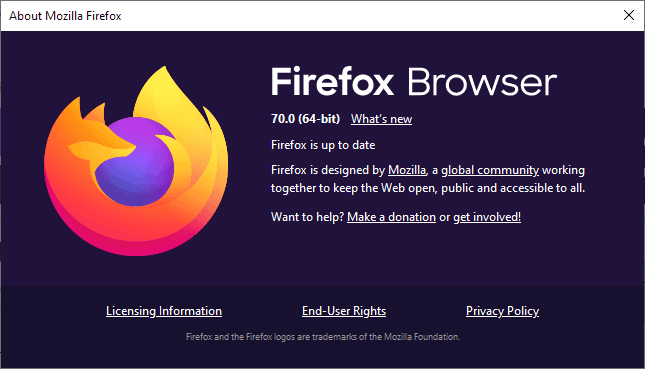
Once released, you may run a manual check for updates in Firefox by selecting Menu > Help > About Firefox. Firefox opens a new window that runs a check for update and either suggests to download and install it, or does to automatically.
The following pages list direct downloads for supported Firefox channels.

Firefox 70.0 Changes

Enhanced Tracking Protection improvements
Mozilla improved the built-in tracking protection feature of the Firefox web browser once more in Firefox 70.0. The organization added the social media tracker blocking component to the standard setting making it a default in the new Firefox version.
Firefox users had to switch to strict or custom blocking in previous releases to enable the protection.
Social Media trackers are used by social media sites like Facebook or Twitter.
Tip: check the about:protections page of the Firefox web browser to look at protection statistics.


Firefox Lockwise improvements


firefox lockwise


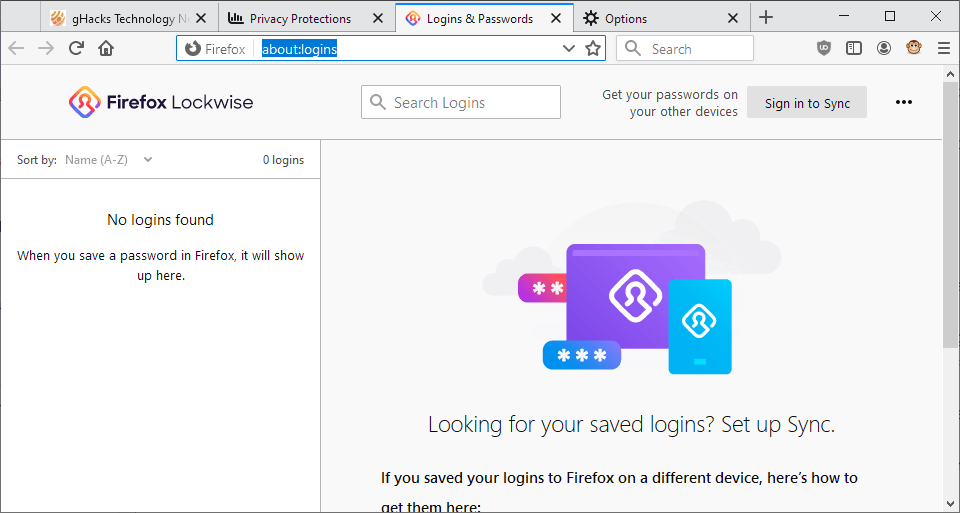
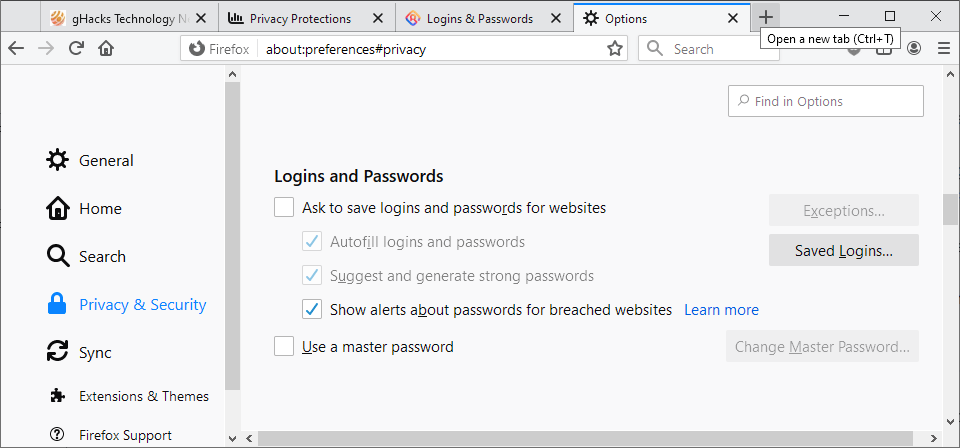
Firefox Lockwise is a password management solution that Mozilla launched some time ago; it is part of the Firefox web browser and can be opened at any time by loading about:logins in the browser's address bar.
The desktop version of Lockwise supports synchronization and the creating, updating, and deleting of logins and passwords.


breach alerts


The new version supports integrated breach alerts powered by Firefox Monitor in the new release; this informs users about potentially compromised passwords so that users may react by changing passwords quickly.


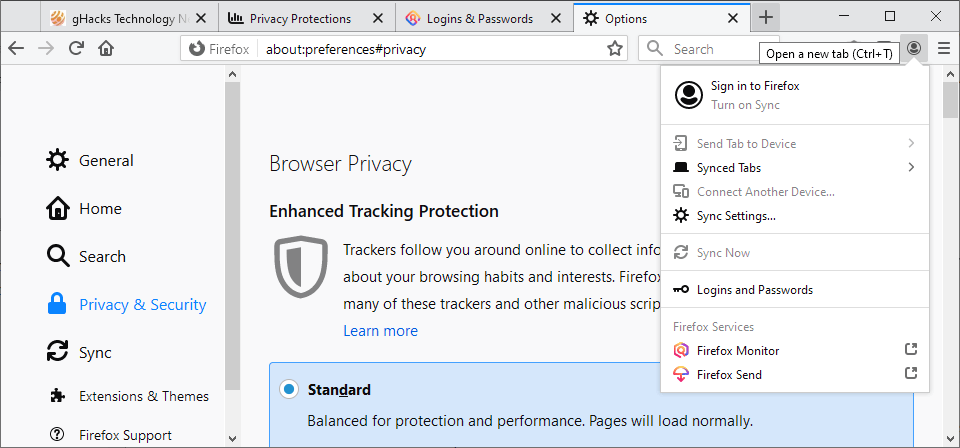
Firefox Account icon and menu, and What's New icon


firefox account icon


Mozilla placed a new Firefox Account icon on the Firefox toolbar. A click opens account specific options, e.g. to sign in to a Firefox account, enable synchronization, access logins and passwords, or open the Firefox services Monitor and Send.
Firefox users who don't need the icon can remove it with a right-click on the icon and the selection of Remove from Toolbar from the context menu.
To add it back at a later time select Firefox Menu > Customize and drag & drop the Firefox Account icon to the toolbar again.
A What's New icon is also available that highlights new releases and features.

Other changes

  • Firefox may suggest secure passwords when the user encounters input fields that have the autocomplete="new-password" attribute.
  • The default referrer policy for third-party tracking resources is set to strict-origin-when-cross-origin if Tracking Policy is enabled.
  • All FTP resources are downloaded instead of rendered.
  • Firefox will display a notification if a Firefox extension shortcut is already in use.
  • Page Loading improvements (Mozilla claims up to 8%) thanks to a "faster JavaScript Baseline Interpreter.
  • WebRender technology is available on more desktop systems. Enabled by default on all Windows Desktops with integrated Intel graphics cards and a resolution of 1920x1200 or less).
  • Mac OS X users benefit from Compositor improvements. It reduces page load time by up to 22% and resource use of videos by up to 37% according to Mozilla.
  • When a site uses Geolocation, an indicator is now displayed in the Firefox address bar.
  • Firefox pages use the system theme (dark or light) in the new release.
  • Firefox users on Mac Os X devices may import passwords from Chrome now.

Firefox 70.0 known issues

Developer Changes

  • The developer tools place an icon next to inactive CSS properties in the Rules View of the Page Inspector. Hover over the icon to find out why the property is inactive.
  • The Color Picker in the CSS Rules View interface informs you whether the contrast of foreground colors with background colors meets accessibility conformance criteria.
  • Stylesheets in <style> elements are now cached by Firefox.
  • New Web Audio API features implemented or updated.
  • Notification permission requests from cross-origin iframes are disallowed.
  • Permission requests are not allowed anymore in fullscreen mode.
  • New Network Status API to look up Internet connection properties.
  • The Downloads API supports the Referer header in the browser.downloads.download API's headers object.
  • Extension storage can now be inspected using the Storage Inspector of the Developer Tools.
  • Network Resource Search option in the Developer Tools to find resources quickly.

Firefox for Android

  • Fixed a welcome screen crash.
  • New sign-in to Firefox Account options.

Security updates / fixes

Security updates are revealed after the official release of the web browser. You find the information published here later today.
Additional information / sources